Add Your First Flight
Most pilots start using Infinite Pilot Logbook by importing existing flight and simulator data from another logbook app, an airline system, or a custom file. Others prefer to start by creating a flight manually. Whichever path you choose, every flight in IPL follows the same structure. This article explains what a flight entry contains, how times are calculated, and how auto-fill works, making it useful for all new users.
Last updated 8 months ago
Import Existing Flights and Simulator Entries
If you already have flight data, importing it is usually the fastest way to get started.
To import existing data:
Open the Logbook tab
Tap the ∞ (Infinite) button in the top-right corner
Select Import
Choose how to import your data:
From another logbook app
From airline data
From a Custom CSV file if your source is not listed
IPL will guide you through the import process and ask you to clarify any missing or ambiguous information before completing the import.
ℹ️ Imported flights become standard IPL flight entries. Understanding how a flight entry works will help you review or adjust imported data.
➡️ Learn more in Overview: Importing Data into IPL
Add a Flight Manually
To add a flight manually, tap the + button in the top-right corner of the Logbook tab.
A new flight entry is created immediately, with Flight selected as the entry type.
What Is Pre-Filled Automatically
When a new flight entry is created, IPL applies a few initial defaults.
By default:
The date is set to today
The entry type is set to Flight
Additional fields may also be pre-filled if you have configured default entities earlier.
Defaults From Your Data (When Configured)
Several entities in IPL can be marked as default. When this is the case, they are automatically pre-selected in new entries.
Examples:
A default aircraft is pre-filled in Aircraft ID, and its type is also set in Aircraft Type if available
A default aircraft type is pre-filled unless a default aircraft takes priority
A default PIC and/or default SIC are pre-selected in the Crew section
A default departure and/or default arrival place pre-fill Origin and Destination
A default simulator is pre-selected when creating a simulator entry, along with its simulator type if defined
ℹ️ Defaults are optional and can be changed at any time. Selecting a new default automatically deselects the previous one.
Entering Times and Calculating Total Time
Auto-fill logic in IPL is based on Total Time, which is calculated once flight times are entered.
By default, IPL calculates Total Time using Off Block and On Block times
Once these times are entered:
Total Time is calculated automatically
Auto-fill rules are applied based on this Total Time
Other calculation methods for Total Time are also available depending on your settings, such as using flight time or a taxi-start to taxi-end time range.
How Auto-Fill Works
Auto-fill happens only after Total Time has been calculated.
Example:
Total Time = 3:00
IFR is configured as an auto-fill value
→ IFR is automatically set to 3:00
This ensures that auto-filled values always remain consistent with the actual flight duration.
Special Auto-Fill Rules
Some values follow specific calculation rules:
Night time
Calculated using a dedicated algorithm based on date, route, and times
Relief time
Calculated as a fraction of Total Time (2/3, 1/2, or 1/3) based on your auto-fill settings if set
💡Auto-fill rules can be adjusted later in Settings to match your operational requirements (see Time Calculation Preferences )
Revealing Additional Fields
Flight entries contain many additional fields grouped into sections.
You can tap the expand button in the top-right corner of the screen to reveal all available sections and fields at once.
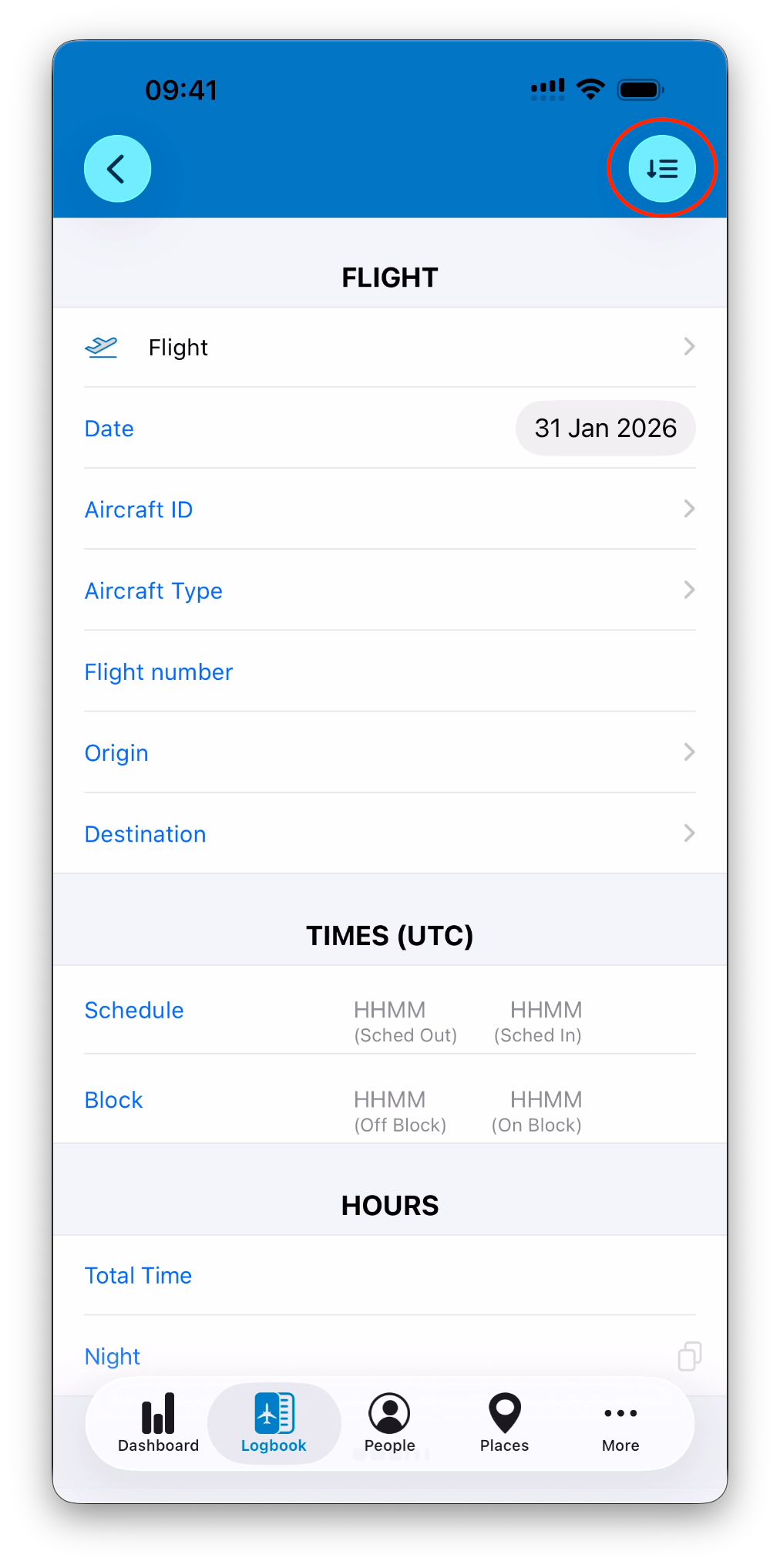
This allows you to keep entries simple by default while still accessing advanced fields when required.
Completing the Flight Entry
Beyond times, you can progressively fill:
Aircraft and aircraft type
Origin, Route, and Destination
Crew members
Operations, approaches, landings, and checks
Notes and flags
You don’t need to complete everything immediately. Fields can be filled or adjusted at any time.
Automatic Saving
There is no Save button on the flight entry screen.
The entry is created as soon as you tap + from the logbook list
Every change you make is automatically saved
This design reduces friction and makes frequent logging faster.
ℹ️ Some other sections of the app may use a Save button. Logbook entries use automatic saving by design.
What’s Next
Once you understand how a flight entry works, you can continue in several ways:
Import existing flights and simulator sessions
Add more flights manually
Explore statistics and interactive maps
➡️ Learn more in Overview: Importing Data into IPL
➡️ Continue with Add a Flight Manually