Initial Setup – Configure IPL for Your Flying Profile
Once your account is confirmed - either by email activation or by signing in with Apple - Infinite Pilot Logbook guides you through a short onboarding to configure the app for your flying activity. This step ensures that new flight entries are automatically pre-filled according to your usual role, saving time and improving consistency.
Last updated 8 months ago
Quick Introduction
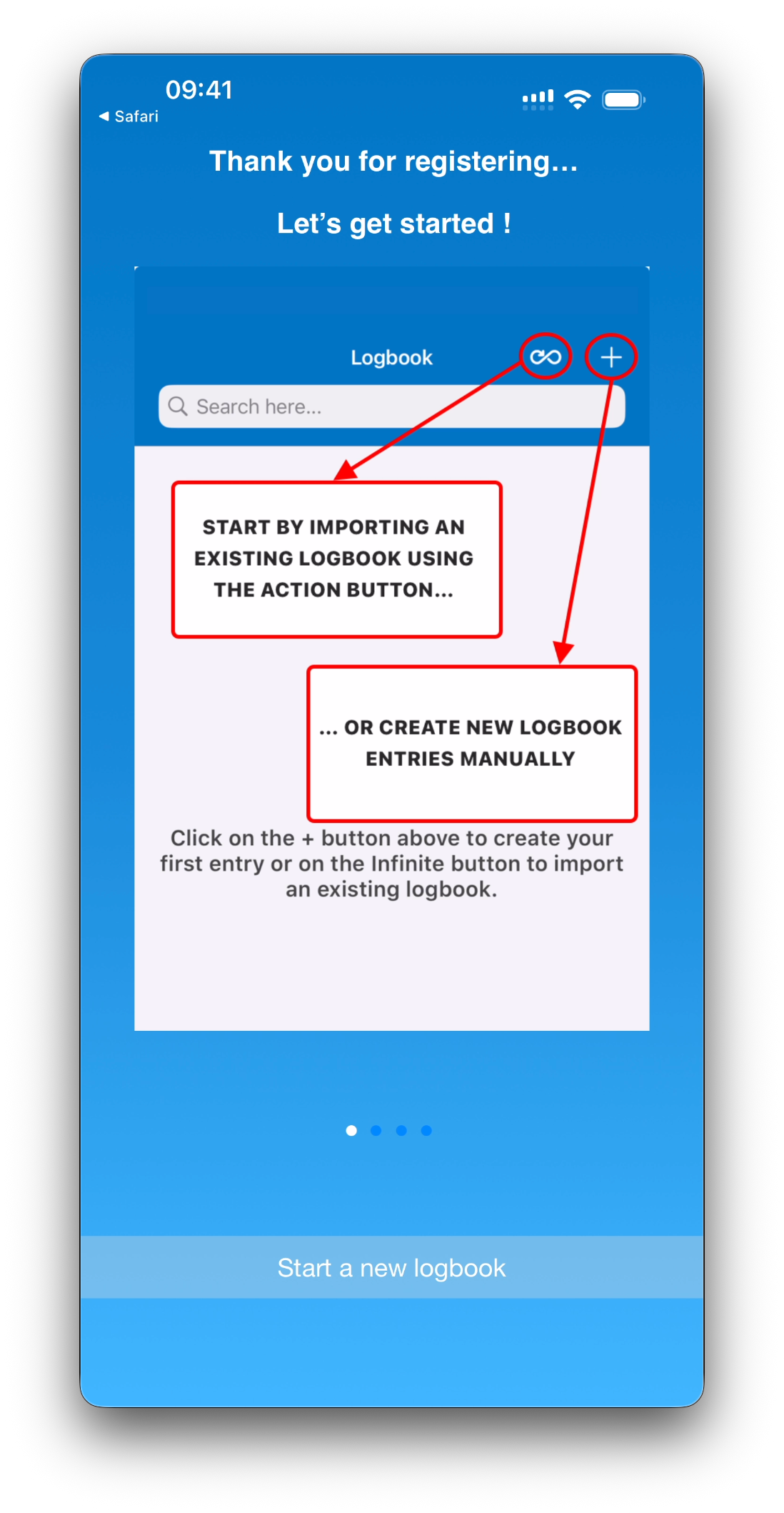
After signing in, you’ll see a short tutorial introducing the main areas of the app and how to get started.
Choose Your Typical Role
You’ll then be asked to select the role that best describes your usual flying activity.
Available roles include:
Airline Captain
Airline First Officer
Commercial Pilot
General Aviation Pilot
Instructor
Military Pilot
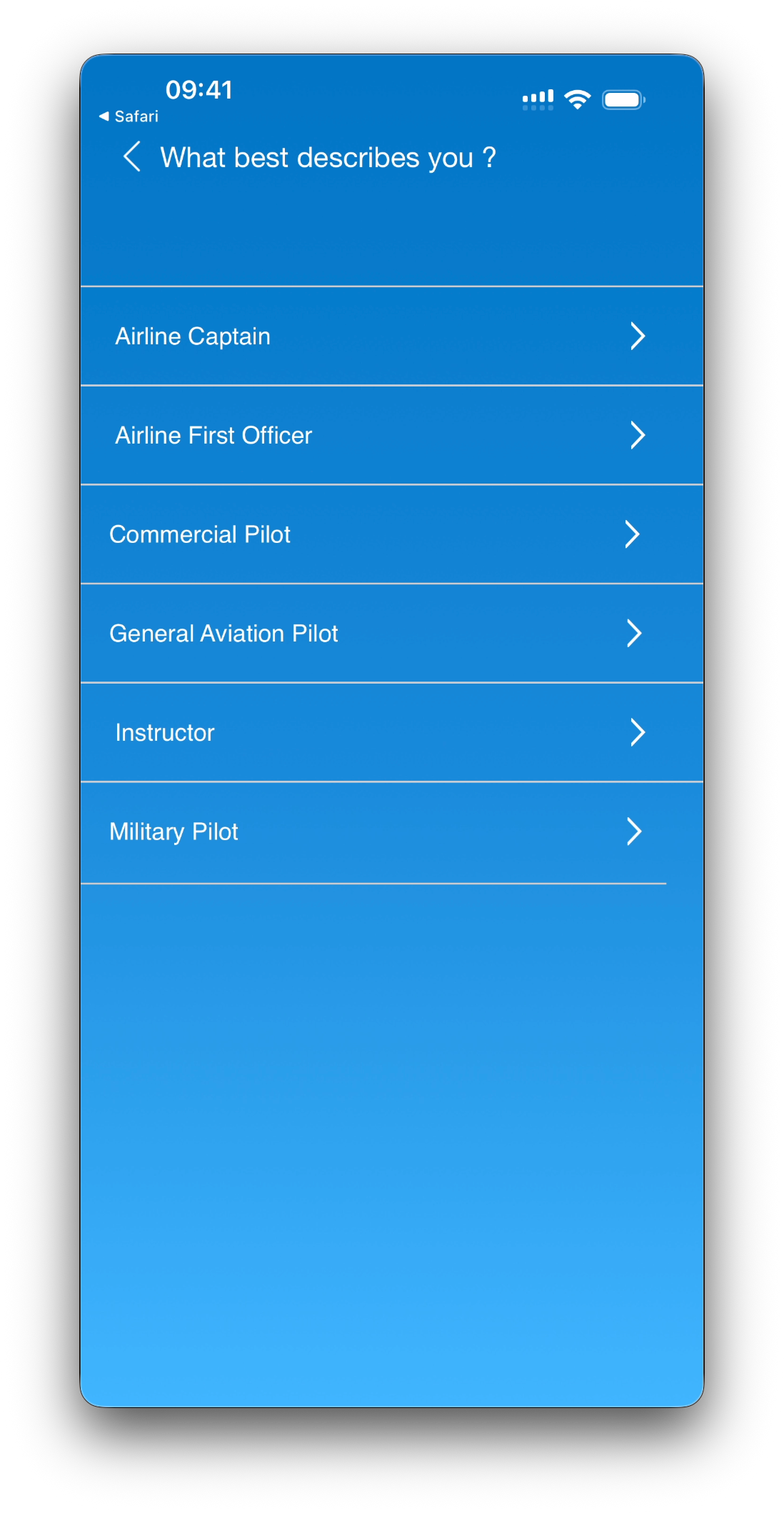
This choice directly impacts how flight times are automatically qualified when you create new entries.
How Role-Based Auto-Fill Time Works
Based on the role you select, Infinite Pilot Logbook automatically pre-configures common flight qualifications.
For example, selecting Airline Captain will automatically qualify new flights as:
IFR
Multi-Pilot
Cross-Country (XC)
PIC (Pilot in Command)
This means you don’t have to manually set these times for every flight — they are applied by default and can still be adjusted per entry if needed.
💡Good to know
Auto-fill rules can be modified later in Settings if your flying activity changes or if you prefer different defaults (see Time Calculation Preferences )
Accessing Your Logbook
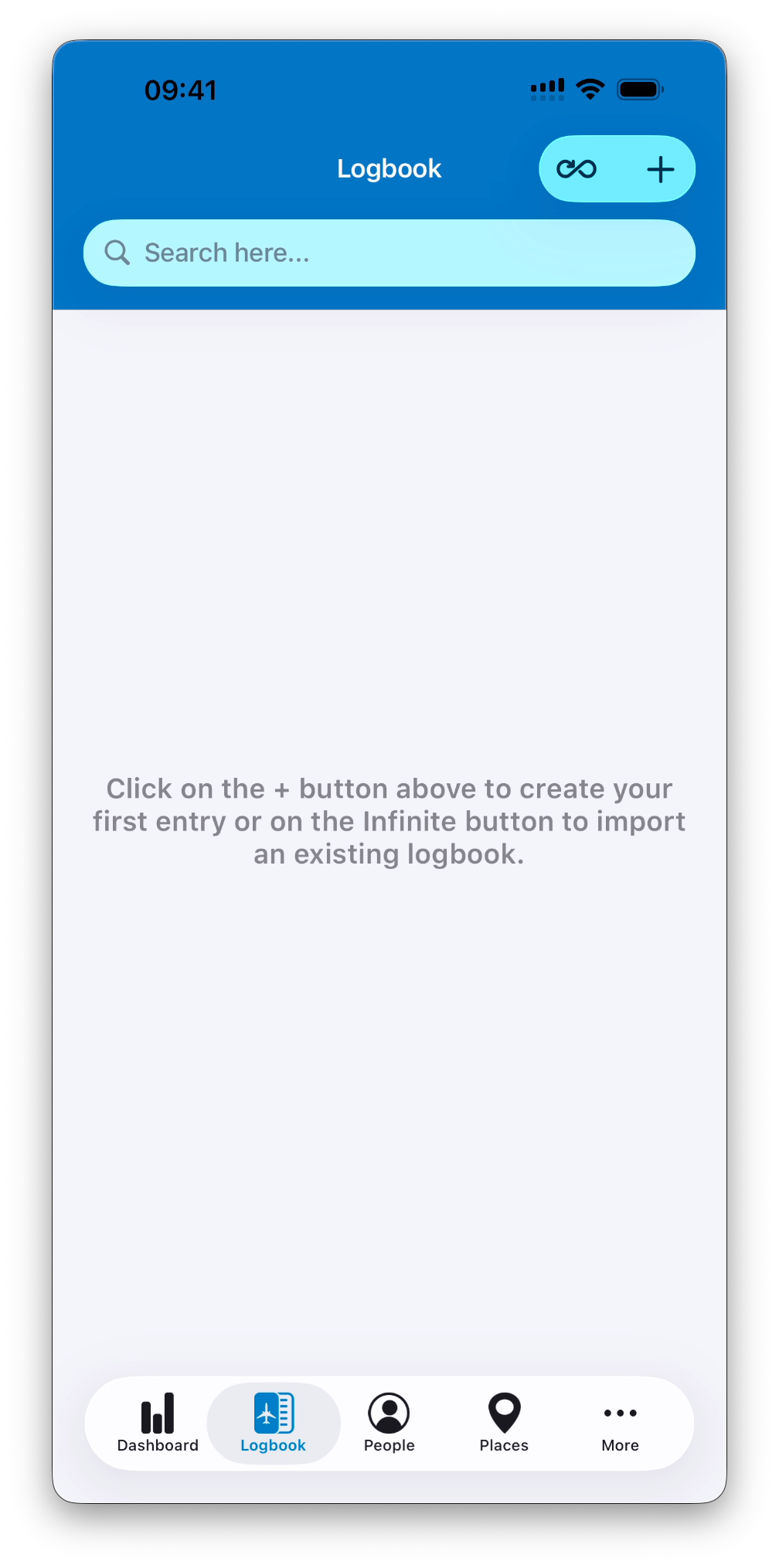
Once your role is selected, you are taken directly to the Logbook tab.
From there, you can:
Create new flight or simulator entries manually
Import flight or simulator entries from:
Other logbook apps
Airline systems
Custom CSV file
What’s Next
At this stage, IPL is already configured with the most important information:
Your flying profile
Smart auto-fill rules
Your logbook workspace
You can start logging flights immediately or import existing data.
💡If you already have flight data in another system, importing it is usually the fastest way to get started.
➡️ Next Step: Add Your First Flight