Review & Resolve Import Conflicts
Learn how IPL identifies ambiguous data during imports and how to resolve conflicts before entries are added to your logbook.
Last updated 8 months ago
Why Clarification Is Required
During an import, IPL analyzes your data and tries to match it with existing items in your database or IPL’s internal database, such as:
Aircraft types
Simulators
Places (airports)
Crew members
When IPL cannot determine a match with certainty, it pauses the import and asks you to clarify the data.
Nothing is imported until all required clarifications are resolved.
ℹ️ Clarification is a safety step designed to protect the accuracy of your logbook. It ensures that imported data always matches your intended aircraft type, simulator, places, and people.
The Import Summary Screen
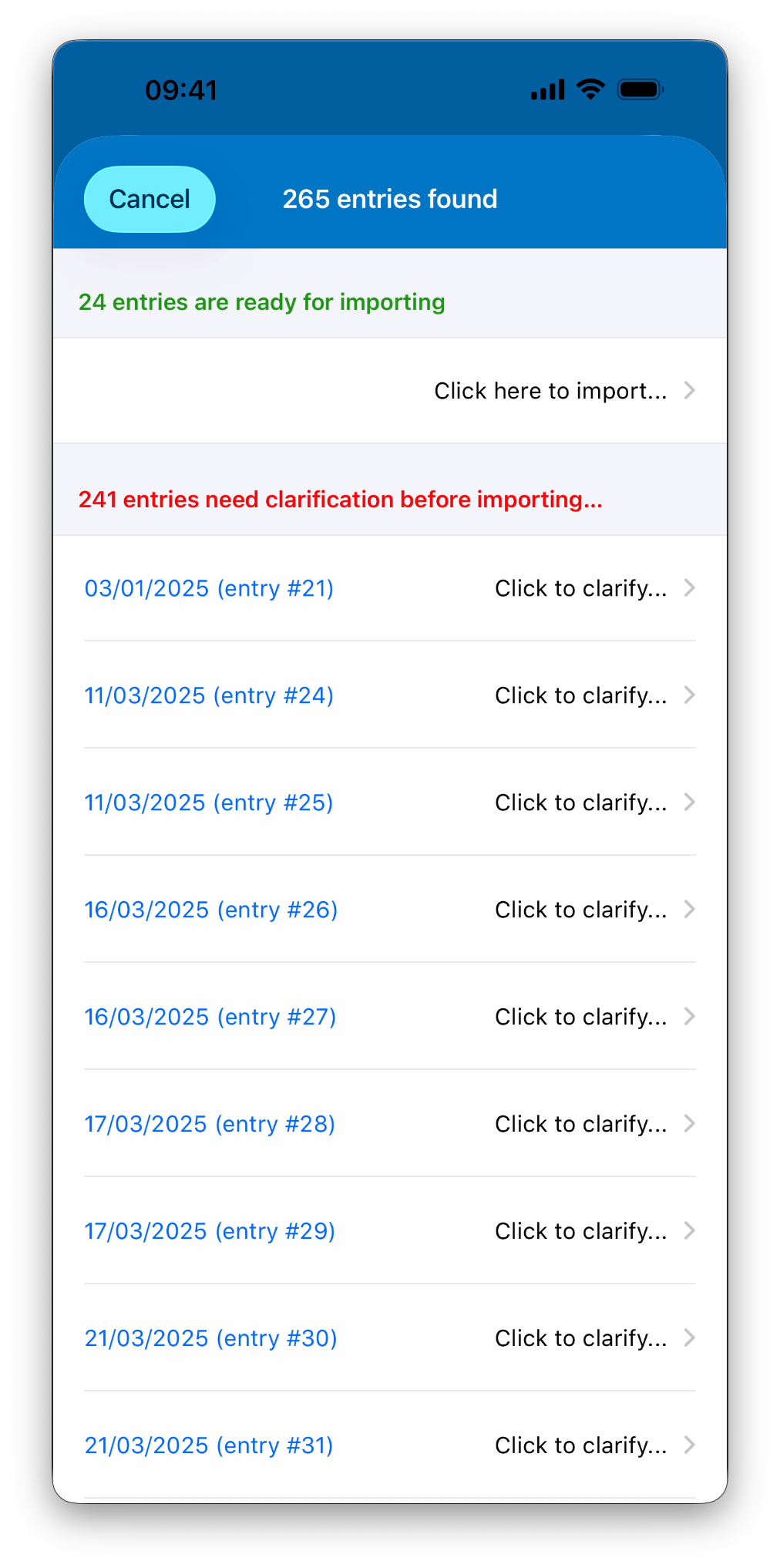
Before importing, IPL displays a summary screen showing:
Entries that are ready to be imported
Entries that require clarification
Only entries marked as ready can be imported immediately.
Entries requiring clarification must be resolved first.
Types of Clarifications
The types of clarifications requested depend on the import source.
Supported logbooks, airlines (except Ryanair), and Custom CSV imports
These imports may require clarification for:
Aircraft types
Simulators
Places (airports)
Ryanair imports
Ryanair imports may require clarification for:
Aircraft types
Crew members
Aircraft Type Clarification
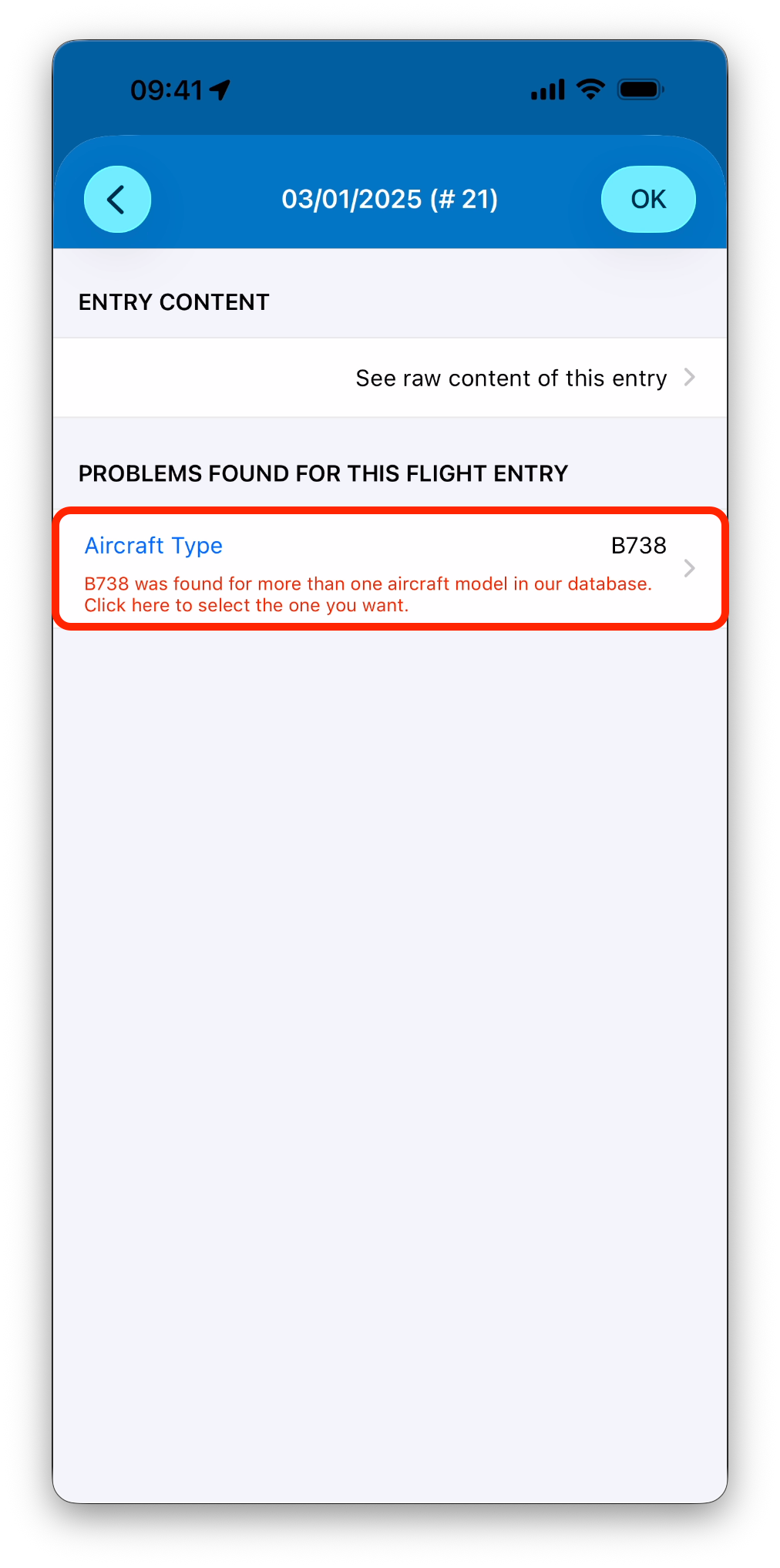
Aircraft type clarification is requested when:
An ICAO aircraft type is not found in your database and IPL’s list of types
The same ICAO code matches multiple aircraft models
ℹ️ Even if an aircraft type already exists in your database, IPL may still request clarification when multiple models share the same ICAO code.
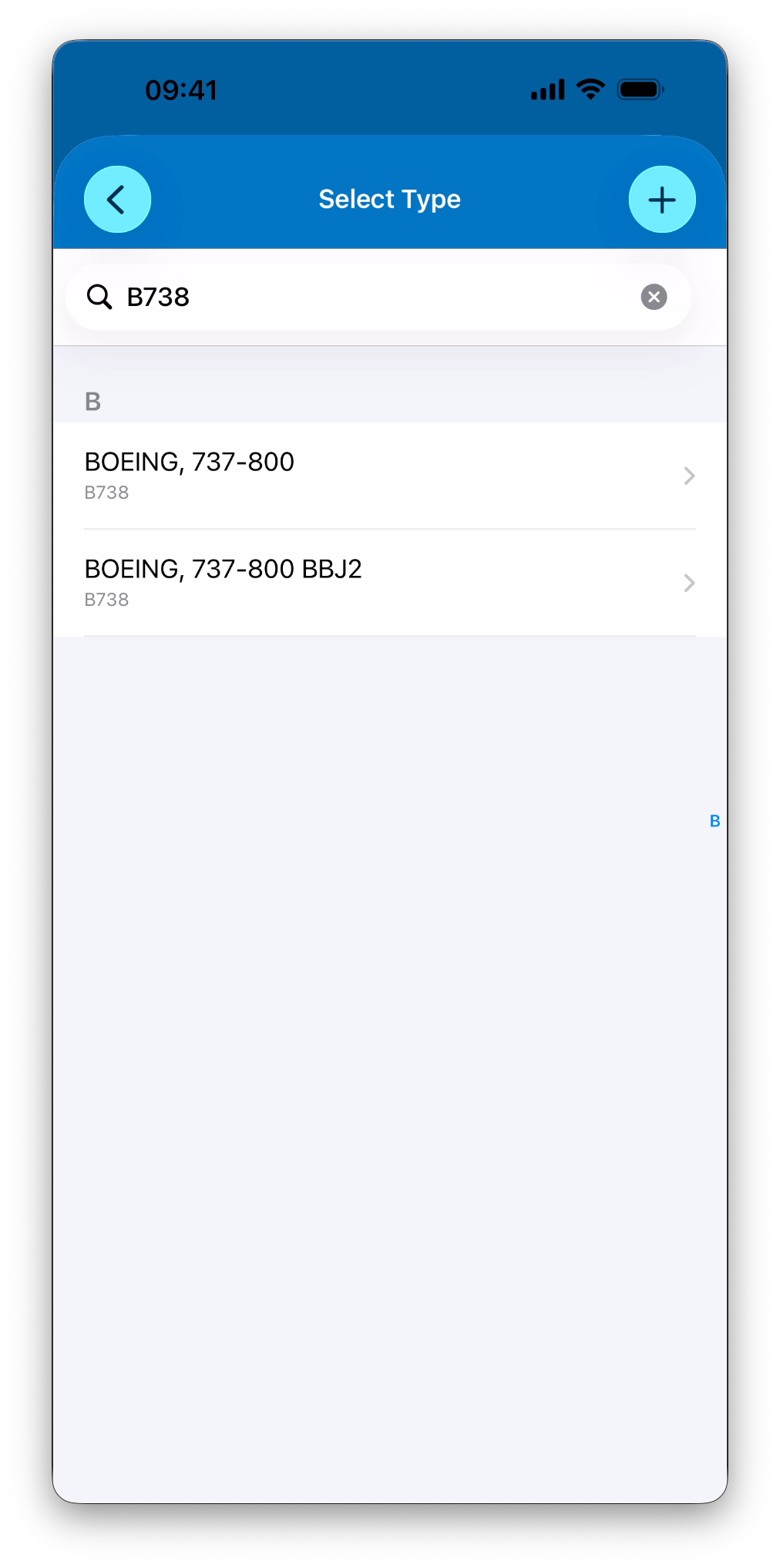
You can resolve this by:
Selecting an existing aircraft type or model
Creating a new aircraft type directly from the clarification screen
💡 If multiple entries share the same aircraft type issue, you can apply your selection once and reuse it for all matching entries in the same import.
Simulator Clarification
Simulator clarification applies to all imports (except Ryanair).
How simulators are defined in IPL
In Infinite Pilot Logbook, a simulator is defined by several elements, including:
A Simulator ID
A Simulator Type (FFS, FNPT, FTD, etc.)
A list of supported aircraft types
ℹ️ A single simulator can support multiple aircraft types (for example, A319 and A320). However, each simulator logbook entry can contain only one aircraft type, corresponding to the aircraft model emulated during that specific session.
Because simulator type and aircraft type are often mixed or ambiguous in external systems, simulator imports almost always require clarification.
When a Simulator ID Is Found
If a Simulator ID is detected in the imported data, IPL checks whether this simulator already exists in your database.
If the simulator exists and zero or one aircraft type is associated with it, no clarification is required.
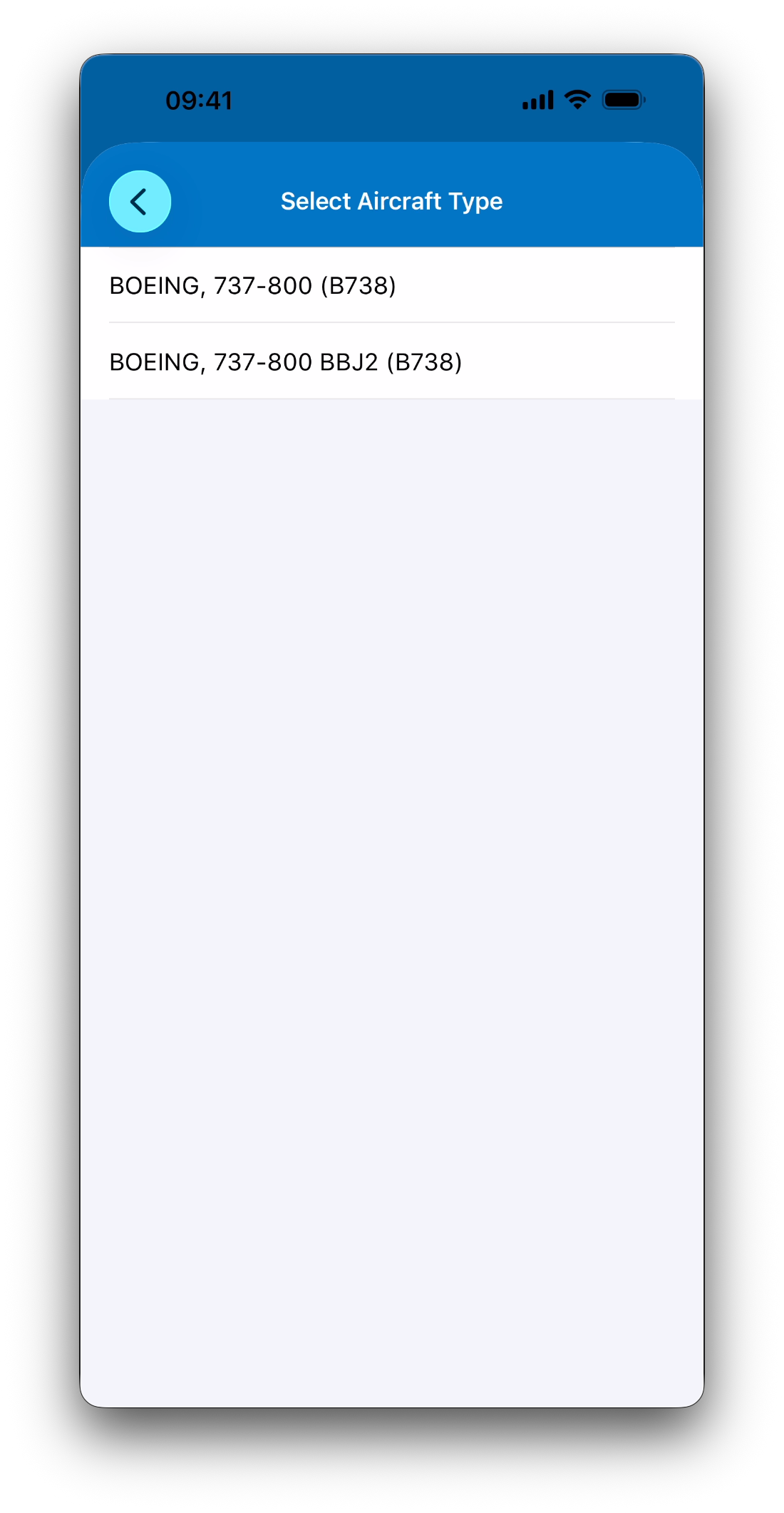
If the simulator exists and multiple aircraft types are associated, IPL asks you to select which aircraft type was emulated for this simulator session.
When No Simulator ID Is Found
If no Simulator ID is found, but a simulator type or aircraft type is detected, IPL assumes that the source system does not clearly separate simulator type and aircraft type (which is common in most external exports).
In this case, IPL always requires clarification.
You are asked to:
Select the Simulator Type (FFS, FNPT, etc.)
Select the Aircraft Type emulated during the session if applicable
ℹ️ In this situation, no simulator is created in your database. The selected simulator type and aircraft type are applied to the specific logbook entry being imported, and can be reused for all matching entries in the same import in some situations.
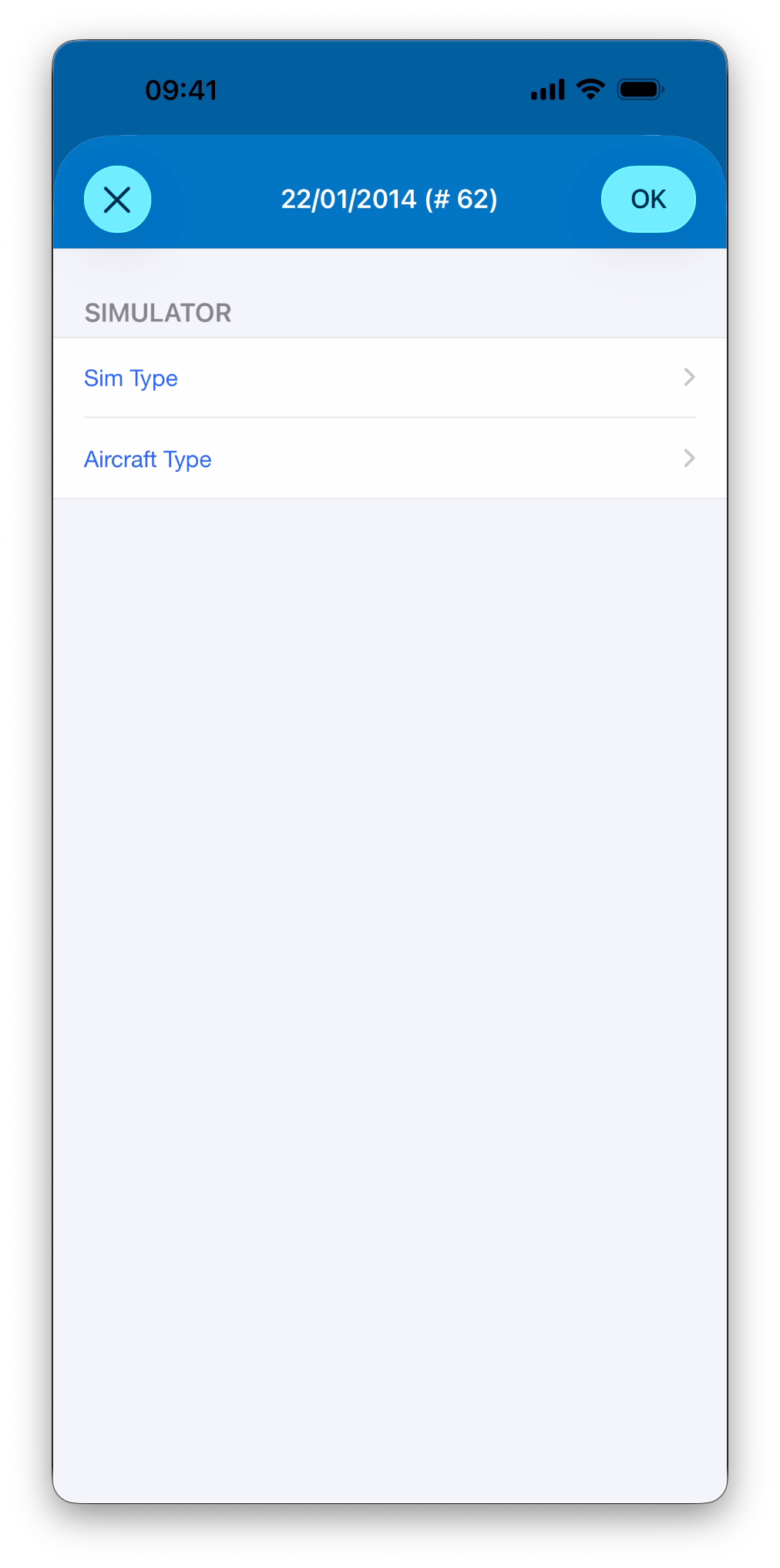
Why Simulator Clarification Is Required
Simulator clarification ensures that:
Simulator sessions are logged consistently
A clear distinction is made between Sim Type and emulated Aircraft Type when applicable
Although clarification is frequent for simulator imports, it is a normal and expected part of the process.
Place Clarification
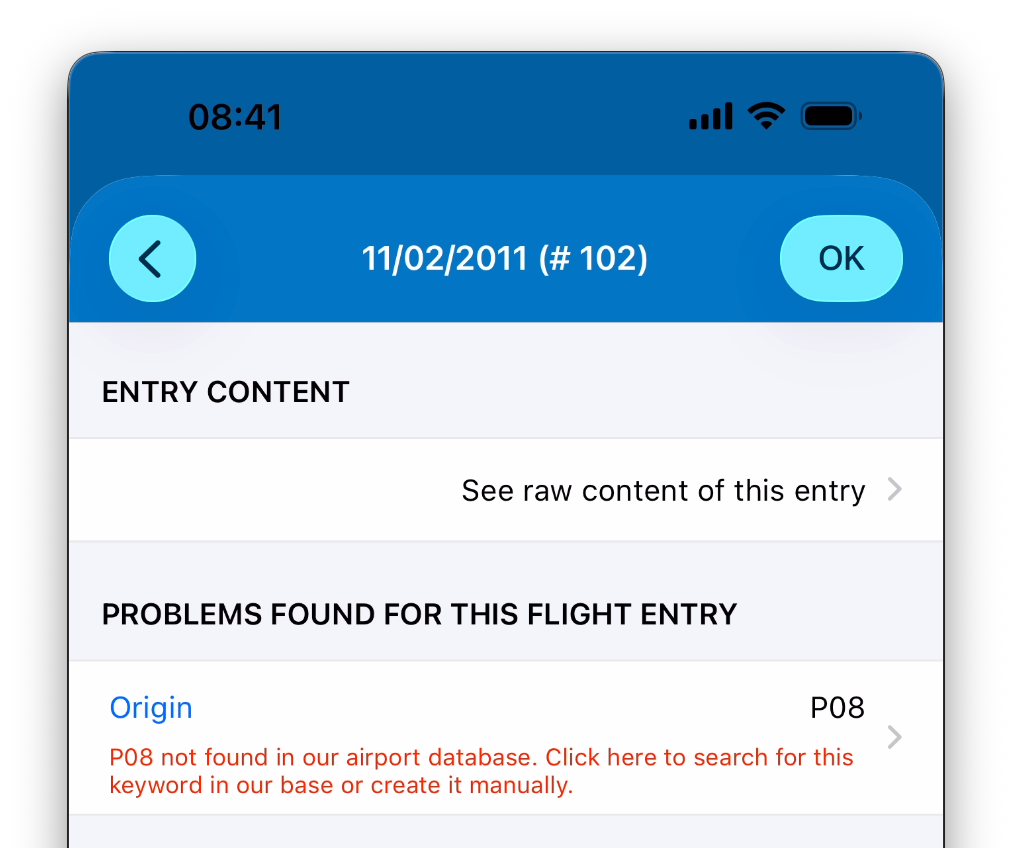
For all imports (except Ryanair), place clarification is required when:
An ICAO or IATA code is unknown
You can resolve this by:
Selecting an existing place from your database
Creating a new place directly from the clarification screen
Crew Clarification (Ryanair Only)
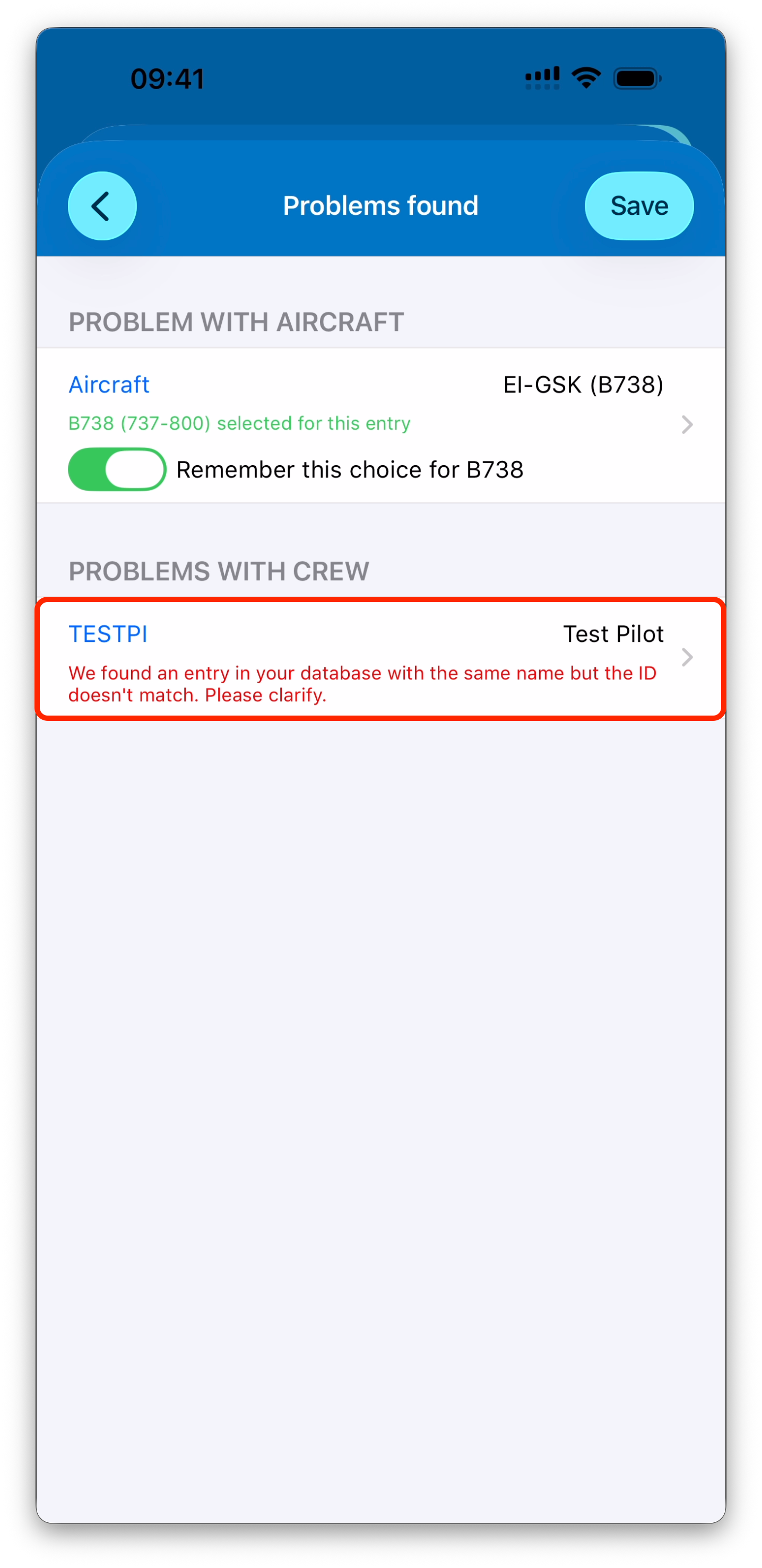
When importing Ryanair data, IPL detects crew members listed in the flight email.
Crew clarification may be required when a person with the same name already exists in your database, but the Crew ID is missing or does not match the imported Crew ID.
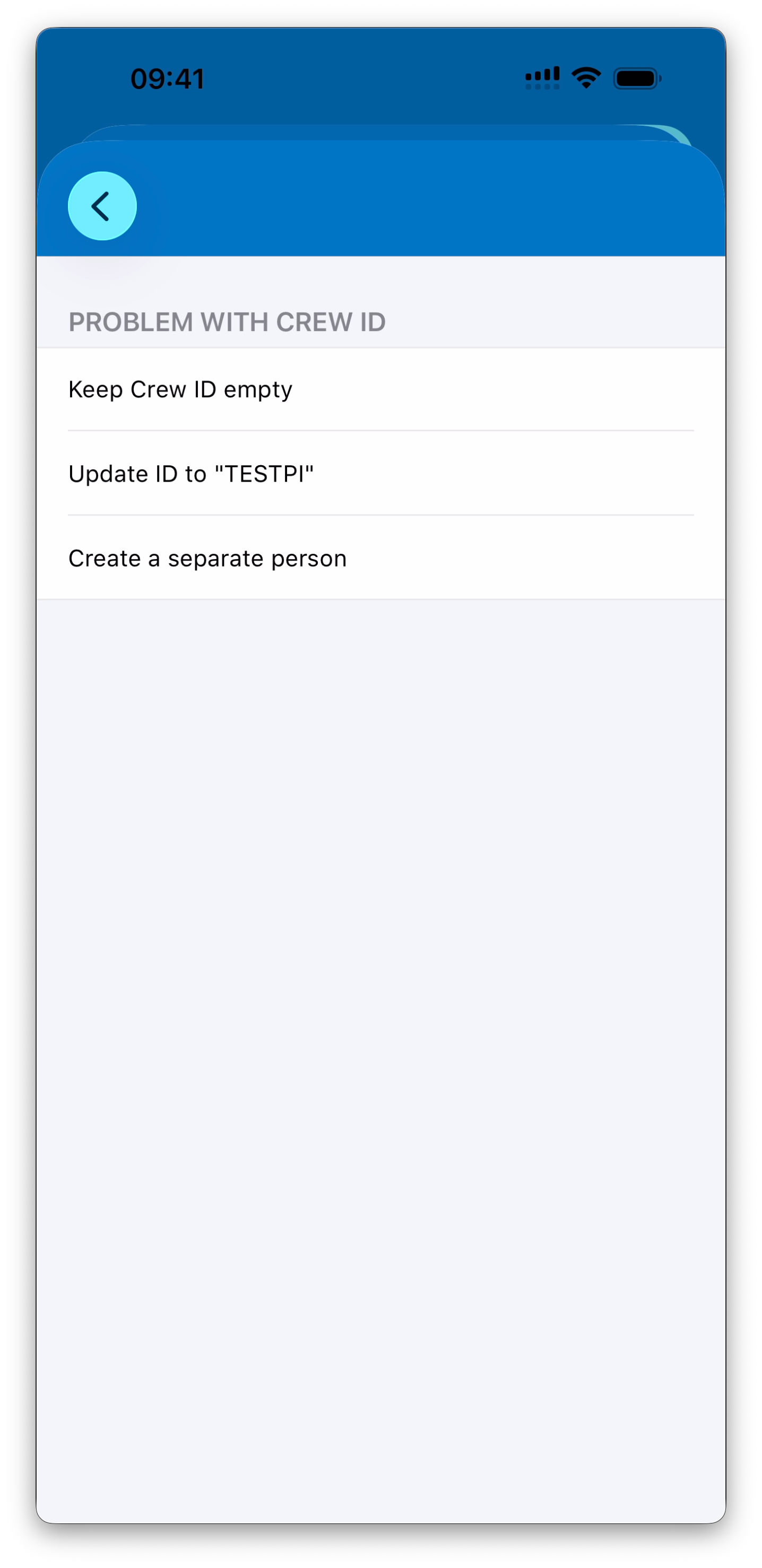
You can:
Match the crew member to the existing person and keep the current Crew ID
Match the crew member to the existing person and update the Crew ID
Create a new person entry
Applying Clarifications Efficiently
When resolving a clarification, IPL may offer different ways to apply your choice depending on the import source.
For supported logbooks and Custom CSV imports
For these imports, you can usually choose to:
Apply the clarification to this entry only
Apply the same clarification to all matching entries in the current import
This is especially useful when many entries share the same aircraft type or place.
ℹ️ For these imports, clarifications are remembered only within the current import session and are not reused automatically in future imports.
For Ryanair imports
Ryanair imports follow a different logic.
When you select “This is Me” during crew identification, your choice is remembered for future Ryanair imports
When an aircraft type is clarified, the selected type:
Applies automatically to all sectors of the imported day
Can be remembered for future Ryanair imports
Completing the Import
Once clarifications are resolved:
The clarified entries are available for import
Imported entries behave exactly like manually created ones
From there, you can:
Edit entries
Sign or lock them
See their impact immediately in totals, statistics, maps, and certificates
What’s Next
➡️ Learn how to Export Your Logbook