Import from a Custom CSV
Learn how to import data from a custom CSV file by describing its structure and mapping its columns to Infinite Pilot Logbook fields.
Last updated 8 months ago
When Should I Use Custom CSV?
The Custom CSV option is designed for cases where your data source is not listed among supported logbooks or airline systems.
Typical use cases include:
A custom Excel or Google Sheets logbook exported as CSV
Data exported from an airline or app not yet supported by IPL
A personal or company-specific logbook format
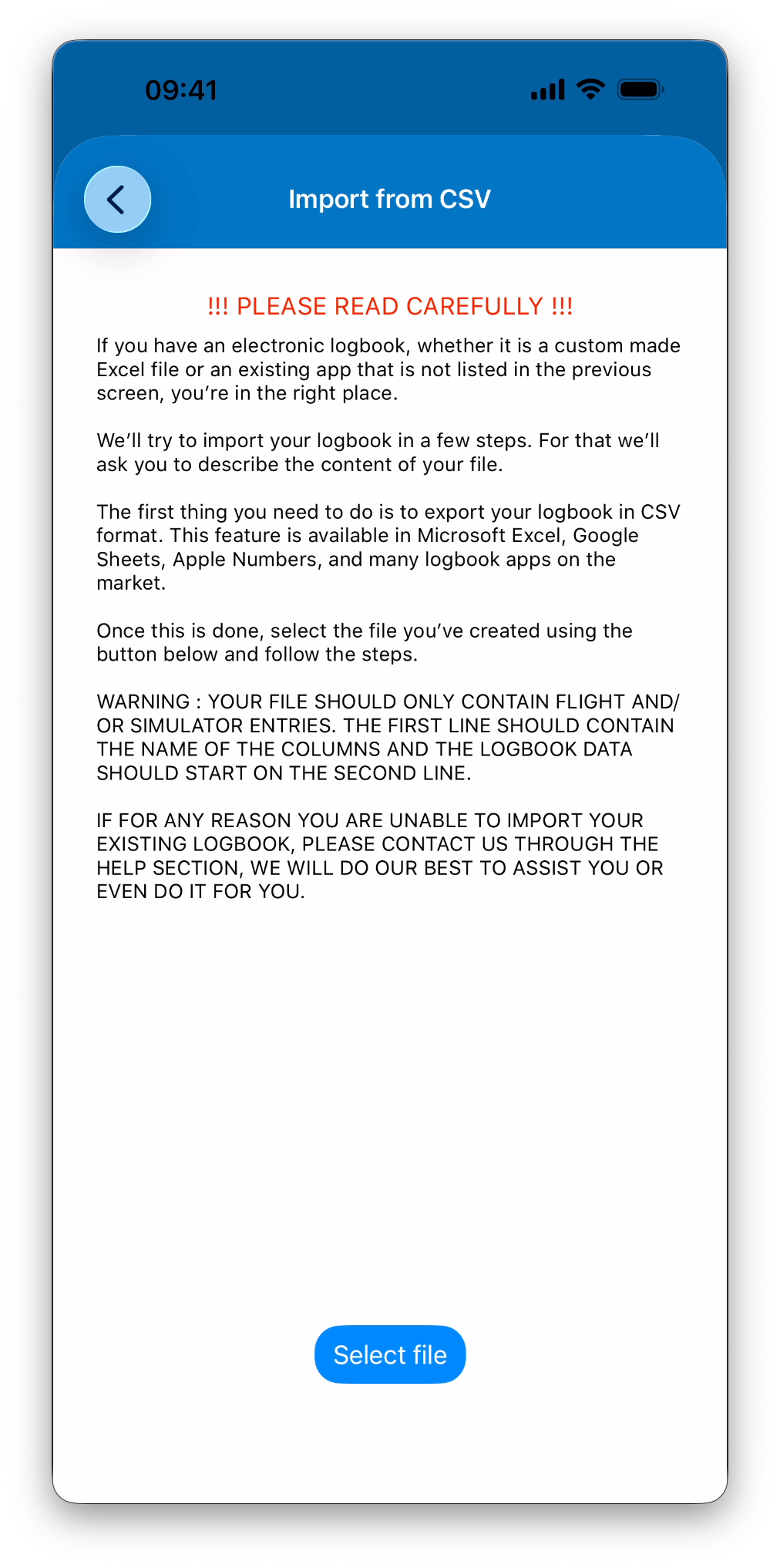
⚠️ The Custom CSV option currently supports CSV files only. Excel and TXT files are supported only for specific, listed sources.
CSV File Requirements
Before importing, make sure your file meets the following requirements:
The file must be in CSV format
The first line must contain column names
Each subsequent line represents one logbook entry
The file may contain:
Only flight entries
Only simulator entries
Or a mix of both
⚠️ Your file should contain flight and/or simulator entries only. Other entry types are not supported through Custom CSV imports.
Step 1: Identifying Entry Types
When your file is loaded, IPL first needs to understand how to identify the type of each entry.
You will be asked to choose one of the following options:
I have ONLY flight entries
The file contains flights only, no simulator sessions.
I have ONLY simulator entries
The file contains simulator sessions only, no flights.
Simulator time is a separate column
When this column is filled, the entire line is treated as a simulator session.
A column indicates the entry type
Flight and simulator times may share the same column, but another column specifies the entry type.
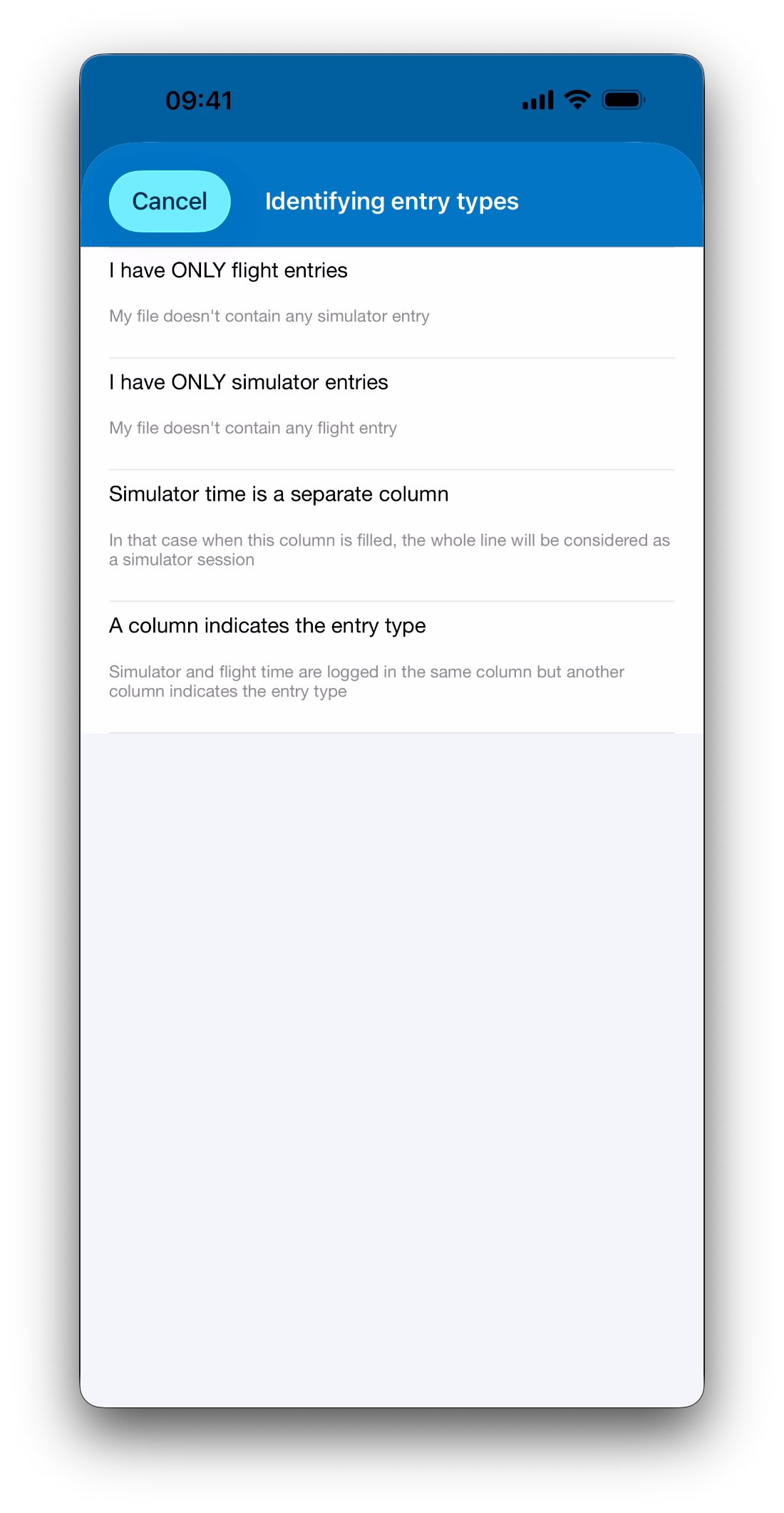
ℹ️ This choice applies to the current import only and does not affect future imports.
Step 2: Mapping Columns to IPL Fields
Once entry types are identified, IPL asks you for each entry type to describe each column and map it to the corresponding IPL field.
For each column, you can specify:
Whether the column contains single values or multiple values separated by a character. For example, a crew-related column may contain several pieces of information (first name, last name, email etc…) separated by a semicolon (;).
The IPL field(s) it should populate (times, hours, aircraft, places, crew, fuel, notes, etc.)
The data format when applicable (for date or time columns)
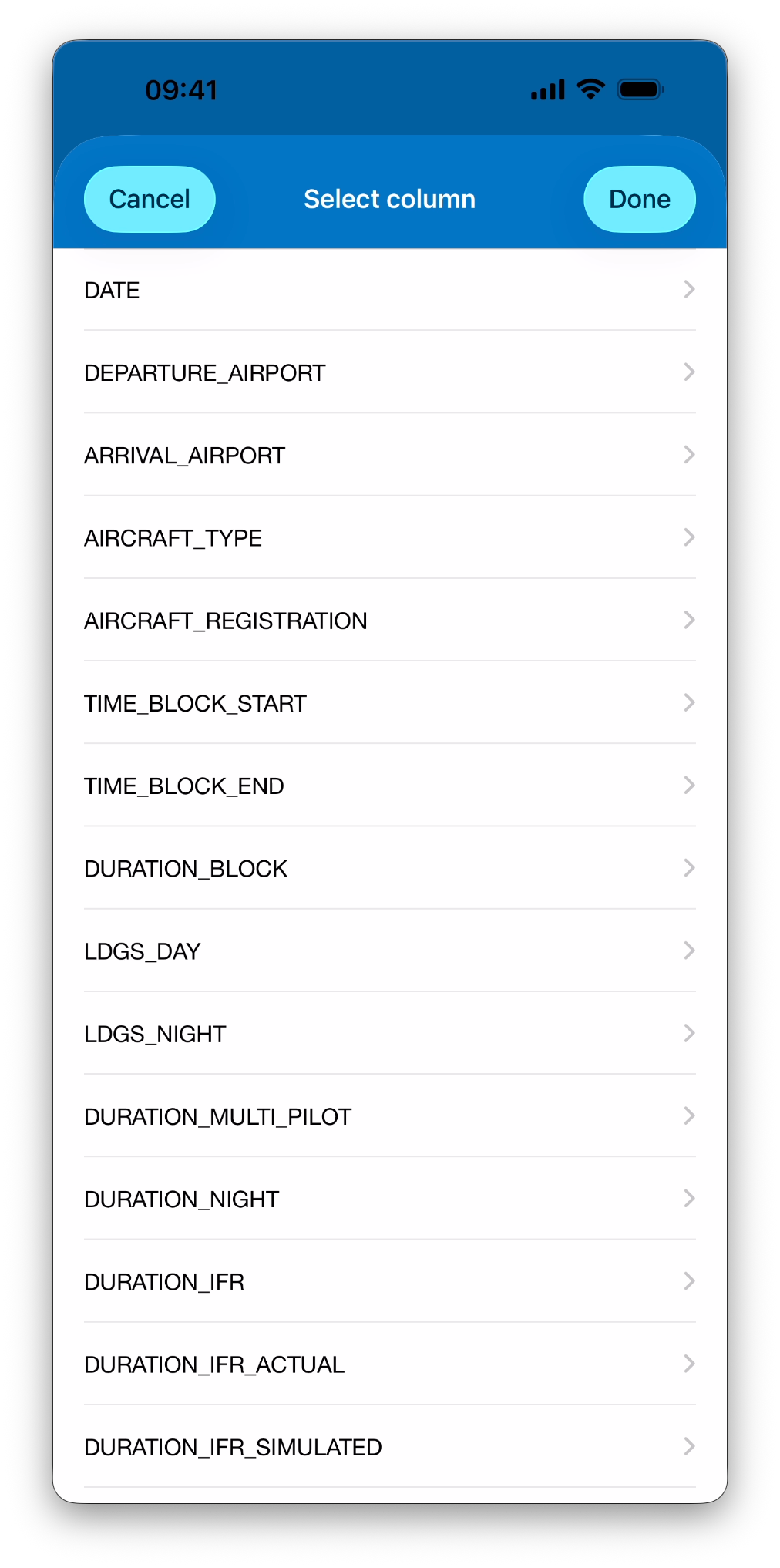
💡You don’t need to map every column. Unmapped columns are ignored during the import.
Step 3: Reviewing the Import Summary
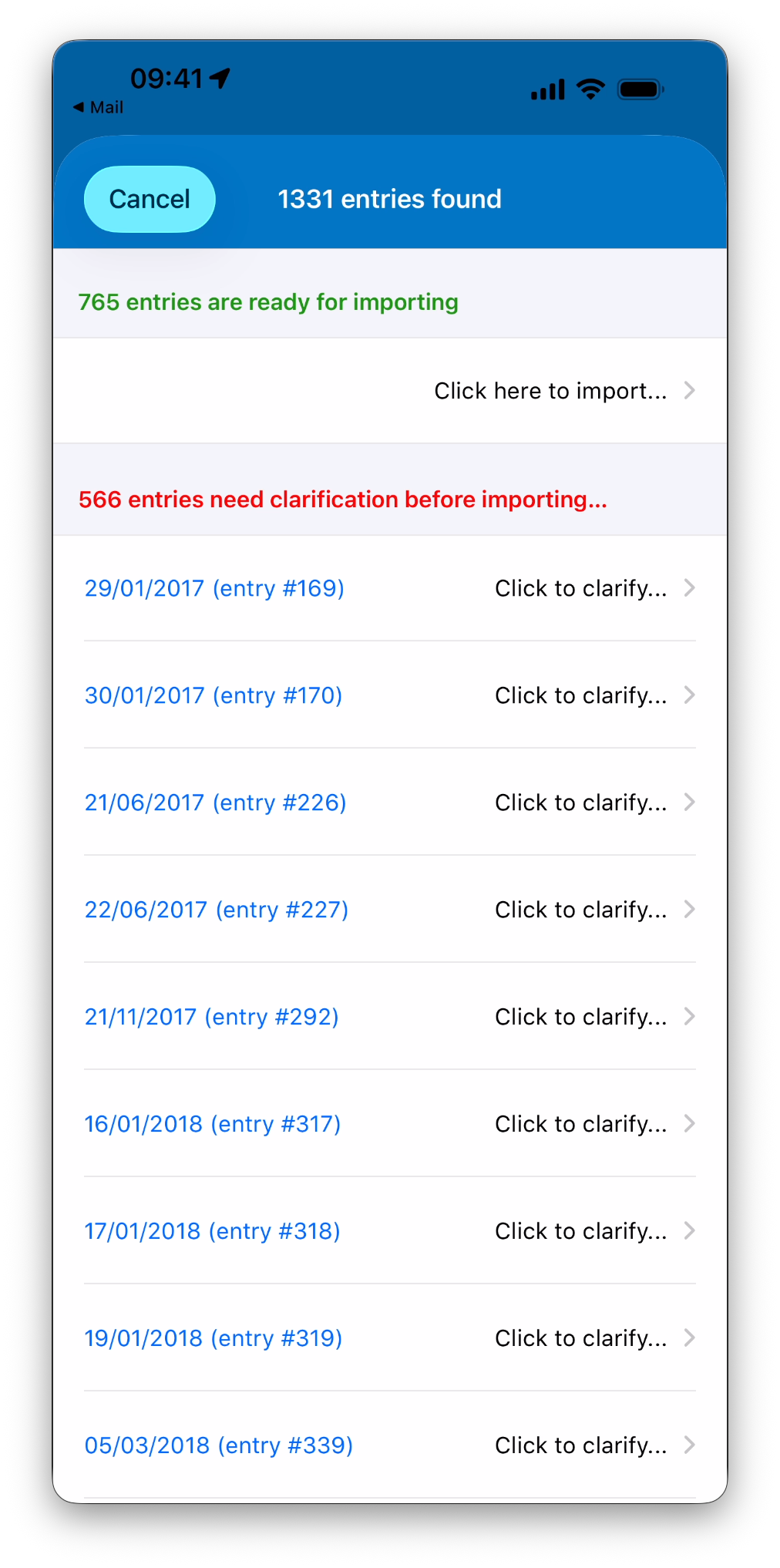
After mapping is complete, IPL analyzes the file and shows a summary screen:
Total number of entries found
Entries ready to be imported
Entries that require clarification before importing
Nothing is imported at this stage.
Step 4: Clarifying Ambiguous Data
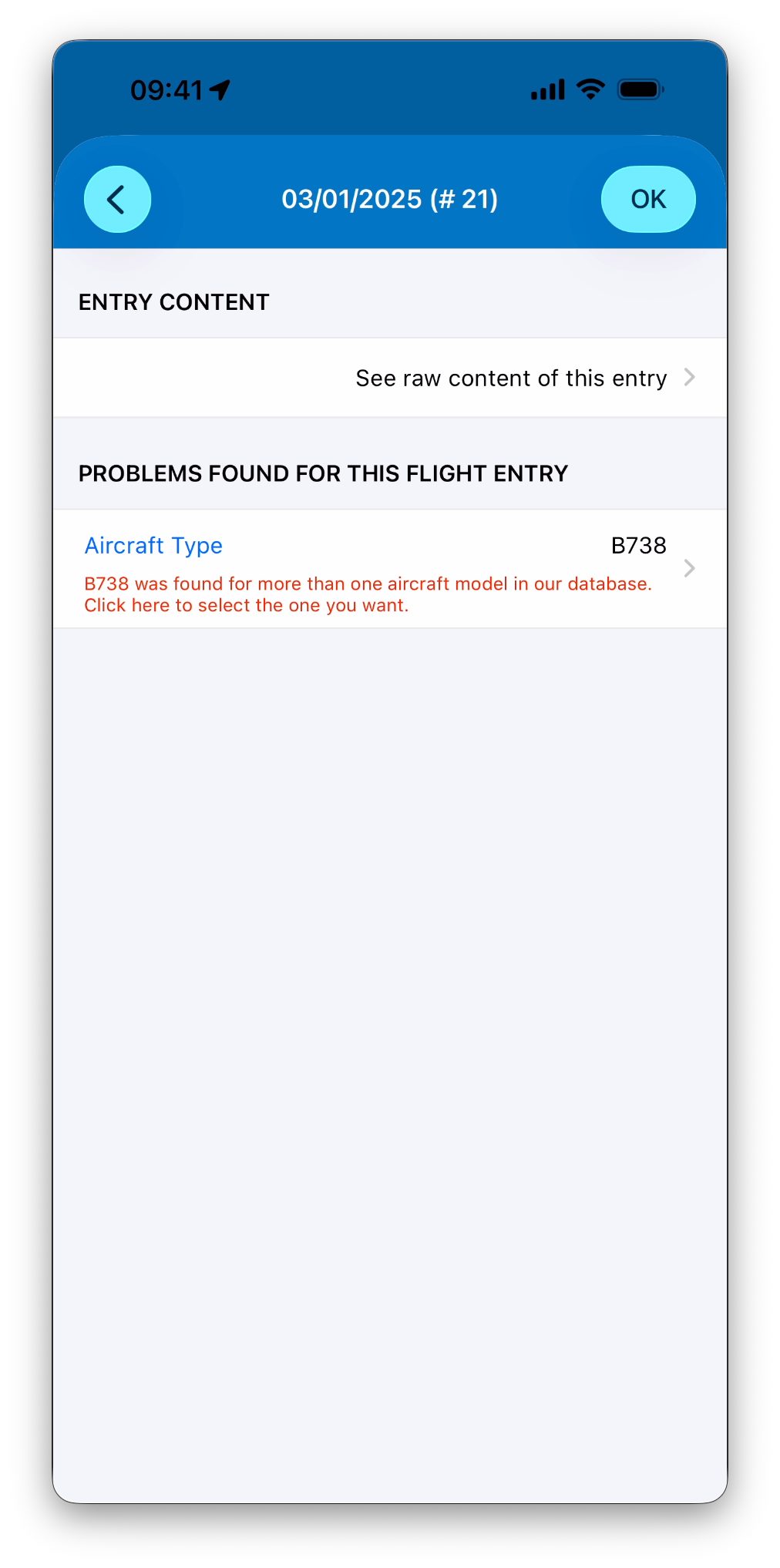
Some entries may require clarification before they can be imported. This typically happens when:
An aircraft type cannot be uniquely identified
A place (ICAO or IATA code) is unknown
You can then:
Select an existing entry
Create a new one directly from the clarification screen
Apply the same fix to multiple entries sharing the same issue
➡️ Learn more in Review & Resolve Import Conflict
Completing the Import
Once all required clarifications are resolved:
Tap Import to finalize the process
Entries are created in your logbook
Totals, statistics, maps, and certificates are updated automatically
Imported entries behave exactly like manually created ones and can be edited, signed, or locked as needed.
What's Next
➡️ Continue with Review & Resolve Import Conflicts
➡️ Learn how to Export Your Logbook