Import from a Supported Logbook or Airline
Learn how to import your data from a supported logbook app or airline system using IPL’s built-in import tools.
Last updated 8 months ago
What Is a Supported Import?
A supported import means that IPL already knows how your file is structured.
When you choose one of the supported logbooks or airline systems:
The file format is recognized automatically
You don’t need to describe columns or map fields
IPL guides you step by step until the import is complete
This is the fastest and easiest way to import an existing logbook.
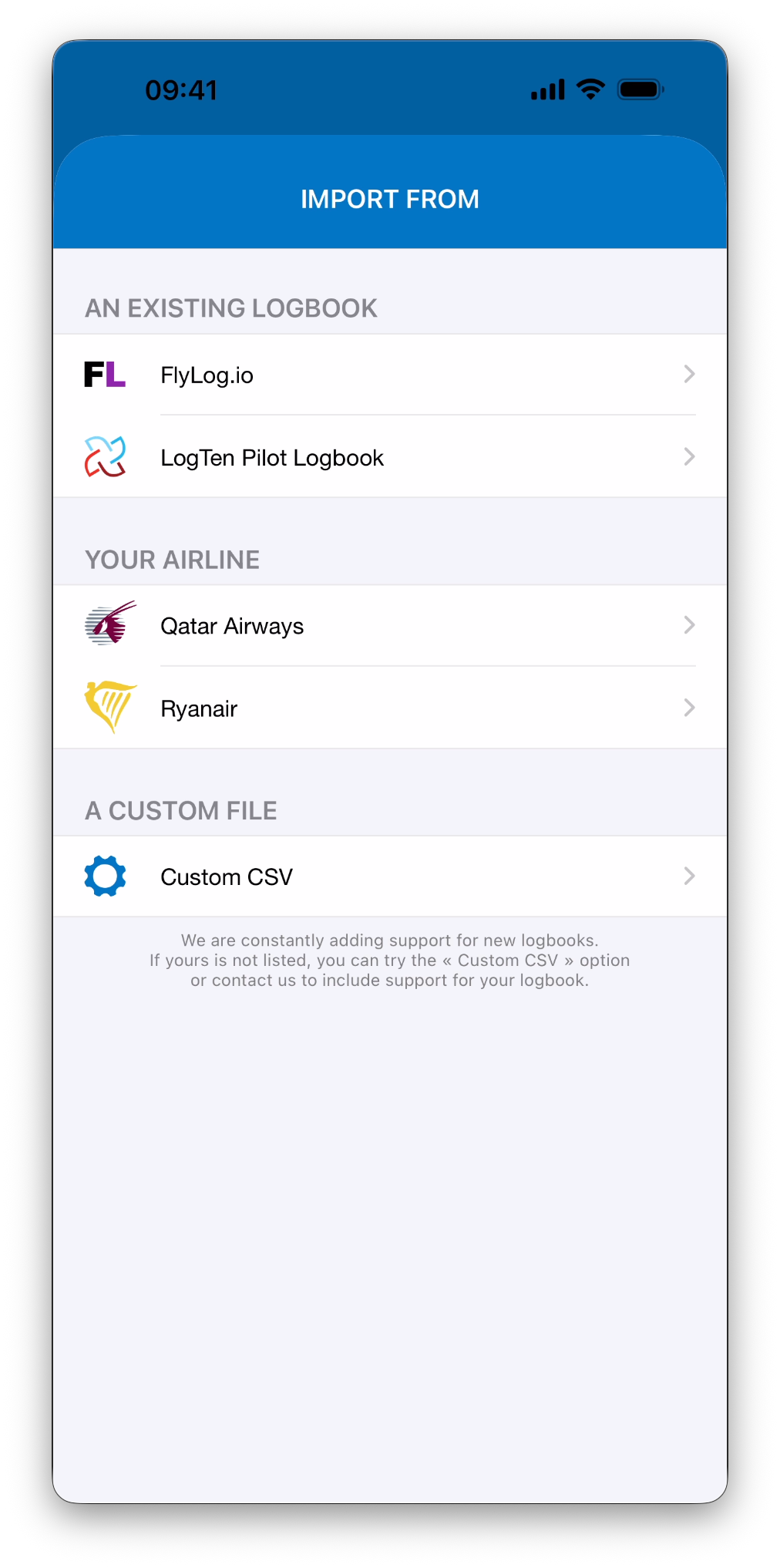
Supported Sources
At the moment, IPL supports imports from:
Logbook apps
FlyLog.io
LogTen Pilot Logbook
Airline systems
Qatar Airways
Ryanair
ℹ️ The list of supported sources is constantly growing. If your system isn’t listed yet, you can contact our support team or use the Custom CSV option as a flexible alternative.
Importing from FlyLog.io
When importing from FlyLog.io:
Open the FlyLog app
Export your logbook as a CSV file (tap “Export” in Logbook tab then “CSV Export”)
Save the file to your device
In IPL, select FlyLog.io
Tap Select file and choose the exported CSV
IPL automatically detects:
Flight and simulator entries
Times, aircraft, places, and crew
Logged hours
Importing from LogTen Pilot Logbook
Before exporting from LogTen, a few settings must be adjusted to ensure compatibility.
Open LogTen
Go to Settings → Display Options
Set Time Format to Hours:Minutes
Under Preferred Identifiers:
Places → ICAO
Aircraft → Aircraft ID
Person → Name
Go to the Reports tab
Select Exporters → Export Flights (Tab)
Tap Configure Report… and select the data you want to export
Tap Generate
Save the file to your device
In IPL, tap Next and select the exported file
Importing from Qatar Airways
Qatar Airways exports are generated from the People X app.
Open People X
Go to My Space
Select Flying Statistics
In the popup, choose Log Book, then tap OK
Select the period to export
Tap Send to Email
Confirm the email address and select Excel
Download the received file
In IPL, tap Select file and choose the Excel file
IPL recognizes the file structure automatically and prepares entries for import.
Importing from Ryanair
Ryanair imports are based on daily “Verified Flights” emails sent after each flying day. These emails can be imported directly into IPL as a text file.
How to import a Ryanair flight email
Open a “Verified Flights” email in your EFB
Tap and hold on any word in the email, release, then tap Select All
Tap Share
Choose AirDrop and send the content to the device where IPL is installed
A text file opens on your device — tap the Share button
From the list of apps, select More (this is required the first time)
Tap Edit, then add Infinite Pilot Logbook from the Suggestions list using the + button
Tap Done
From now on, IPL will appear directly in the list of apps able to open the file
Select Infinite Pilot Logbook to open the text file
Review the detected flights in IPL and import them
Each Ryanair file represents one day of flights, with one entry created per flight.
ℹ️ Ryanair imports behave like manually entered flights and may use IPL auto-fill logic. Pilot Flying status, takeoffs, landings, fuel data, passenger information, and related calculations are processed automatically when available.
Crew identification
When importing Ryanair data, IPL automatically detects crew members listed in the file:
The list of crew found is displayed below the flights
You can indicate who you are
This choice is remembered for future Ryanair imports
Review and Clarification
After the file is analyzed, IPL shows a summary:
Entries ready for importing
Entries requiring clarification
Clarification may be required for:
Aircraft types
Crew identifiers
Other ambiguous data
Nothing is imported until all required clarifications are resolved.
➡️ Learn more in Review & Resolve Import Conflicts
What’s Next
➡️ Continue with Import from a Custom CSV
➡️ Learn how to Review & Resolve Import Conflicts