Overview: Importing Data into IPL
This article gives you a high-level overview of how data imports work in Infinite Pilot Logbook, what types of data can be imported, and what to expect during the import process before you start.
Last updated 8 months ago
What You Can Import into IPL
Infinite Pilot Logbook allows you to import existing data to quickly populate your logbook without starting from scratch.
Depending on the source, you can import:
Flight entries
Simulator sessions
Or a mix of both
Imports can come from:
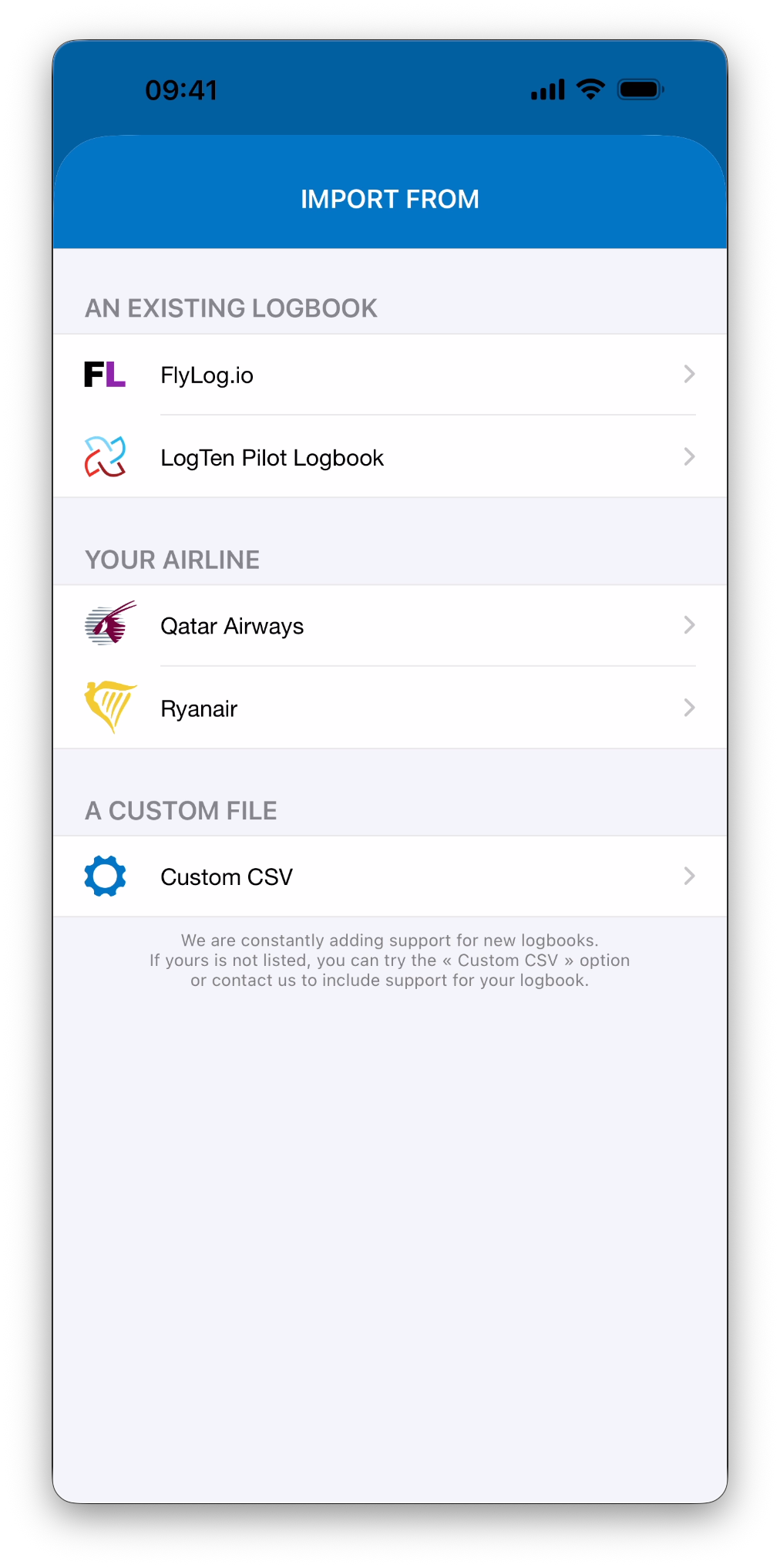
Supported logbook apps or airline systems
A custom CSV file exported from another system
The exact steps and options will depend on the import source you choose, but the overall process follows the same logic.
💡If your logbook app or system doesn’t appear in the list, don’t hesitate to contact our support team — we’re always happy to add new import sources.
Until then, the Custom CSV option provides a flexible alternative for importing file formats not yet supported.
How the Import Process Works
Regardless of the source, every import in IPL follows these main stages:
Select an import source
You choose where your data comes from (supported logbook, airline system, or Custom CSV).
Provide the file
You export your data from the source system and select the file in IPL.
Analyze the file
IPL reads the file structure, detects entries, and prepares them for import.
Review and clarify data if needed
If some information is ambiguous or unknown, IPL asks you to clarify it before importing.
Import the entries
Once everything is ready, entries are created in your logbook.
Different Import Behaviors
Not all imports behave the same way.
Most imports are designed for historical logbooks containing many entries. In these cases, IPL focuses on importing the data exactly as provided in the file, without applying auto-fill rules.
However, some imports behave more like manually entered flights.
⚠️ Some import sources may use IPL auto-fill logic (such as night time calculation, relief time, or pilot flying logic), while others import raw values exactly as provided in the file.
This behavior depends on the nature of the source (for example, single-day operational reports versus full historical logbooks) and is explained in detail in the relevant import articles.
Flights vs Simulator Entries
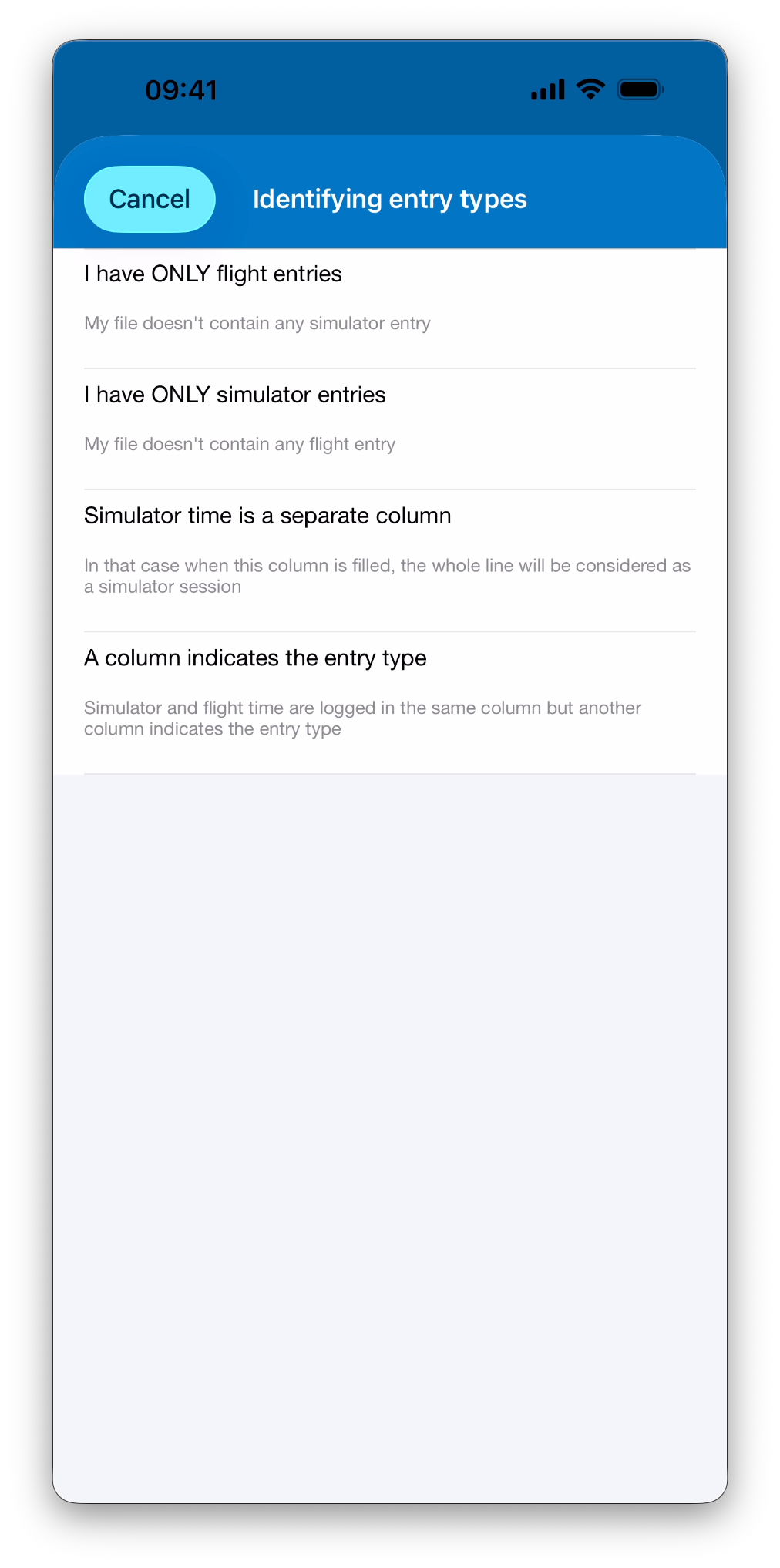
When importing data, IPL must determine whether each line in the file represents:
A flight entry, or
A simulator session
For supported logbooks and airline systems, this information is already known and handled automatically.
For Custom CSV imports, IPL will ask you to explain how to distinguish between flight and simulator entries before proceeding.
Clarification Before Importing
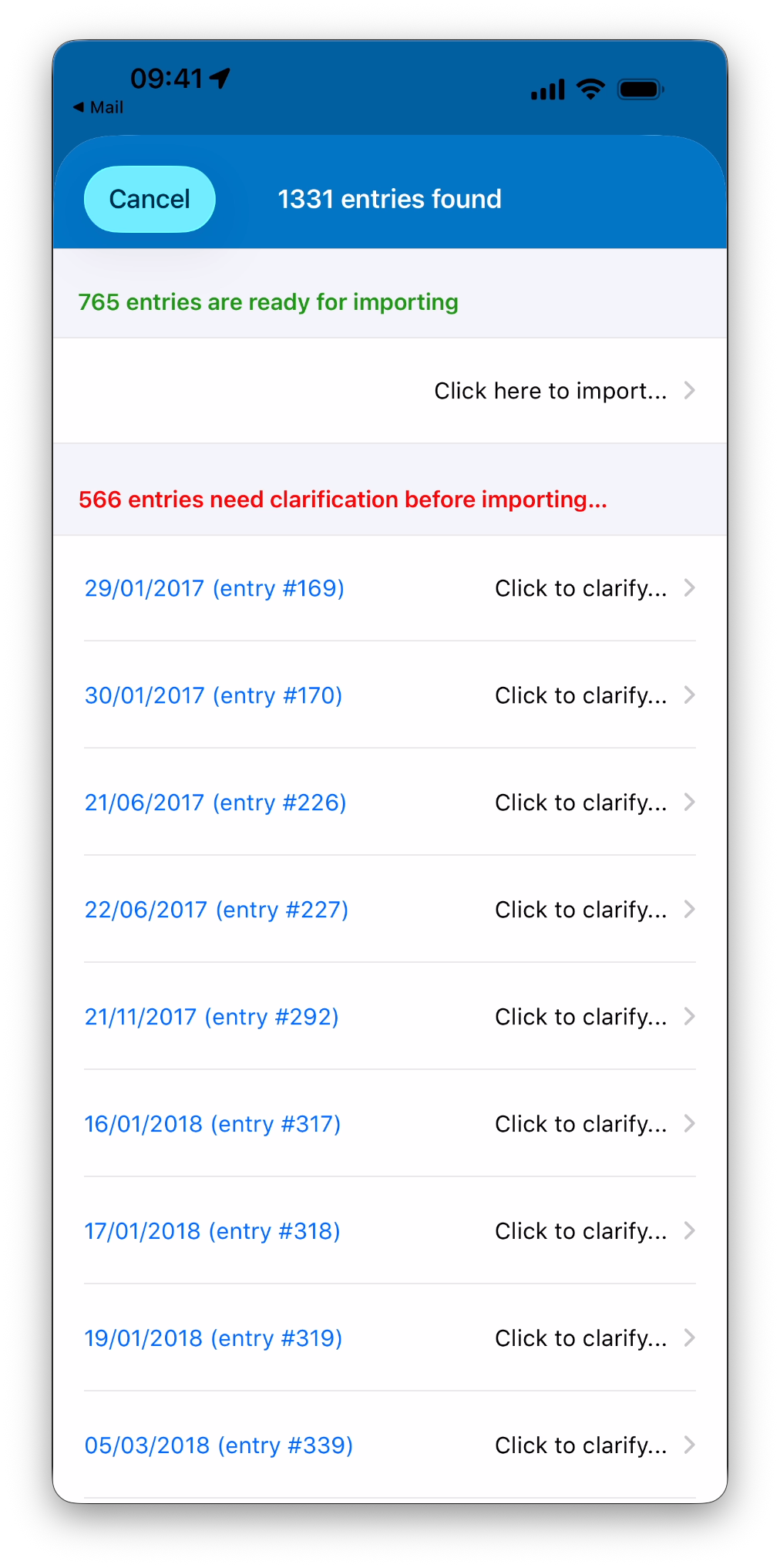
Before the import is finalized, IPL shows a summary screen listing:
Entries that are ready to be imported
Entries that require clarification
Clarification is typically required when:
An aircraft type is unknown or ambiguous
A place (airport) cannot be matched
Crew information conflicts with existing data in your database
You stay fully in control: ambiguous entries are not imported until all required clarifications are resolved.
ℹ️ If needed, you can always review the raw imported data inside each entry during the clarification process.
What Happens After the Import
Once the import is completed:
All entries appear in your logbook like manually created ones
Totals, statistics, maps, and certificates are updated automatically
Imported data can be edited, signed, or locked like any other entry
What’s Next
➡️ Continue with Import from a Supported Logbook or Airline
➡️ Explore Import from a Custom CSV
➡️ Learn how to Review & Resolve Import Conflicts