People
Manage pilots, crew members, and other people used throughout Infinite Pilot Logbook.
Last updated 7 months ago
The People module lets you create and manage everyone who appears in your logbook: pilots, crew members, passengers, doctors, aircraft owners, or any other person referenced across IPL. Once created, people can be reused everywhere and linked consistently to your flights, simulator sessions, medical entries, imports, statistics etc.
Accessing the People List
You can access the People module by tapping the People tab in the main navigation bar.
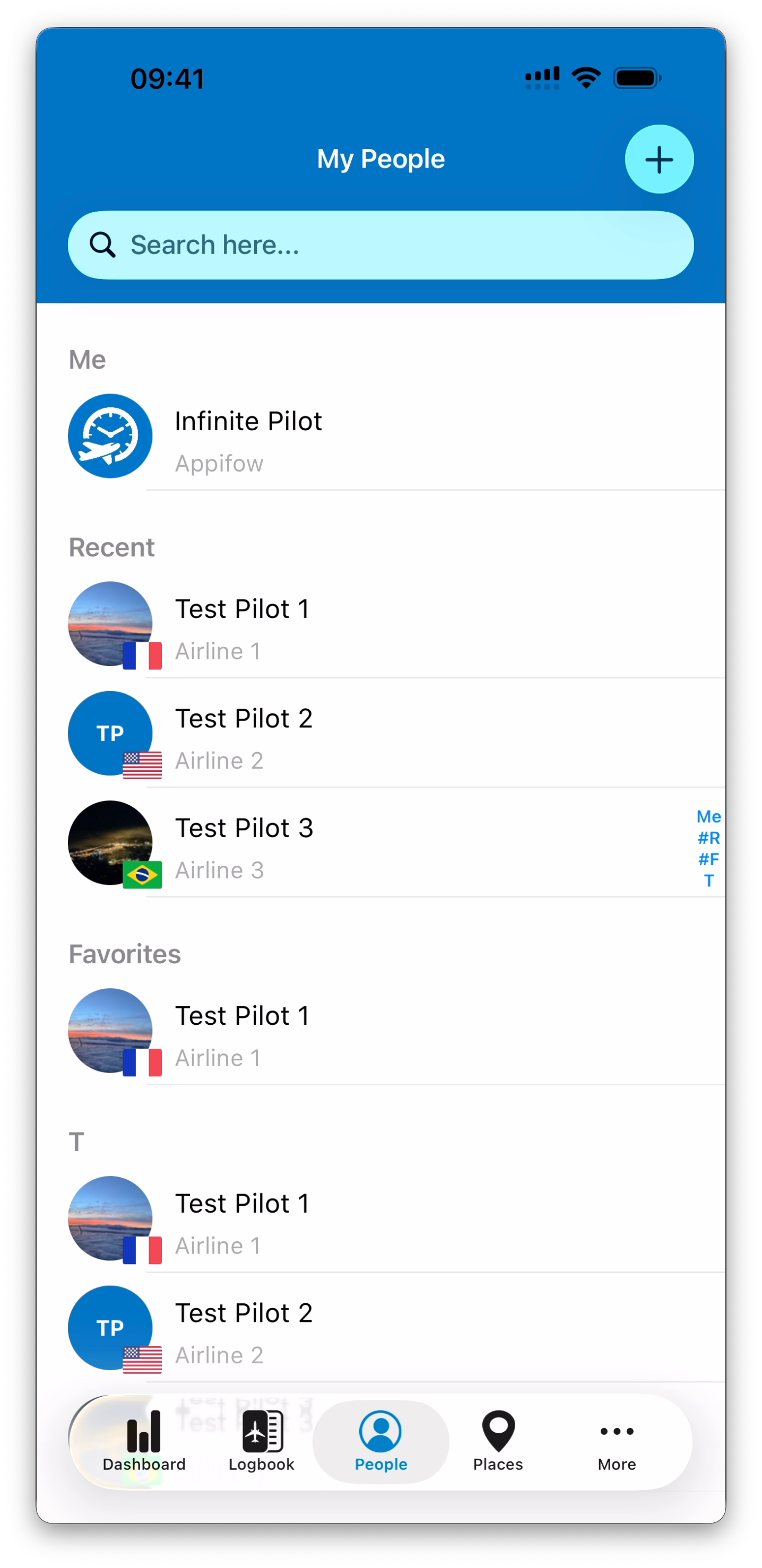
The People list is organized to make frequent selections fast and intuitive:
Me
Your own profile is always shown first, making it easy to update your information or select yourself when logging flights.
Recent
People you’ve interacted with recently (for example during flight creation or imports).
Favorites
People you’ve marked as favorites using the ❤️ icon on their detail view.
Alphabetical list
All other people are grouped alphabetically.
Each person is displayed with:
A profile picture, or initials if no picture is set
A nationality flag when available
The person’s name
An optional organization or company shown as a subtitle
Adding a New Person
Tap the + button to add a new person.
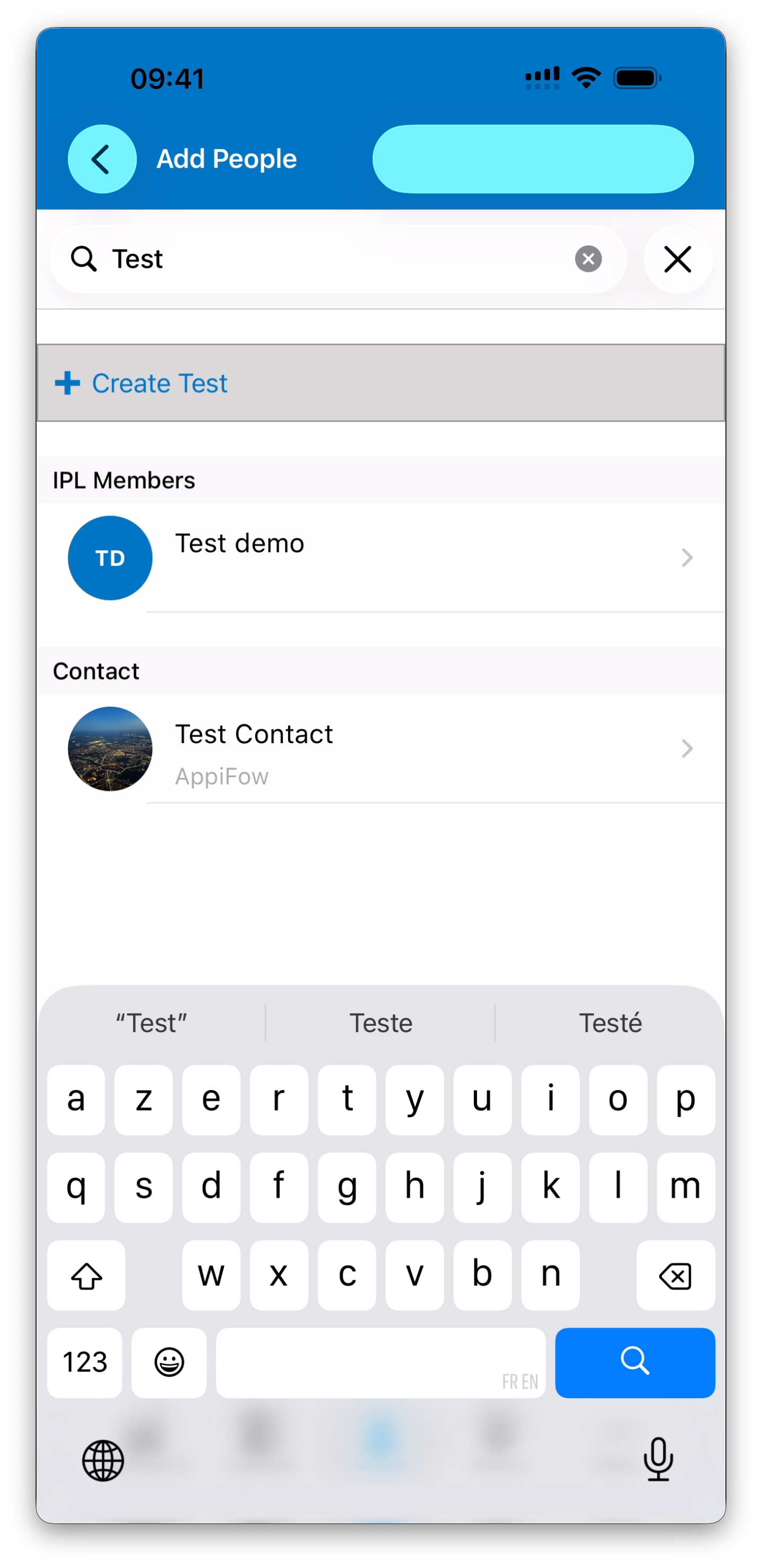
When you start typing a name, IPL helps you find existing matches from multiple sources:
IPL Members (if you are online and the user allows sharing basic information)
Your device contacts (if contact access is granted)
Manual creation, always available
You can select an existing match or choose to create a new person manually.
ℹ️ IPL never requires you to use an external source to create people. You can always add a person manually.
When enabled, access to your contacts is used only on your device to make creating people faster and easier. Your contact list is never uploaded, stored, or accessed by IPL’s servers or team members.
Reviewing and Saving a Person
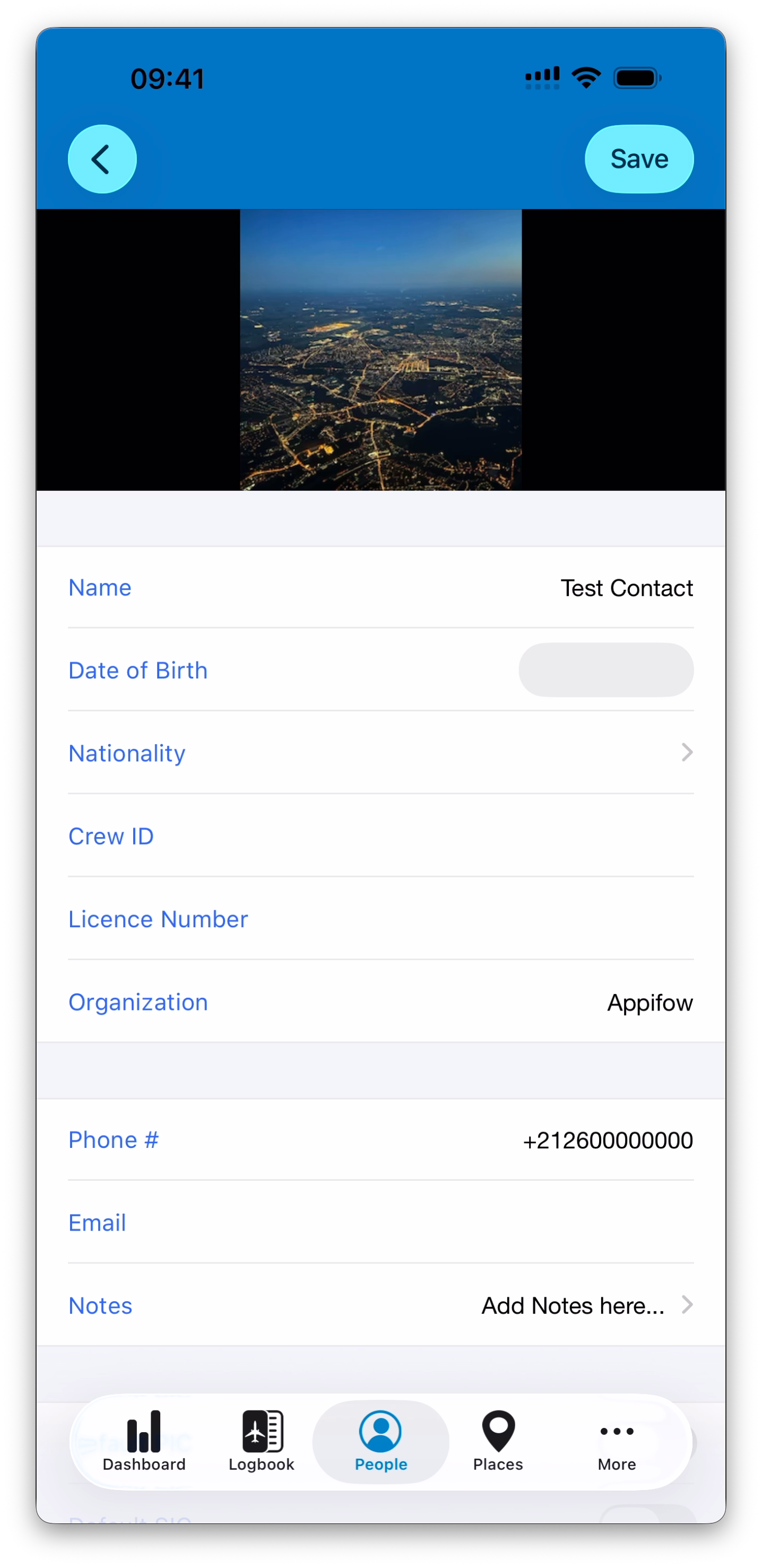
Regardless of how a person is added (IPL member, contact, or manual creation), IPL always displays the person detail form before saving.
If available, relevant information is pre-filled automatically (for example name, contact details, or profile picture).
You can review, complete, or edit the information before saving.
Once saved:
The person becomes part of your own database
The entry is independent from its source
Future changes made by an IPL member or contact will not affect your saved data
Editing a Person
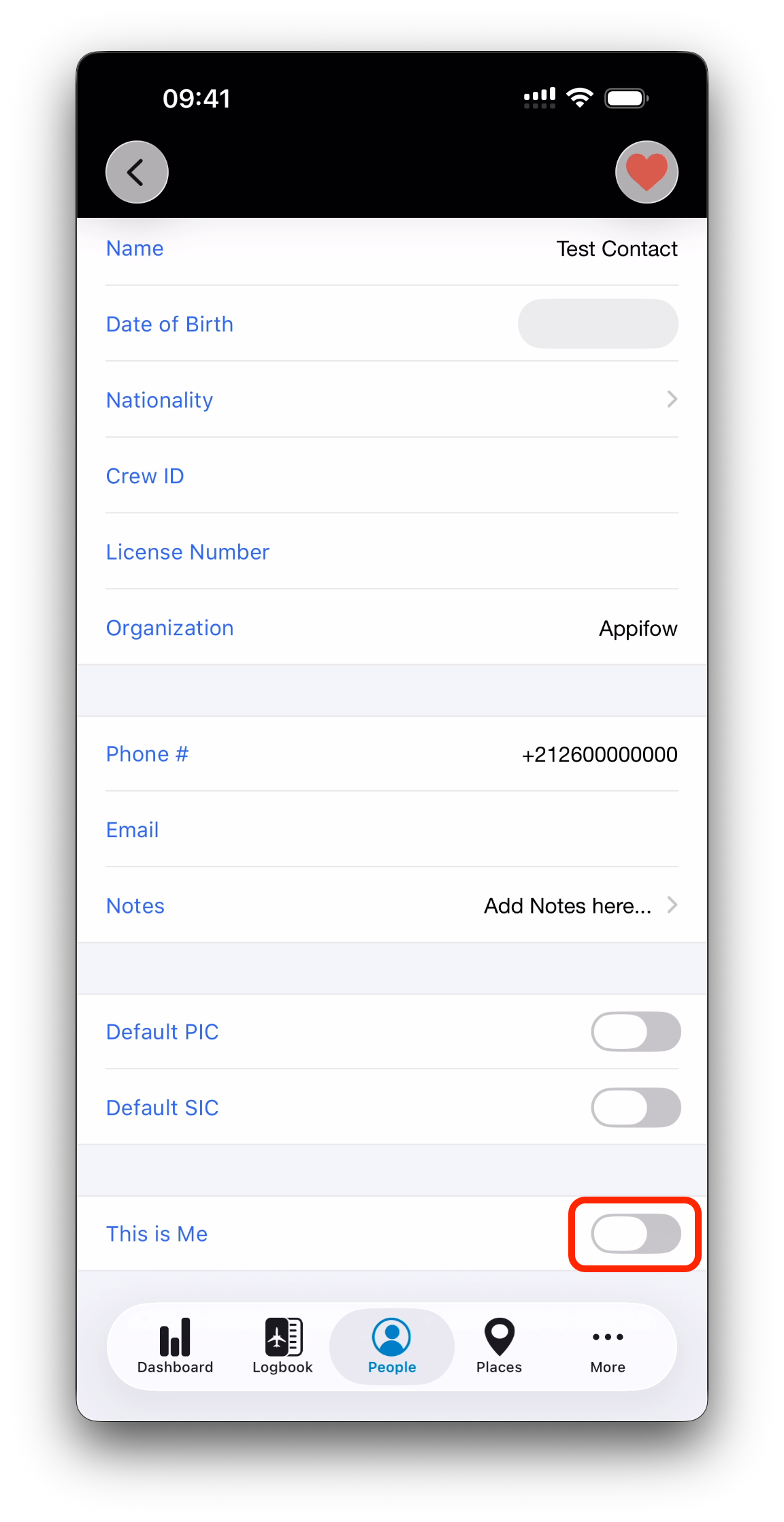
When editing an existing person, the same form is used, but changes are auto-saved.
Available fields include:
Name
Date of Birth
Nationality
Crew ID
Licence Number
Organization
Phone Number
Email
Notes
Additional options:
Default PIC / Default SIC
Automatically adds this person to new flight entries in the selected role.
Favorite (❤️)
Marks the person as a favorite for quicker access.
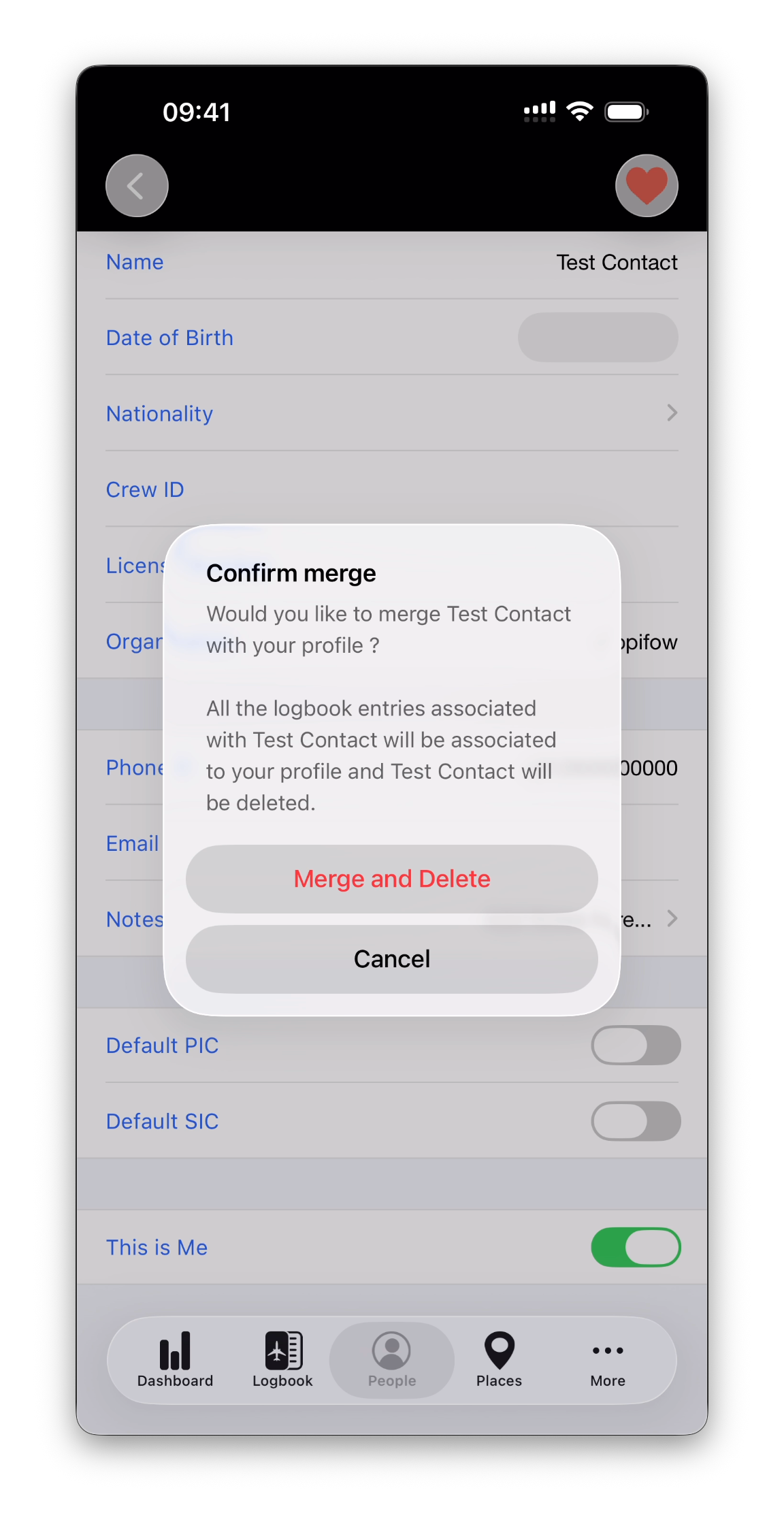
“This Is Me” — Associating a Person With Your Profile
The This Is Me option allows you to associate a person entry with your user profile.
When enabled:
All logbook entries linked to that person are reassigned to your profile
The person entry is removed from your People list
This action requires a two-step confirmation.
💡 This feature is especially useful during imports. If your name appears differently in an imported logbook (for example due to spelling or formatting), IPL may initially treat it as a separate person. Using This Is Me ensures all imported flights are correctly associated with your profile.
Viewing Flights and Time With a Person
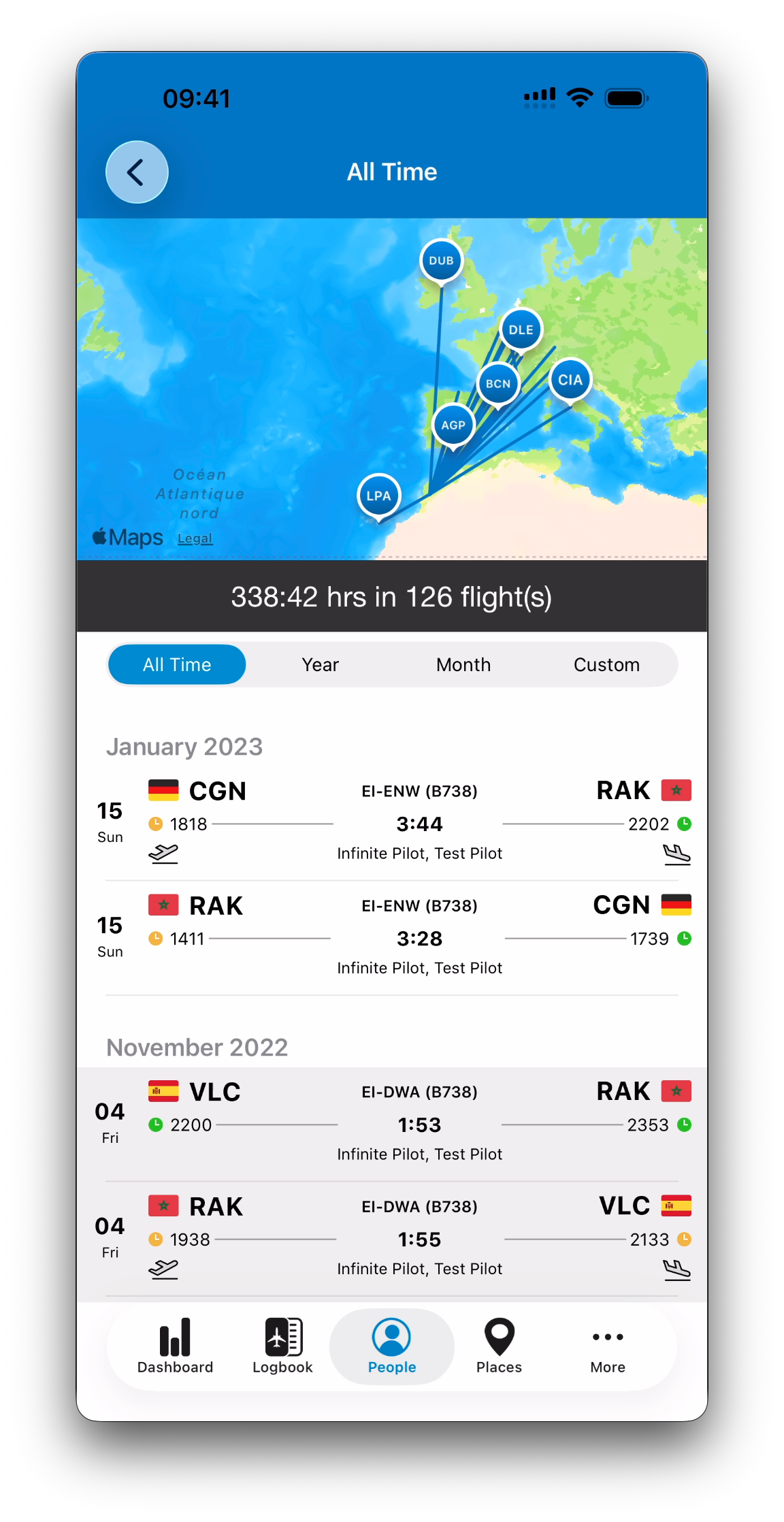
At the top of the person detail view, IPL displays:
Total flight or simulator time
Number of flights or sessions completed with that person
Tapping this summary opens a dedicated view showing:
A map of flights shared with that person
A list of the corresponding flights
Controls to adjust the time period displayed
Using the People Picker Across the App
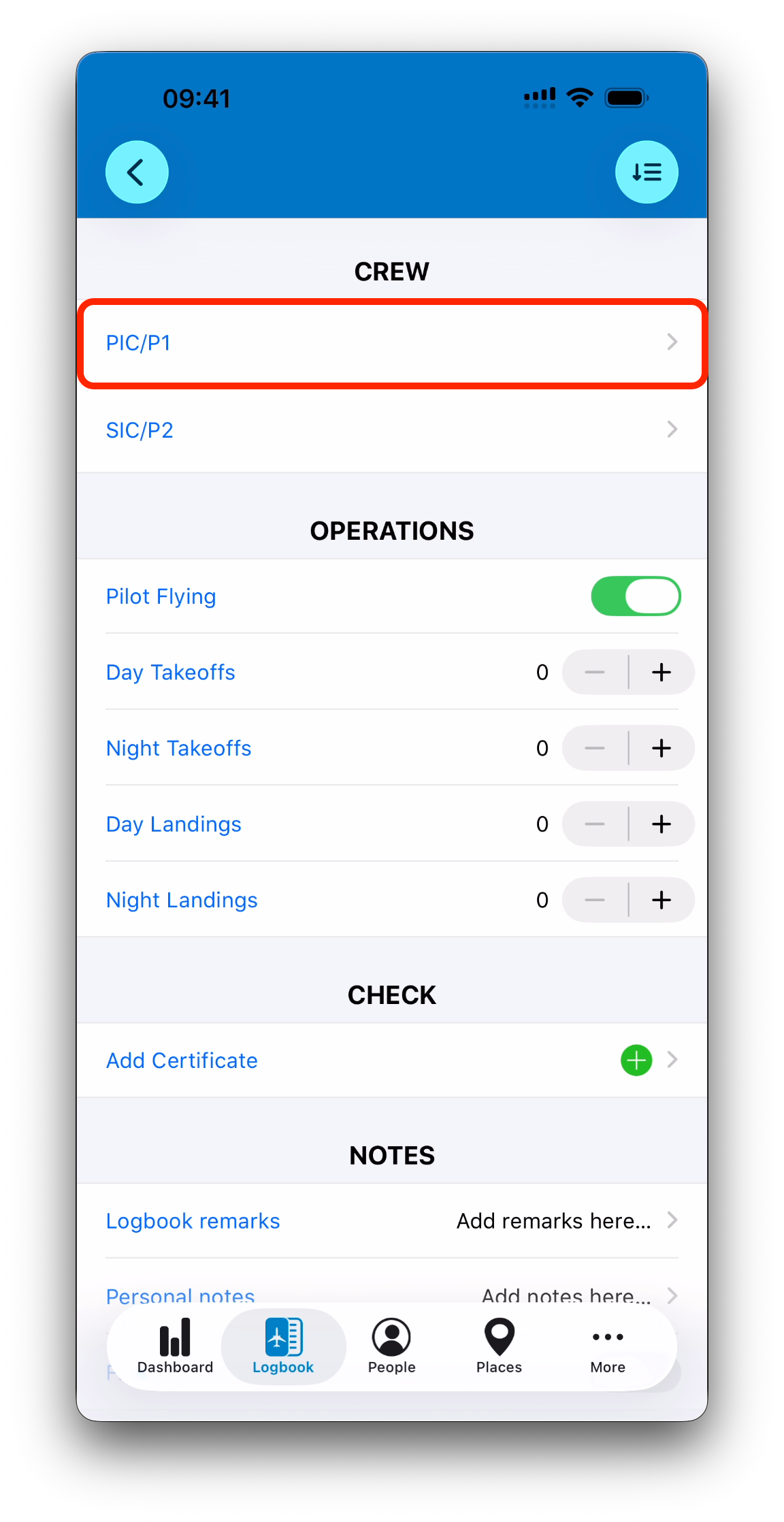
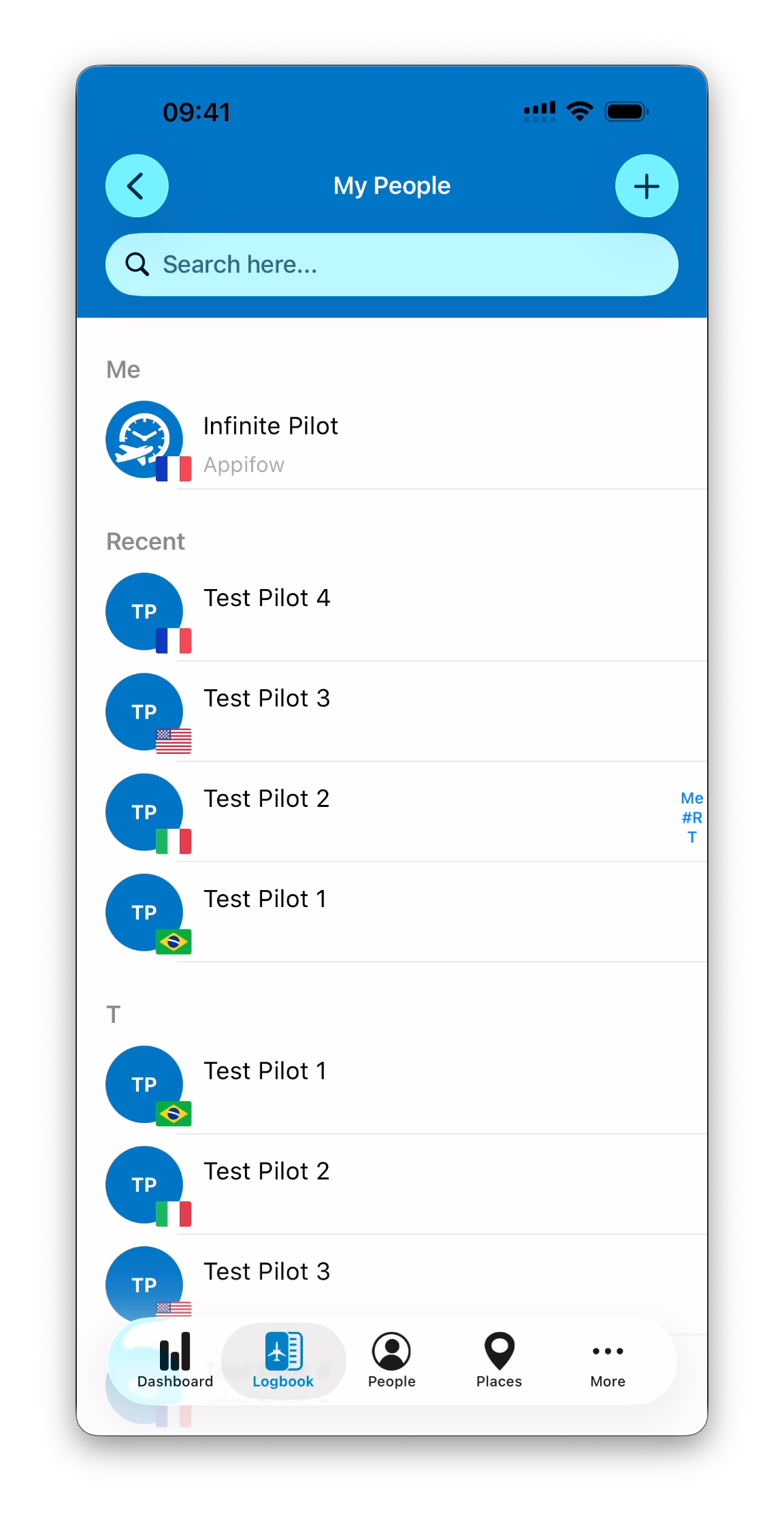
The My People list appears everywhere IPL requires you to select a person (for example when logging a flight).
From this list, you can:
Select an existing person
Tap + to add a new person on the fly
Once selected or saved, you are returned automatically to the screen you came from.
What’s Next
➡️ Continue with Places