Simulators
The Simulators module in Infinite Pilot Logbook lets you manage the training devices you use, linking each simulator session to a clearly identified simulator, its qualification level, location, and supported aircraft types.
Last updated 8 months ago
What Is a Simulator in IPL?
In IPL, a Simulator represents a specific training device you have used, identified by its Simulator ID.
Simulators are used when logging simulator sessions, ensuring consistent tracking of:
Simulator time
Session history
Aircraft type emulation
Qualification and statistics
Unlike many logbook systems, IPL treats simulators as first-class database entries, just like Aircraft, People, and Places
Accessing the Simulators List
You can access the Simulators module from:
More → Simulators
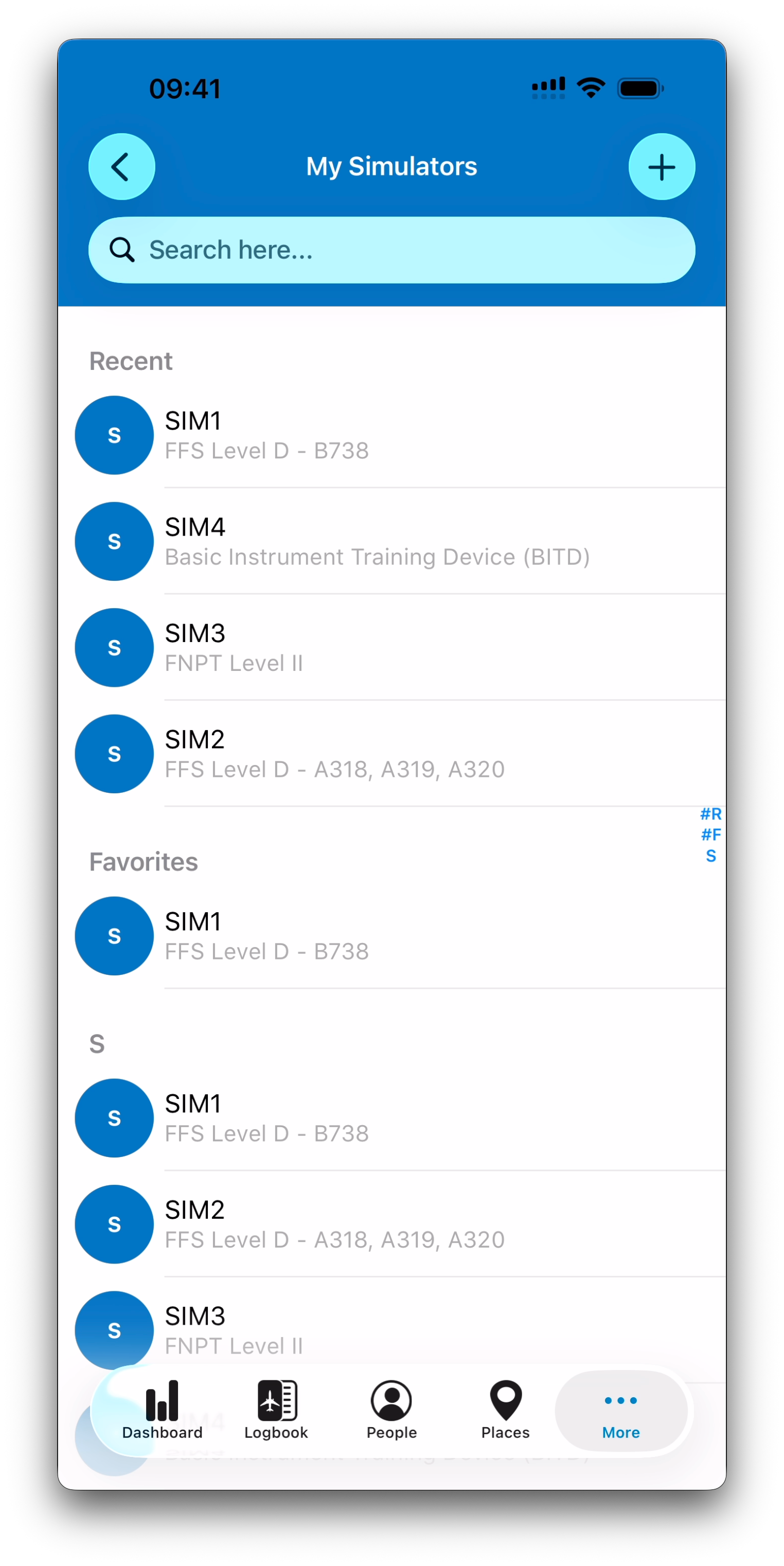
This opens the My Simulators list, where all simulators in your personal database are displayed.
How the Simulators List Is Organized
Like other IPL database modules, the simulator list is structured for fast selection:
Recent
Simulators you have interacted with recently
Favorites
Simulators marked as favorites for quicker access
Alphabetical Sections
All other simulators are grouped alphabetically based on the first letter of the Simulator ID
Each simulator entry in the list displays:
A picture on the left, if one is set
(or the first letter of the Simulator ID if no picture is available)
The Simulator ID as the title
A subtitle in the format:
Simulator Type – AircraftType1, AircraftType2…
Where AircraftType1, AircraftType2, etc. are the ICAO codes of the aircraft types supported by this simulator.
Example:
AIRBUS123
FFS Level D – A318, A319, A320
Adding a New Simulator
To create a simulator:
Open the Simulators list
Tap the + button
Fill in the simulator form
Tap Save to confirm creation
New simulators are not saved automatically until you press Save.
Once created:
Future edits are auto-saved
The Save button is replaced by a Favorite (❤️) button in the detail view
Simulator Fields
When creating or editing a simulator, the following fields are available:
Simulator ID (required)
The unique identifier of the device
This is the only mandatory field
Operator
Selected from the People module
Useful for airline or training center ownership
Owner
Selected from the People module
Place
Selected from the Places module
Indicates where the simulator is located
Notes
Any additional remarks about the device
Simulator Type
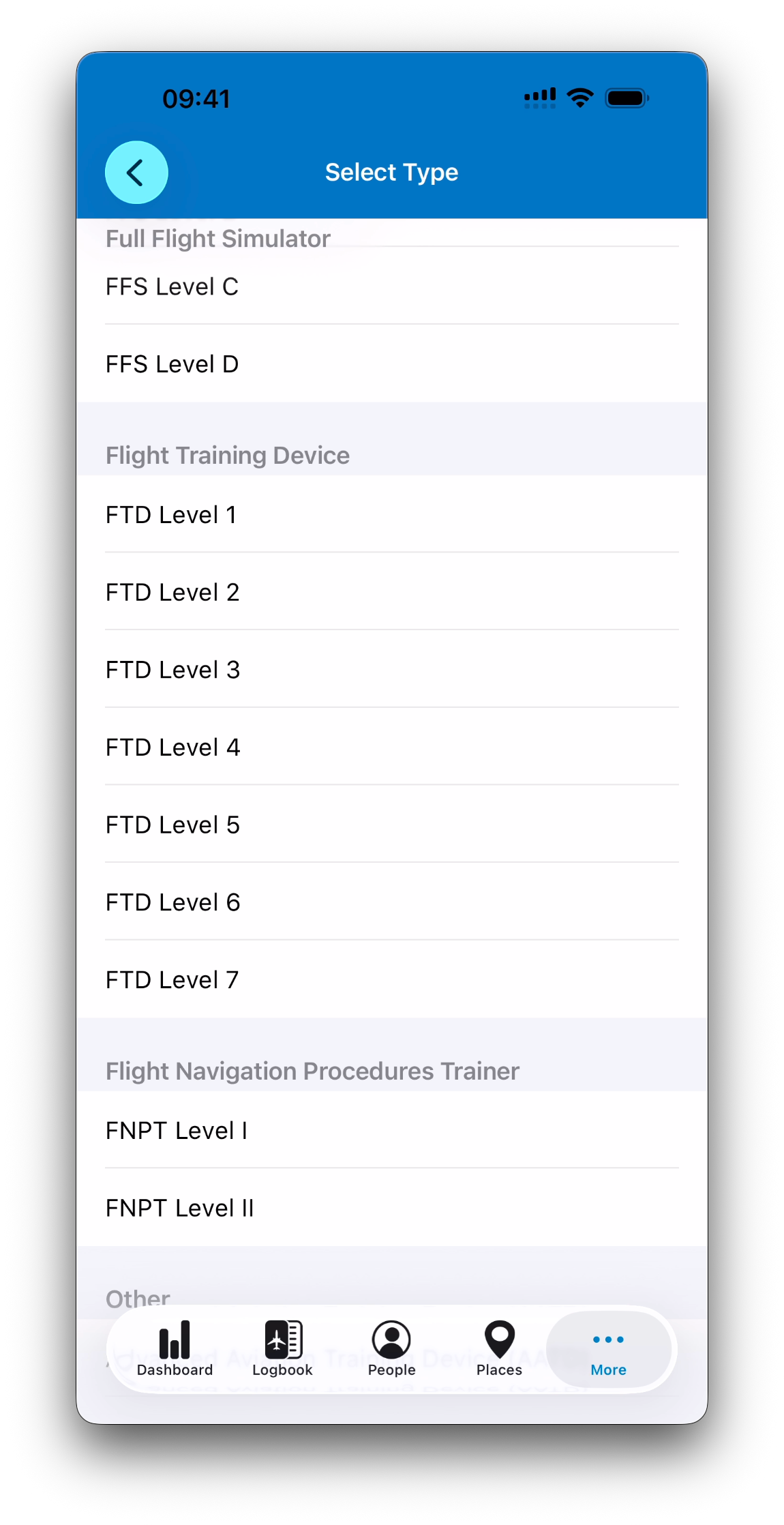
Each simulator must also have a Type, selected from an official qualification list, such as:
FFS (Full Flight Simulator)
FTD (Flight Training Device)
FNPT (Flight Navigation Procedures Trainer)
And other certified categories
This field describes the simulator’s regulatory level and training capability.
Supported Aircraft Types
Each simulator includes a list of supported Aircraft Types.
This field can contain:
No aircraft type (generic simulator)
One aircraft type
Multiple aircraft types
Aircraft types are selected from your Aircraft Types database.
Why a List Instead of a Single Type?
IPL makes a clear distinction between:
The simulator qualification type (FFS, FTD, FNPT…)
The aircraft model(s) that the simulator can emulate
This is important because:
Some simulators are generic and do not replicate a specific aircraft type
Some simulators can emulate multiple aircraft variants
(for example, several Airbus family aircraft share the same cockpit)
For this reason, the supported aircraft types field is designed as a flexible list, which may also remain empty.
Statistics for a Simulator
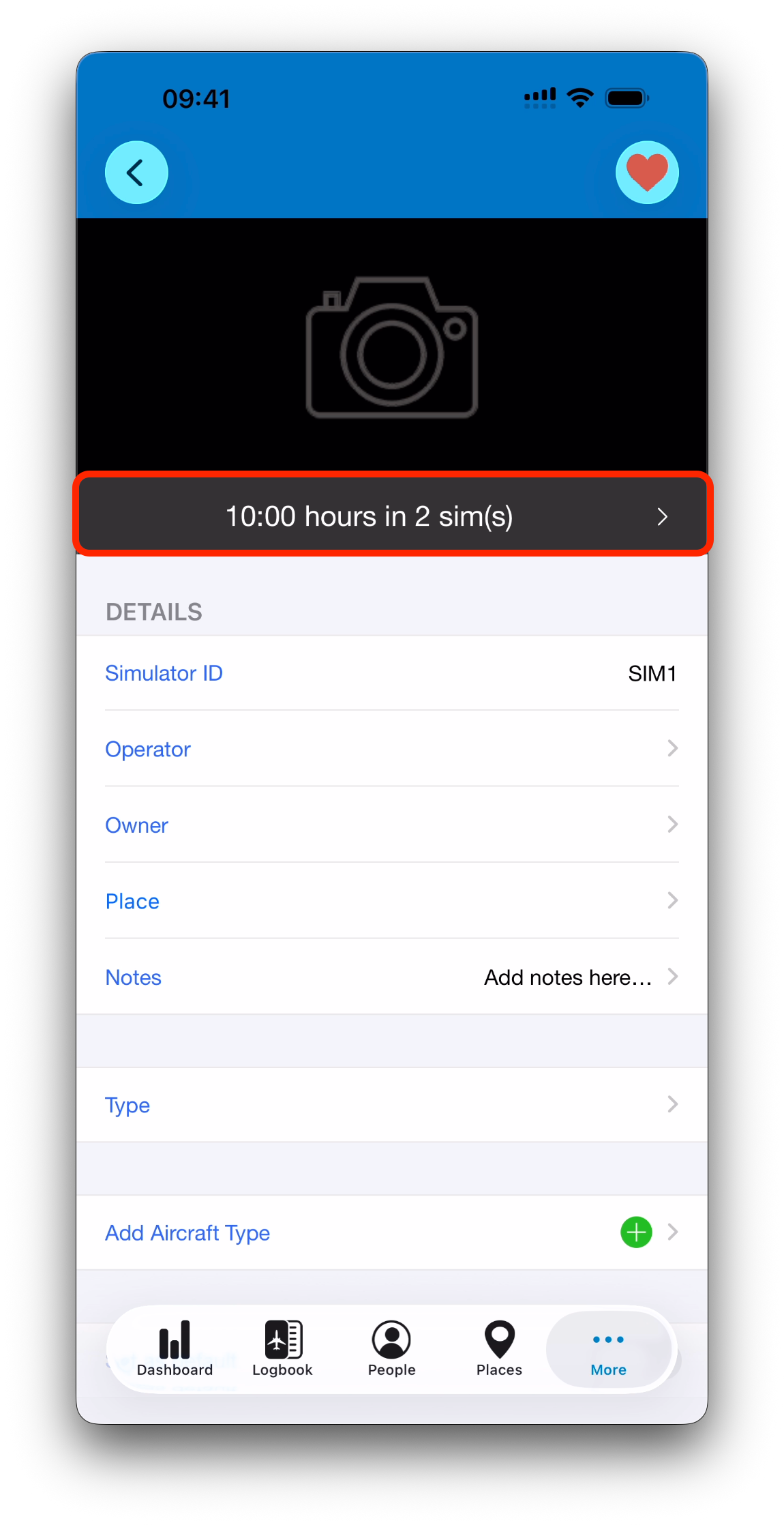
In the detail view of an existing simulator, IPL displays a summary bar below the picture.
This bar shows:
Total simulator hours logged
Number of simulator sessions performed
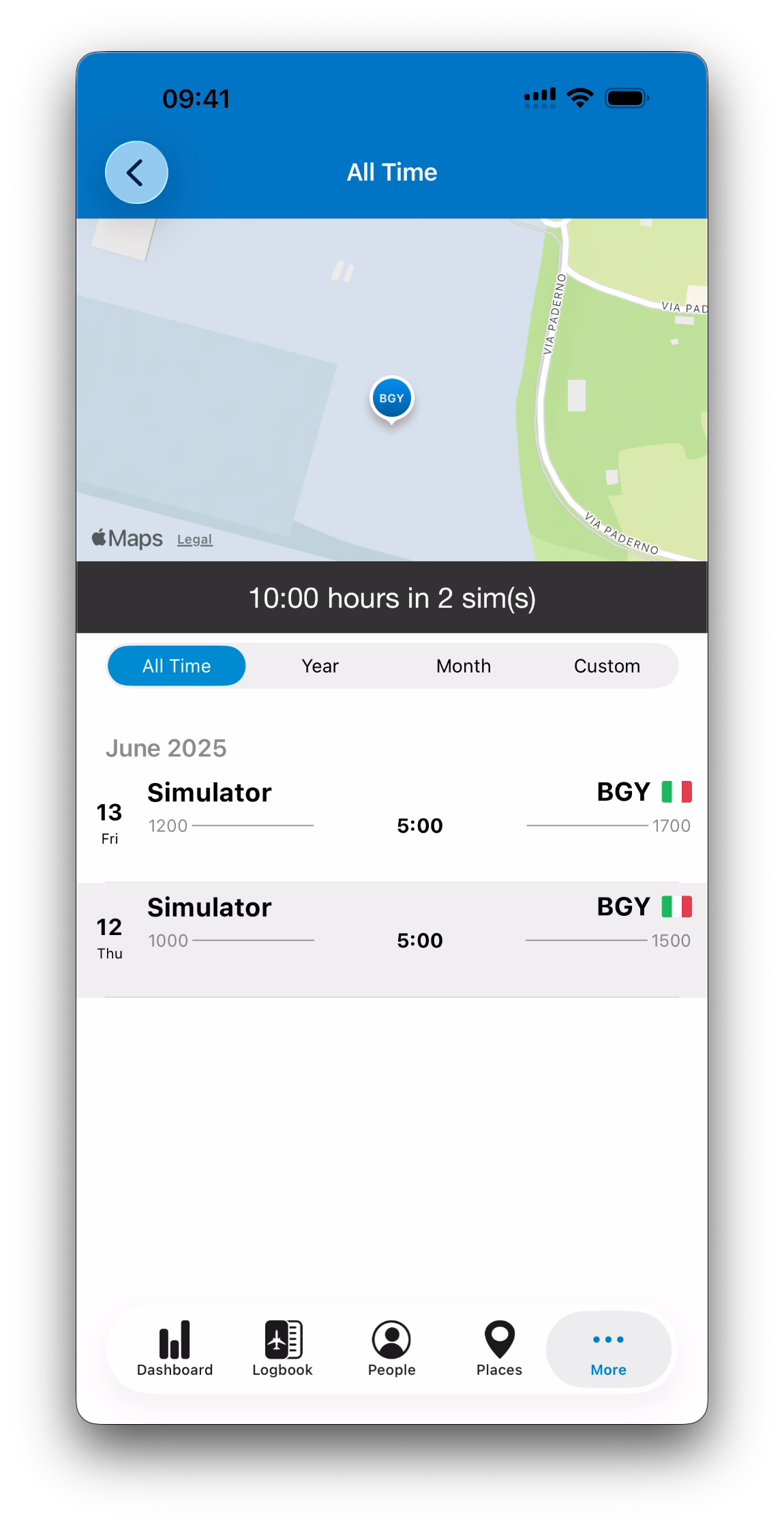
Tapping this summary opens a dedicated screen with:
A list of logbook simulator entries on this device
A map of simulator locations (when available)
Controls to adjust the displayed time period (All Time, Year, Month, Custom)
Default Simulator
A simulator can be marked as your Default Simulator using the Set as default switch.
Rules:
Only one simulator can be the default at a time
When enabled, that simulator is automatically pre-selected in new simulator logbook entries
Using Simulators Throughout IPL
Just like Aircraft, People, and Places, simulators can be:
Selected or created on the fly whenever required
Stored in your personal simulator database for consistent reuse
Once created, a simulator becomes a permanent part of your logbook ecosystem, fully independent and available across the app.
What’s Next
This article concludes the chapter on Database Management.
➡️ You can now explore Certificates & Qualifications Overview
➡️ Or learn more about Dashboard and Statistics in Dashboard Overview: Maps, Stats & Filters