Add a Simulator Session
This article explains how to add and complete a simulator session in Infinite Pilot Logbook. Simulator entries are used to log training, checking, or instructional sessions performed in a simulator. Simulator sessions follow a structure similar to flight entries, while using dedicated fields and logic specific to simulator activity.
Last updated 8 months ago
Creating a Simulator Session
To create a simulator session:
Open the Logbook tab
Tap the + button in the top-right corner
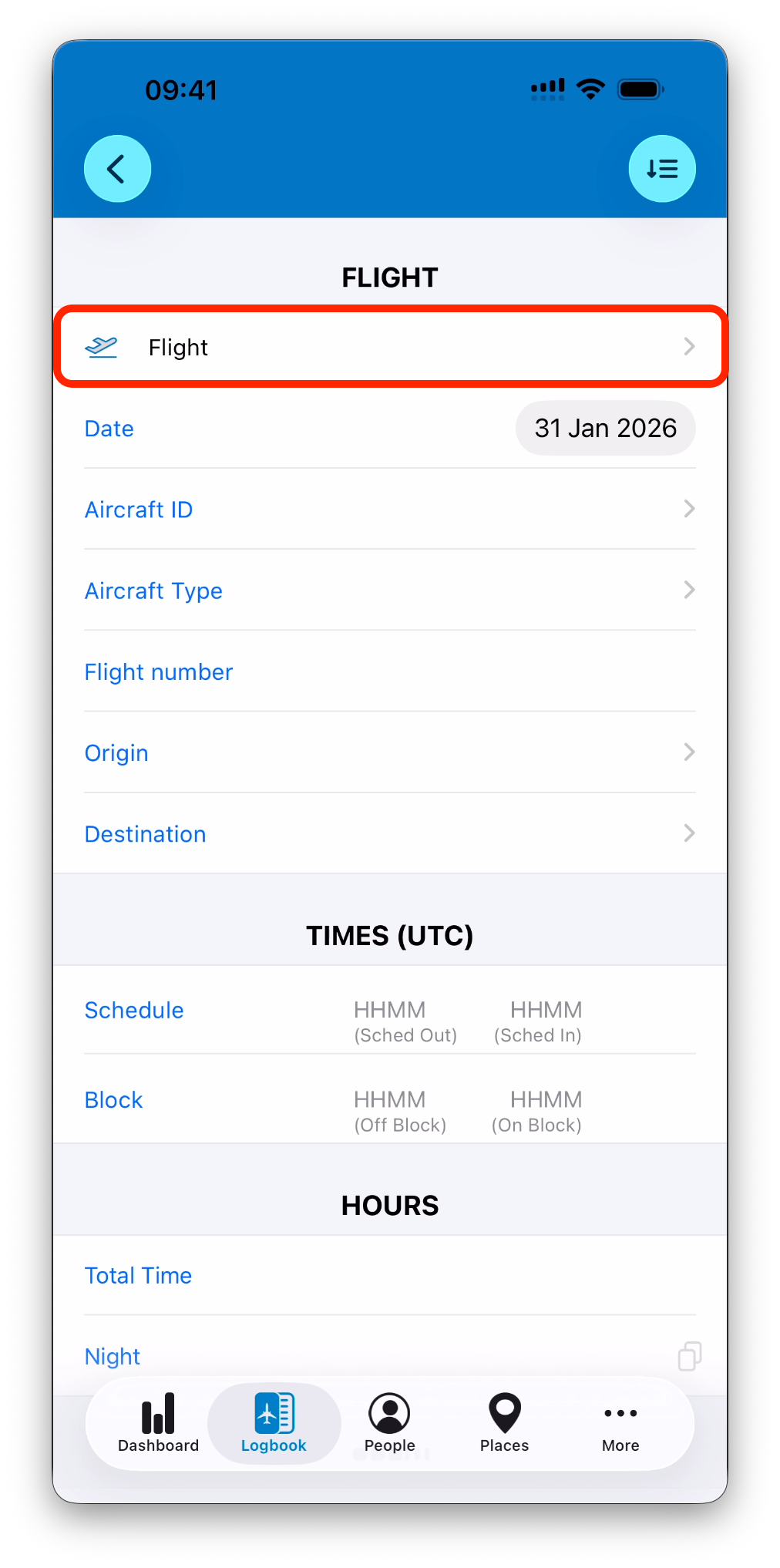
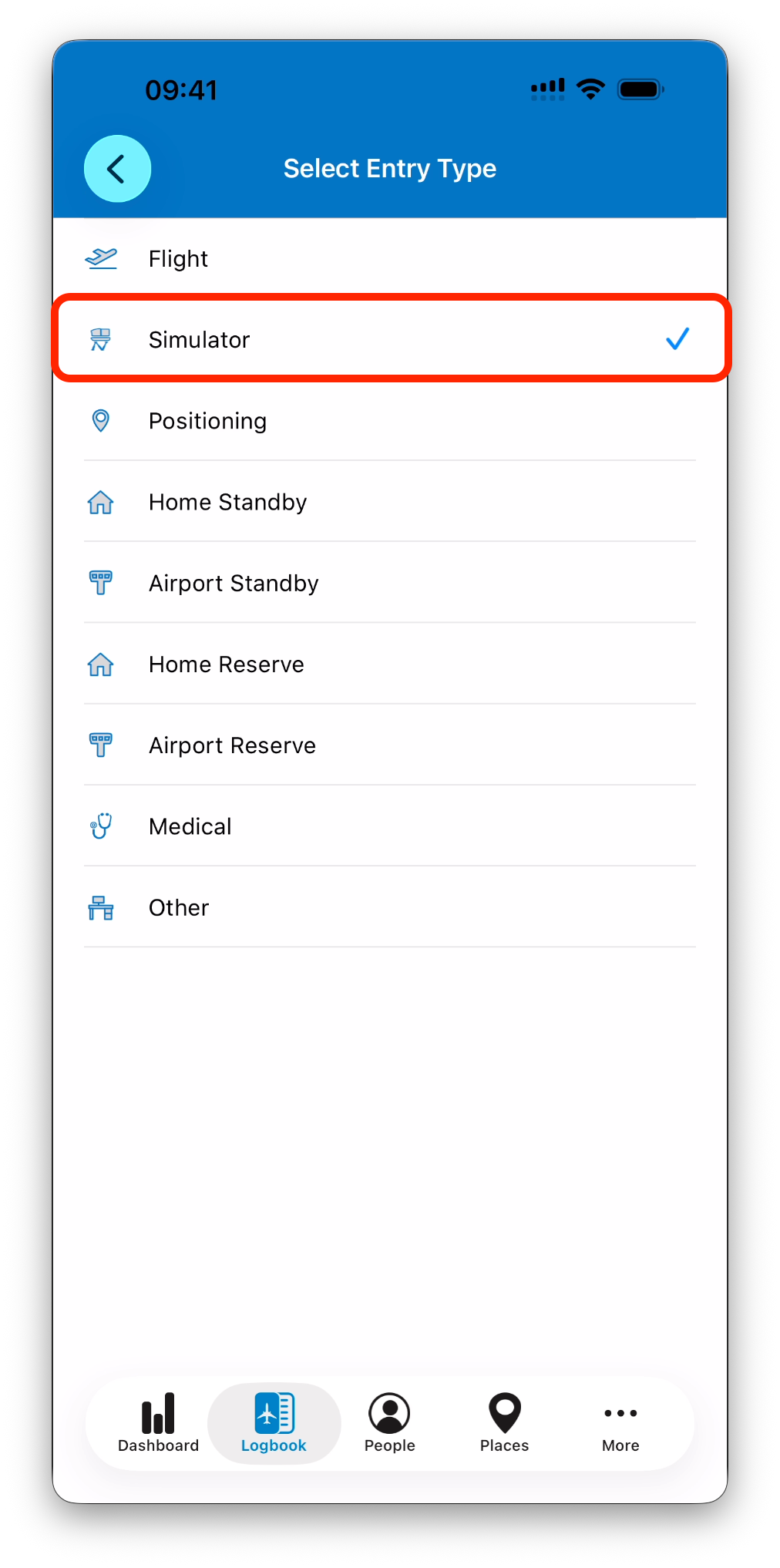
Select Simulator as the entry type
A new simulator entry is created immediately and automatically saved.
Structure of a Simulator Entry
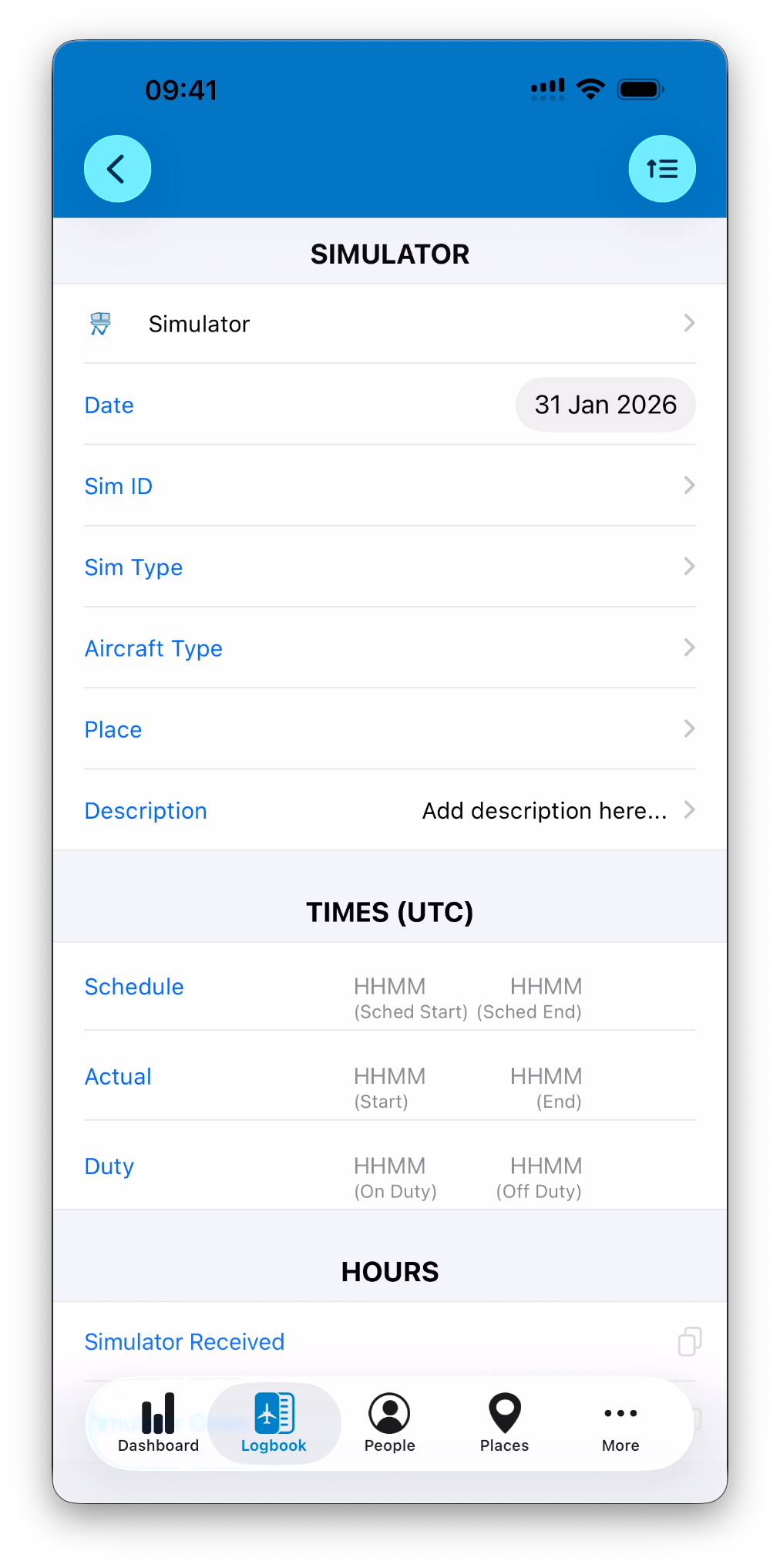
A simulator entry is displayed on a single screen divided into multiple sections.
Sections are shown in a condensed view by default.
You can tap the expand button in the top-right corner to reveal all sections and available fields.
SIMULATOR Section
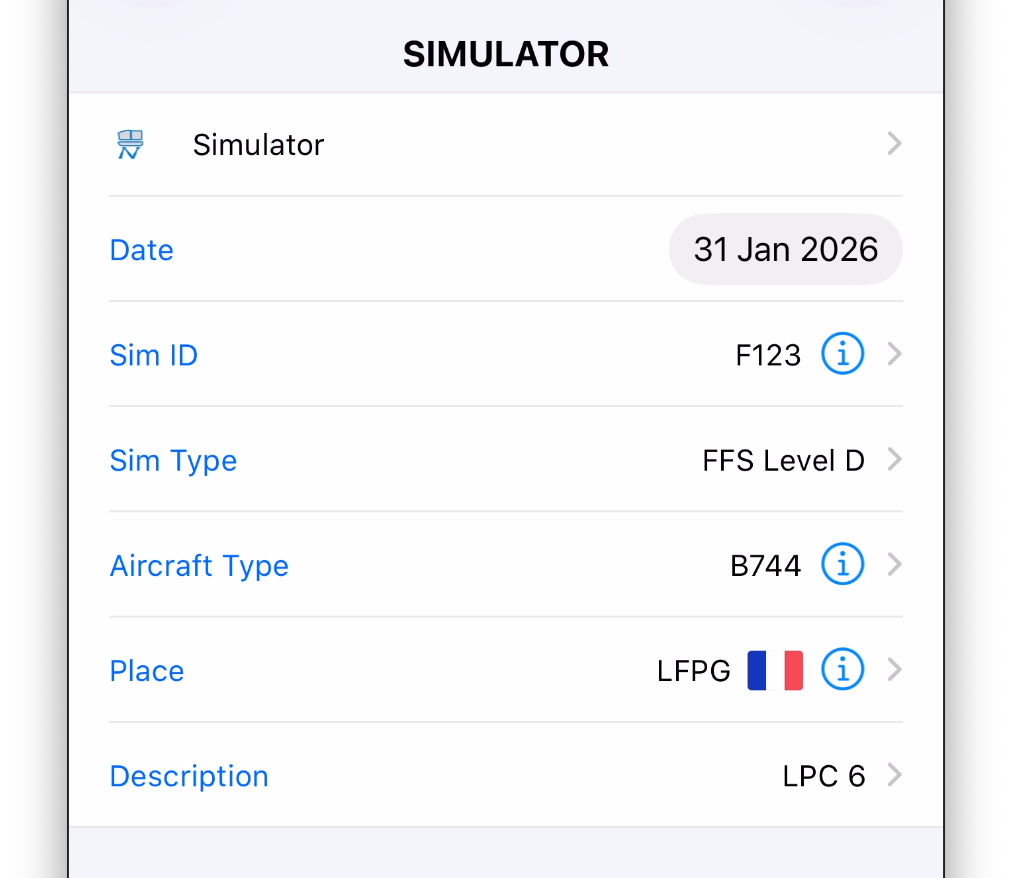
The SIMULATOR section defines the identity and context of the simulator session.
It includes:
Date of the session
Simulator ID
Simulator Type
Aircraft Type
Place
Description
Simulator ID and Type
The Sim ID identifies the simulator used. It is selected from your Simulators database and can be created on the fly if needed.
➡️ Learn more in Simulators
If the simulator has a type defined, the Sim Type field is populated automatically.
In IPL, the Sim Type corresponds to the simulator category (e.g. FNPT II, FFS, FTD), not to an aircraft type.
Aircraft Type
The Aircraft Type represents the aircraft simulated during the session.
A single simulator can be associated with multiple aircraft types.
If only one aircraft type is associated, it is selected automatically.
If several are available, IPL asks which one was used for the session.
You can also select an Aircraft Type or Sim Type independently if the simulator ID is unknown. Aircraft Type is selected from your Aircraft Types database and can be created on the fly if needed.
➡️ Learn more in Aircraft Types
Place and Description
The Place indicates where the session took place. It is selected from Places database and, as always, can be created on the fly.
➡️ Learn more in Places
The Description field can be used to describe the content of the session.
TIMES Section
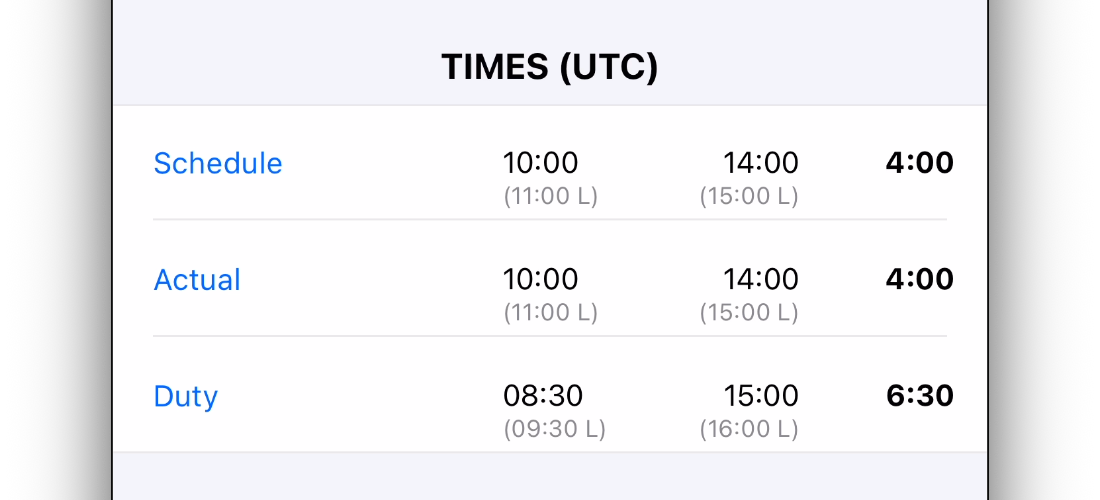
The TIMES section records the timing of the simulator session.
You may enter:
Scheduled start and end times
Actual start and end times
Duty start and end times
Actual times are used to calculate simulator hours when available.
Scheduled times can be used to fill simulator hours when actual times are missing.
HOURS Section
The HOURS section records simulator time depending on your role during the session.
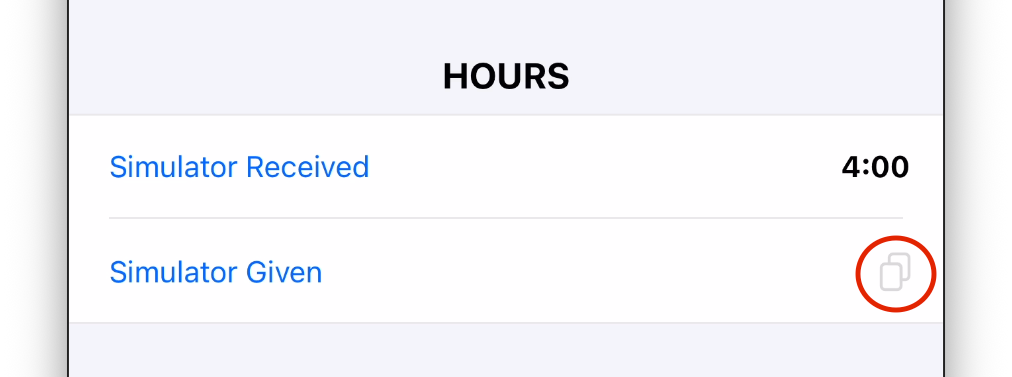
Simulator Received
Used when you were acting as a student.
This time is calculated automatically by IPL when actual start and end times are filled.
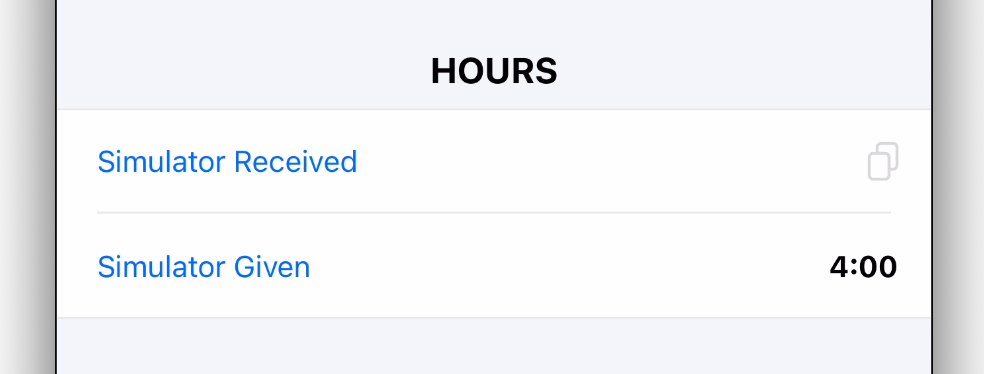
Simulator Given
Used when you were acting as an instructor.
If Simulator Received was filled automatically, you can use the copy action to move the value to Simulator Given.
Only one of these values is typically filled for a given session.
CREW Section
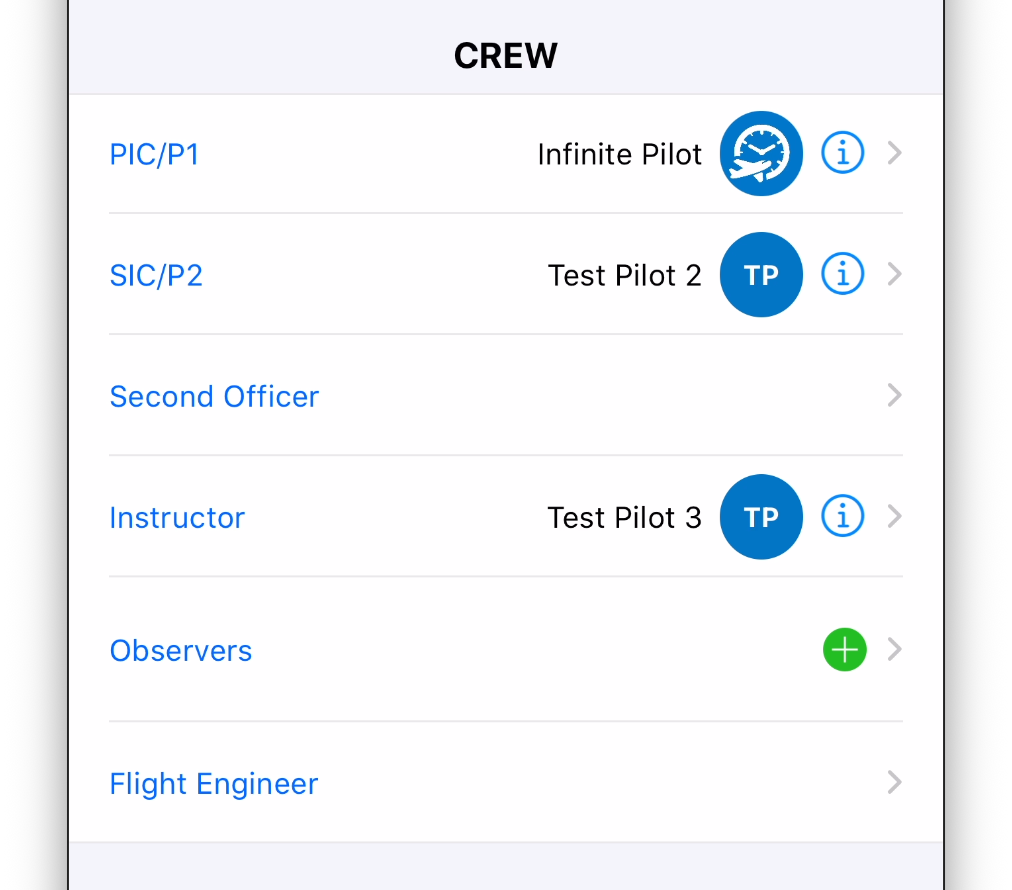
The CREW section allows you to associate people with the simulator session.
You can select:
PIC / P1
SIC / P2
Second Officer
Instructor
Flight Engineer
Observers (as an ordered list)
Crew members are selected from your People database and can be created on the fly if needed.
➡️ Learn more in People
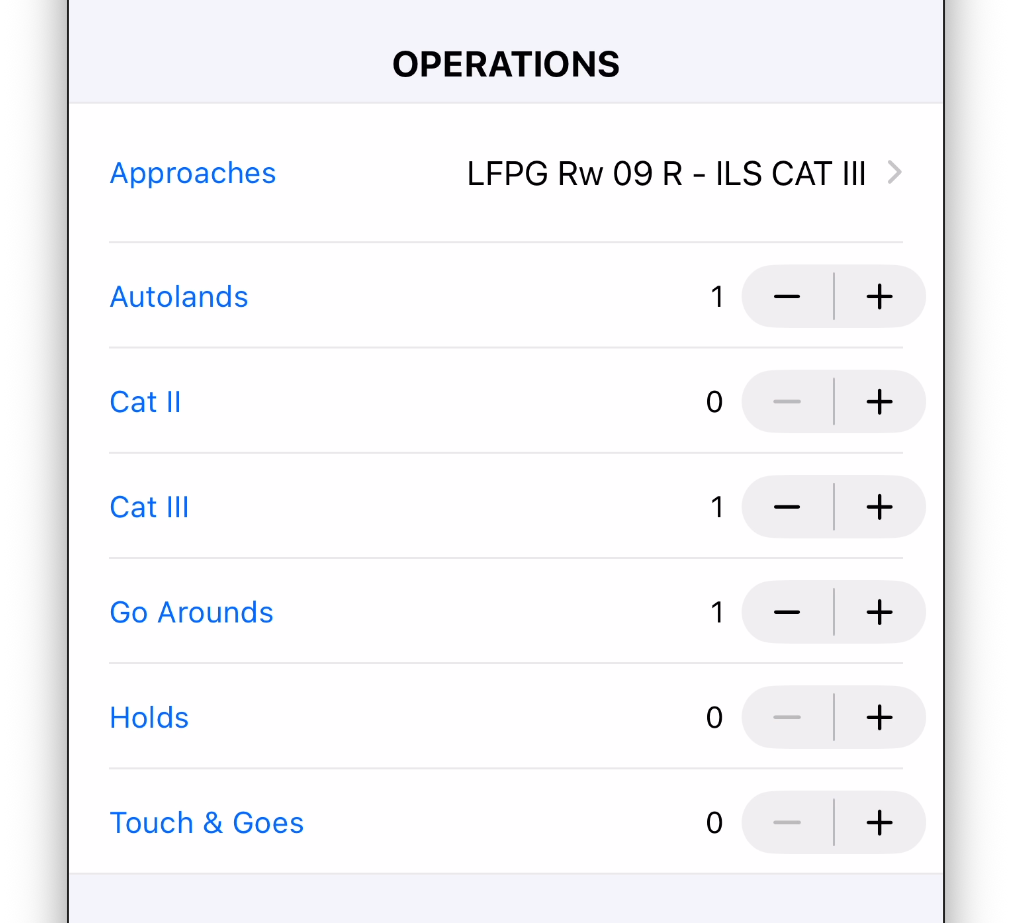
OPERATIONS Section
The OPERATIONS section records operational elements of the simulator session.
It includes:
Approaches (with place, runway, and type)
Autolands
CAT II and CAT III approaches
Go-arounds
Holds
Touch-and-goes
These values are optional but can be useful for statistics, currency tracking, and reporting.
CHECK Section
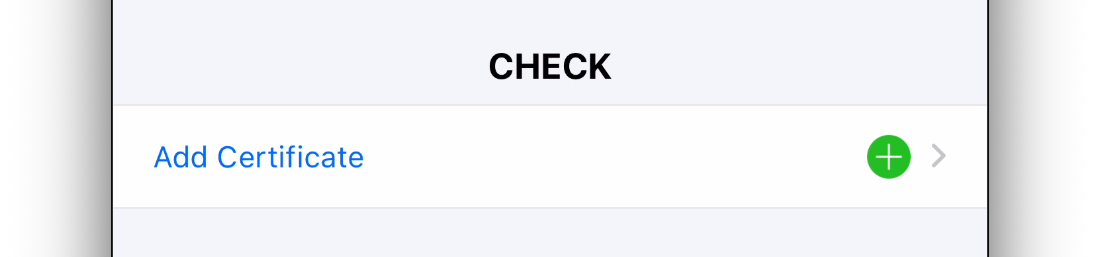
The CHECK section is used when the simulator session is associated with one or more certificates.
When a certificate is selected:
IPL evaluates its revalidation parameters
Calculates a new potential expiry date
Asks whether you want to update the certificate accordingly
For example, an OPC configured as “End of Month + 6 Months” will be recalculated based on the simulator session date.
➡️ Learn more in Certificates & Qualifications Overview
NOTES Section
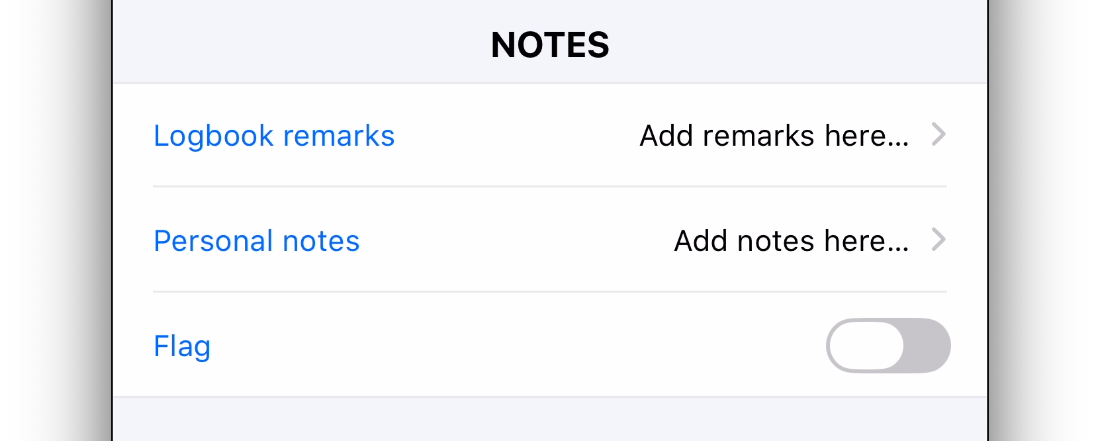
The NOTES section allows you to attach additional information to the session.
It includes:
Logbook Remarks, which are included in printable exports
Personal Notes, which remain private
A Flag to visually highlight the session in the logbook list
ENDORSEMENT Section
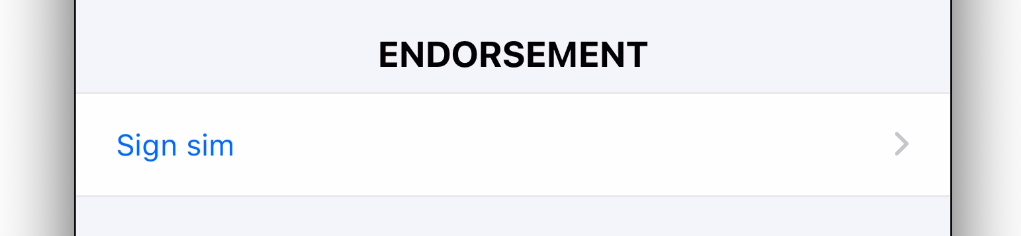
The ENDORSEMENT section allows a simulator session to be signed.
To sign a session:
Select a person
Enter or confirm their license number (optional)
Optionally add a remark
Capture a signature
Once signed, all legal fields are locked.
Legal fields include:
SIMULATOR section (except Description)
TIMES
HOURS
CREW
Logbook Remarks
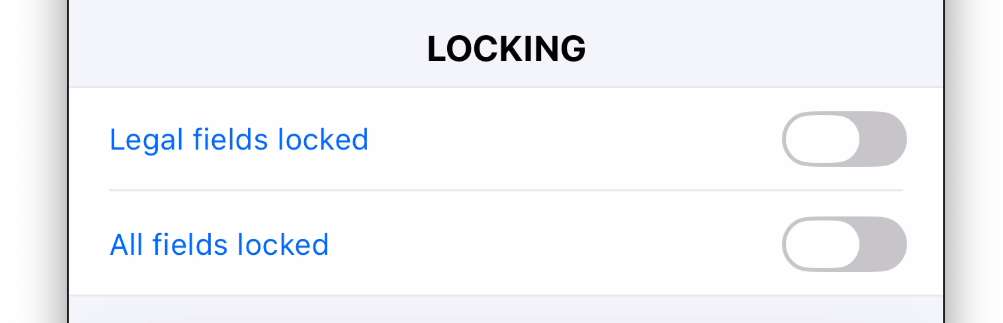
LOCKING Section
The LOCKING section allows manual locking of the simulator session.
You can:
Lock legal fields only (automatically enabled after signing)
Lock all fields to prevent any modification
Locking ensures data integrity and compliance.
➡️ Learn more in Edit, Lock & Sign Entries
Editing a Simulator Session
To edit a simulator session:
Open it from the logbook list
Modify any editable fields
All changes are saved automatically and reflected immediately in totals, statistics, and certificates.
Signed or locked sessions require unlocking or signature removal before editing legal fields.
Best Practices
Enter actual times to let IPL calculate simulator hours automatically
Use Simulator Given only when acting as an instructor or examiner
Associate certificates to the session when applicable
Use the Description field to document training objectives or scenarios
Related Articles
What’s Next
After logging simulator sessions, you may want to:
Review how entries appear in the logbook list
Explore certificate validity and revalidation logic
Learn how to log other types of entries
➡️ Explore Understanding the Logbook List
➡️ Learn about Certificates in Certificates & Qualifications Overview
➡️ Continue with Other Entry Types