Edit, Lock & Sign Entries
This article explains how editing, locking, and signing work in Infinite Pilot Logbook, and how these mechanisms help protect the integrity of your logbook entries while still giving you full control. Signing and locking are optional features, but they are commonly used for regulatory, operational, or personal data protection purposes.
Last updated 8 months ago
Editing Logbook Entries
You can edit any logbook entry by opening it from the logbook list and modifying the available fields. See Add a Flight Manually for more details on the fields available.
Changes are applied and saved immediately and reflected across maps, statistics and reports.
Depending on the state of the entry, some fields may be unavailable for editing.
Signing an Entry (Endorsement)
Signing an entry allows a third party to formally endorse the content of that entry.
This is typically used for:
PIC U/S certification, usually signed by the captain
Check-rides and special qualification flights, signed by an examiner
The signature is performed directly on the device.
To sign an entry:
Open the entry
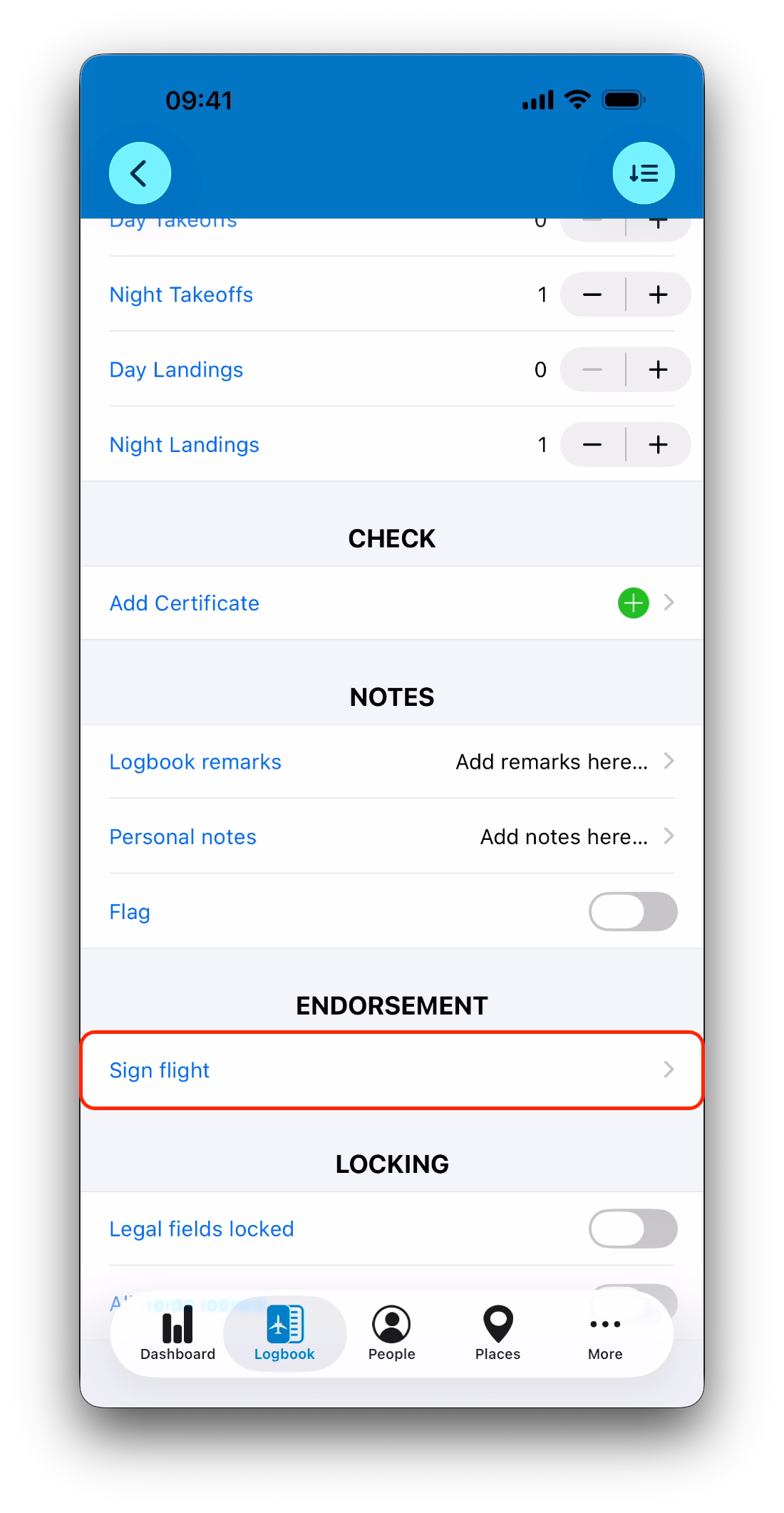
Scroll to the ENDORSEMENT section
Tap Sign flight or Sign sim
Select a person from your database
Optionally enter a licence number
Add an optional remark
Sign on the screen
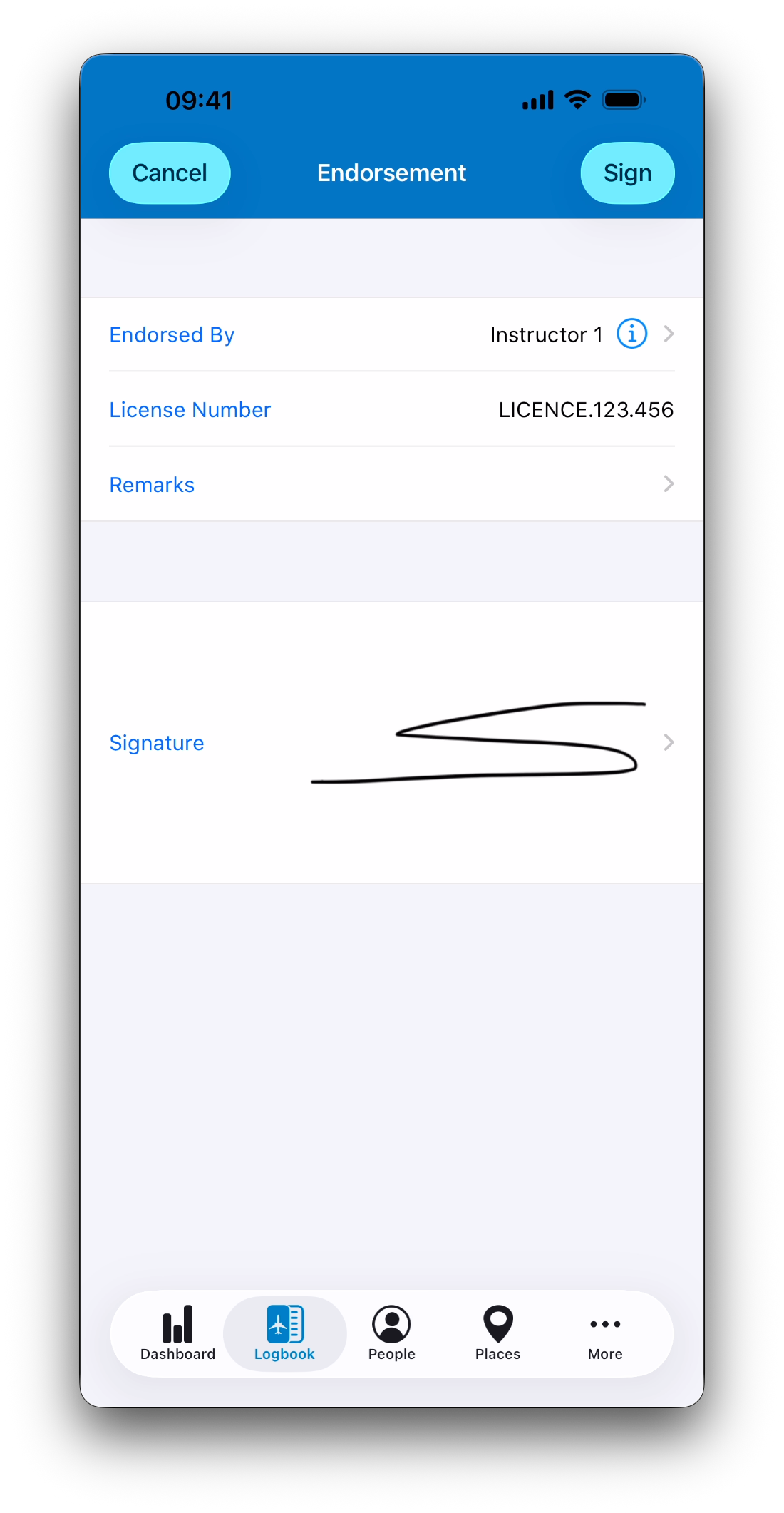
Only one signature can be associated with an entry.
What Happens When an Entry Is Signed
Once an entry is signed:
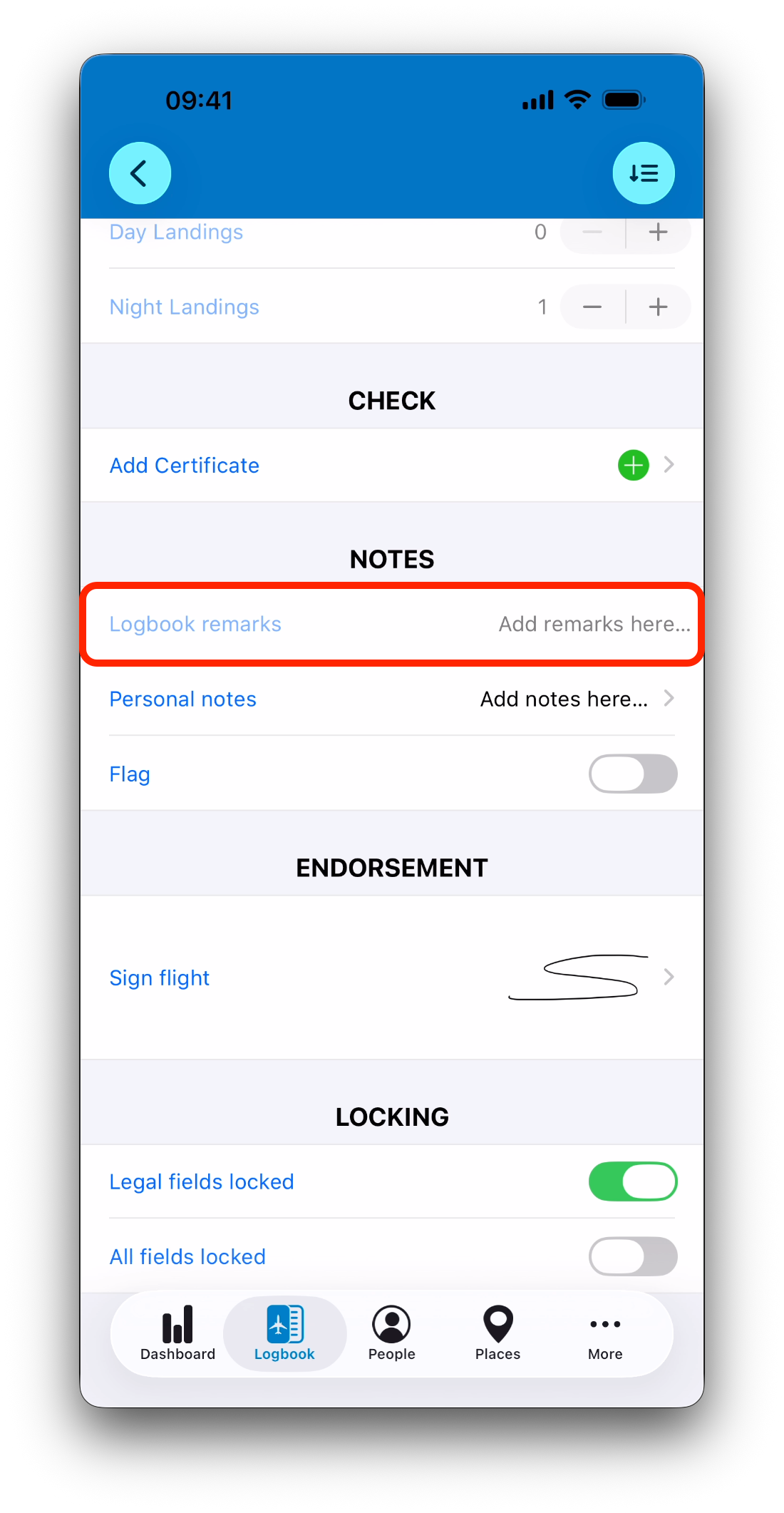
Legal fields are automatically locked
Locked fields appear grayed out
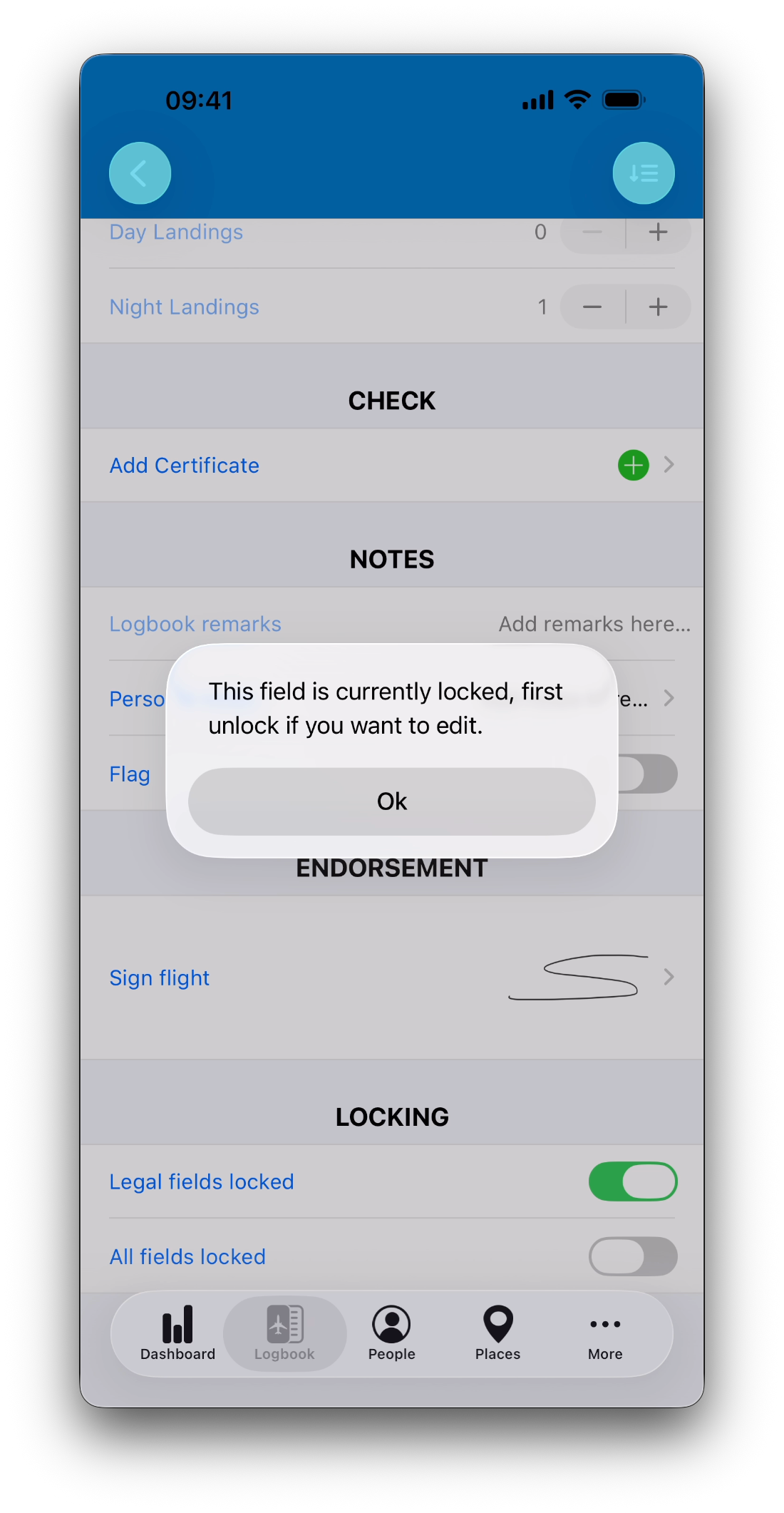
Attempting to edit a locked field displays a warning message
This prevents changes to the data that was endorsed.
Legal Fields Explained
Legal fields are the parts of an entry that define its regulatory value.
When legal fields are locked (automatically after signing or manually by the user), the following sections are protected:
FLIGHT
SIMULATOR (except the Description field)
TIMES
HOURS
CREW
OPERATIONS
Logbook Remarks
These fields represent the information that someone is effectively signing for.
Other sections (PASSENGERS, FUEL, …) and fields such as Personal Notes, remain editable unless all fields are locked.
Removing a Signature
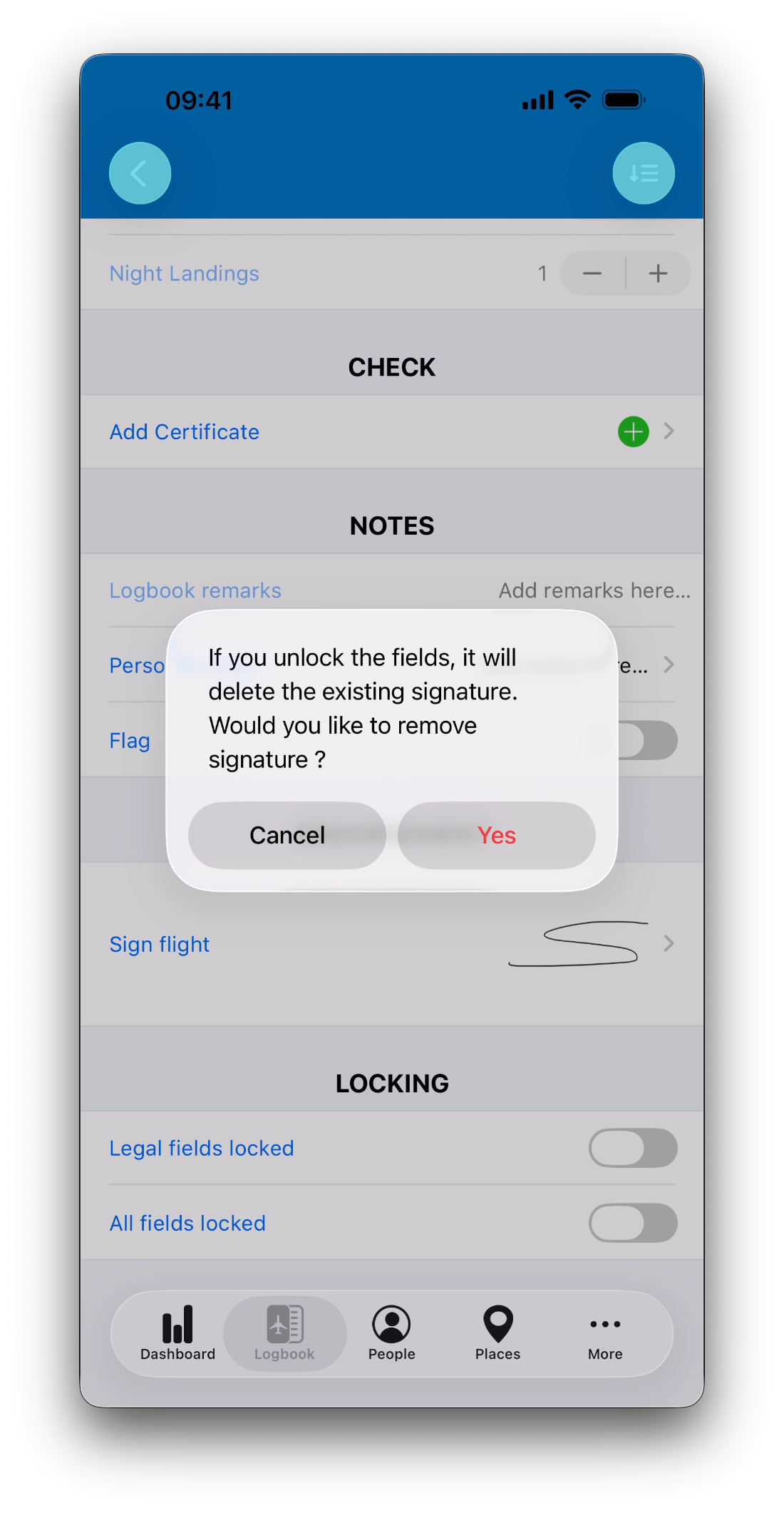
If a signed entry needs to be modified, the signature must be removed first.
There are two ways to do this:
Option 1: Unlock Legal Fields
Go to the LOCKING section
Disable Legal fields locked
Confirm that the signature will be removed
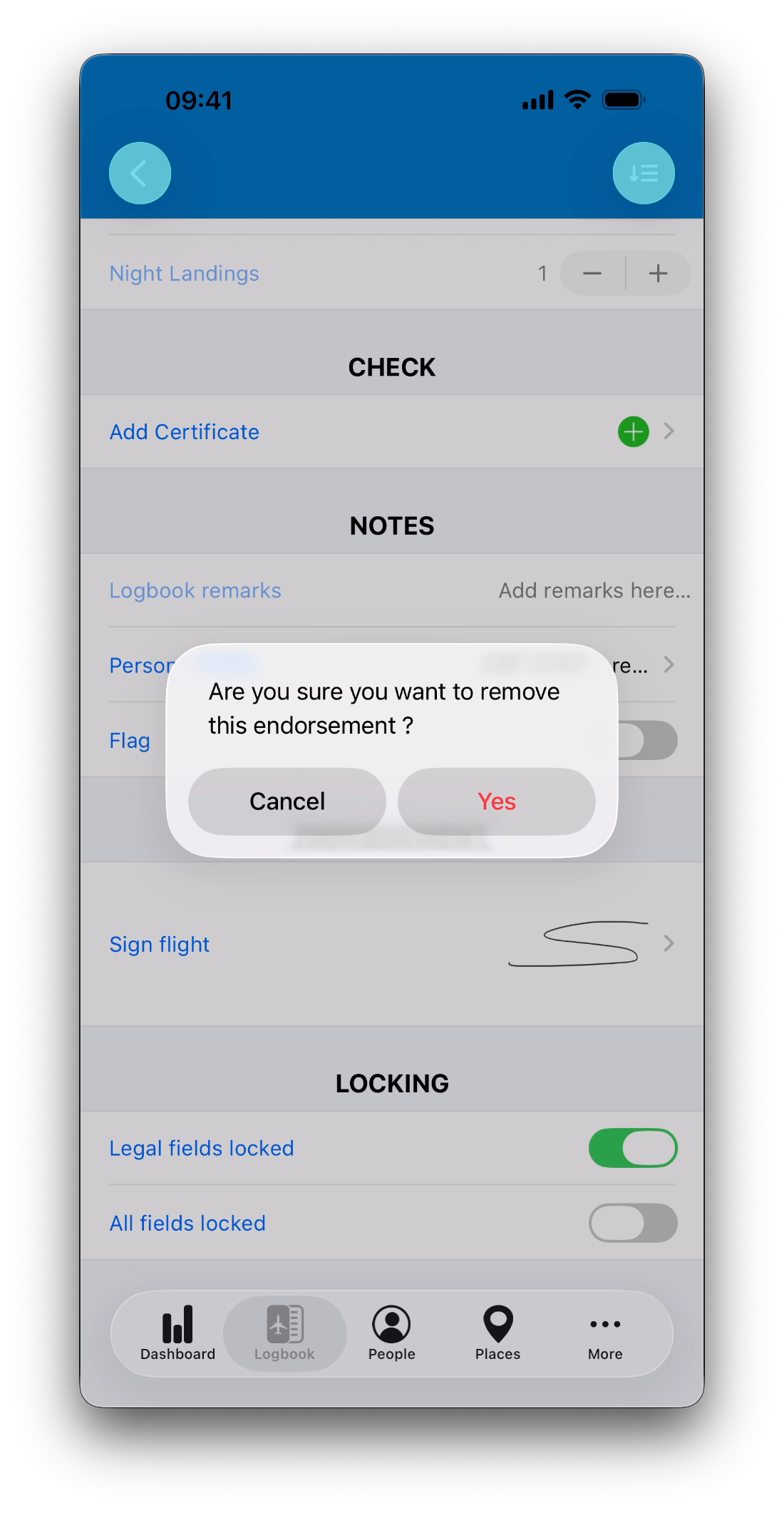
Option 2: Remove the Signature Directly
Clear the signature from the ENDORSEMENT section
Confirm the removal
In both cases:
The signature is deleted
Legal fields become editable again
Locking Entries Without a Signature
Locking is not limited to signed entries. You can also lock entries for your own protection, even without a signature.
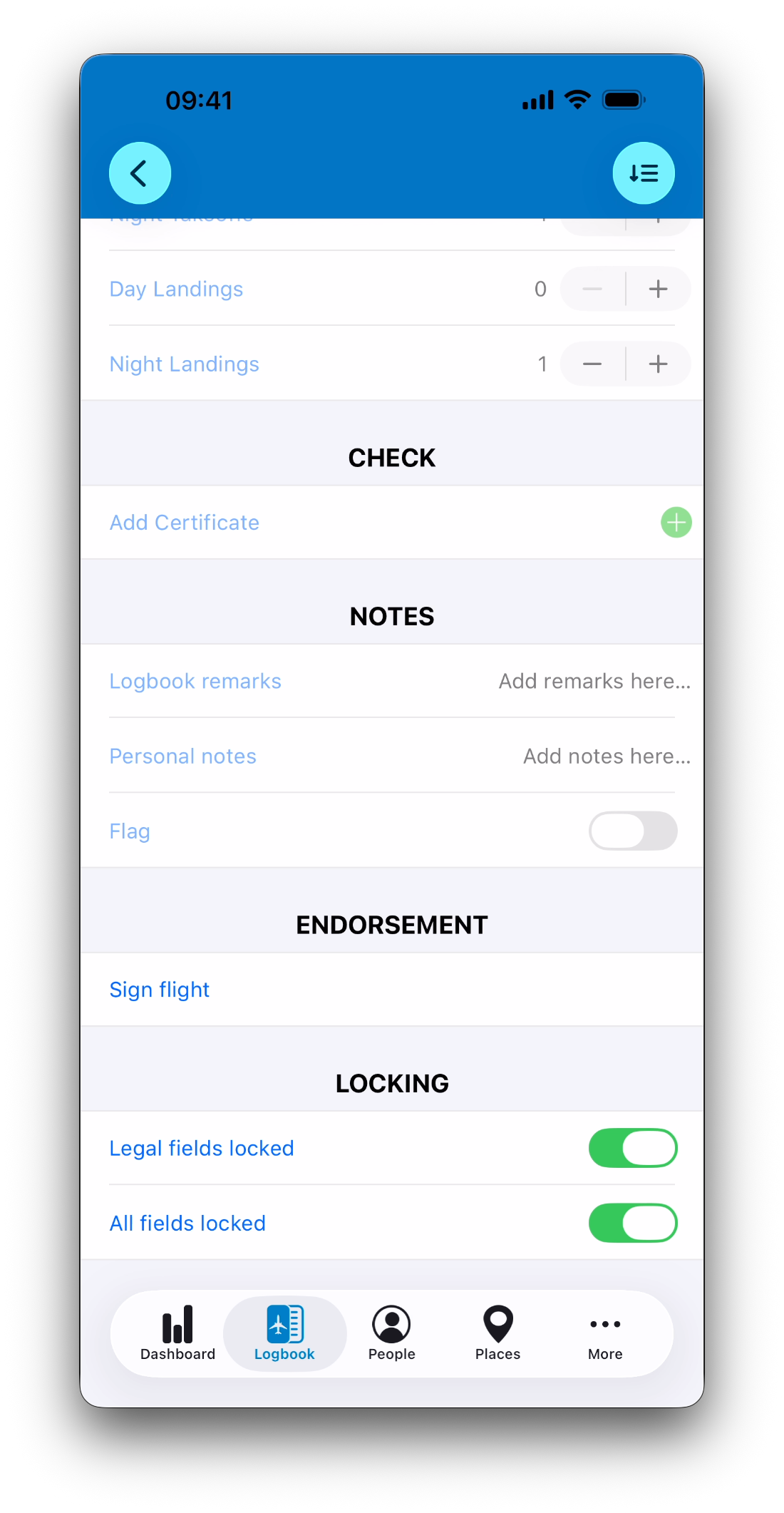
Two locking options are available:
Legal Fields Locked
Locks all legal fields
Non-legal sections and fields remain editable
Automatically enabled when an entry is signed
All Fields Locked
Locks every field in the entry
Useful for fully finalized or archived records
Why Locking Exists
Locking serves two distinct purposes:
Legal safeguard
Prevents modifying data after someone has signed for it
(for example, changing PIC U/S time after endorsement)
Personal safeguard
Prevents accidental changes to completed entries
Both can be used together if desired.
What Locking Does Not Do
Locking:
Does not affect saving
Does not alter calculations
Does not change exports
It only prevents modification of selected fields.
Exports and Record Keeping
Signed and locked entries can be exported to printable EASA or FAA compliant logbooks.
Signatures are shown in supported exports.
➡️ Learn more in Export Your Logbook
Best Practices
Review entries carefully and sign only once all legal fields are final
Use All fields locked for fully finalized records to protect them from unwanted changes
Unlock signed entries only when corrections are required as signature will be lost
What’s Next
Understand how time and hour calculations work across entries.
➡️ Understanding Time Calculations