Understanding Time Calculations
Time is at the heart of Infinite Pilot Logbook. It drives your totals, your auto-fill hour fields, and what you see in the Logbook list. This article explains how IPL chooses which times to display, how Total Time is computed, and how auto-fill works (including Night and Relief).
Last updated 7 months ago
Total Time
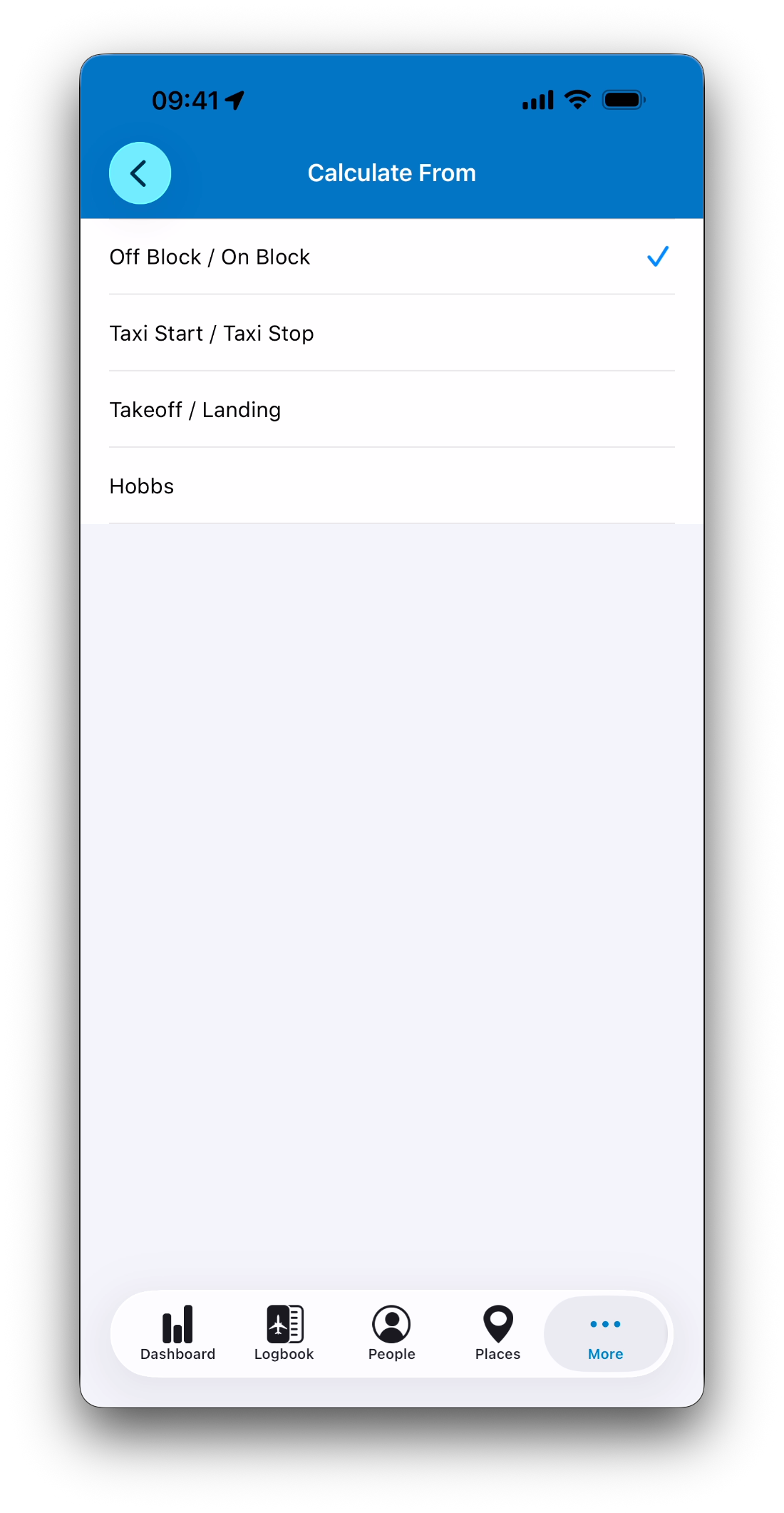
IPL can calculate your Total Time from one of these sources:
Off Block / On Block (Block)
Taxi Start / Taxi Stop (Moving under own power)
Takeoff / Landing (Flight)
Hobbs
ℹ️ By default IPL uses block times but you can change this in Settings. Learn more in Time Calculation Preferences .
This “Calculate From” setting affects:
Which times are displayed in the Logbook list (departure/arrival).
What IPL expects you to fill to calculate the Total Time.
How the “*” discrepancy indicator is determined (more on that below).
Which times appear in the Logbook list (and their color)
For the selected “Calculate From” mode, IPL displays times using this priority:
Actual times (matching the selected mode) in normal text color
If missing, Scheduled times in gray
If neither exists, “????”
For example, if you selected Off Block / On Block:
Off/On Block times shown when available
otherwise Scheduled times shown in gray
otherwise “????”
Hobbs special case:
If Hobbs is selected and Hobbs values are filled, the Logbook list shows Hobbs numbers (e.g., 32411.5) instead of time-of-day values.
Manual Total Time vs Calculated Total Time
IPL supports a mix of workflows:
You can let IPL compute Total Time from your selected time pair.
Or you can enter Total Time manually.
If you manually enter Total Time, it becomes the value IPL uses for hours and totals. If later you change the relevant times, IPL can recompute and override the previous value.
What does the “*” mean in the Logbook list?
A star (*) can appear next to Total Time in the Logbook list when:
A Total Time exists, and
The displayed departure/arrival pair (based on your “Calculate From” mode) implies a different duration.
This is simply a consistency hint for uncommon situations. For example, two students share the same aircraft and log the aircraft’s real block times, but each student logs only the portion they actually flew as Total Time.
ℹ️ The “*” is only shown in the Logbook list, not inside the entry screen.
Auto-Fill Times
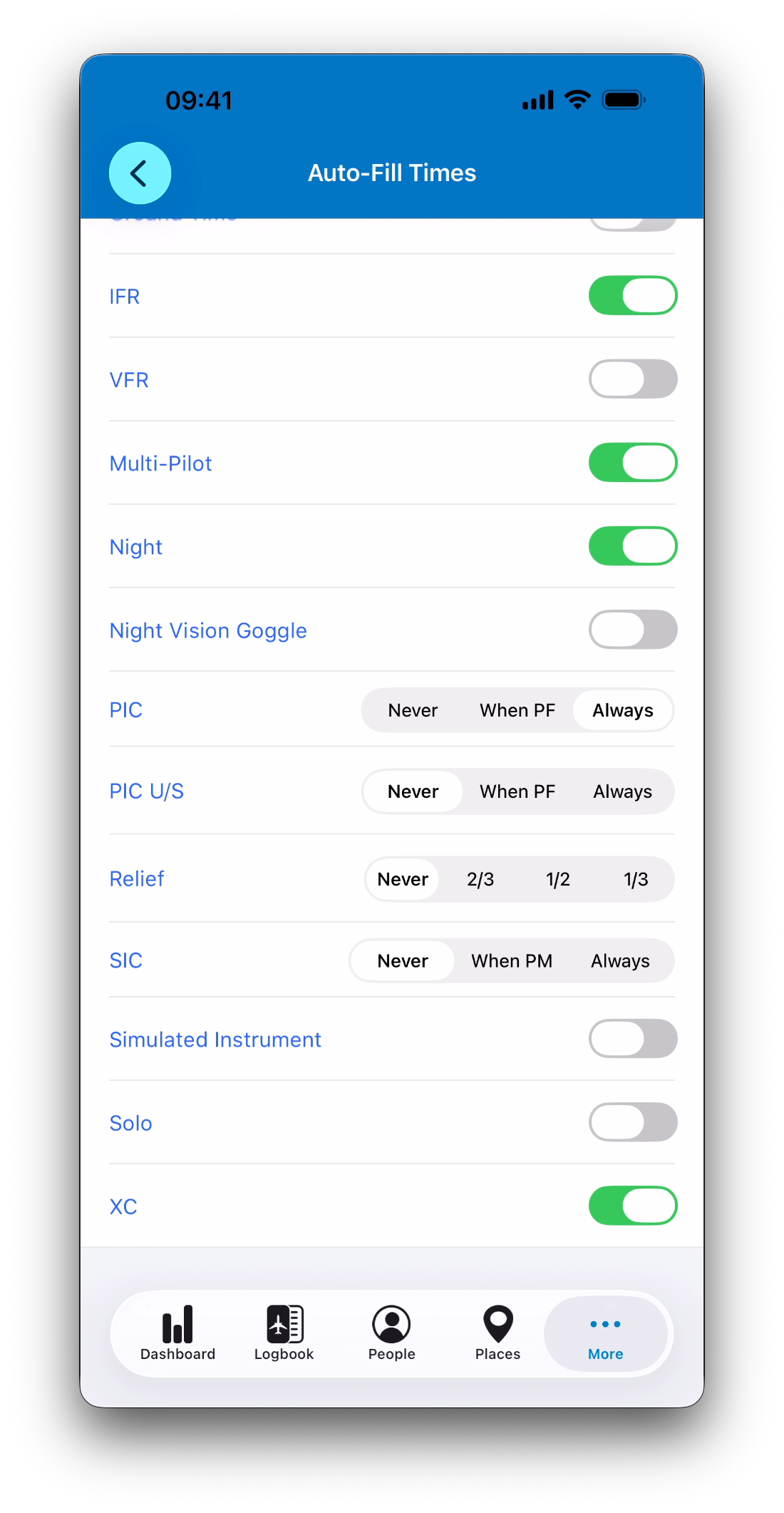
Auto-fill helps you populate selected hour fields quickly and consistently. You choose which fields are auto-filled in Settings → Time Calculations → Select Auto-Fill Times.
When does auto-fill run?
Auto-fill updates happen whenever IPL recalculates an entry (typically after a change in times).
At that moment, IPL fills only the hour fields you have configured for auto-fill, based on the current entry data.
What values are used for auto-fill?
Most auto-fill fields use Total Time, but there are important exceptions and conditions.
Relief uses a fraction of Total Time (2/3, 1/2, or 1/3), depending on your selection.
Night and all night-based hour fields use the calculated Night Time, not Total Time.
Some hour fields depend on the Pilot Flying status:
Fields marked When PF are auto-filled only when the Pilot Flying switch is enabled for the entry.
Fields marked When PM (Pilot Monitoring) are auto-filled only when the Pilot Flying switch is disabled.
ℹ️ Changing the Pilot Flying switch may trigger different auto-fill results, as IPL automatically applies the rules associated with PF or PM-dependent hour fields.
Night Time
Night Time calculation in IPL follows the ICAO definition of Night: the hours between the end of evening civil twilight (sun 6° below the horizon) and the beginning of morning civil twilight (sun 6° below the horizon). When you trigger Night calculation (either by auto-fill or using the copy/action button), IPL uses an algorithm that considers:
Date
Route
Times (Takeoff/Landing and Off Block/On Block when available)
Conceptually, IPL estimates the aircraft’s position over time along the route and checks the sun’s status minute-by-minute to determine how many minutes qualify as night.
Night-related fields
Fields that depend on Night Time include (examples):
PIC U/S Night
Relief Night (uses a fraction of the night time)
PIC / SIC Night
XC Night
Dual Received Night
These fields use the calculated Night value when auto-fill is enabled, and they remain manually editable like all hour fields.
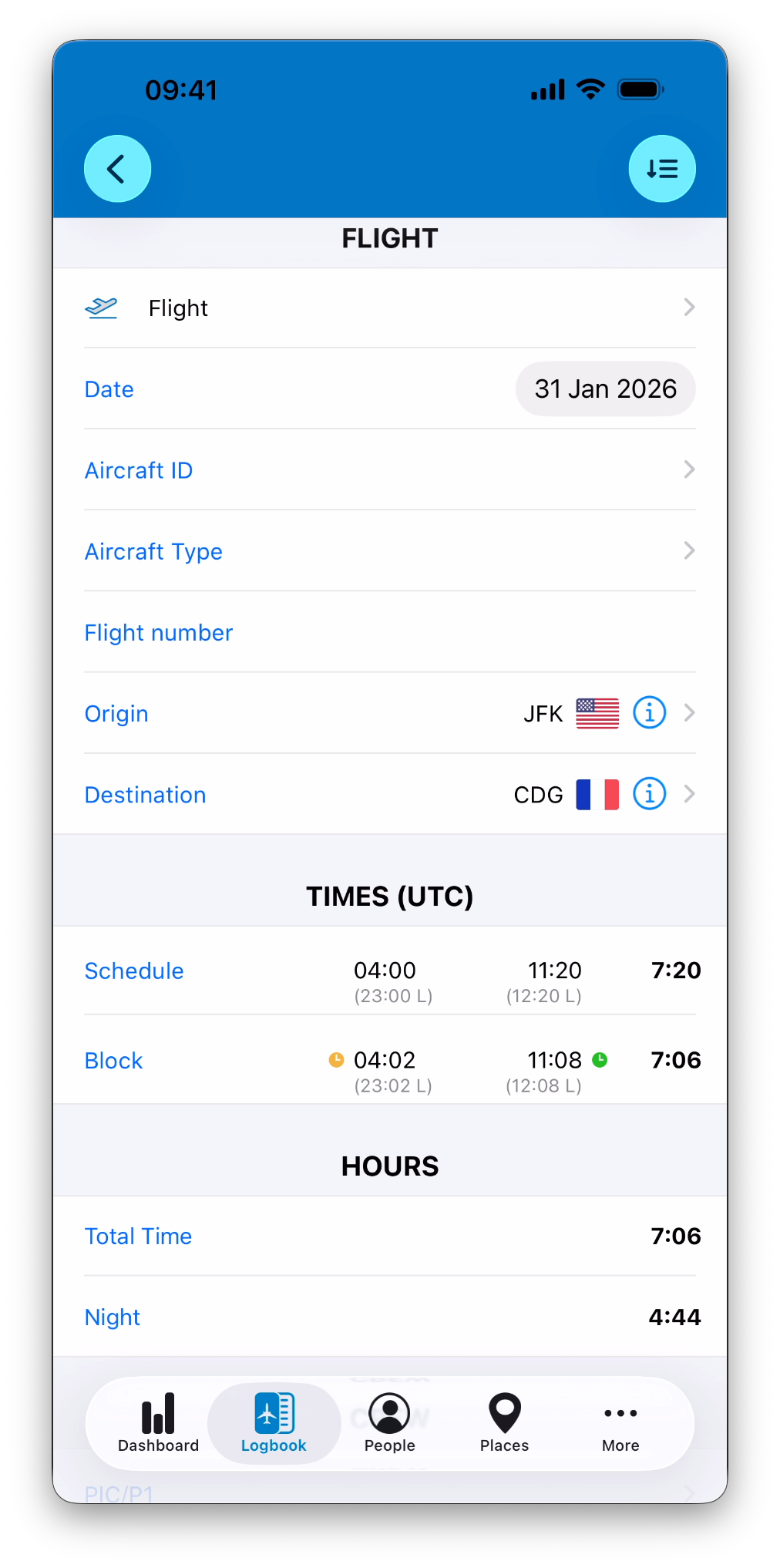
Role-based defaults (Airline Captain, Airline First Officer, etc.)
IPL can initialize sensible auto-fill choices the first time you select a role. After that, you can fine-tune auto-fill field by field anytime — your role doesn’t lock you in.
Duty and FDP calculations
Duty and FDP can be entered:
Fully within one entry (start + end), or
Split across a multi-sector day (start in the first sector, end in the last).
When they are split, IPL can automatically group nearby entries to compute a single Duty/FDP total for the day.
In multi-sector days, the total is shown:
In normal color on the last sector (where the “end” completes the day),
And in gray on earlier sectors.
Duty Time Defaults and FDP Defaults help IPL suggest start/end values based on schedule and/or actual times, depending on your configuration.
Simulator time
Simulator entries are straightforward:
Total sim time is calculated from Actual Start/End when present,
Otherwise it falls back to Scheduled values,
You log time as Simulator Received or Simulator Given.
Locked fields and calculations
Locking (legal fields or all fields) does not change how times are computed — it only prevents edits. Locked fields appear visually dimmed/gray, and IPL will prompt you to unlock before editing.
➡️ See Edit, Lock & Sign Entries for full details.
Best practices
Pick a Calculate From mode that matches how you log in real life (block, taxi, flight, or hobbs) and stick to it for consistency.
Enter the pair of times that matches your selected mode ; let IPL compute totals and auto-fill.
Use the “*” as a helpful flag for unusual cases — not necessarily as an error.
If you rely on Night logging, make sure route + date + relevant times are filled so the Night algorithm has what it needs.
Related articles
What’s Next
➡️ Continue with Overview: Importing Data into IPL