Understanding the Logbook List
The Logbook List is the default view of Infinite Pilot Logbook. It displays all your logbook entries and provides a compact, visual overview of your activity. This article explains how to read the list, understand its symbols and color coding, and why entries may appear differently depending on their type and your settings.
Last updated 8 months ago
What the Logbook List Shows
The Logbook List displays all entry types, including:
Flights
Simulator sessions
Positioning
Home standby
Airport standby
Home reserve
Airport reserve
Medical or other duty entries
Entries are displayed chronologically and grouped by calendar month.
Navigation and Search
Month Grouping
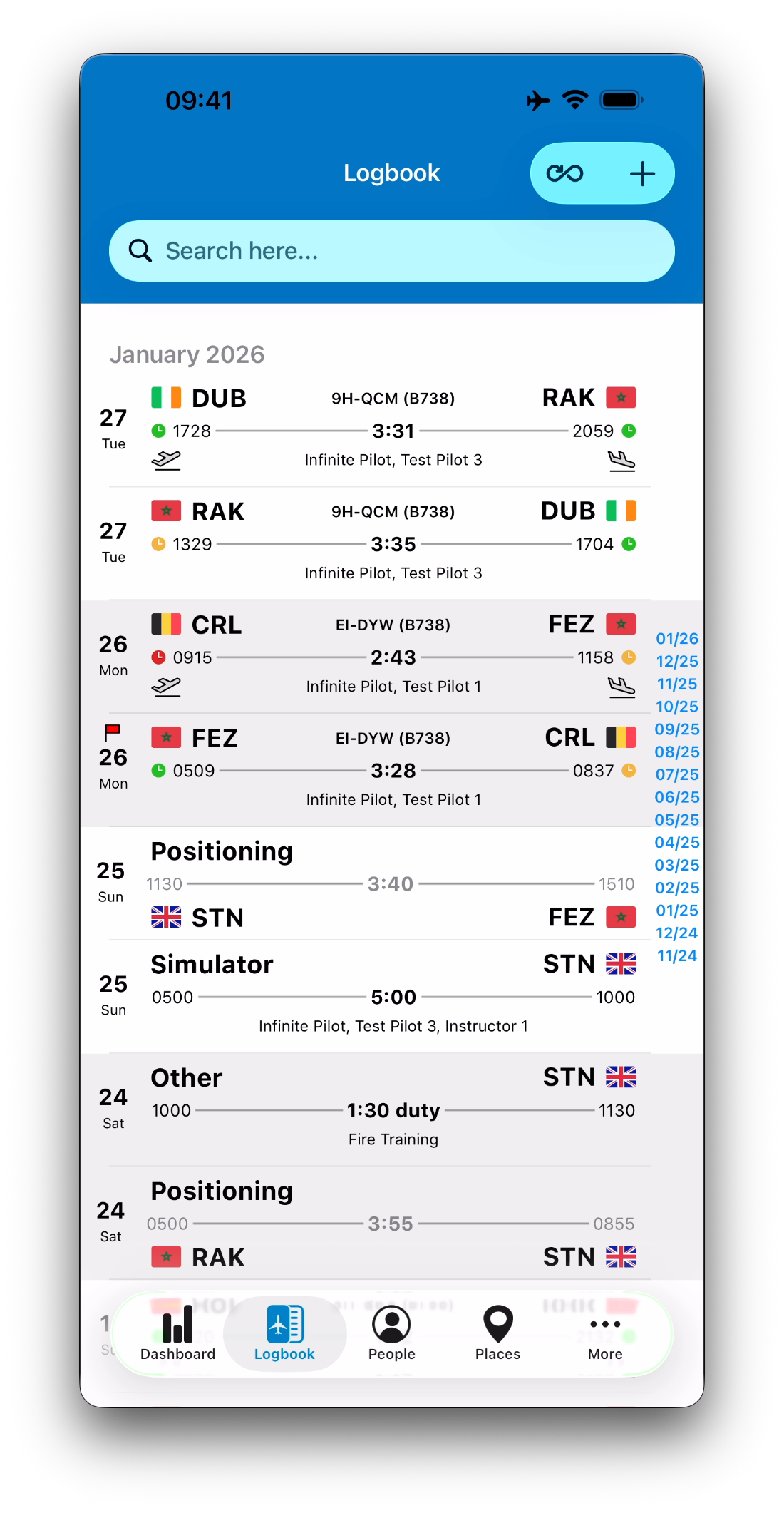
Entries are grouped by calendar month, each month having its own header.
A month index on the right side of the list allows quick navigation to any month.
Day Separation
Alternating background colors separate calendar days, making the list easier to read when multiple entries exist on the same day.
Flags
If the Flag switch is enabled for an entry, a small flag icon is displayed above the date.
This allows you to visually highlight specific entries.
Search Bar
The search bar allows you to search logbook entries using:
Origin or destination (ICAO or IATA code)
Aircraft or simulator ID
Main people fields (by name)
Results update dynamically as you type.
Common Visual Indicators
Several symbols and formatting rules are used consistently across all entry types.
Time Placeholders
“????” is displayed when required times are not filled
“??:??” is displayed when a total time or duty cannot be calculated
Gray Values
Gray values indicate scheduled times or scheduled totals, displayed when actual values are not available.
Star (*)
A star next to a total indicates that the displayed total does not match the total calculated from the displayed start and end times.
This can happen, for example, when:
Only part of a flight is logged as Total Time
Pilots switch seats during the same flight
Totals are manually adjusted
Crew Truncation
When the crew list exceeds the available space, it is truncated and displayed with “…”.
Flight Entries
Flight entries display, when available:
Date of the flight
Origin and destination, including country flags
Aircraft type and registration
Departure and arrival times
Total Time
Crew list
Displayed Times
The times shown depend on your time calculation settings.
For example:
If Total Time is calculated using block times, Off Block and On Block times are displayed
If calculated using flight times, Takeoff and Landing times are displayed
If actual times are missing, scheduled times are shown in gray
If no relevant times are available, placeholders are shown
Total Time
Total Time is shown when filled
Otherwise, the scheduled total is shown in gray
A star (*) may appear if the total does not match the displayed times
Additional Indicators
Plane symbols indicate whether at least one takeoff or landing is recorded
On-time performance clocks may be displayed if enabled in Settings:
Green: on time or early
Orange: 1–15 minutes delay
Red: more than 15 minutes delay

➡️ Learn more in Understanding Time Calculations
Simulator Entries
Simulator entries are identified by the entry type label “Simulator”.
They display:
Date of the session
Simulator place (when filled)
Start and end times
Total simulator time
Crew list
If the pilot acted as an instructor, the word “given” is added to the total time.
As with flights:
Scheduled times are shown in gray when actual times are missing
A star (*) may appear if the total does not match the displayed times

Positioning Entries
Positioning entries display:
Date
Entry type label “Positioning”
Origin and destination
Departure and arrival times
Total Time
Displayed times and totals follow the same rules as flight entries, based on your time calculation settings.
On-time performance clocks may also be displayed if enabled.

Standby and Reserve Entries
Home Standby and Airport Standby
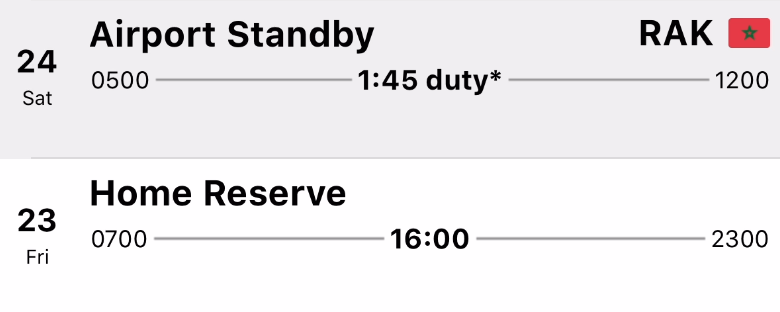
Standby entries display:
Date
Entry type label
Place (for airport standby)
Scheduled start and end times
Total Duty time
“Called at” time when filled
Home Reserve and Airport Reserve
Reserve entries display:
Date
Entry type label
Place (for airport reserve)
Scheduled start and end times
Total Duty time
For standby and reserve entries:
Scheduled values are shown when actual values are missing
A star (*) may appear if the total duty does not match the displayed schedule
Why Entries May Look Different
Entries may appear differently depending on:
Entry type
Available data
Your time calculation settings
Whether actual or scheduled values are filled
Whether totals were manually adjusted
This ensures the list always reflects both what is known and how your logbook is configured.
Related Articles
For deeper explanations of specific behaviors: