Add a Flight Manually
This article provides a detailed walkthrough of how to add and complete a flight entry manually in Infinite Pilot Logbook. Manual entry is useful when logging new flights from scratch, completing imported flights, or correcting existing entries. Even if you primarily import data, understanding manual entry helps you review, adjust, and ultimately trust your logbook.
Last updated 8 months ago
Creating a New Flight Entry
To create a new flight entry:
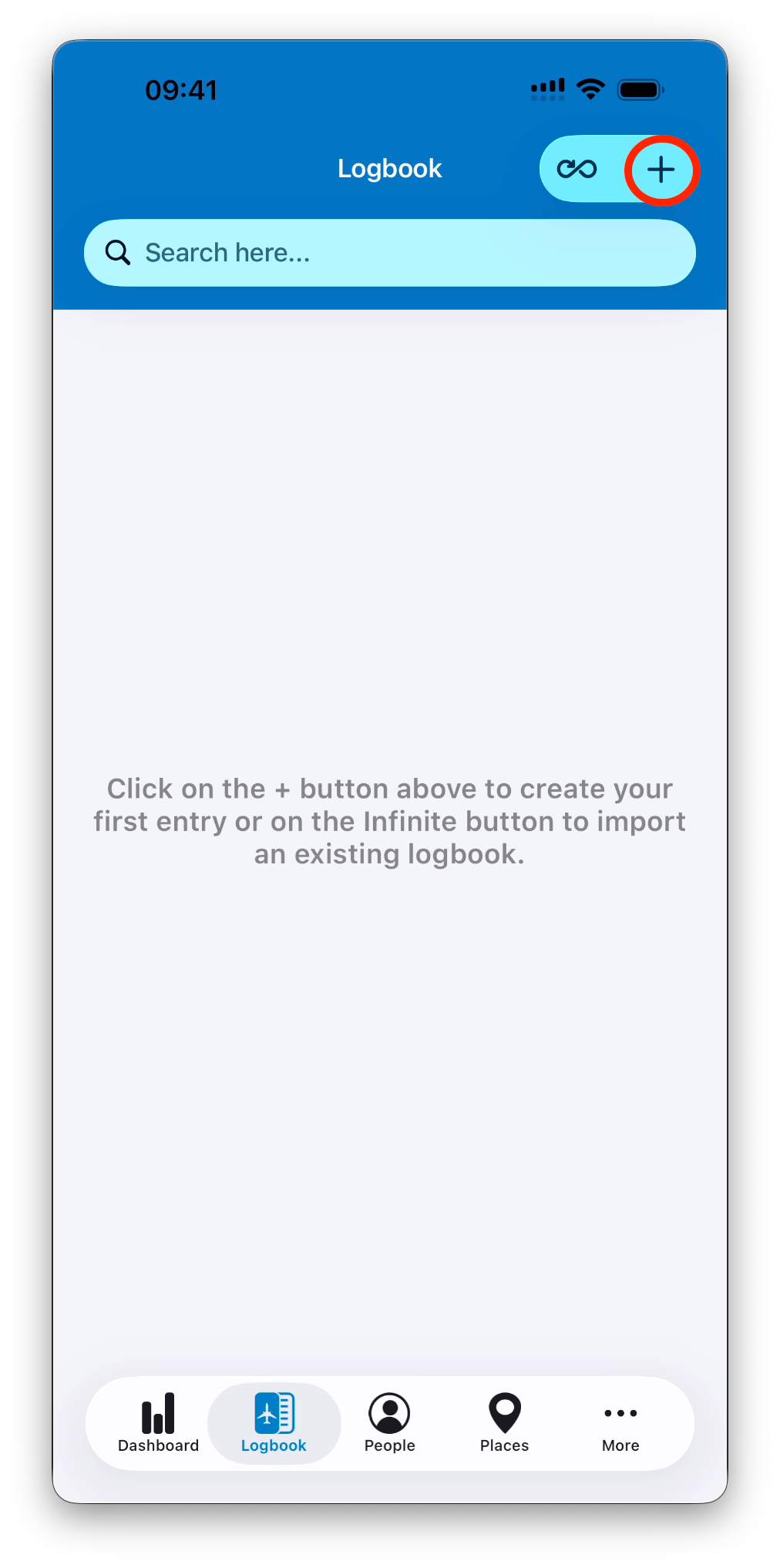
Open the Logbook tab
Tap the + button in the top-right corner
A new flight entry is created immediately and automatically saved.
The entry type is set to Flight by default.
Structure of a Flight Entry
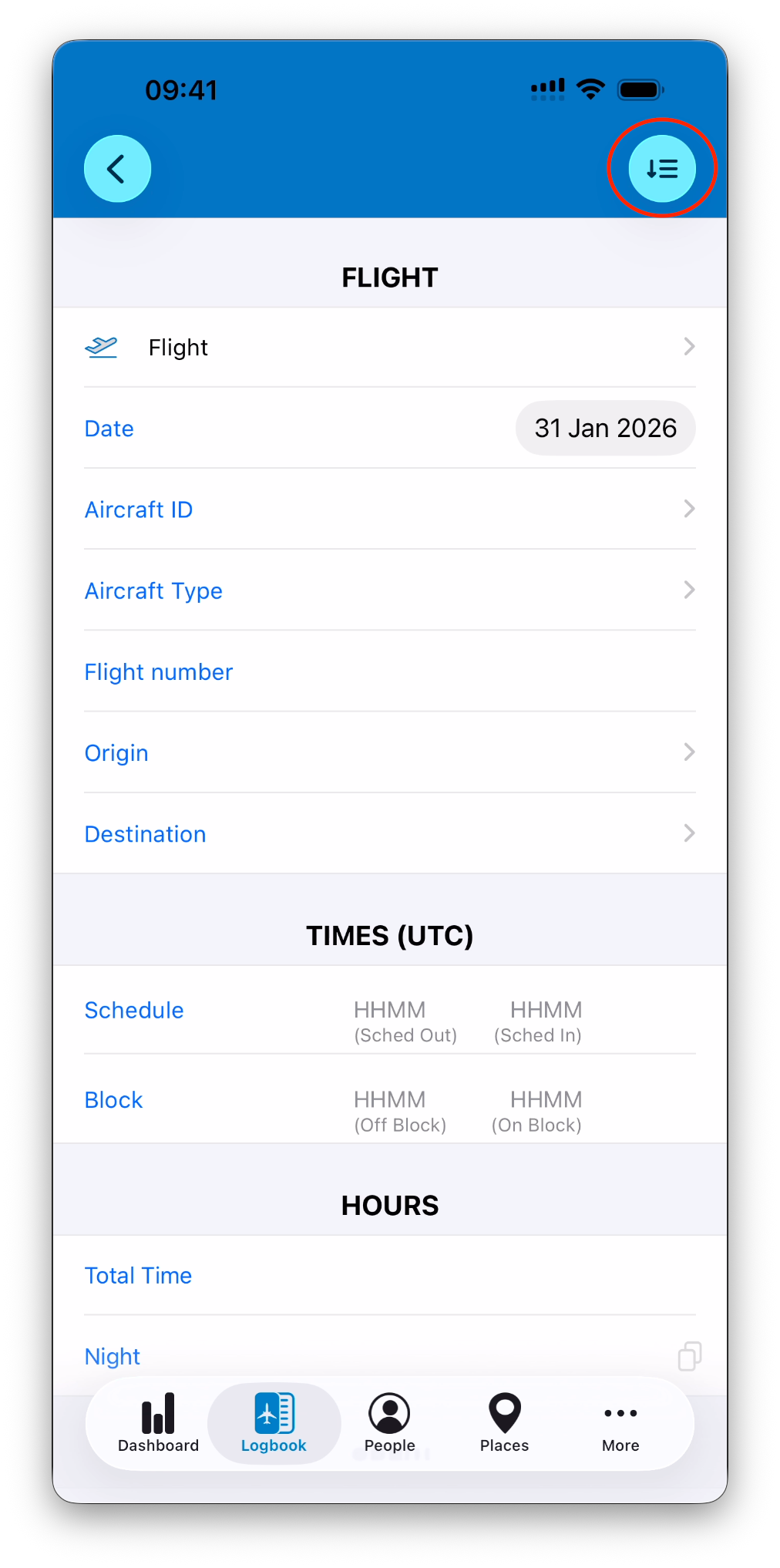
A flight entry is displayed on a single screen divided into multiple sections, each grouping related information.
Sections are shown in a condensed view by default.
You can tap the expand button in the top-right corner to reveal all sections and available fields.
This allows you to keep entries lightweight when needed, while still accessing advanced or less frequently used data.
FLIGHT Section
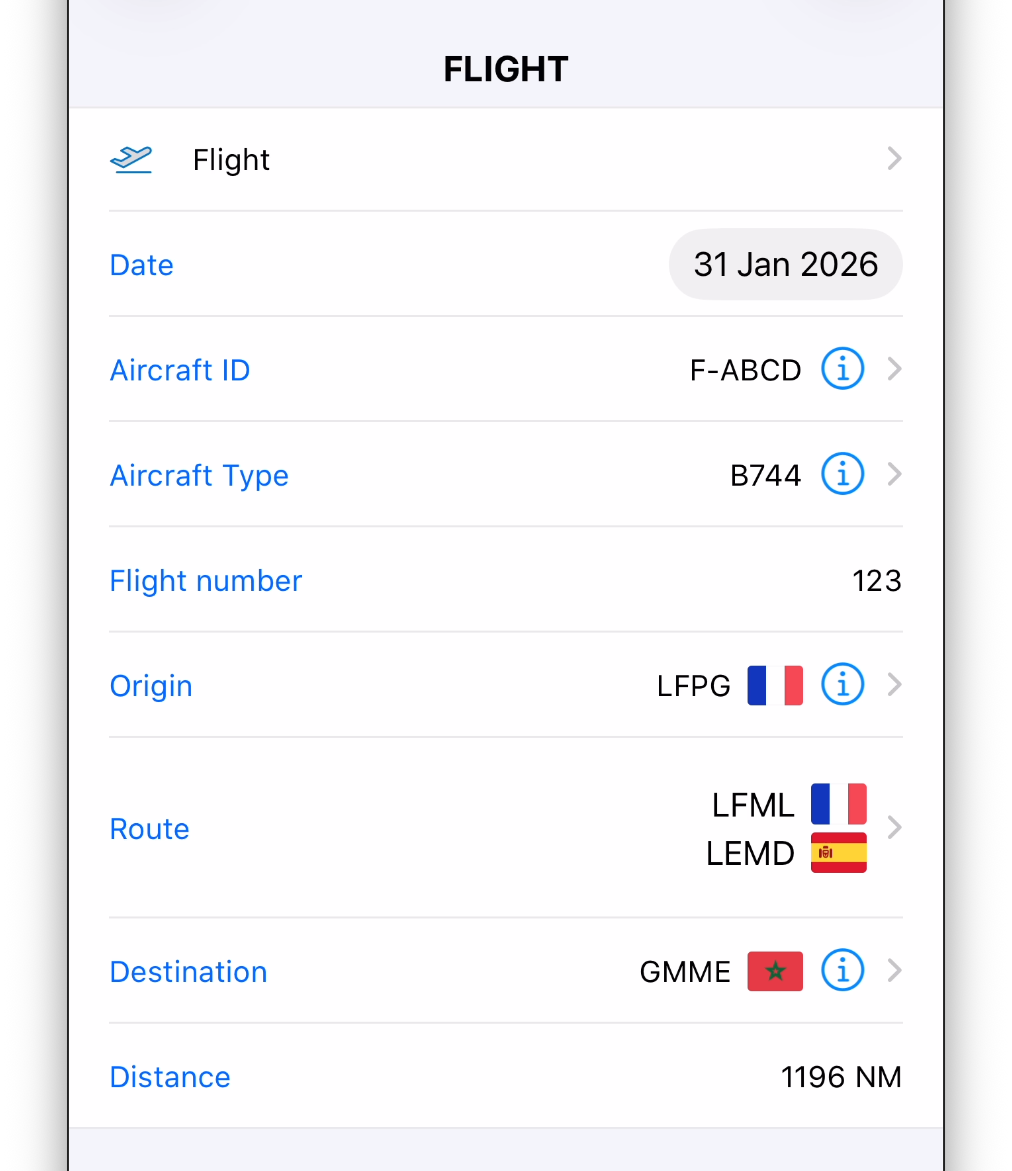
The FLIGHT section defines the identity and routing of the flight.
It includes information such as:
Date of the flight
Aircraft and aircraft type
Flight number
Origin, route, and destination
Aircraft, aircraft types, and places are selected from your existing databases.
If an aircraft is selected and its type is defined, the Aircraft Type field is populated automatically.
The Distance is calculated automatically as the great circle distance between the origin, route points, and destination, expressed in nautical miles.
TIMES (UTC) Section
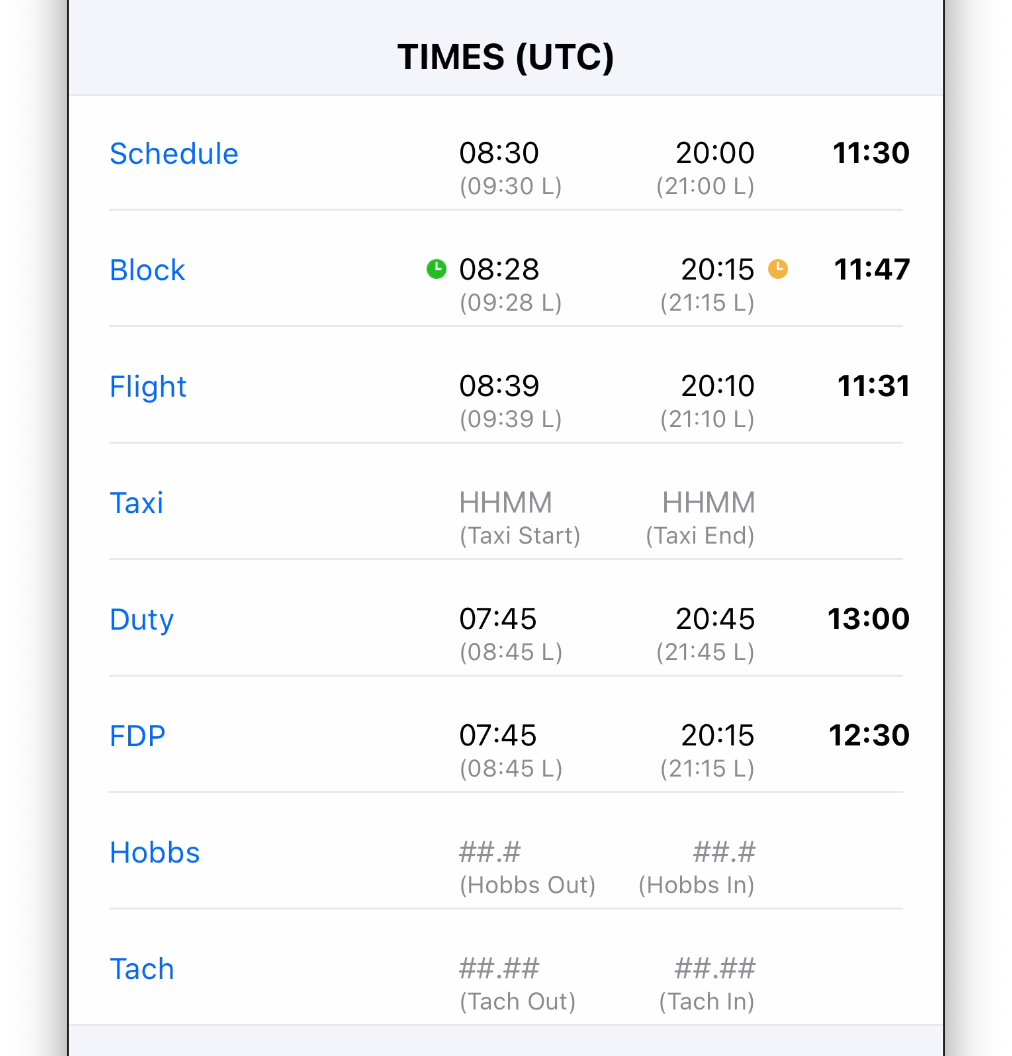
The TIMES section is the foundation of all time calculations in IPL.
Depending on your operation, you may enter:
Scheduled Off Block and On Block times
Actual Off Block and On Block times
Takeoff and Landing times
Taxi-start and taxi-end times
Duty and Flight Duty Period (FDP) start and end times
By default, Total Time is calculated from Off Block and On Block times once they are entered.
Duty and FDP times can be suggested automatically based on your settings and the scheduled or actual block times, and IPL can handle single-sector or multi-sector duty days.
➡️ Learn more in Understanding Time Calculations
HOURS Section
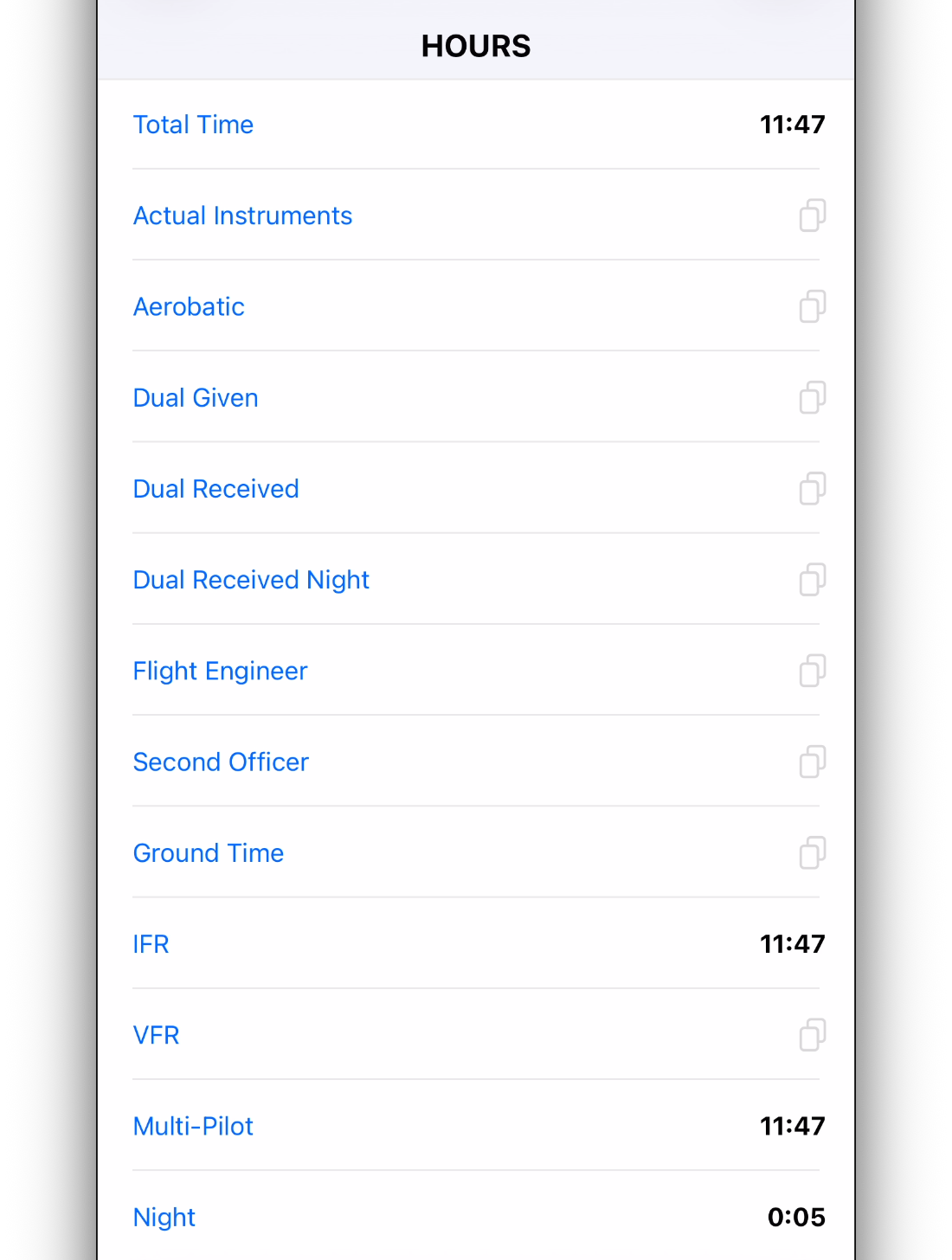
The HOURS section allows you to log time according to specific functions and regulatory requirements.
You can:
Enter values manually
Use quick action buttons to:
Copy the Total Time (usually Total Block Time)
Calculate Relief Time
Calculate Night Time using IPL’s night algorithm
Night time is calculated using a dedicated algorithm following the official ICAO definition of night.
Relief time can be calculated as a fraction of Total Time (2/3, 1/2, or 1/3), depending on your settings.
Some hour fields can also be configured to auto-fill based on Total Time. Auto-filled values remain editable at all times.
CREW Section
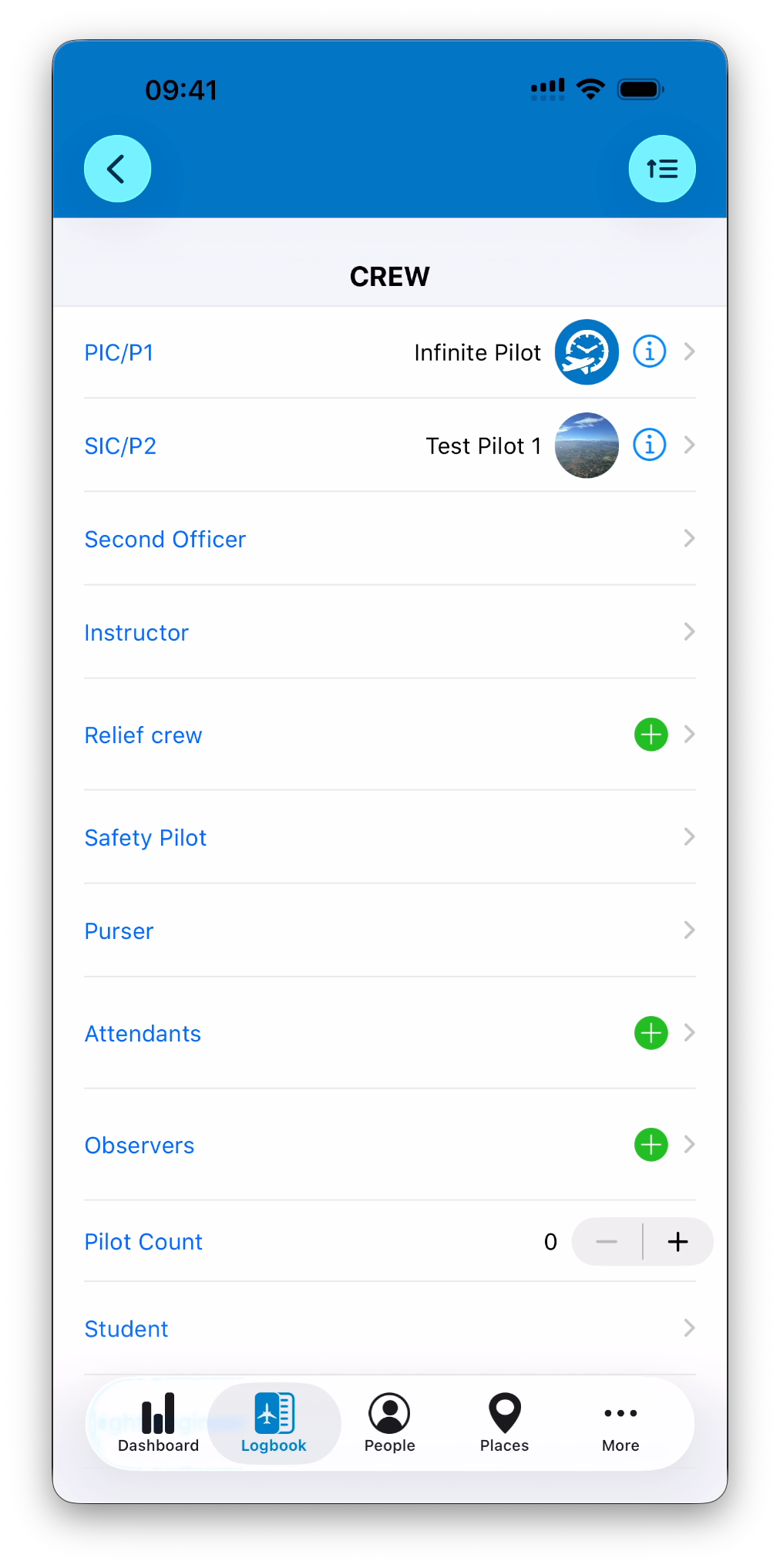
The CREW section allows you to associate people with the flight and define their roles.
You can select crew members such as:
PIC / SIC
Instructor or Student
Second Officer, Flight Engineer, Mission Commander
Safety Pilot, Purser
Relief crew, attendants, observers (as ordered lists)
Default PIC and SIC can be pre-selected automatically if configured.
The Pilot Count field reflects the number of pilots on the flight.
➡️ Learn more about how to create new persons in People
OPERATIONS Section
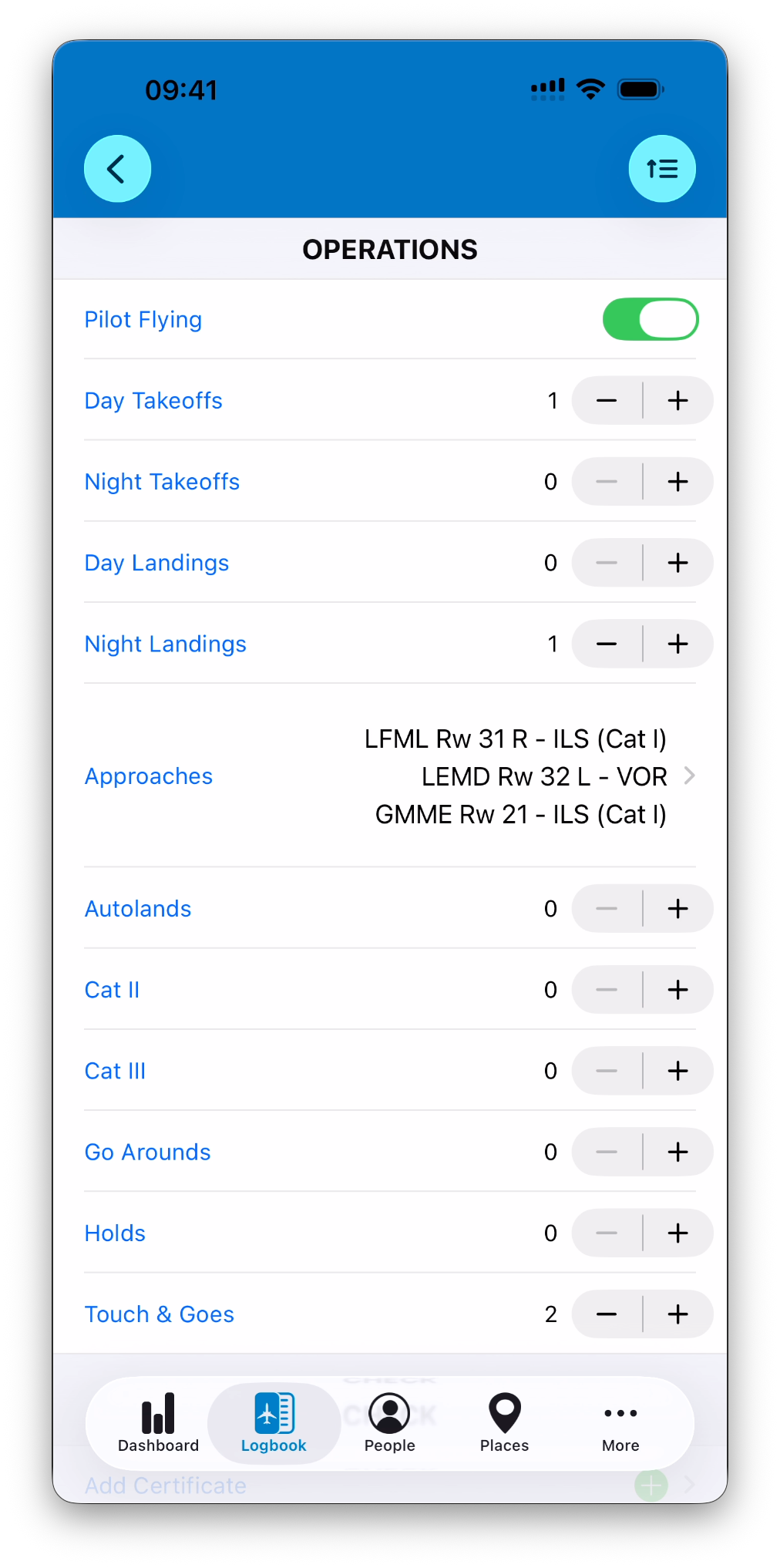
The OPERATIONS section records operational aspects of the flight.
It includes:
Pilot Flying
Day and night takeoffs and landings
Approaches (with place, runway, and approach type)
Autolands
CAT II and CAT III approaches
Holds, go-arounds, and touch-and-goes
When Pilot Flying is enabled, IPL can automatically add one takeoff and one landing to the appropriate day or night fields.
These values are used in statistics, currency tracking, and reports.
CHECK Section
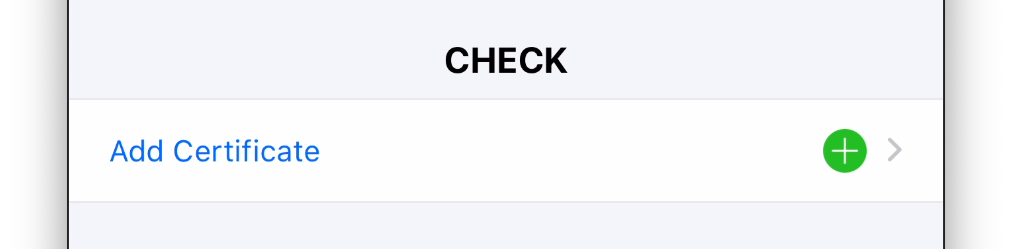
The CHECK section is used when a flight is associated with one or more certificates (for example a Line Check).
When you select a certificate:
IPL evaluates its revalidation parameters
Calculates a potential new expiry date
Asks whether you want to update the certificate accordingly
This allows certificates to be revalidated automatically based on flight activity.
➡️ Learn more in Certificates & Qualifications Overview
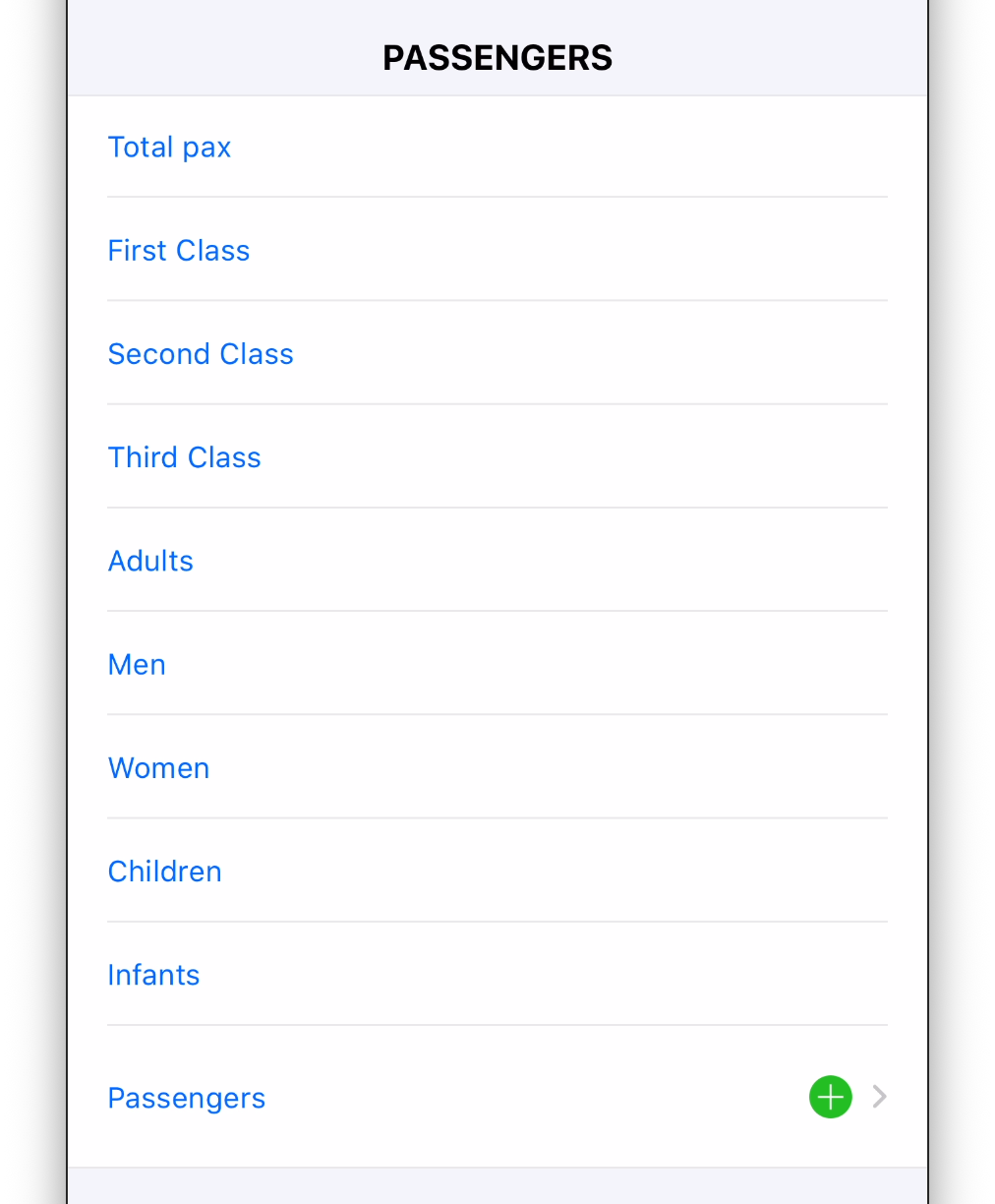
PASSENGERS Section
The PASSENGERS section allows you to record passenger information.
You can:
Log total passenger counts
Break them down by class or category
Add named passengers as an ordered list if required
FUEL Section
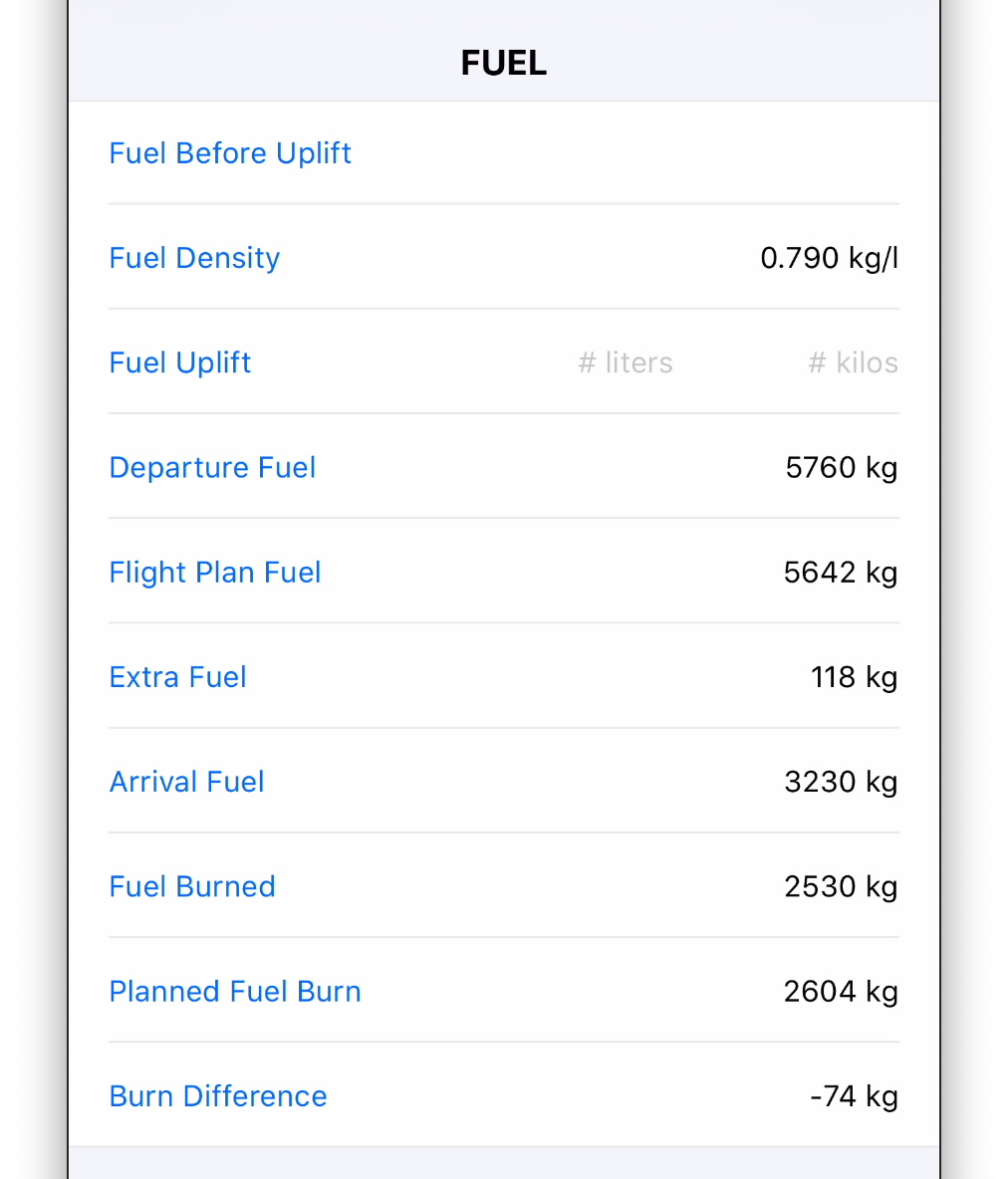
The FUEL section allows you to record fuel-related data for the flight.
Fuel values use the units selected in Settings (kg or lbs).
Fuel density is used to convert between mass and volume when applicable.
IPL can automatically calculate values such as:
Extra fuel
Fuel burned
Planned vs actual burn difference
Fuel data can be useful for operational analysis and reporting.
PAYLOAD Section
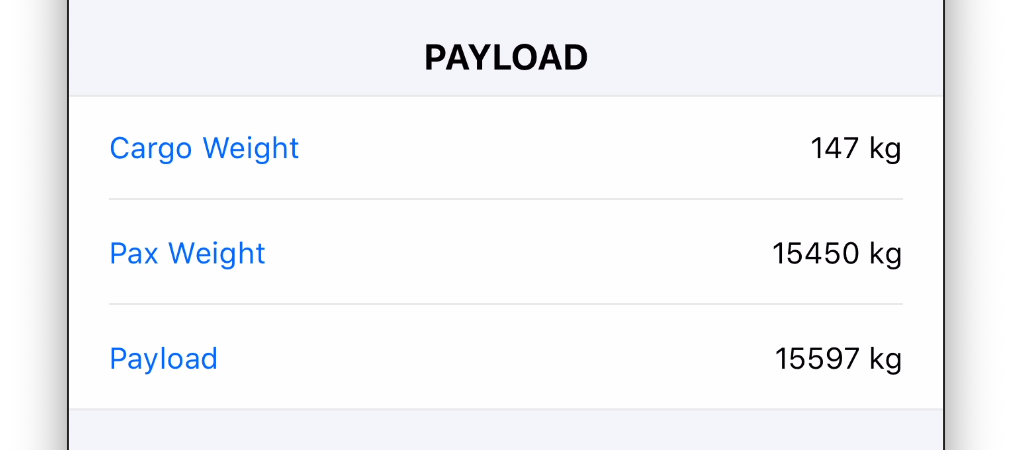
The PAYLOAD section records weight-related data.
You can enter:
Cargo weight
Passenger weight
The total payload is calculated automatically as the sum of cargo and passenger weights.
WEATHER Section
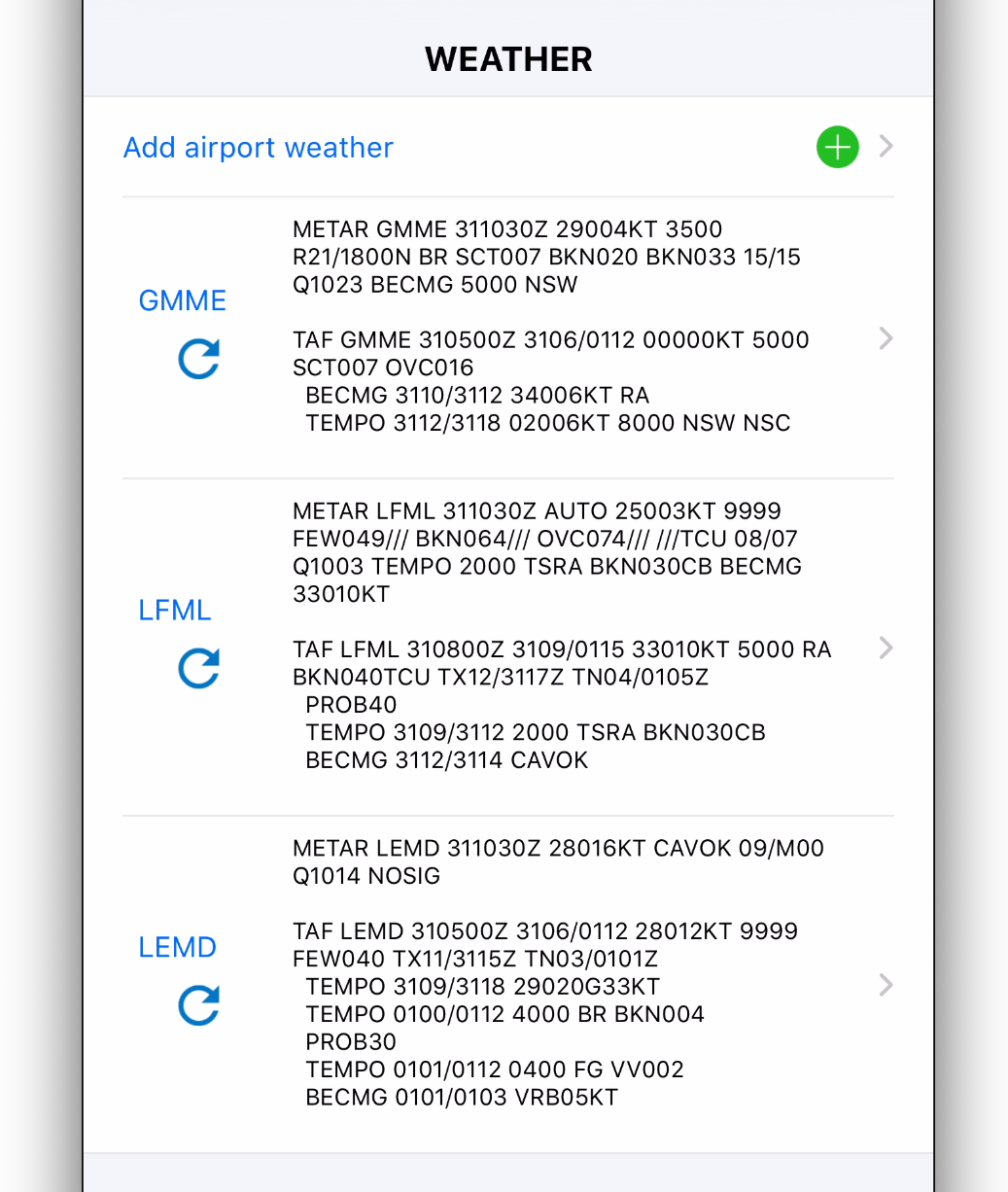
The WEATHER section allows you to associate weather information with the flight.
You can:
Select one or more airports
Download current METAR and TAF reports at the time of the request
Weather data is stored for reference and traceability.
NOTES Section
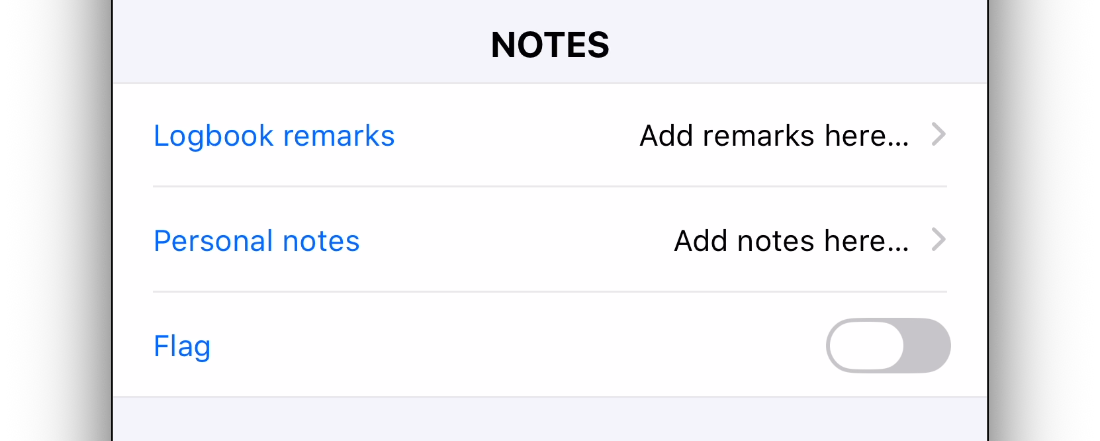
The NOTES section allows you to attach text information to the flight.
It includes:
Logbook Remarks, which are included in printable exports
Personal Notes, which remain private
A Flag to visually highlight the flight in your logbook list
ENDORSEMENT Section
The ENDORSEMENT section allows a flight to be signed.
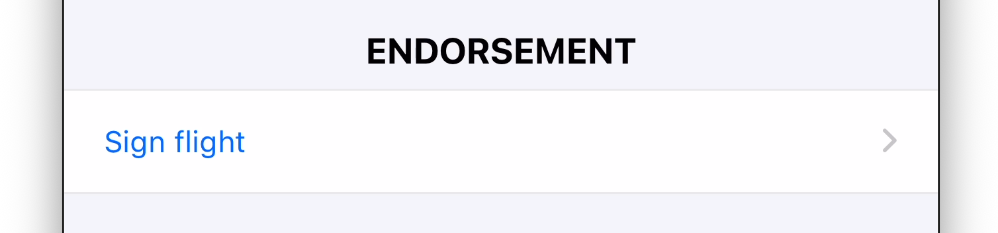
To sign a flight:
Select a person
Enter or confirm their license number (optional)
Optionally add a remark
Capture a signature
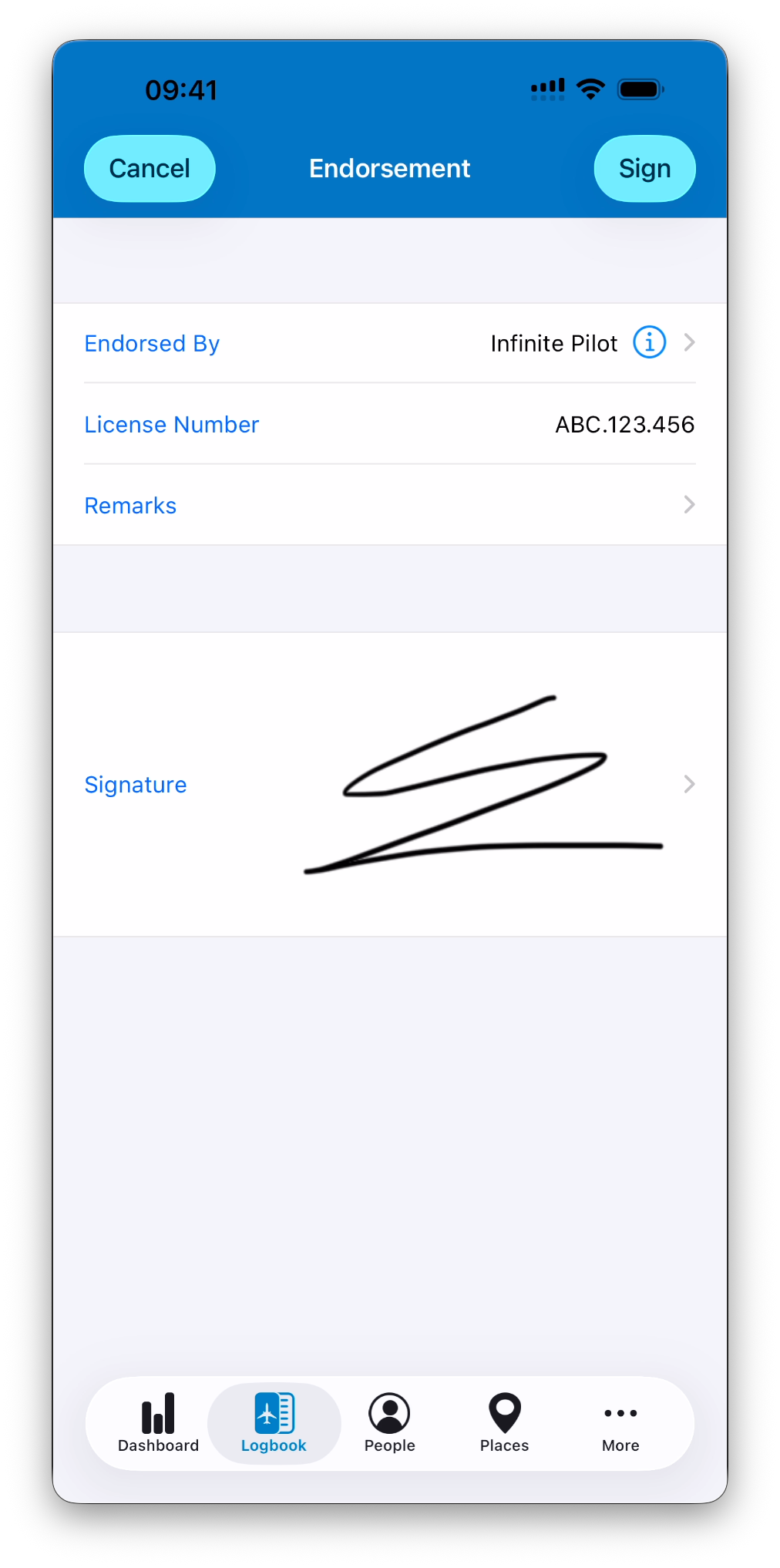
Once signed, all legal fields are locked.
Modifying any of these fields requires removing the signature.
➡️ Learn more in Edit, Lock & Sign Entries
LOCKING Section
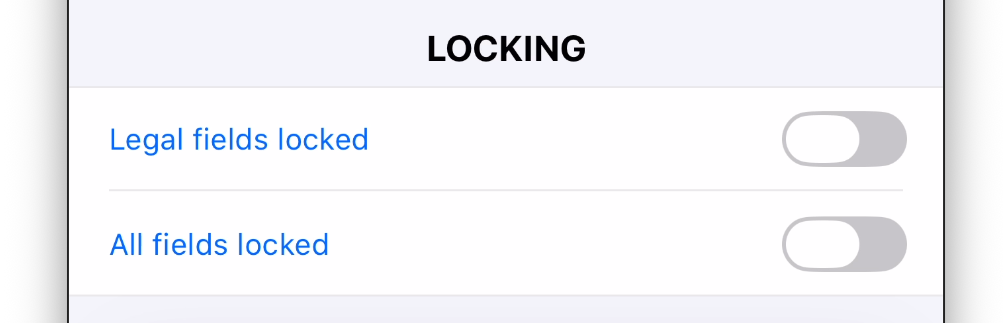
The LOCKING section controls manual locking of the entry.
You can:
Lock legal fields only (automatically enabled after signing)
Lock all fields to prevent any modification
Legal fields include all fields in the FLIGHT, TIMES, HOURS, CREW, OPERATIONS sections, as well as Logbook Remarks.
➡️ Learn more in Edit, Lock & Sign Entries
Editing an Existing Flight
To edit a flight:
Open it from the logbook list
Modify any editable fields
All changes are saved automatically and immediately reflected in totals, statistics, maps, and certificates.
Best Practices
Enter times first and let IPL calculate Total Time
Use quick actions to reduce manual entry
Review auto-filled values rather than re-entering them
Fill only the data relevant to your operation
Related Articles
What’s Next
Once you’re comfortable with manual flight entry, you can learn how to log simulator entries.