Using Certificates in Logbook Entries
Certificates can be linked to logbook entries to record renewals, revalidations, checks, and other qualification events — and (optionally) update the certificate’s current validity using the rules you configured.
Last updated 7 months ago
Where Certificates Can Be Added
You can add certificates from the CHECK section of the following entry types:
Flight
Simulator
Other
Medical entries use a dedicated workflow and are covered in a separate article. See Medical Certificates & Exams for more information.
Adding a Certificate to an Entry
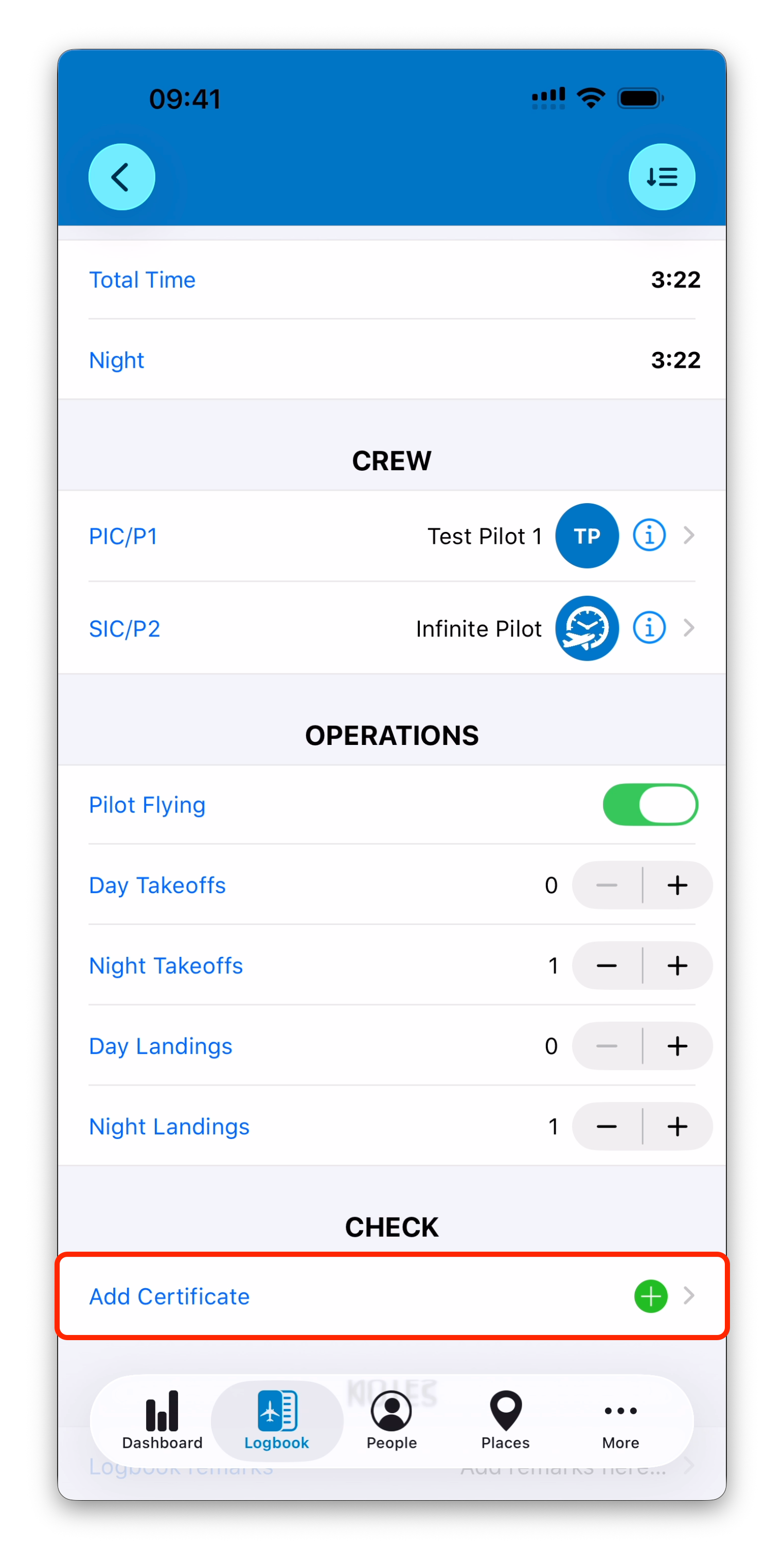
In the CHECK section, tap Add Certificate
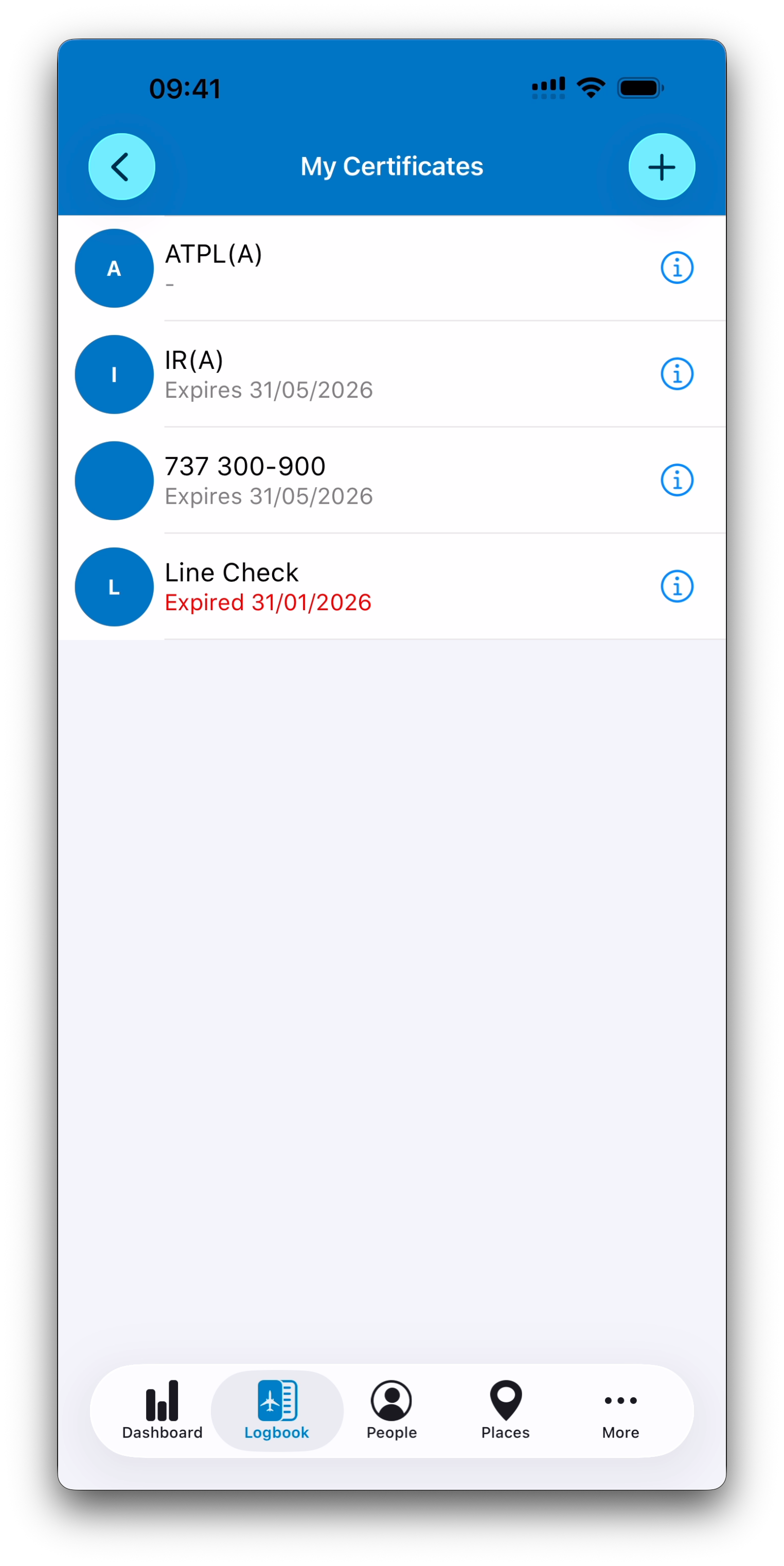
Choose one or more certificates from your list
When selecting certificates from a logbook entry:
The list is automatically filtered to exclude Medical certificates
Certificates can be created on the fly from this screen
(the Medical branch is also removed from the creation tree)
Expiring Certificates Only
Certificates selected in the CHECK section must have an expiry date.
If you try to select a certificate that does not expire, IPL displays an error message and asks you to pick another certificate (or update that certificate to make it expiring).
Automatic Calculation of New Expiry Dates
Once you select a certificate, IPL calculates a proposed new expiry date based on:
The certificate’s current expiry date
The entry date
The validity rules defined for that certificate (renewal/revalidation settings)
This creates a calculated result for this specific logbook event.
Updating the Certificate (Optional)
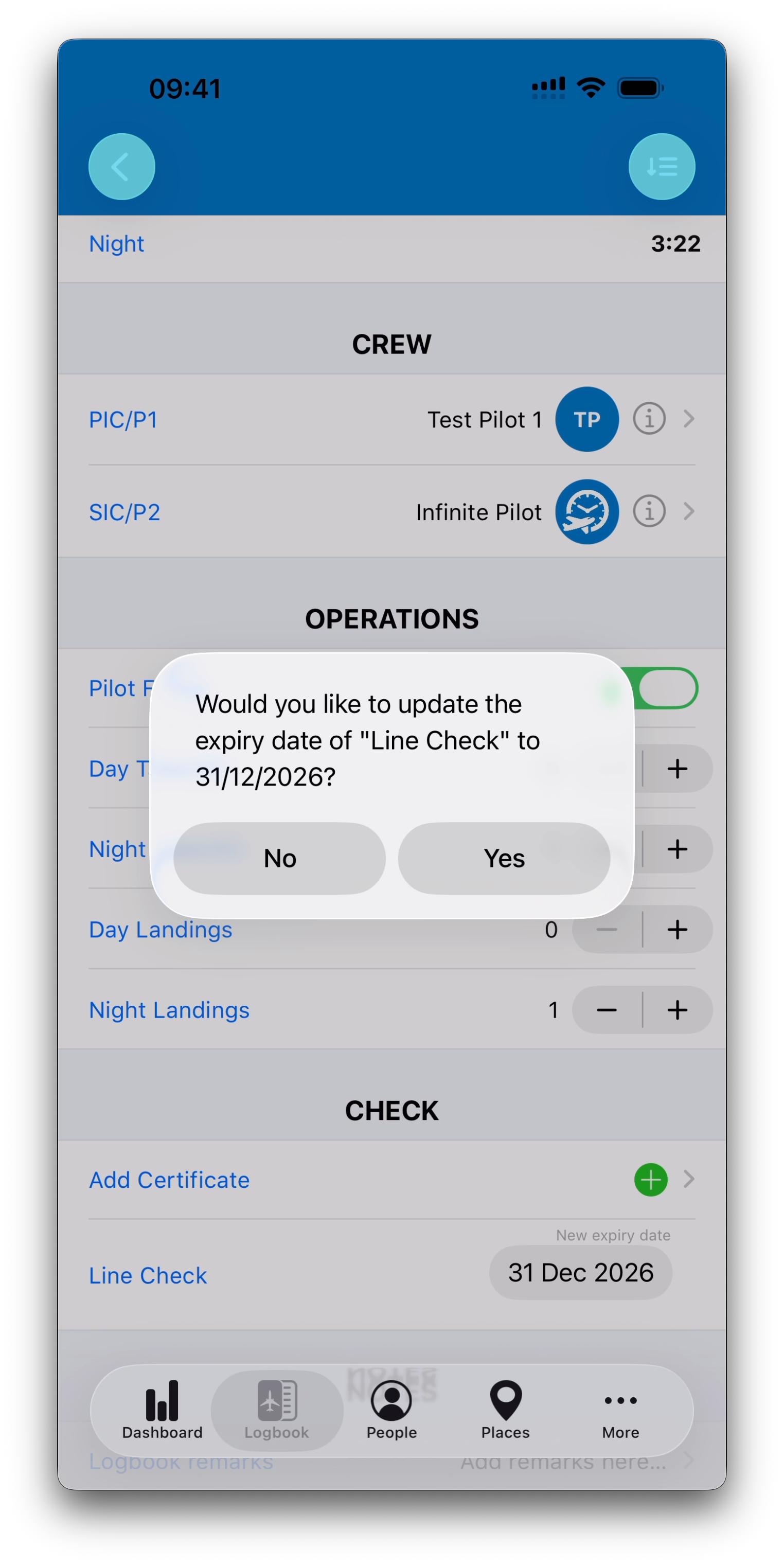
After calculating the new expiry date, IPL asks:
Would you like to update the expiry date of “…” to ../../…. ?
If you answer Yes:
The certificate’s Expiry Date is updated
The certificate’s Latest Issue date is updated to the entry date
If you answer No:
The logbook entry still keeps the calculated date as part of its historical record
The certificate itself remains unchanged
This ensures your logbook keeps history, while the certificate reflects the current status only if you choose to update it.
Selecting Multiple Certificates
You can select multiple certificates for a single entry — simply tap Add Certificate again to add another one.
This is useful when one event renews several qualifications at the same time, for example an LPC simulator session renewing both a Type Rating and an Instrument Rating.
Reviewing and Adjusting Calculated Dates
After selection, the entry shows a list of chosen certificates under Add Certificate:
Certificate name on the left
New expiry date on the right (editable via a date picker)
If you manually change the proposed date, IPL will ask again whether you want to update the certificate accordingly.
This gives full control in case you need to fine-tune a calculated validity date.
About Month-Based Calculations
Some validity rules use months (for example “3 months” or “12 months”).
Because calendar months vary in length, the exact resulting date can occasionally depend on month boundaries (end-of-month cases).
IPL handles these cases automatically using consistent calendar-based logic, and you can always override the proposed date manually if needed.
What’s Next
➡️ Continue with Medical Certificates & Exams