Managing Your Certificates
The Certificates module in Infinite Pilot Logbook allows you to create, store, and manage all your licences, ratings, medical certificates, and recurrent checks in one place, with validity status and renewal history always available.
Last updated 7 months ago
Accessing Your Certificates
You can access your certificate database from:
More → Certificates
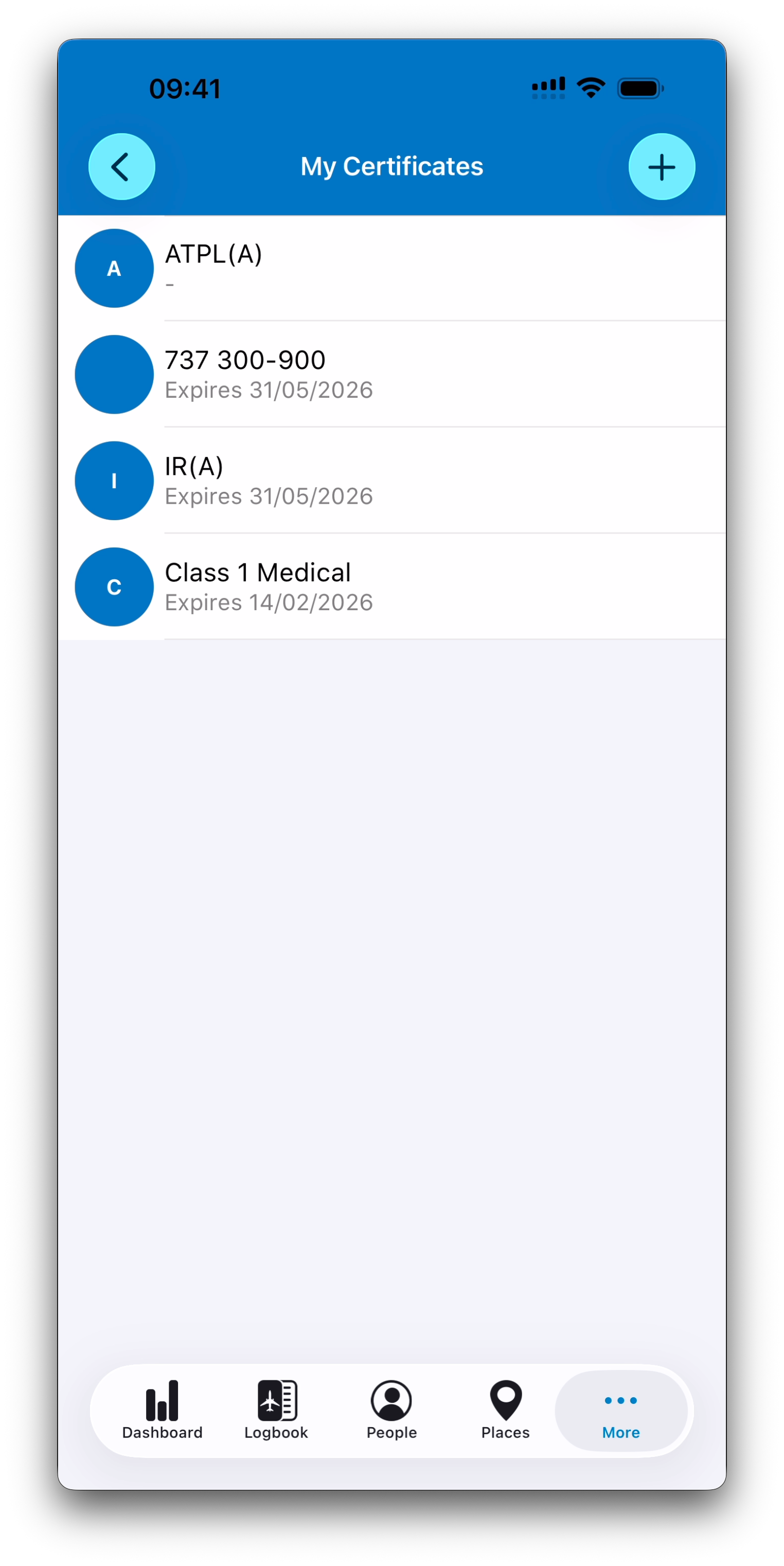
This opens the My Certificates list, where all certificates in your logbook ecosystem are stored.
The Certificates List
Your certificates are displayed as a simple list.
Each certificate entry shows:
A picture on the left (if one is set)
(or the first letter of the certificate name if no picture is available)
The certificate name as the title
A validity subtitle, displayed as either:
Expires DD/MM/YYYY (in gray)
Expired DD/MM/YYYY (in red)
“-” if the certificate doesn’t expire
This allows you to immediately see which certificates are current and which have lapsed.
Creating a New Certificate
To add a new certificate:
Open the Certificates list
Tap the + button in the top-right corner
Select the type of certificate you want to create
Tap Save to confirm creation
New certificates are not stored until you press Save.
Once created, future edits are automatically saved.
Selecting a Certificate Category
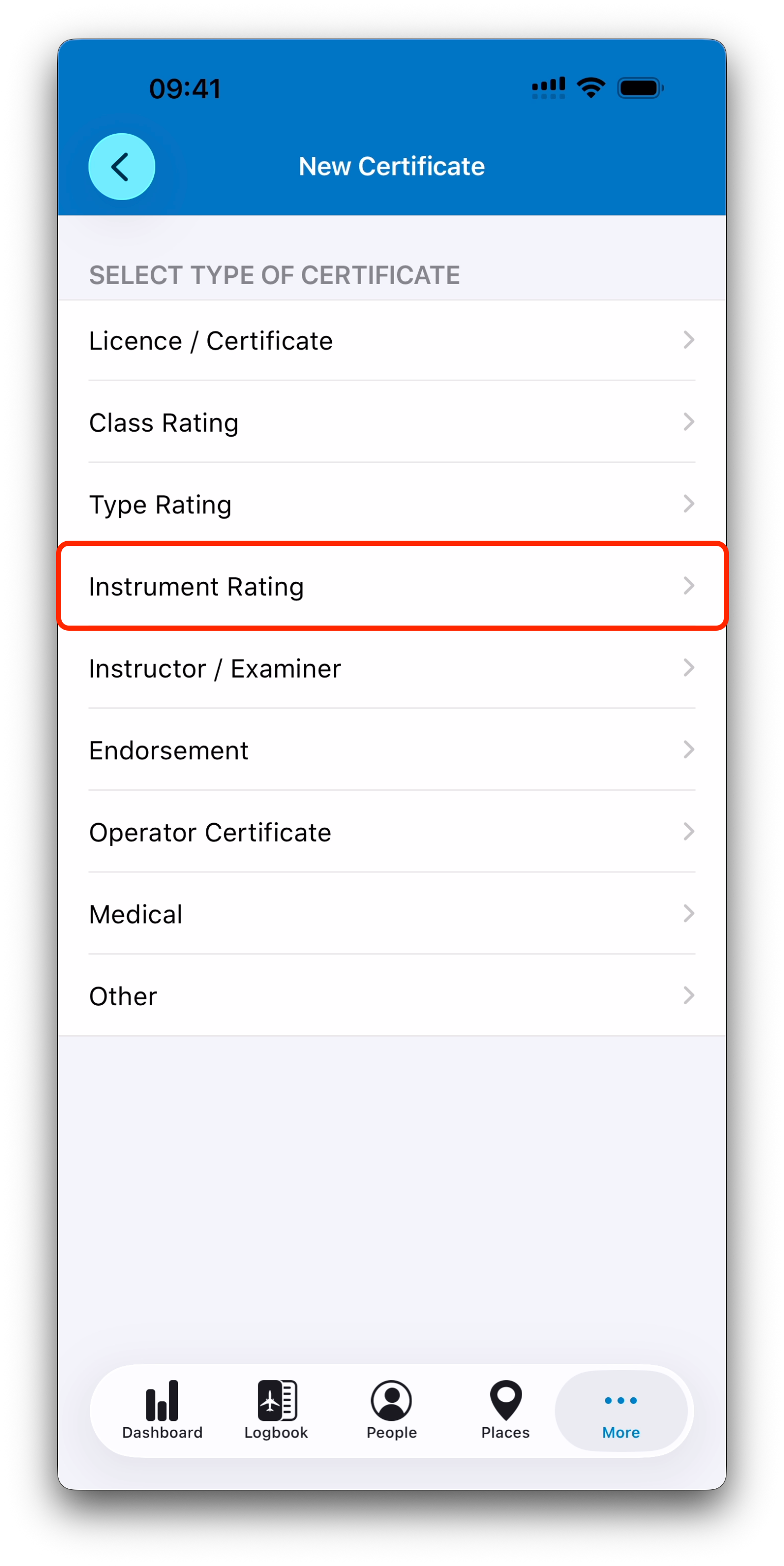
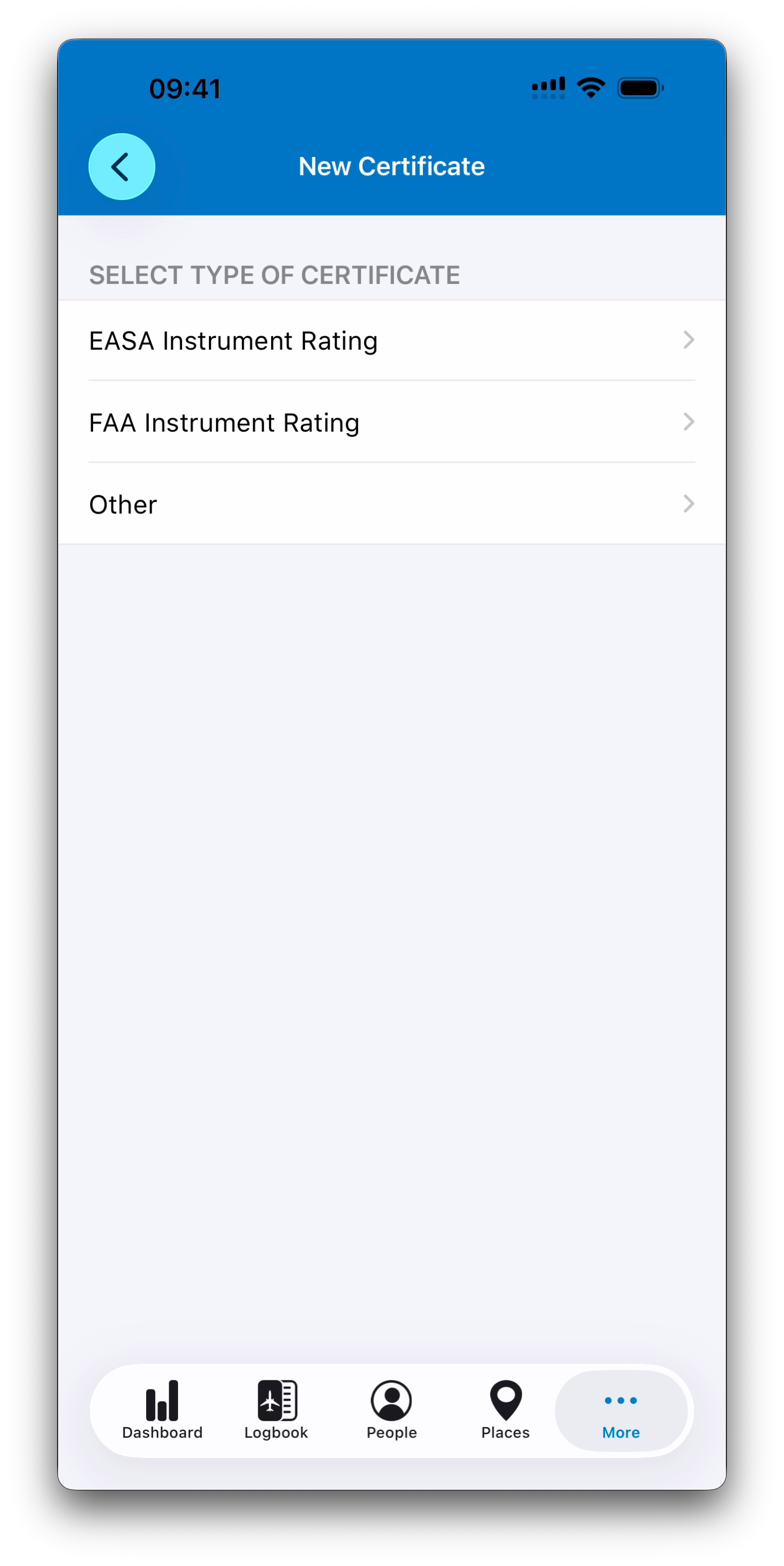
When you tap +, IPL guides you through a structured certificate tree.
This tree helps you quickly create common aviation certificates such as:
Licences / Certificates
Class Ratings
Type Ratings
Instrument Ratings
Instructor or Examiner privileges
Endorsements
Operator Certificates
Medical Certificates
Other custom categories
The tree is designed to remain flexible, with an Other option available at every level.
Selecting a path in the tree automatically pre-fills key fields such as:
Certificate Type
Name
Authority (when applicable)
Certificate Detail Fields
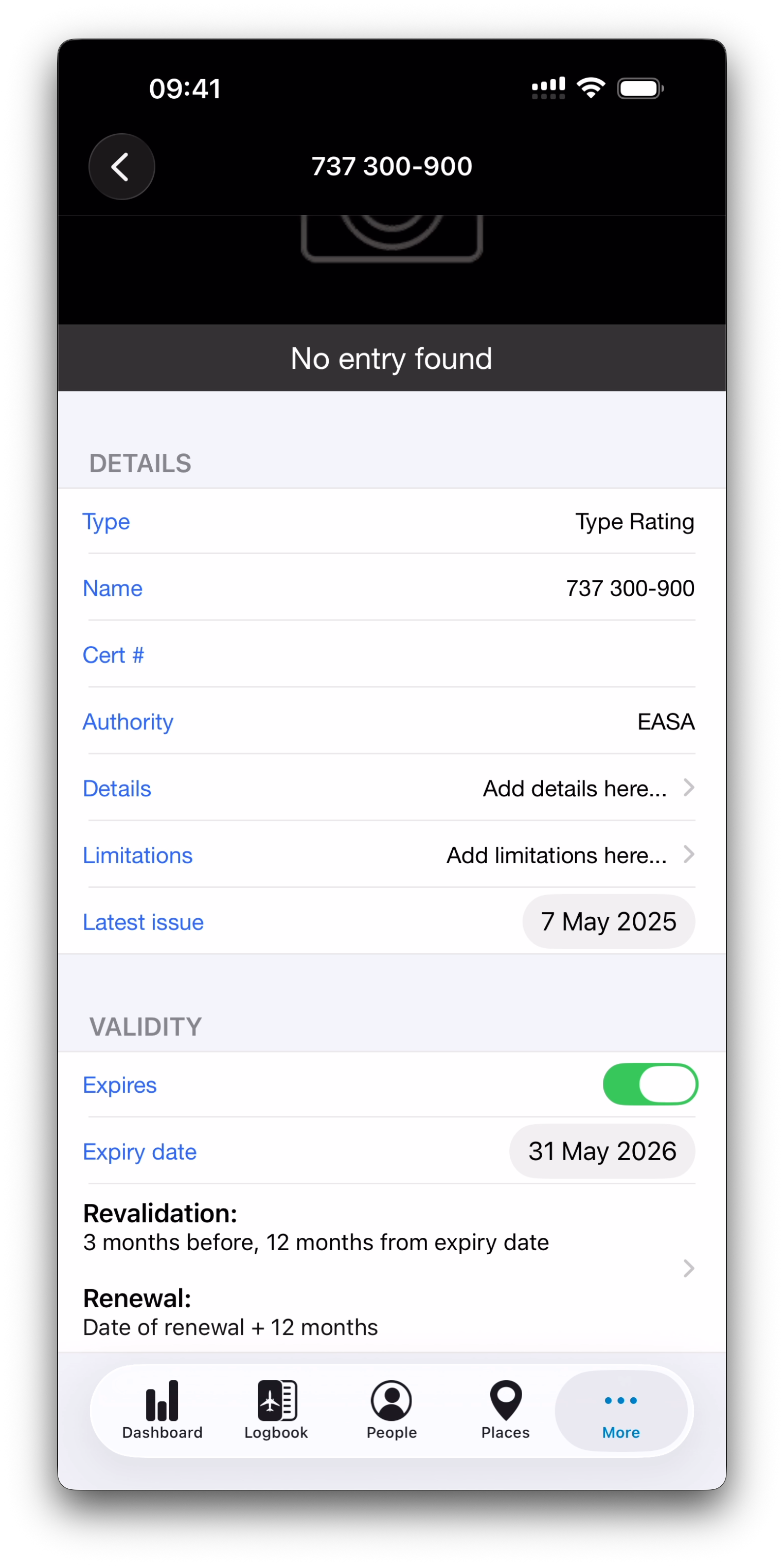
Each certificate entry contains the following information:
Type
The certificate family (rating, medical, licence, endorsement…)
Name
The displayed certificate name
Cert #
Optional certificate or licence number
Authority
The issuing authority (for example EASA or FAA)
Details
Free-text description or remarks
Limitations
Any restrictions associated with the certificate
Latest Issue
Date of the most recent issue or renewal event
Expiry and Validity
Certificates can optionally be set as expiring using the Expires switch.
When enabled, IPL reveals:
An Expiry Date field
A summary bar for Revalidation and Renewal rules
These rules define how validity is calculated when the certificate is renewed or revalidated through logbook activity.
➡️ A dedicated article explains these rules in detail. See Validity Rules: Expiry, Renewal & Revalidation for more information.
Certificate Activity and History
In the detail view of an existing certificate, IPL displays a gray activity bar showing the logbook entries associated with this certificate.
Tapping this bar opens a dedicated screen where you can review:
The entries that renewed or revalidated the certificate
The timeline of certificate activity over a selected period
This allows you to reuse the same certificate over many years while keeping a complete history of its lifecycle.
What’s Next
With the fundamentals of certificates in place, you’re ready to discover the most advanced and powerful part of certificate management in IPL.
➡️ Validity Rules: Expiry, Renewal & Revalidation