Time Calculation Preferences
Infinite Pilot Logbook includes a dedicated Time Calculations settings screen where you can define how IPL computes Total Time, which hour fields are auto-filled, and how Duty and FDP values are suggested when logging flights. These preferences allow IPL to adapt to different operator practices and ensure new entries behave consistently with your flying environment.
Last updated 7 months ago
Accessing Time Calculation Preferences
You can access these options from:
More → Settings → Time Calculations
This screen groups together all settings that influence how time-related values are calculated and proposed inside logbook entries.
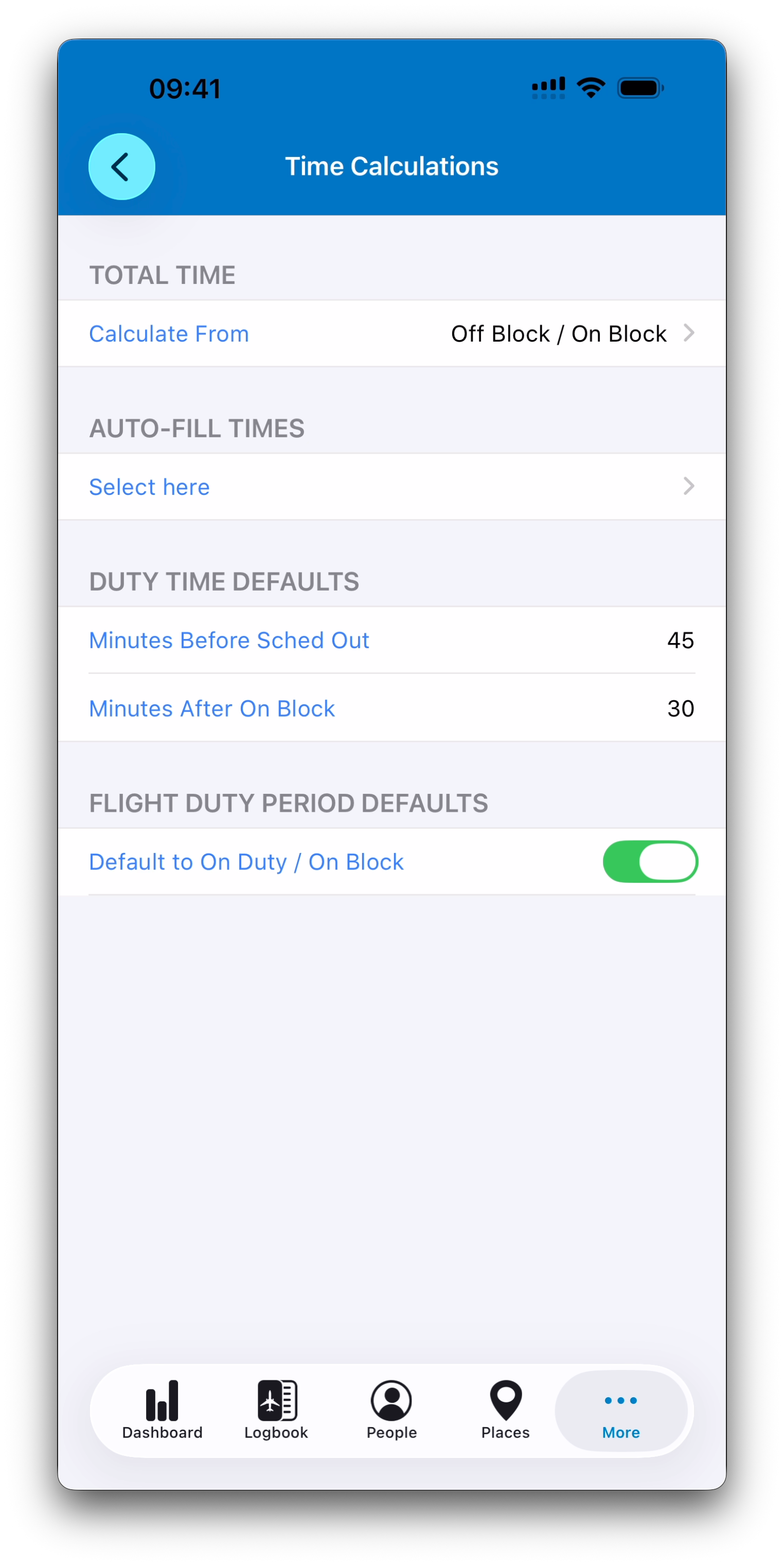
Calculate From: Defining Your Total Time Reference
The first setting is Calculate From.
This determines which time pair IPL uses as the official source for Total Time in flight entries.
For example, you may choose:
Off Block / On Block (Block time)
Taxi Start / Taxi Stop (Moving under own power)
Takeoff / Landing (Flight time)
Hobbs
Your selection affects several parts of the app:
Which departure/arrival times appear in the Logbook list
Which fields IPL expects you to fill when creating an entry
How totals and discrepancy indicators are evaluated
ℹ️ By default, IPL uses block times, which is the most common airline standard.
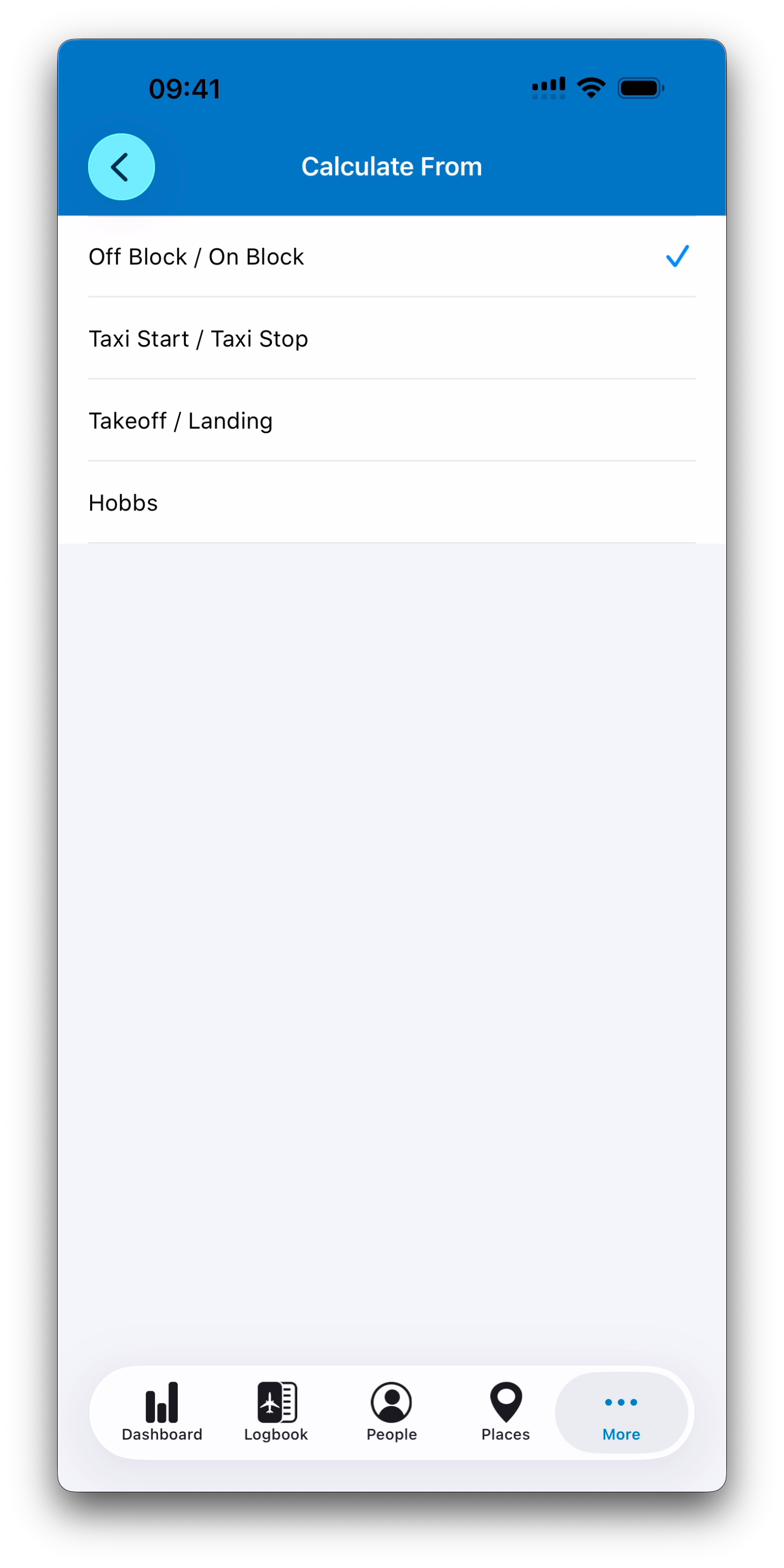
Auto-Fill Times: Choosing Which Hour Fields IPL Completes for You
Under Auto-Fill Times, you can configure which hour fields are automatically populated when IPL recalculates an entry.
To customize this behavior, tap Select here in AUTO-FILL TIMES section.
This opens a list of hour fields where you can define auto-fill rules, including:
Fields based on Total Time
Fields using calculated Night Time
Relief time fractions (2/3, 1/2, 1/3)
Fields dependent on Pilot Flying status (PF/PM)
Once enabled, auto-fill is applied whenever entry times or Pilot Flying switch are updated, helping you log faster while keeping hour totals consistent.
➡️ Read Understanding Time Calculations for more information.
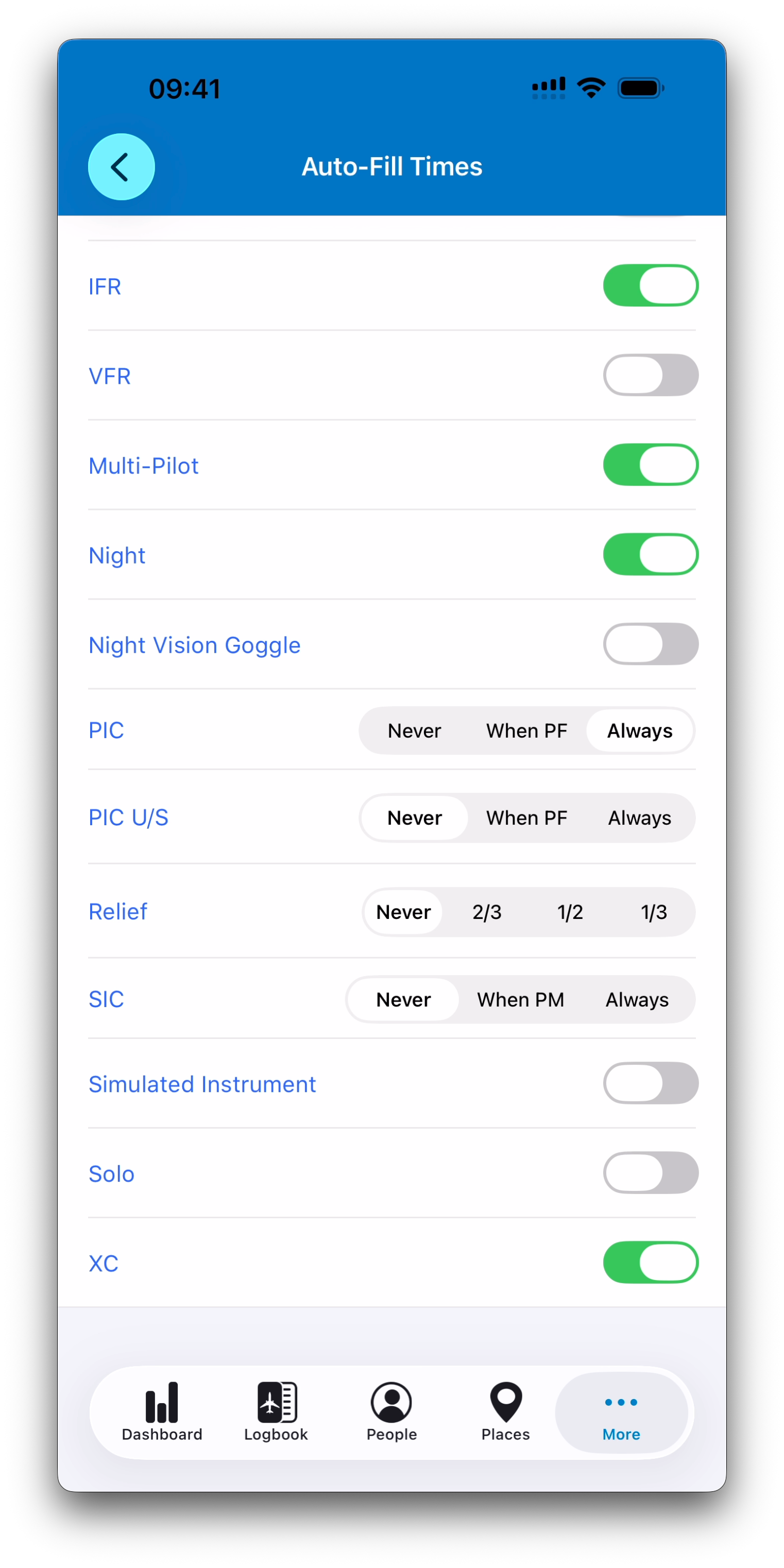
Duty Time Defaults: Suggested Values for Duty Start and End
The Duty Time Defaults section defines how IPL proposes duty boundaries when you create or edit flight entries.
For example:
Minutes Before Scheduled Out
Minutes After On Block
These values help IPL automatically suggest realistic duty start/end times based on your schedule and recorded block times.
Flight Duty Period (FDP) Defaults: Separating FDP Logic from Duty Logic
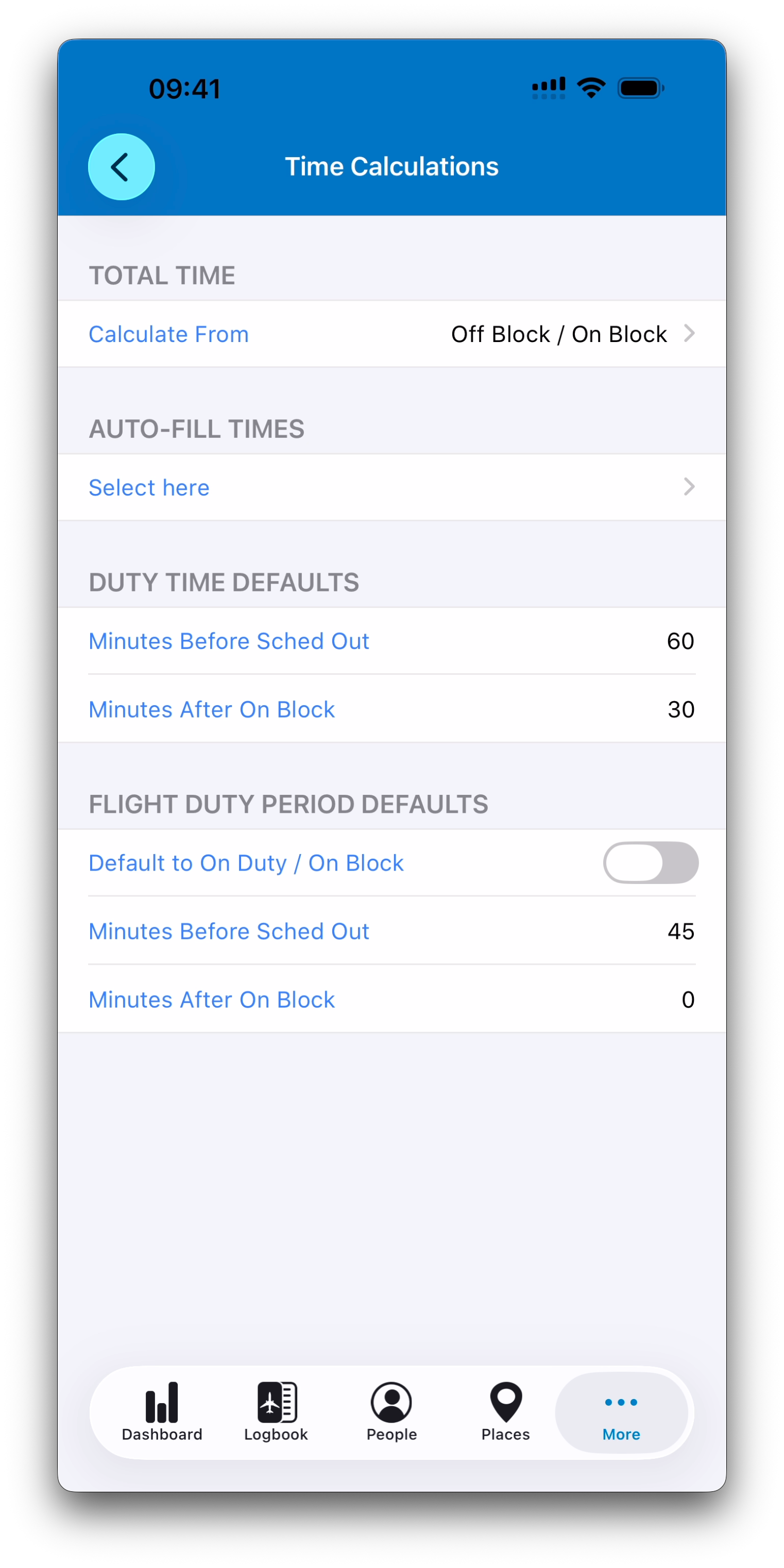
Below Duty, IPL provides a separate section for Flight Duty Period Defaults, since FDP often follows different rules than duty time.
Default to On Duty / On Block
If this switch is enabled, IPL assumes a common model where:
FDP starts at the same time as Duty
FDP ends at On Block
When the switch is disabled
If the switch is OFF, IPL allows you to enter FDP calculations independently.
This is useful when FDP rules differ from the common model.
Best Practice
Time Calculation Preferences are not just cosmetic — they define how IPL behaves each time you log a flight.
It is recommended to review this screen early so that:
Total Time matches your regulatory or airline standard
Auto-fill supports your hour tracking workflow
Duty and FDP suggestions reflect your real-world operations
These settings can be updated anytime if your flying context changes.
Related Articles
What’s Next
Next, we will cover Database Tools & Reset Options, where IPL provides maintenance features such as refreshing global data and resetting your logbook with confirmation safeguards.
➡️ Continue with Database Tools & Reset Options