Creating and Editing Custom Stats
Infinite Pilot Logbook allows you to personalize your Dashboard by creating your own statistics. You can choose exactly which values to track, give them custom names, and define goals for each time period to monitor your progress over time.
Last updated 7 months ago
Why Custom Stats Matter
Every pilot has different priorities.
Some users want to focus on:
Total flight time
Instrument time
Landings and takeoffs
Instructor hours
Simulator sessions
Passenger or duty totals
IPL’s Dashboard is designed to adapt to your flying profile by letting you choose which statistics are displayed.
Adding a New Dashboard Statistic
To create a new stat:
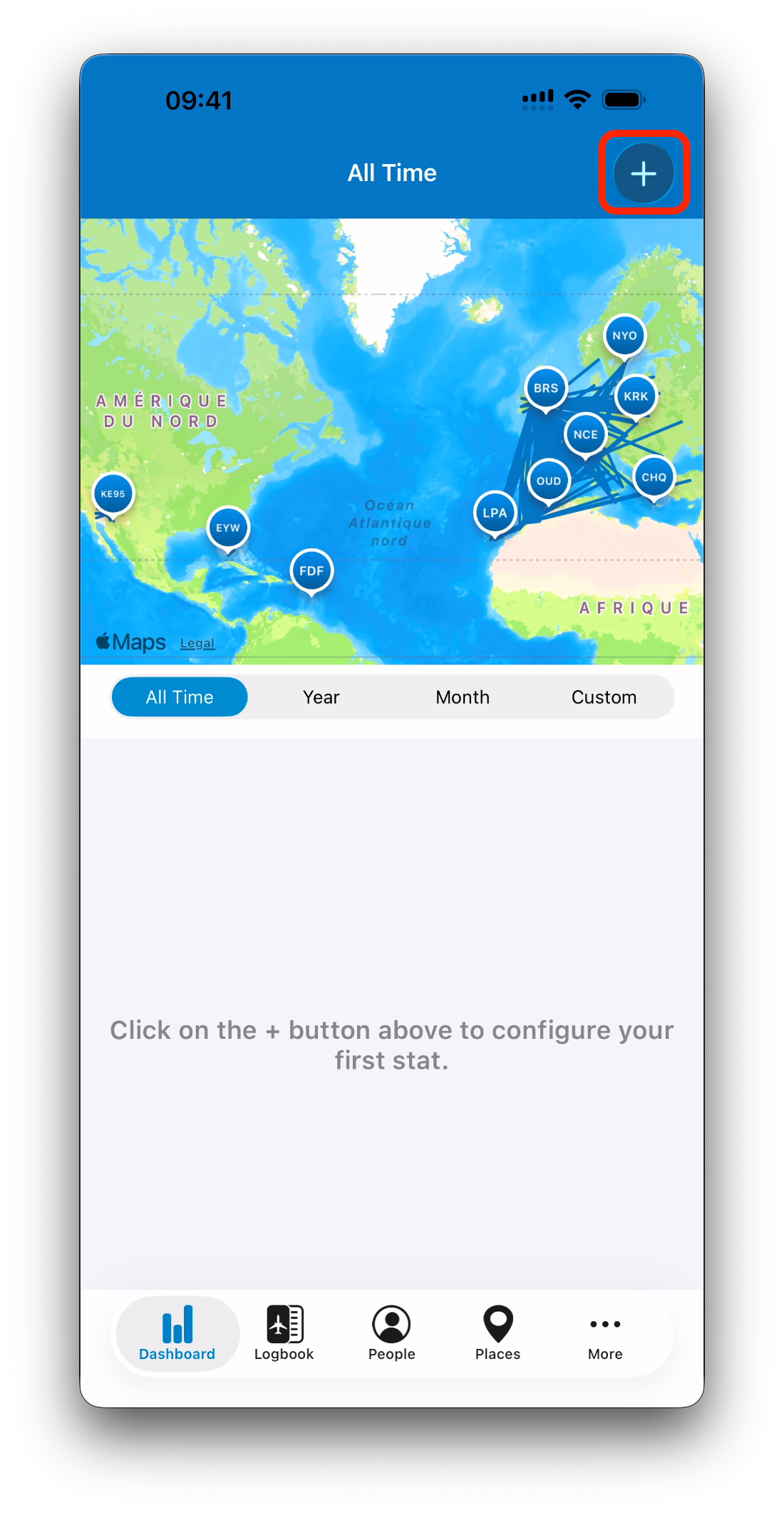
Open the Dashboard tab
Tap the + button in the top-right corner
IPL will open the stat creation screen.
Stat Configuration Fields
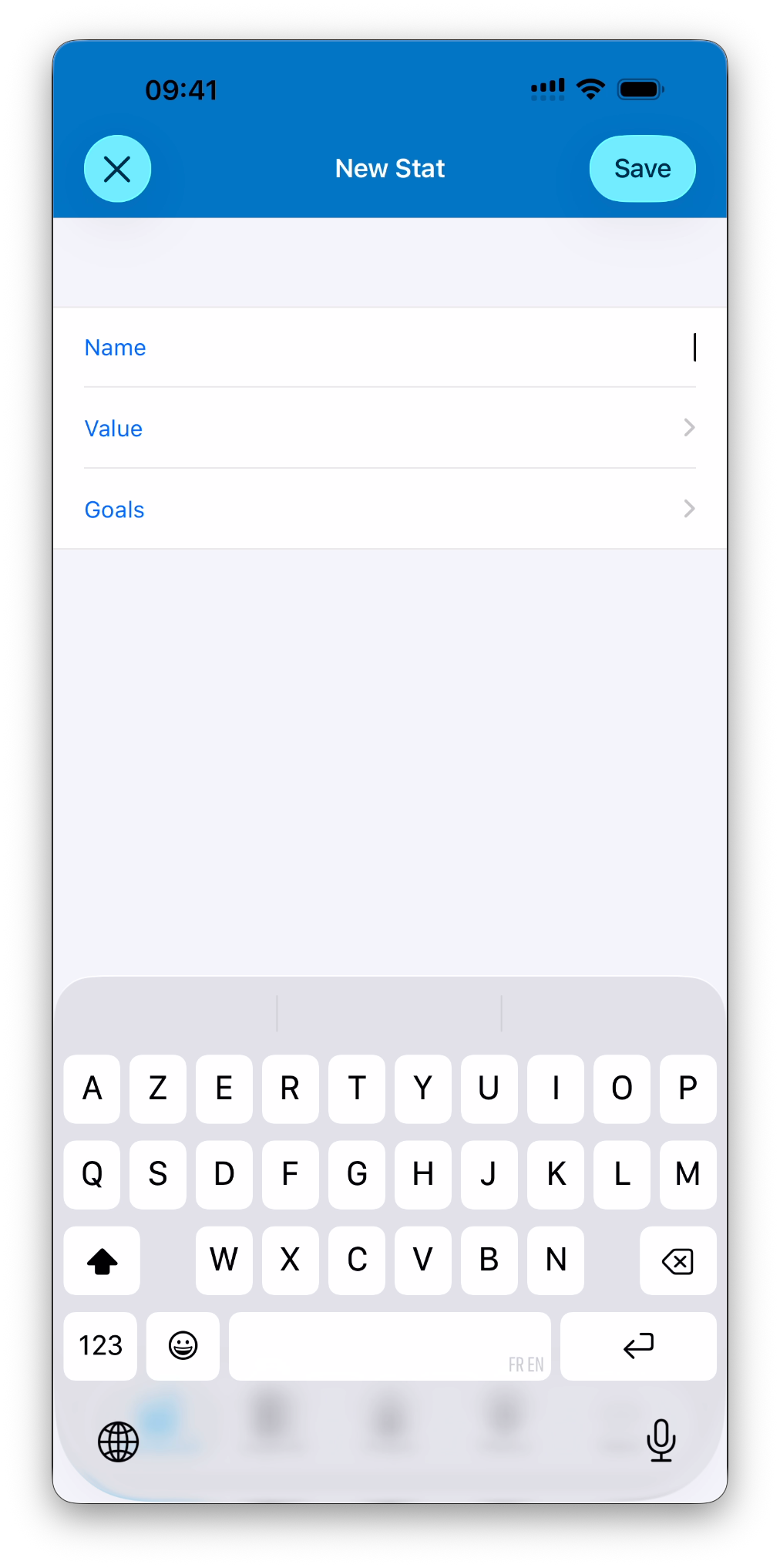
When creating or editing a stat, IPL allows you to define three key elements:
Name
The Name is the label displayed on your Dashboard.
For example:
Total Time
Night Landings
Duty Time
Simulator Hours
You can choose any name that makes sense for your tracking needs.
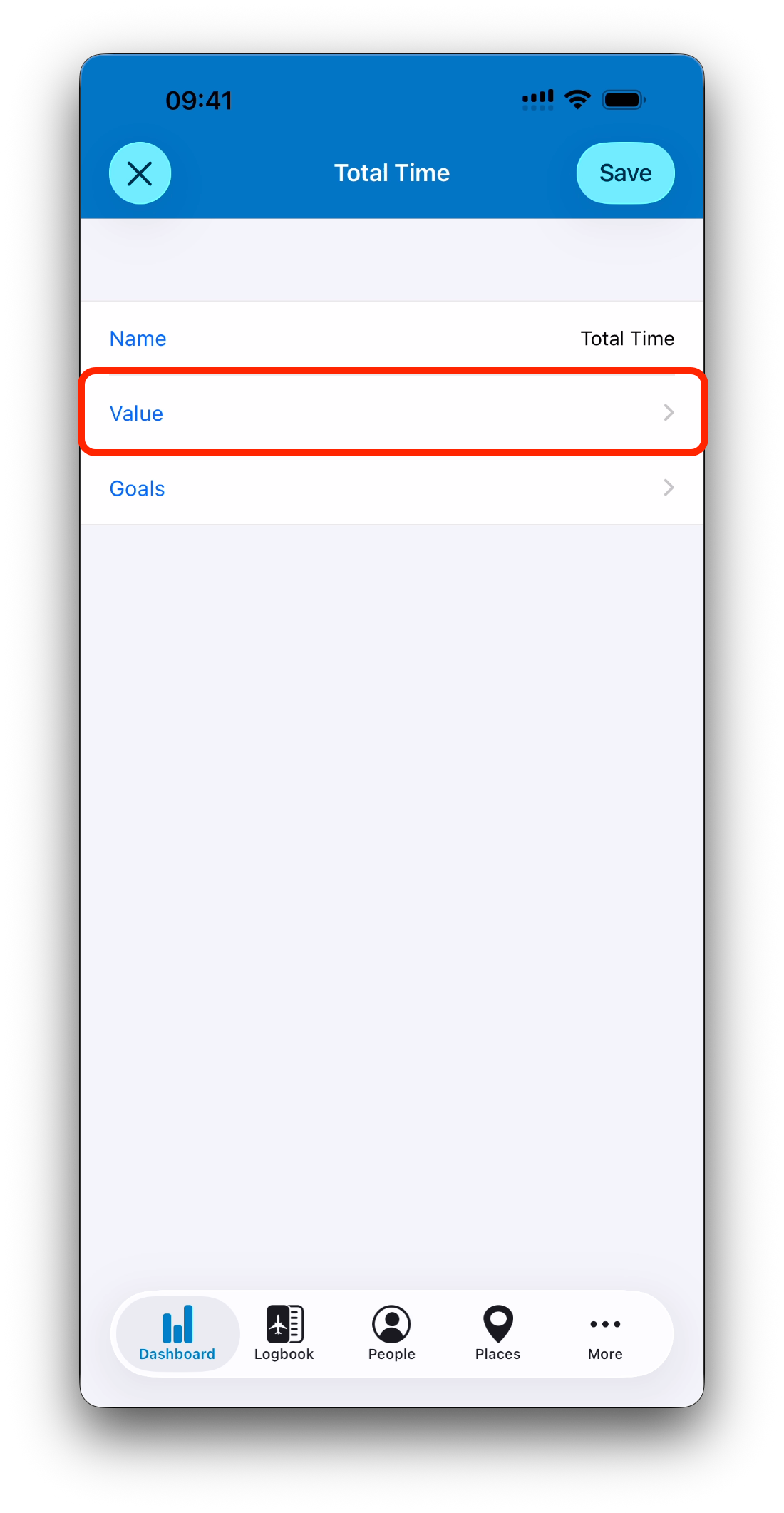
Value
The Value determines what IPL will calculate and display.
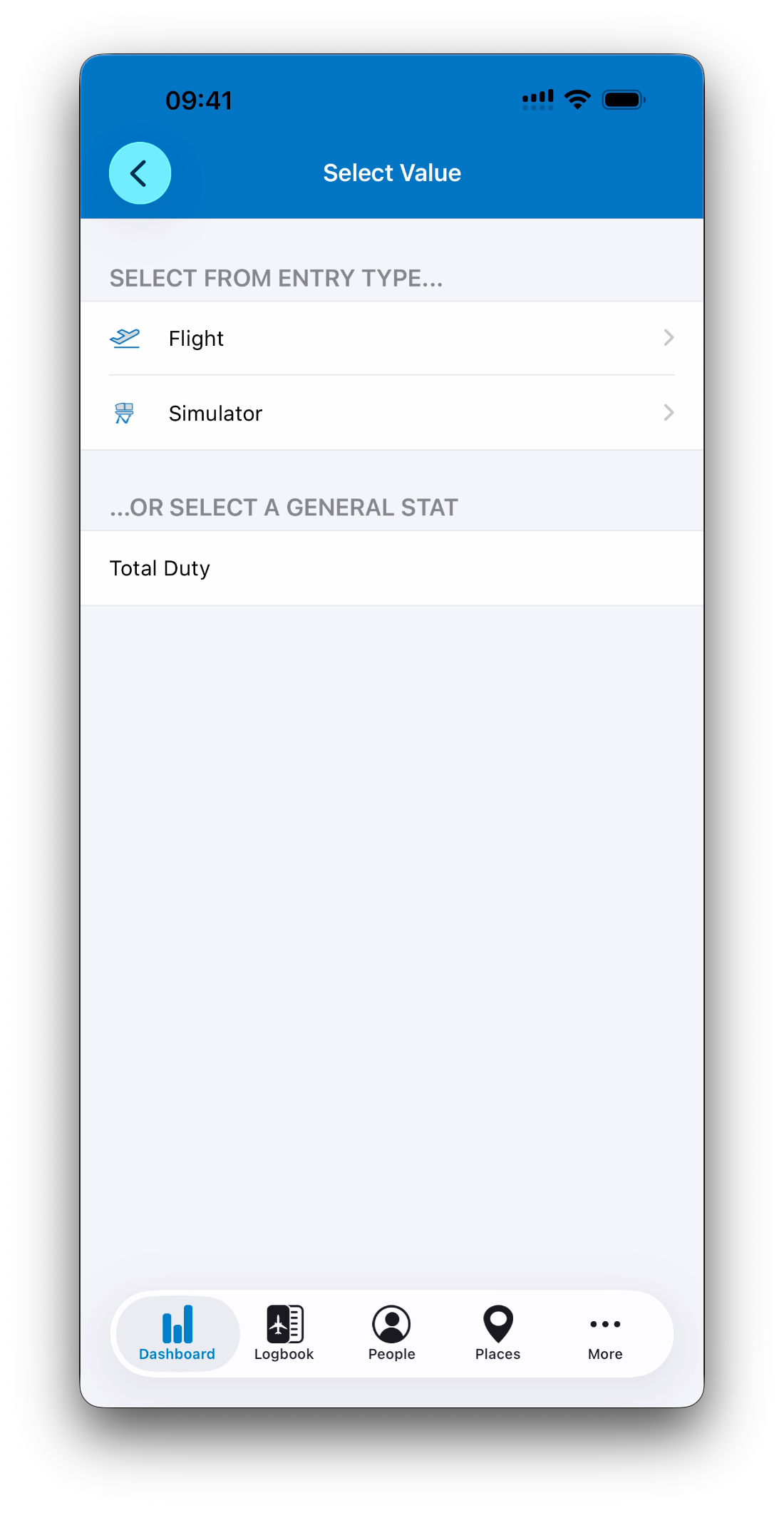
When you tap Value, IPL lets you select from different sources:
Flight values (from flight entry fields)
Simulator values (from simulator entry fields)
General values (such as Total Duty)
This makes it possible to track almost any metric stored in your logbook.
Goals
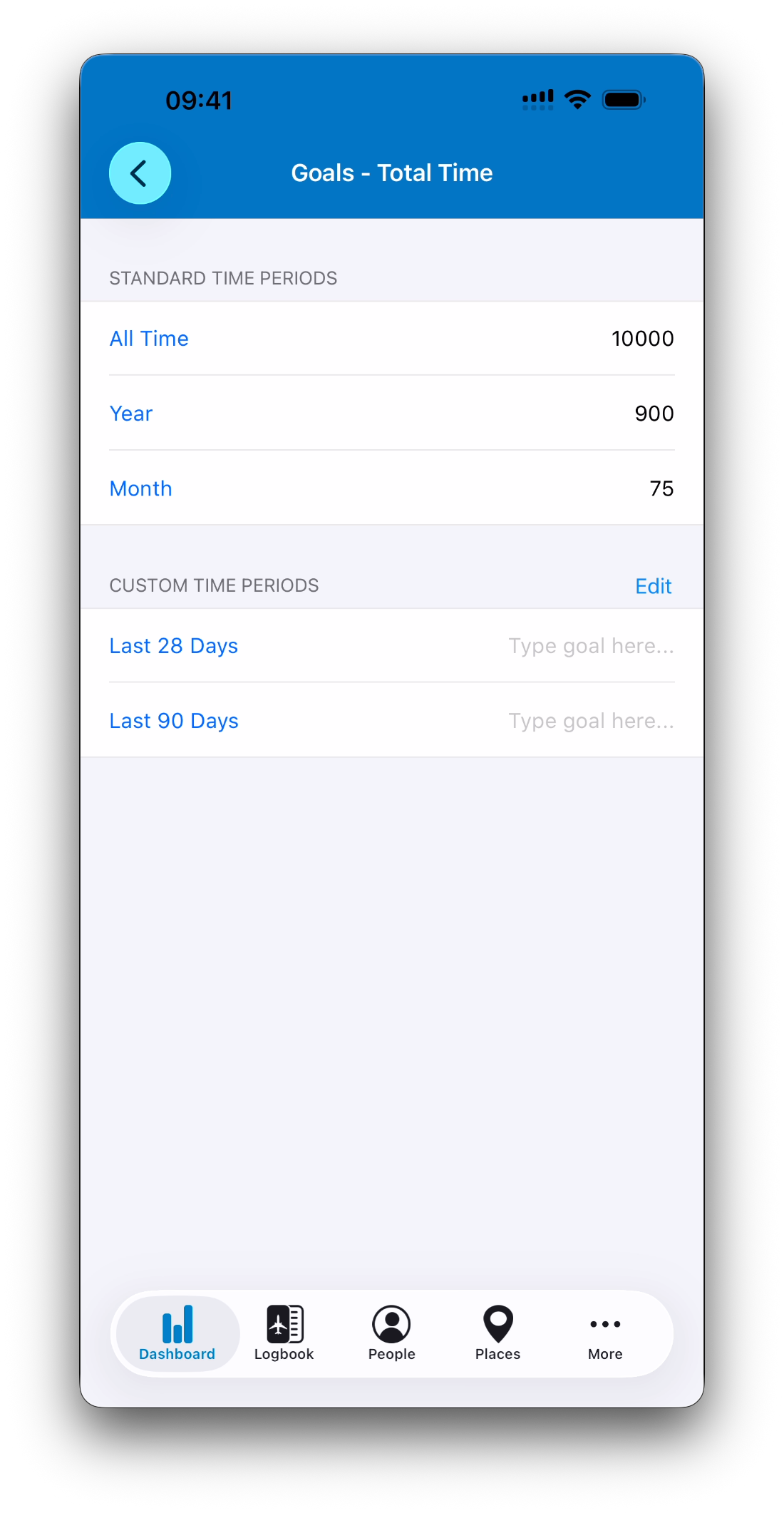
The Goals section allows you to define targets for this statistic.
Goals can be assigned per time period, including:
All Time
Year
Month
Custom Time Periods created by you
This means the same statistic can support different objectives depending on the period you are viewing.
For example, a Total Time stat could have:
A lifetime goal of 10,000 hours (All Time)
A yearly goal of 900 hours (Year)
A monthly goal of 75 hours (Month)
IPL automatically applies the correct goal based on the currently selected time period.
Saving and Displaying the Stat
Once configured:
Tap Save
The new stat immediately appears in your Dashboard list
The displayed value updates automatically for the selected time period
You can create as many stats as needed to build your own Dashboard layout.
Editing an Existing Stat
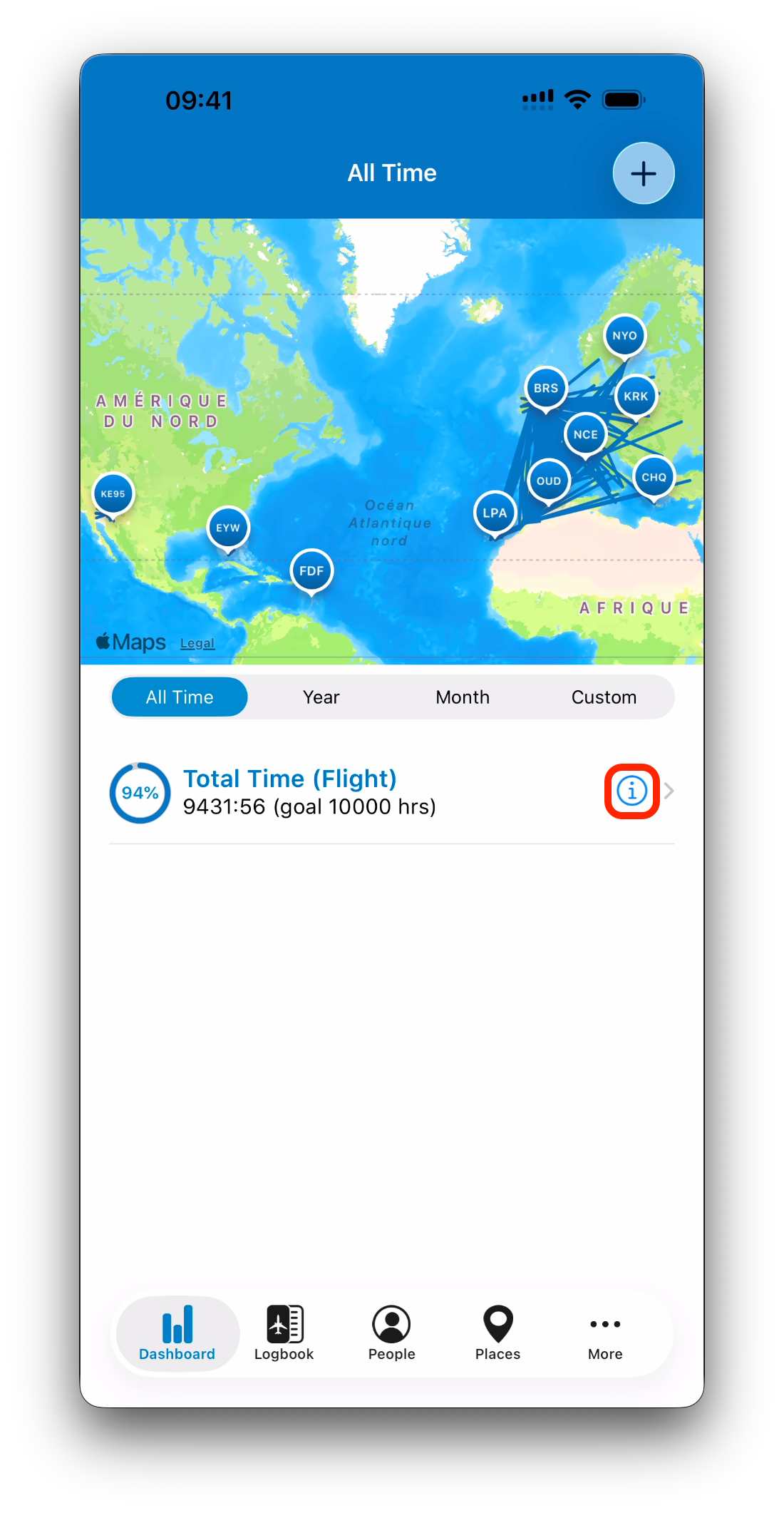
Each stat row includes an (i) button.
Tapping this button opens the edit screen, where you can:
Rename the stat
Change the tracked value
Adjust or add goals
Update custom period targets
This makes Dashboard customization fully flexible over time.
Removing a Stat from the Dashboard
You can remove a statistic from your Dashboard at any time.
In the Dashboard stat list:
Swipe left on a stat row
Tap Delete
This only removes the stat from your Dashboard display — it does not delete any logbook data or entries.
Exploring Entries from a Stat
Remember:
Tapping the stat row opens the logbook entries where the value is greater than zero
Tapping the (i) button edits the stat
This separation ensures you can explore quickly without accidentally changing your configuration.
Progress Circles When Goals Are Set
If a goal exists for the currently selected time period, IPL displays:
A completion circle
The percentage achieved
The goal value next to the total
Example:
94% — 9431:56 hours (goal 10,000)
This makes the Dashboard not only informative, but also motivating.

Related Articles
What’s Next
Now that you know how to create and manage your own stat list, the next step is exploring goals in more depth — including how progress is calculated across different periods.
➡️ Continue with Goals & Progress Tracking