Using the Flight Map (Routes, Places & Airport Cards)
The Dashboard map gives you a visual overview of your flying activity for any selected time period. It displays your routes across the world and lets you tap airports to instantly access detailed statistics and the flights behind them.
Last updated 7 months ago
The Map Always Matches Your Selected Time Period
The Dashboard map is fully linked to the active time period filter.
This means:
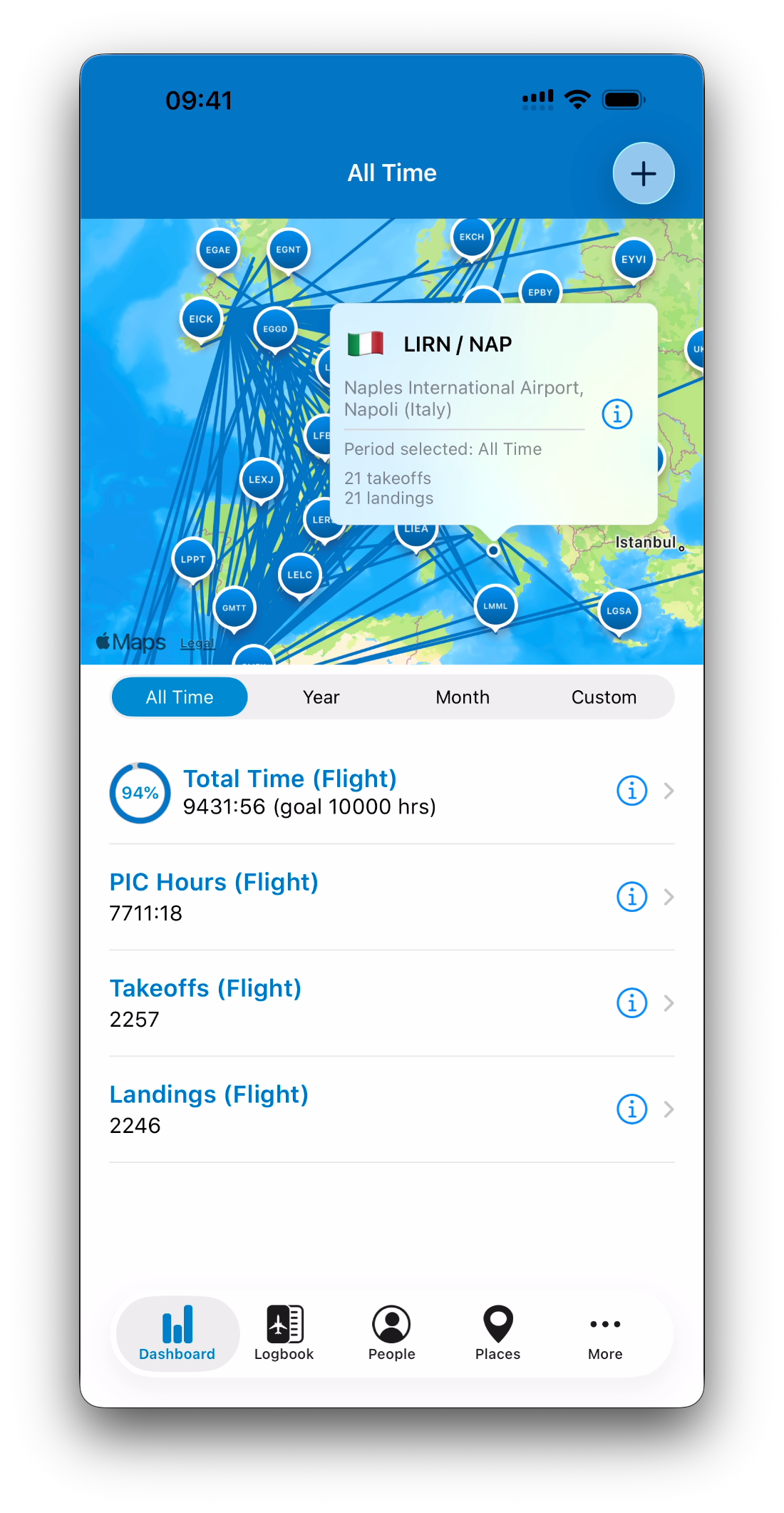
Selecting All Time shows all routes you have ever flown
Selecting a Year shows only routes flown that year
Selecting a Month focuses on a single month
Selecting a Custom Period displays only flights inside that range
Whenever the time period changes, the map updates automatically.
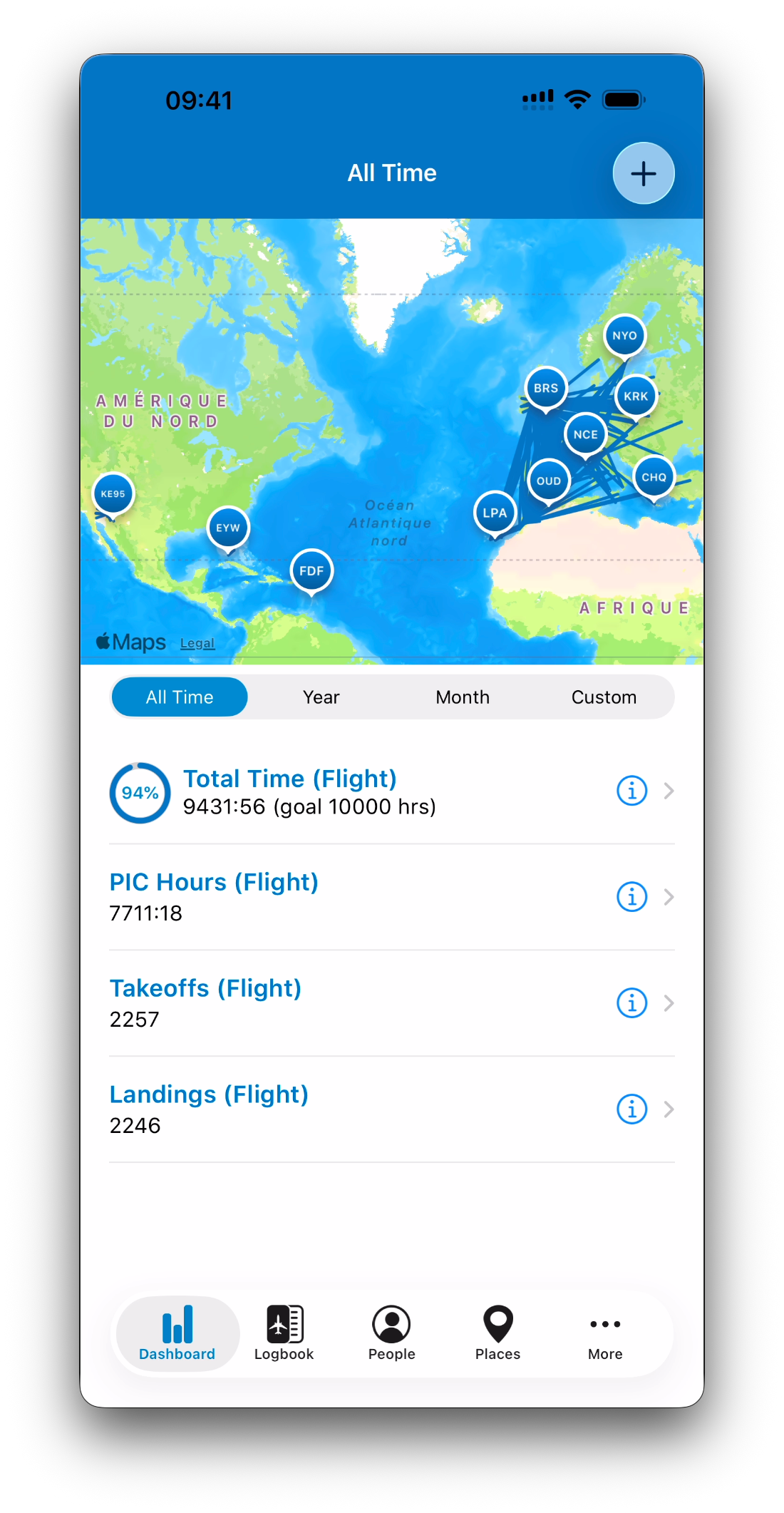
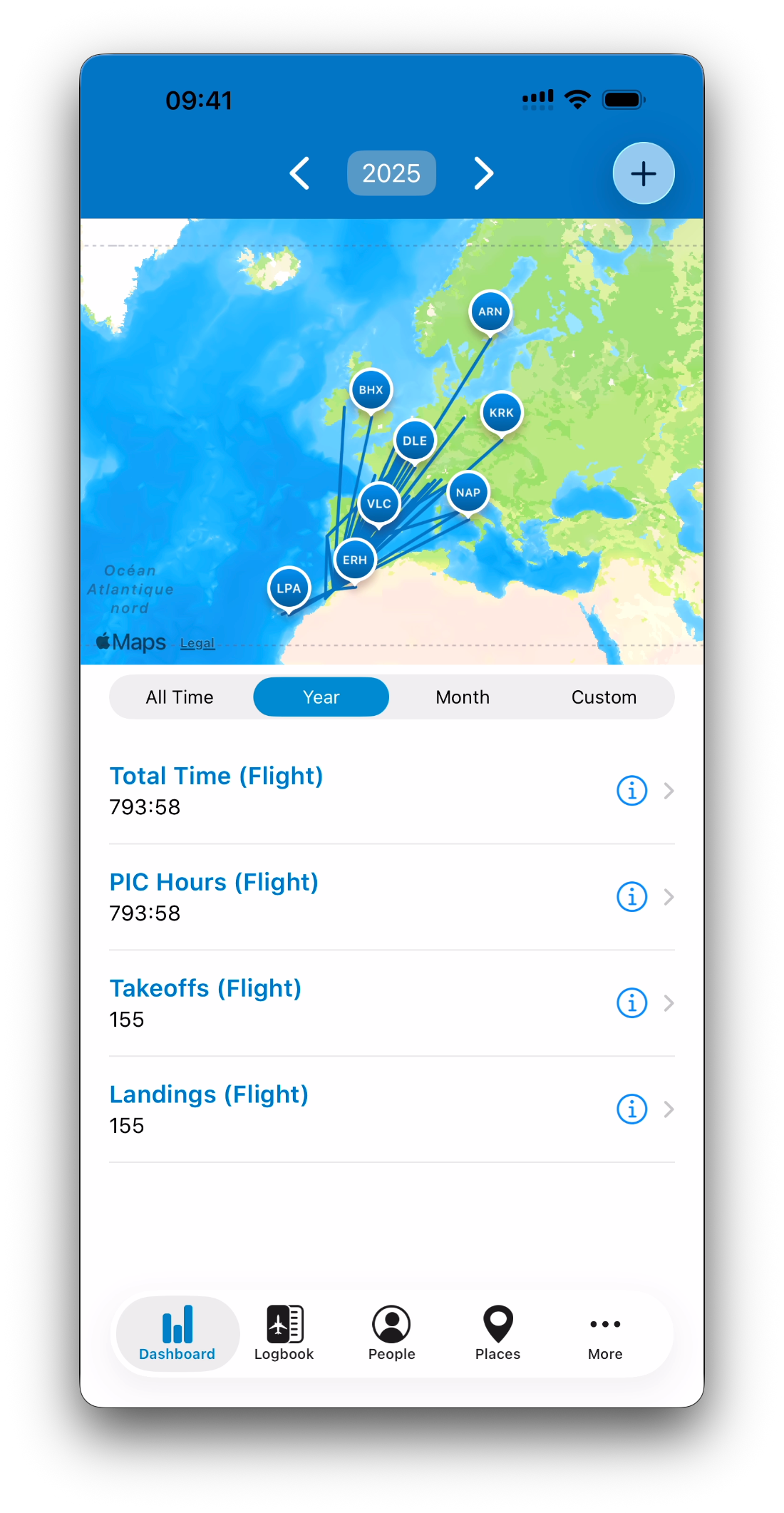
Routes Displayed Across the World
IPL plots your flights directly on the map as route lines between departure and arrival places.
This gives you an immediate view of:
Your global flying footprint
Regional activity over a specific period
Seasonal route patterns
Airline or training network evolution
The map is not just decorative — it is a true navigation tool for your logbook.
Airports and Places Are Clickable
Each airport or place included in the selected period appears on the map as an interactive marker.
Place Labels (IATA or ICAO)
Each place marker on the map displays an airport code directly on the annotation.
Depending on your Display Options in Settings, IPL can show:
IATA codes (e.g. CDG, JFK), or
ICAO codes (e.g. LFPG, KJFK)
This choice applies across the entire app, including Dashboard maps and all module-specific map views.
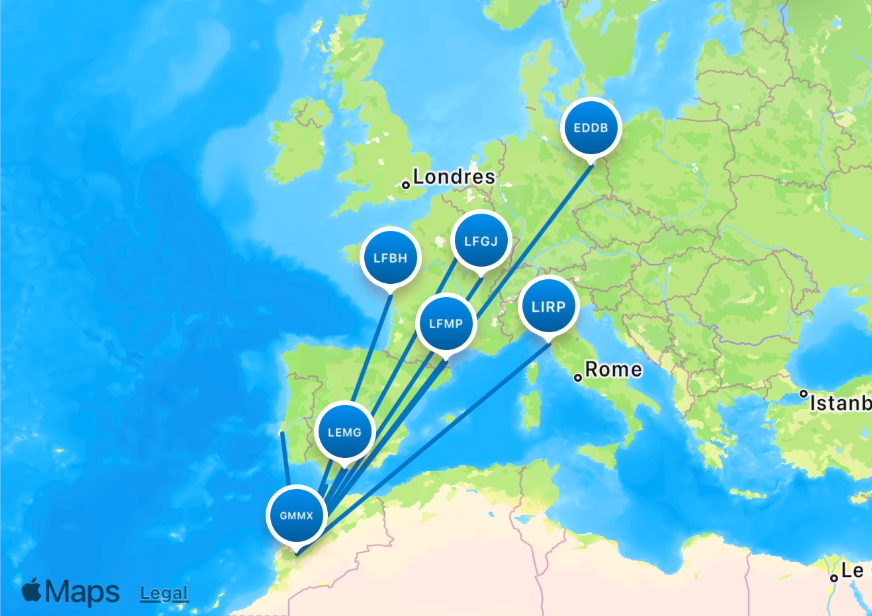
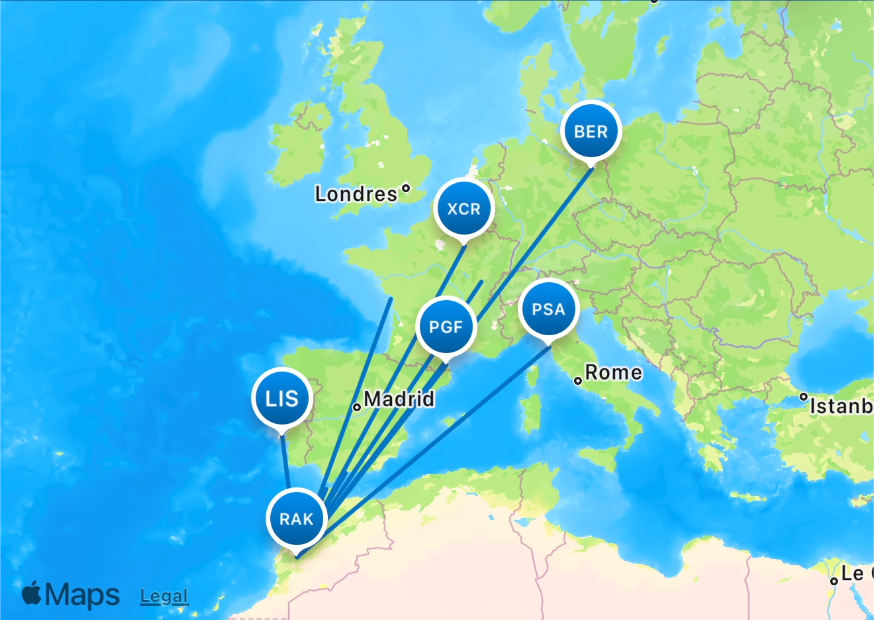
When you tap a place, IPL opens an information card showing:
Airport name and location
ICAO / IATA codes
The currently selected time period
Key local statistics for that place
This allows you to explore your logbook geographically.
Airport Statistics in the Place Card
The airport card provides quick operational insight, such as:
Number of takeoffs
Number of landings
Activity limited to the selected time period
For example:
“12 takeoffs and 12 landings this year from LFPG”
“3 landings in the last 90 days at EBCI”
This makes it easy to understand how frequently you operate at specific airports.
Viewing Flights for a Place
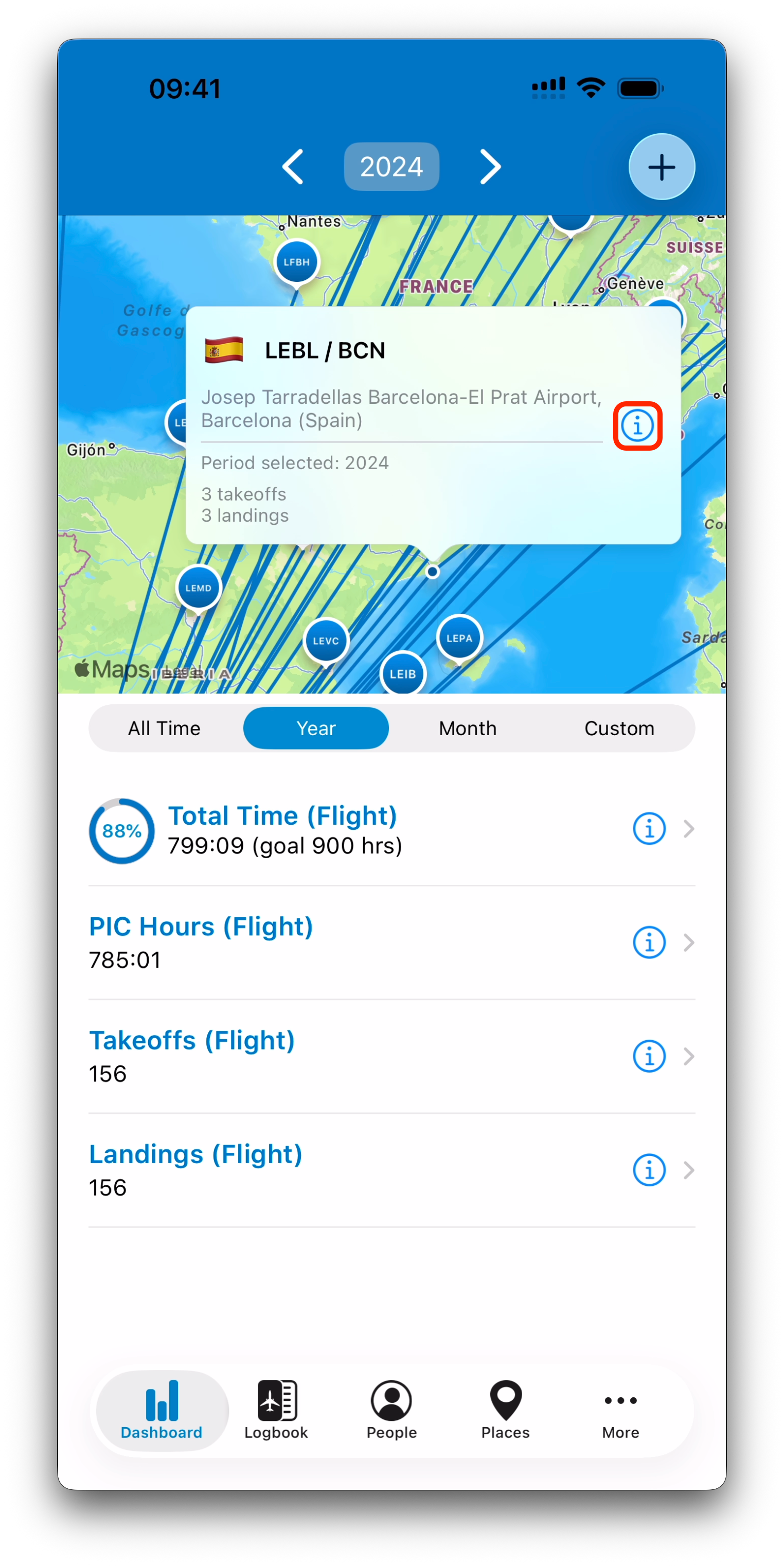
Each place card includes an info (i) button.
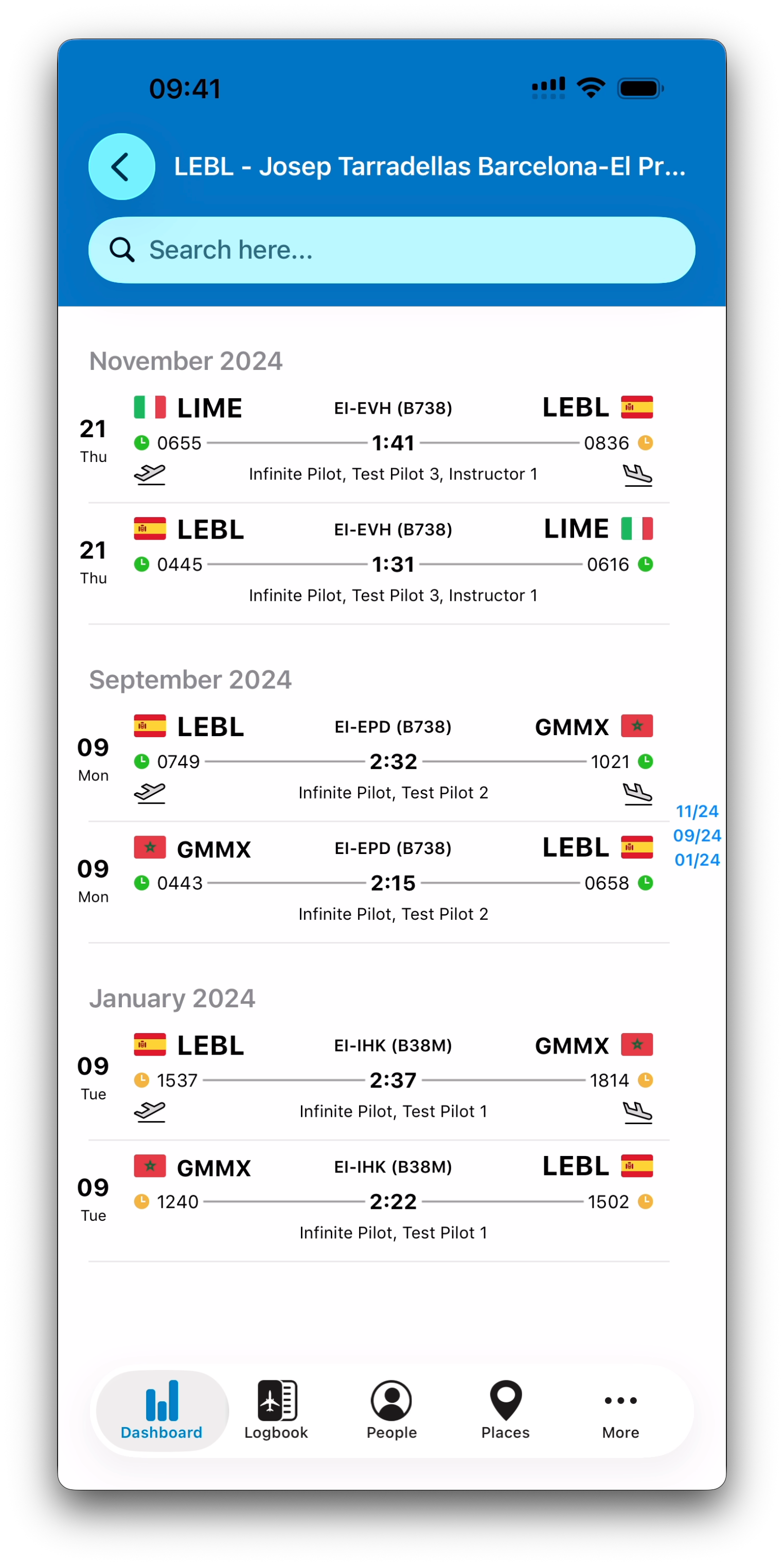
Tapping this button opens the list of all logbook entries associated with:
That airport
The currently selected time period
This list is displayed in the same format as the main logbook, allowing you to immediately review the flights behind the numbers.
Example:
Tap “Barcelona (LEBL)”
Tap (i)
See every flight involving LEBL in the selected period
The Map as an Exploration Tool
The Dashboard map is designed to work alongside statistics:
Stats tell you what you have flown
The map shows you where you have flown
Place cards connect geography with operations
Entry lists provide full logbook traceability
This creates a unique way to explore your aviation history visually, while always remaining grounded in real logbook records.
Map Views Across IPL Modules
The map is not limited to the main Dashboard.
Throughout IPL, many modules include a summary bar (People, Places, Aircraft, Certificates…).
When you tap the summary bar, IPL opens a map-based view filtered to:
That specific person, place, aircraft, or qualification
The currently selected time period
This allows consistent exploration everywhere in the app.
Related Articles
What’s Next
Now that you know how to explore flights visually, the next step is understanding the statistics shown below the map — and how every number links back to your logbook entries.
➡️ Continue with Understanding Statistics (Values, Units & Linked Entries)