Understanding Statistics (Values, Units & Linked Entries)
The statistics shown on IPL’s Dashboard are more than simple totals. Each value is interactive, configurable, and directly linked to the logbook entries that produced it, allowing you to explore your activity with full traceability.
Last updated 7 months ago
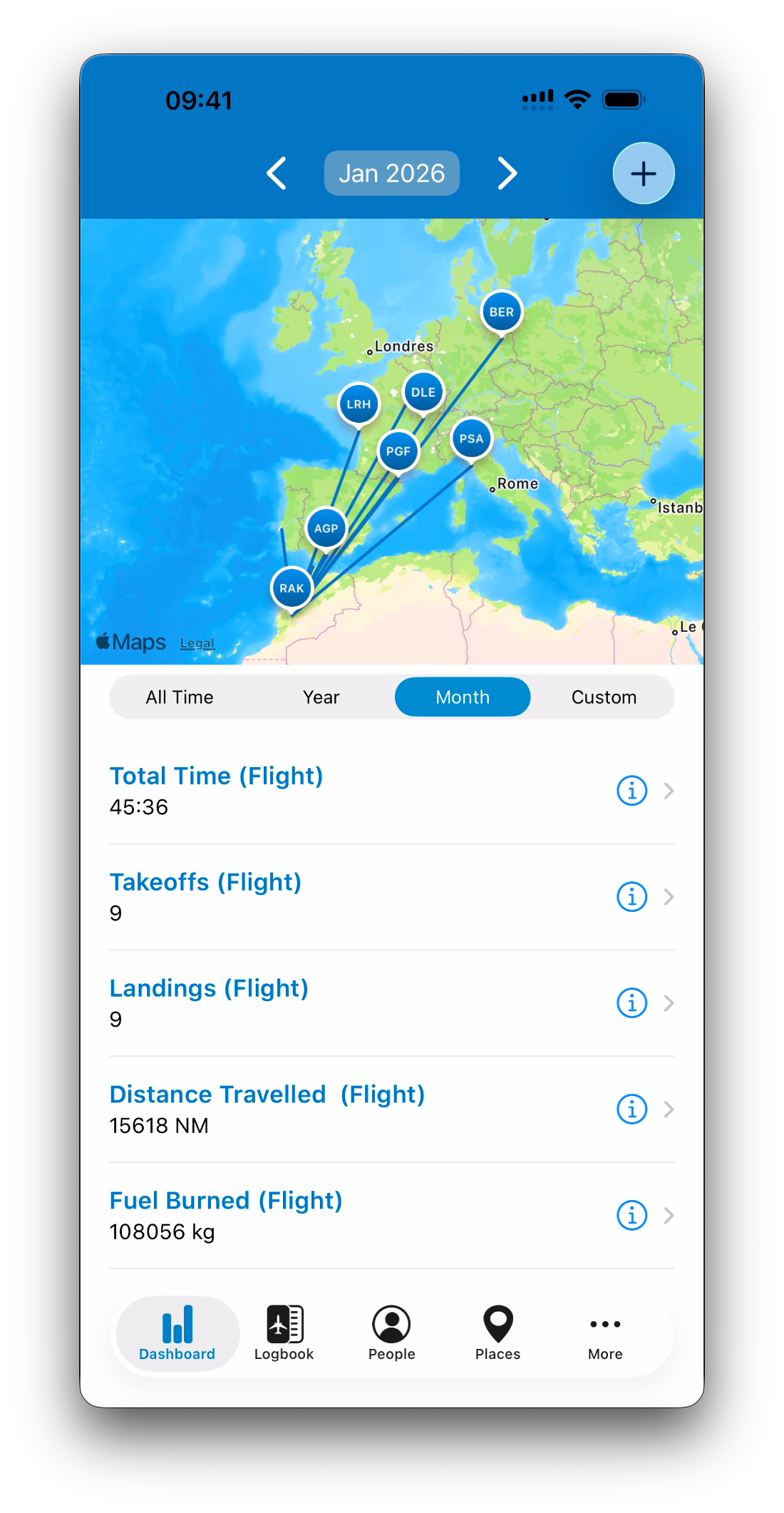
Statistics Always Match the Selected Time Period
All Dashboard statistics are calculated within the currently active time period.
This means that when you switch between:
All Time
Year
Month
Custom Period
…the entire stat list updates instantly.
Totals change
Goals apply to the selected range
Clicking a stat opens only the relevant entries for that period
Statistics and map routes always remain consistent.
Where Statistics Come From
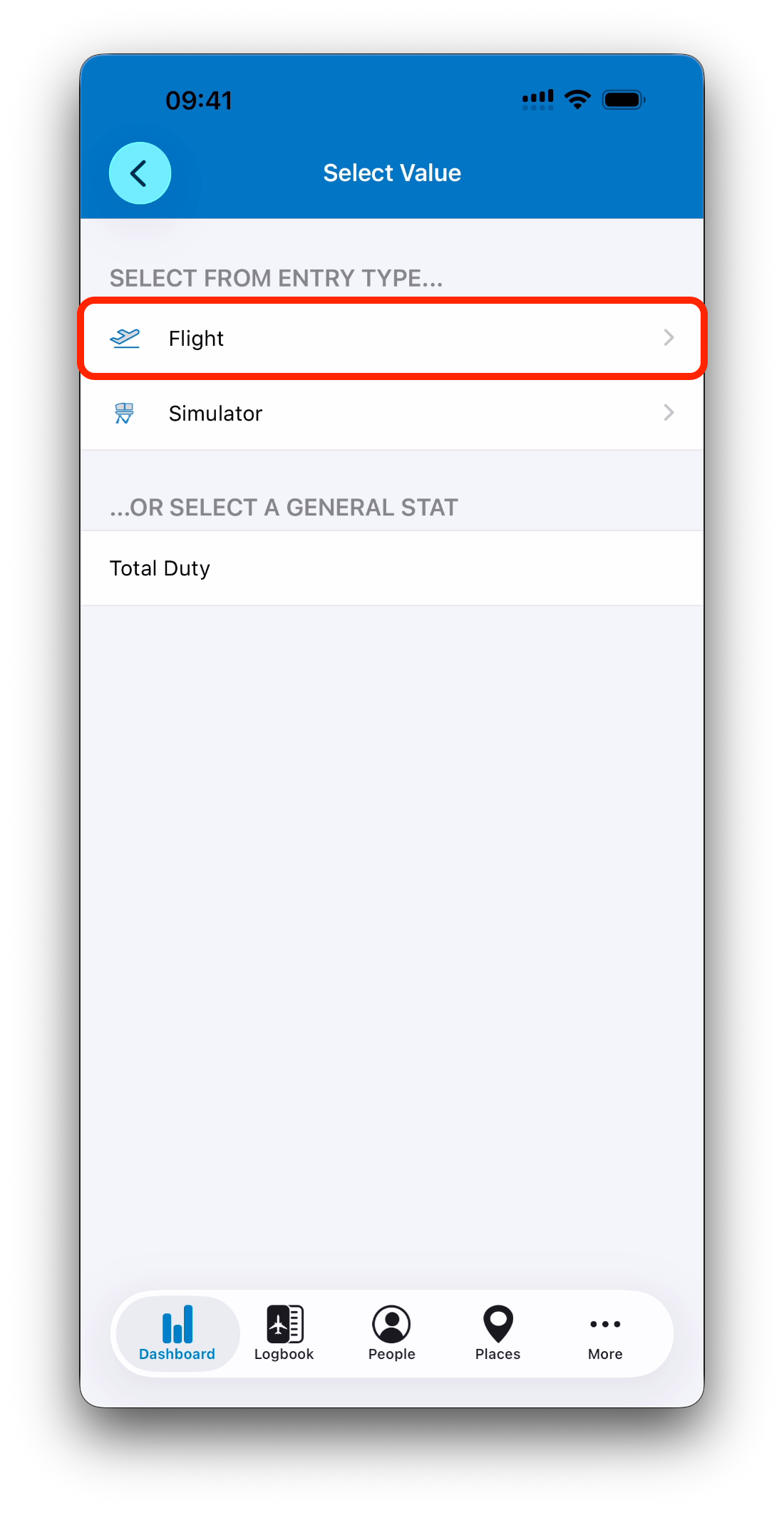
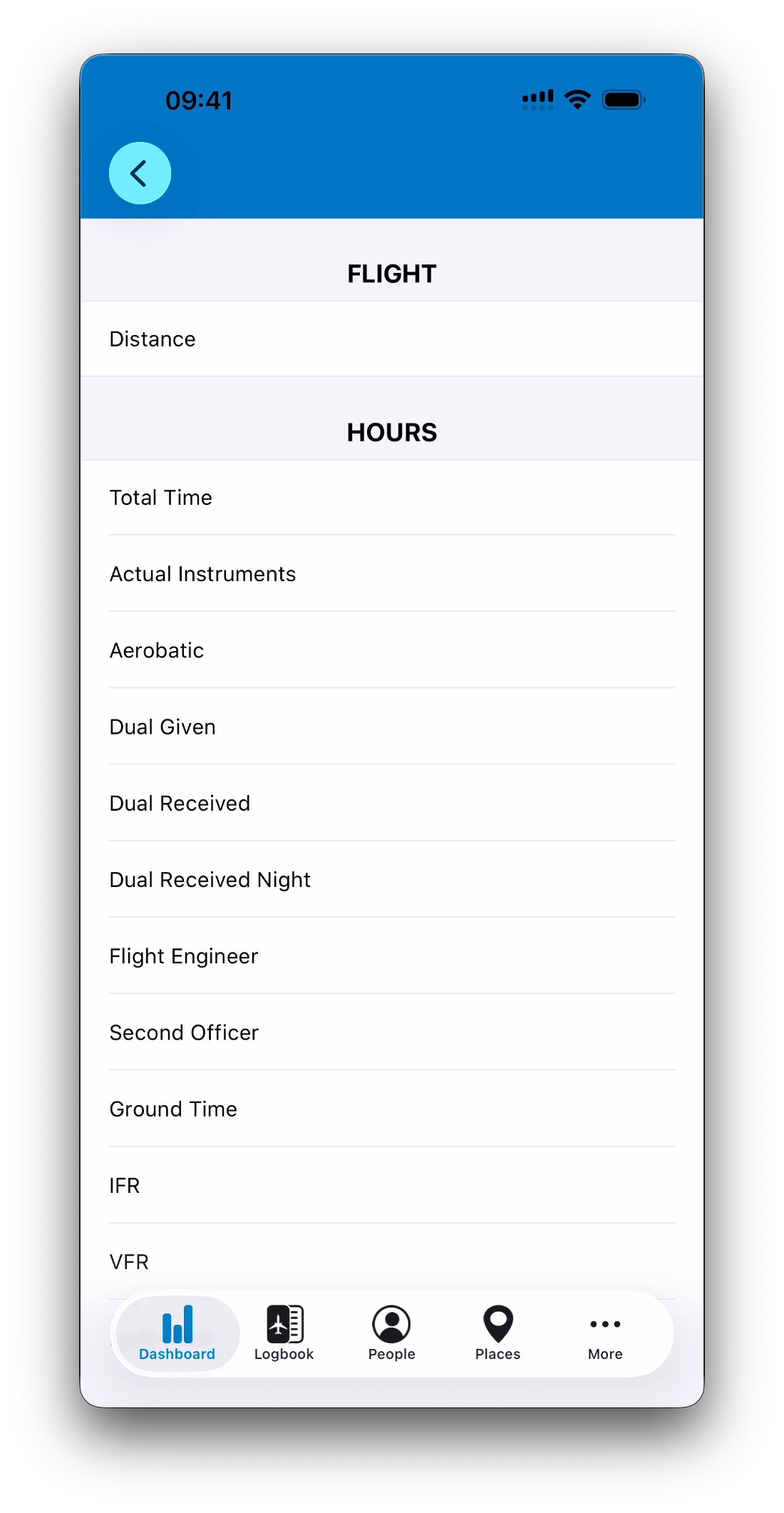
Dashboard statistics can be built from different sources in IPL.
You can add values based on:
Flight entry fields
Simulator entry fields
General totals such as Total Duty
This allows you to track everything from classic flight hours to advanced operational metrics.
Clickable Stats → Linked Logbook Entries
Every stat row on the Dashboard is interactive.
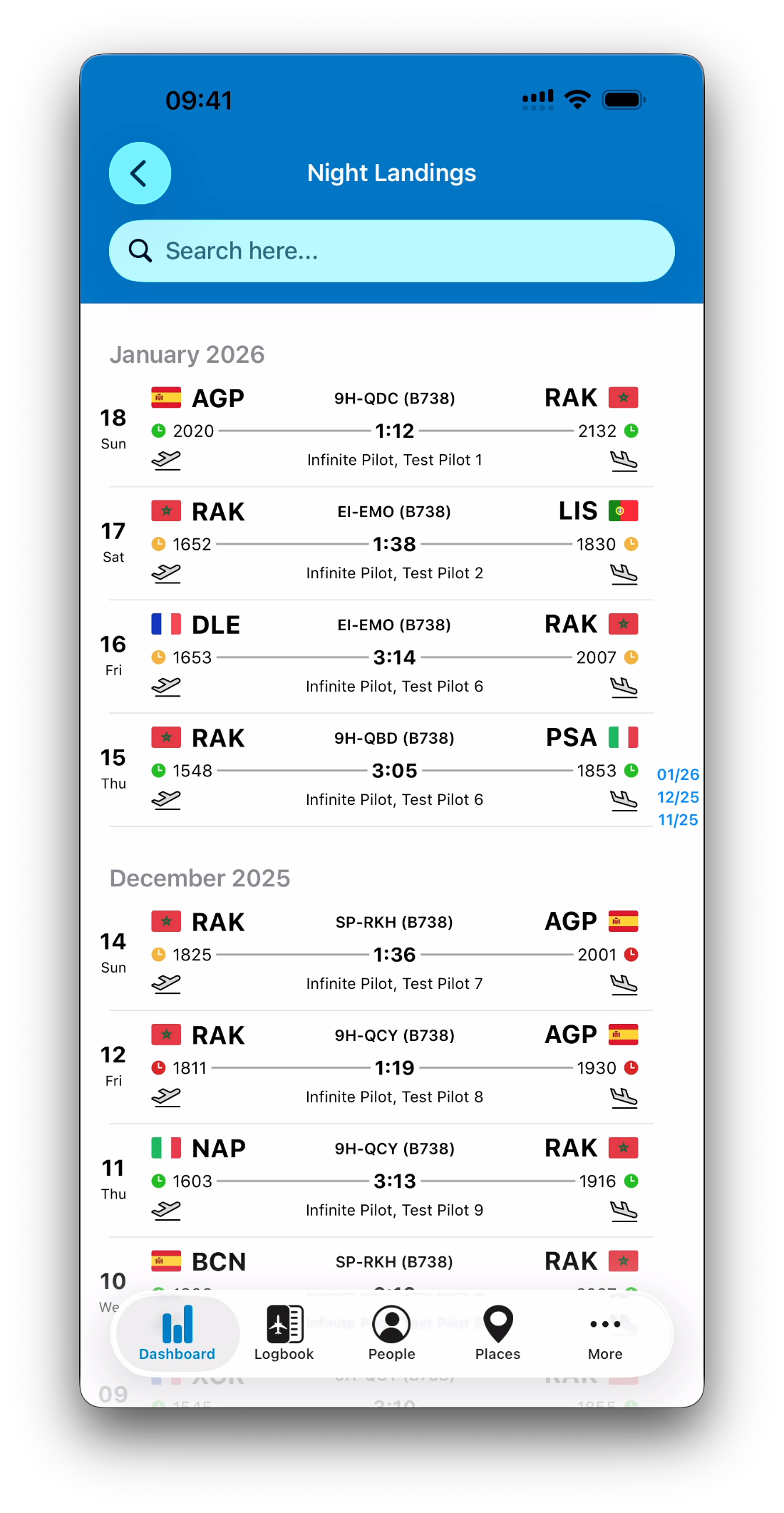
When you tap a statistic, IPL opens the list of logbook entries where:
The selected value is greater than 0
The entry belongs to the active time period
For example:
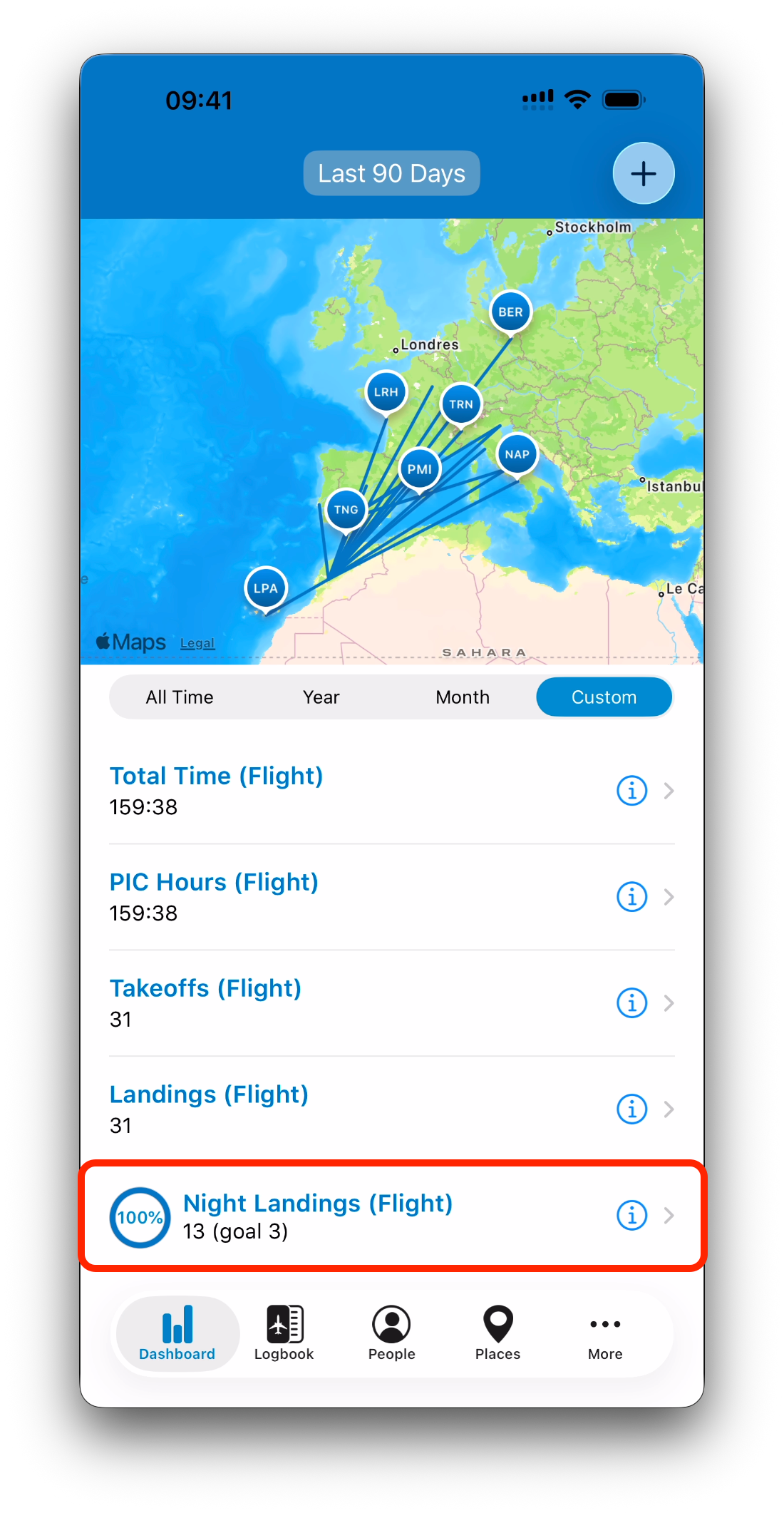
Tapping Night Landings shows flights where night landings were recorded
Tapping Simulator Received shows simulator sessions containing that time
Tapping Autolands shows flights where autoland count is logged
This makes every total fully verifiable.
Editing vs Viewing a Statistic
Each stat row provides two actions:
Tapping the row opens the associated logbook entries
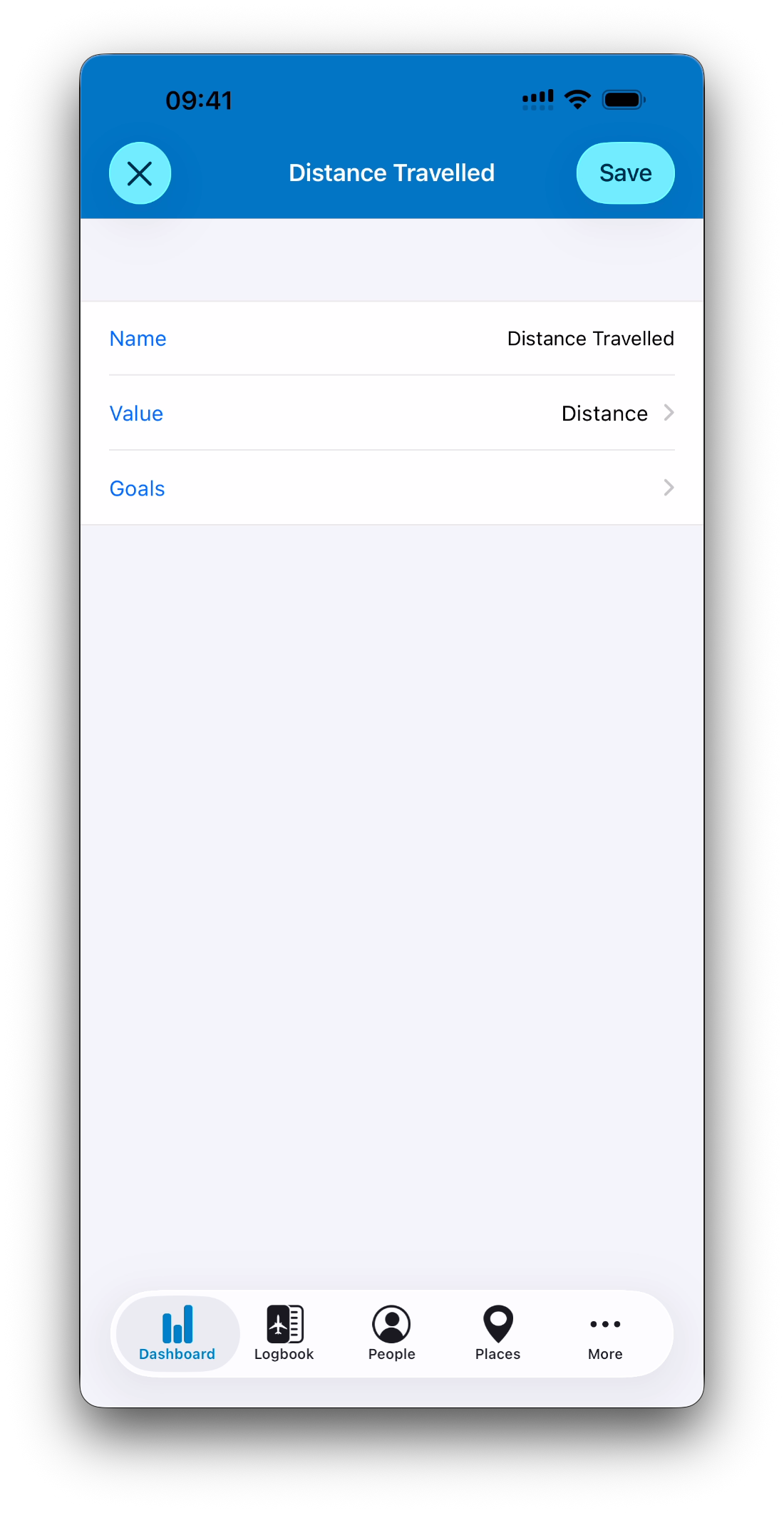
Tapping the (i) button opens the stat configuration screen
This separation allows you to explore quickly, while still being able to customize your Dashboard layout.
Statistics Can Be Personalized
Each Dashboard stat can be configured with:
A custom name
A selected value to calculate
Goals for each time period
This allows you to build a Dashboard that reflects your flying profile, whether you focus on:
Airline operations
General aviation training
Instructor hours
Long-haul duty tracking
Currency and compliance goals
Goals and Progress Indicators
If a stat includes a goal for the currently selected time period, IPL displays:
A progression circle showing completion percentage
The goal value next to the total
A visual indicator of progress across the period
Example:
18 landings (goal 30) → 60%
Goals can be defined for:
Standard periods (All Time / Year / Month)
Custom periods created by the user

Units and Measurement Types
IPL automatically displays statistics using the appropriate unit, depending on the selected metric.
Common unit types include:
Time Values
Displayed in aviation format:
Hours:Minutes (hh:mm)
Example: 124:35
Distance
Displayed in:
Nautical Miles (NM)
Operations (Counts)
Displayed as integers:
Takeoffs
Landings
Go-Arounds
Autolands
Arrests
Aerotows
Passengers
Passenger-related totals appear as simple counts.
Fuel and Payload
Weight-based stats are displayed using the unit selected in Settings:
Kilograms (kg) or Pounds (lbs)
Dashboard Views in Other Modules
Statistics themselves are only displayed in the main Dashboard tab.
However, many detail views in IPL — such as People, Places, Aircraft, Simulators, or Certificates — include a summary bar that opens a map-based activity view filtered by the selected time period.
In these module dashboards, IPL focuses on:
The routes flown during the period
The total hours and number of associated entries
The list of matching flights or simulator sessions
This provides the same exploration workflow as the Dashboard, even though the customizable stat list is not shown.
Related Articles
What’s Next
Now that you understand how Dashboard statistics work, the next step is learning how to create and manage your own custom stat list — including choosing values, naming stats, and configuring goals.
➡️ Continue with Creating and Editing Custom Stats