Time Periods Explained (All Time, Year, Month & Custom)
Time periods are the foundation of IPL’s Dashboard and statistics system. They let you filter your entire logbook view — map routes, totals, goals, and entry lists — so you can focus on a specific part of your flying activity.
Last updated 7 months ago
Why Time Periods Matter
In Infinite Pilot Logbook, every Dashboard view is always based on a selected time period.
This means that when you explore your logbook, IPL is constantly answering:
Which flights are included in this view?
Which totals should be counted?
Which entries contribute to this statistic?
By changing the time period, you instantly change:
The displayed routes on the map
The calculated statistics below
The entry lists opened from stats or places
The goals and progress shown for that period
The Four Time Period Modes
IPL provides four main ways to filter your activity:
All Time
Year
Month
Custom
These modes are always accessible on the Dashboard screen.

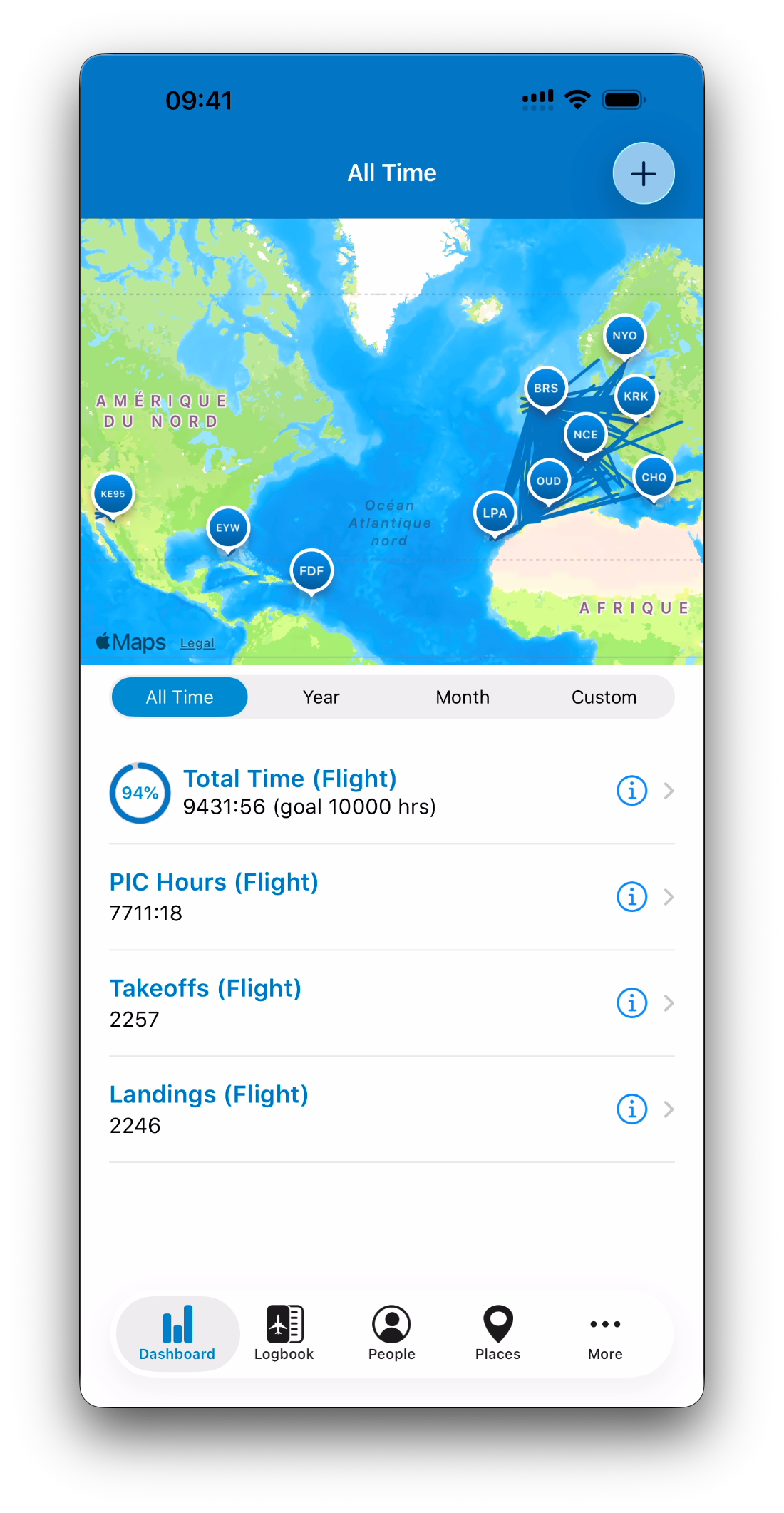
All Time
All Time is the default view.
It includes every logbook entry you have ever recorded, across your full flying career.
Use this mode to see:
Lifetime totals
Complete route map
Long-term goal progress (e.g. total hours)
Year View
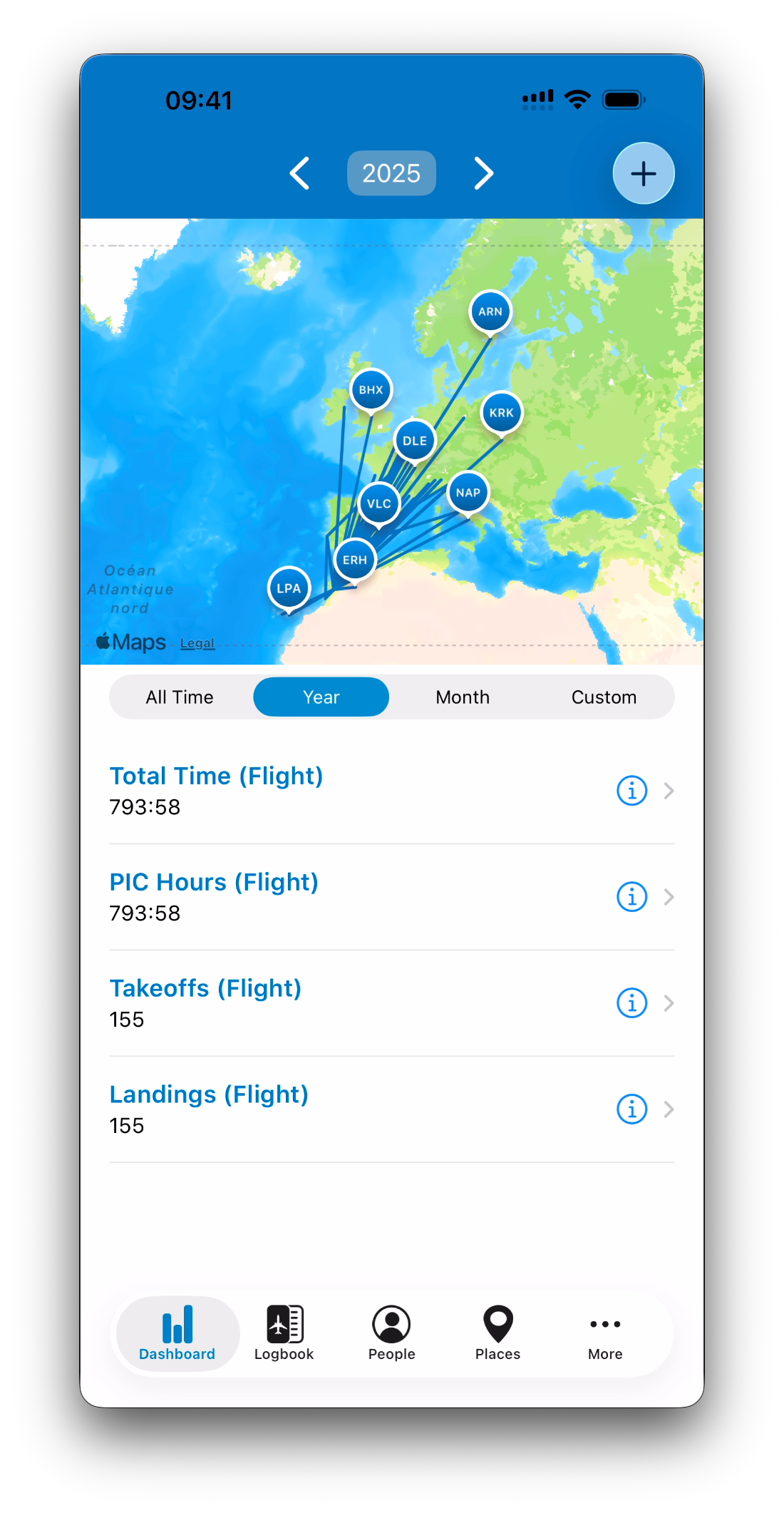
The Year mode restricts all map and statistics calculations to a single calendar year.
When Year is selected:
Only entries within that year are included
The map shows routes flown that year
Stats represent yearly totals
IPL makes year selection quick and fluid with:
Previous / Next year buttons
A year picker to jump directly to another year
Month View
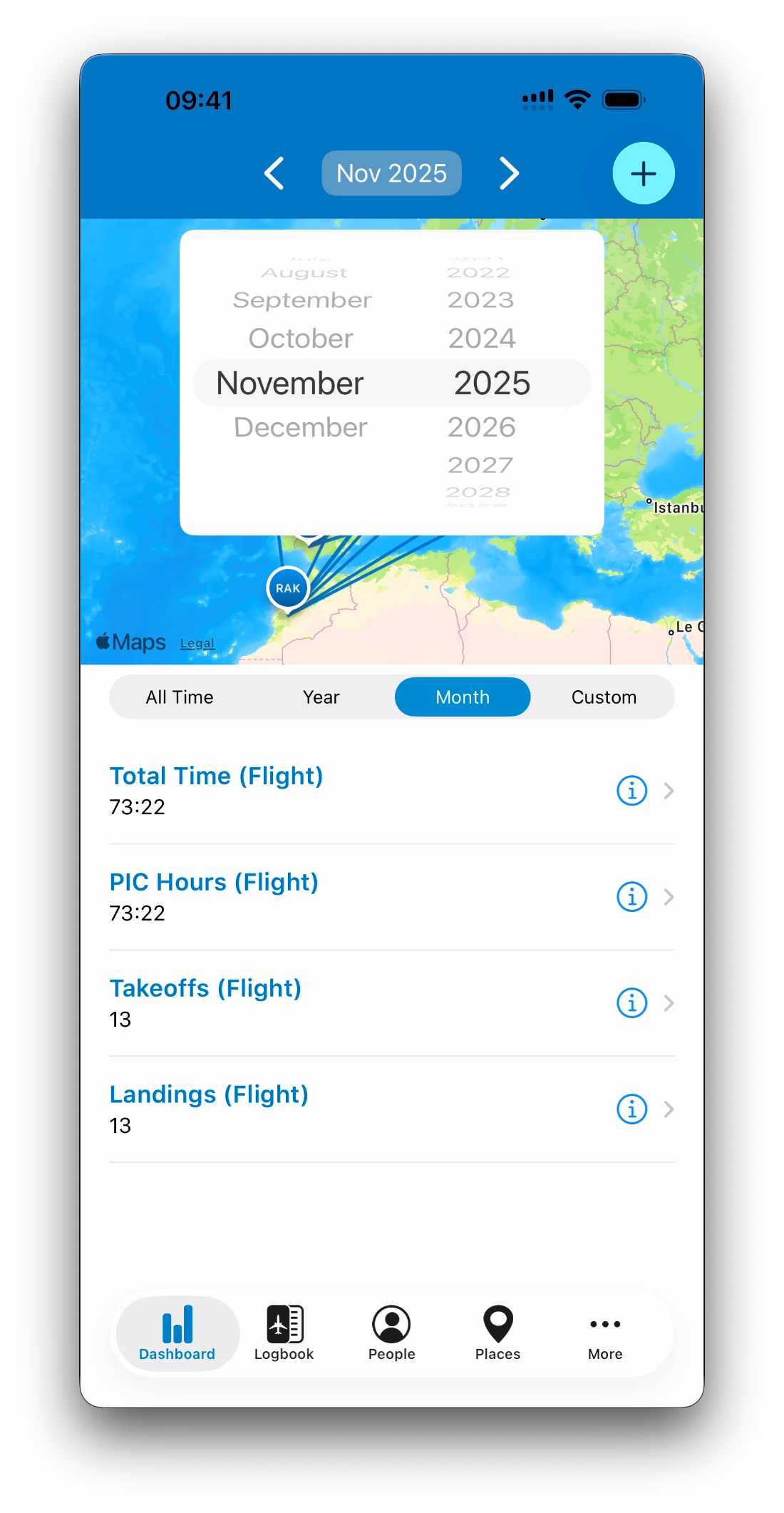
The Month mode works the same way, but focuses on a single calendar month.
This is especially useful for:
Monthly activity tracking
Airline reporting
Short-term goal monitoring
Month selection includes:
Previous / Next month navigation
A picker to jump directly to another month and year
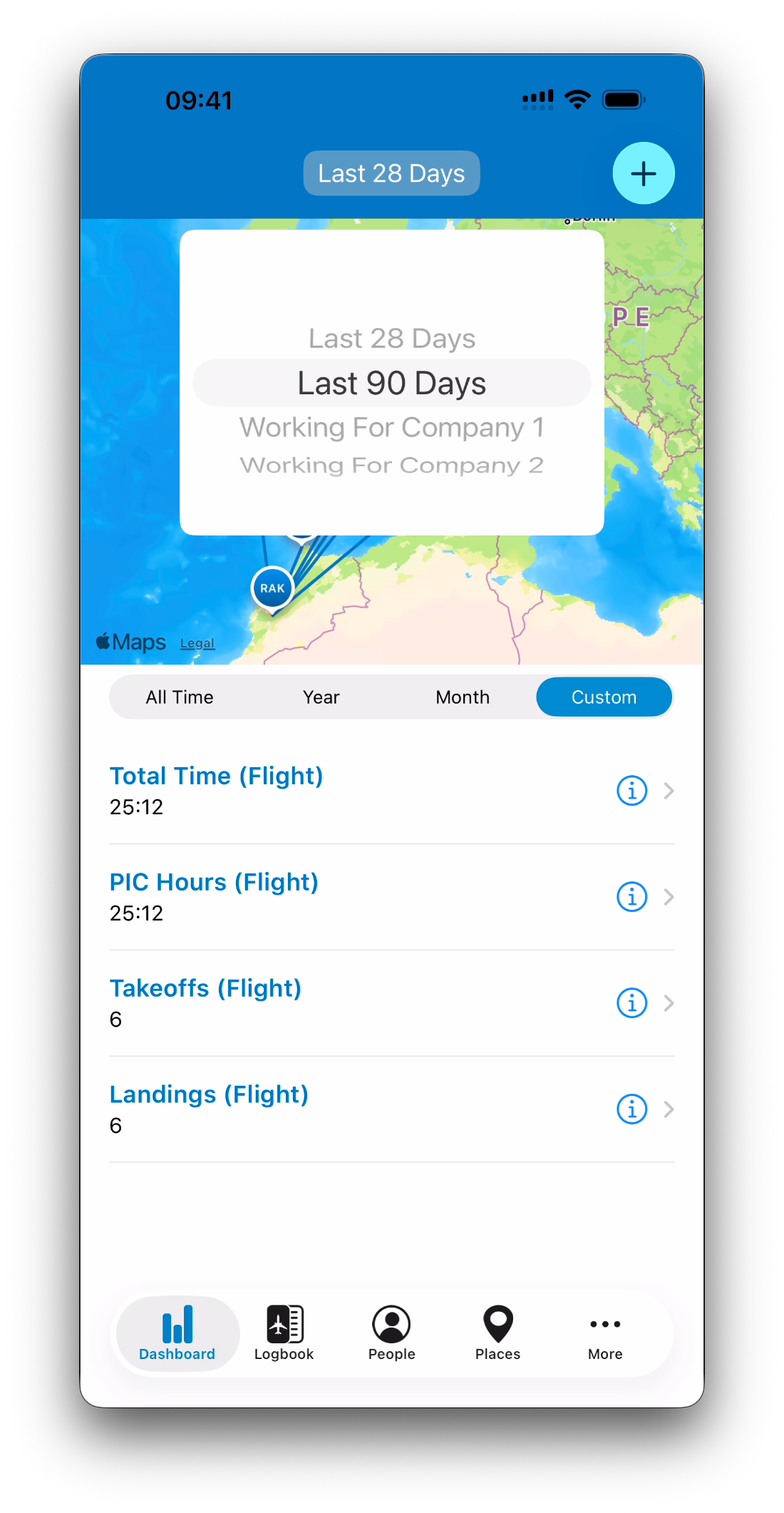
Custom Time Periods
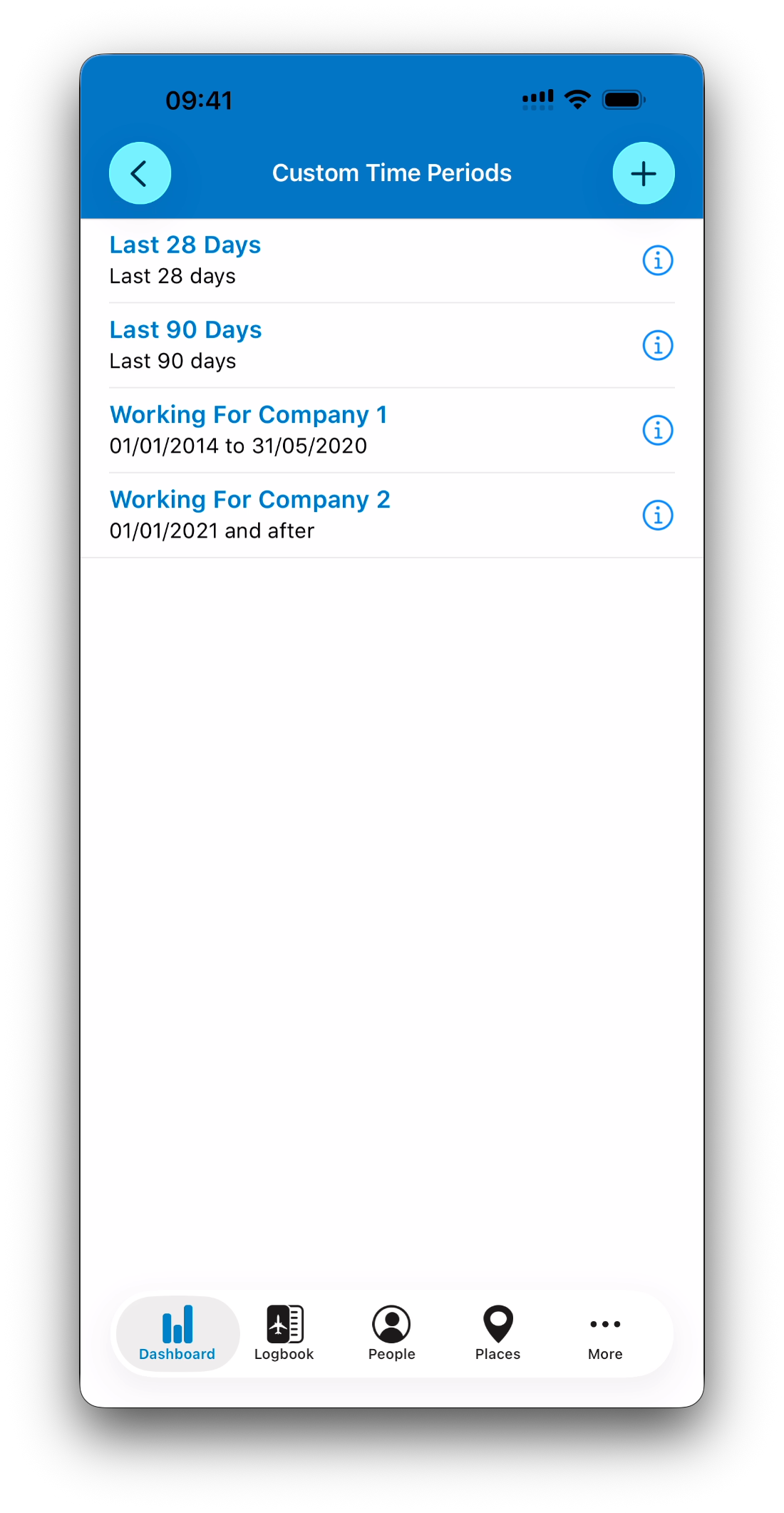
Custom periods allow you to create your own personalized date filters.
This is useful when calendar periods do not match your real flying needs, for example:
Summer season
Last 90 days
Training block
Contract or airline base period
Custom periods are managed by the user through a dedicated list screen.
Selecting Custom Periods Quickly
When you choose a Custom period from the list:
The Dashboard updates immediately
The selected period becomes active
You can then switch between custom periods directly from the picker in the navigation bar, without reopening the list screen each time.
This makes custom ranges just as fast to use as Year or Month.
Time Periods Apply Everywhere in IPL
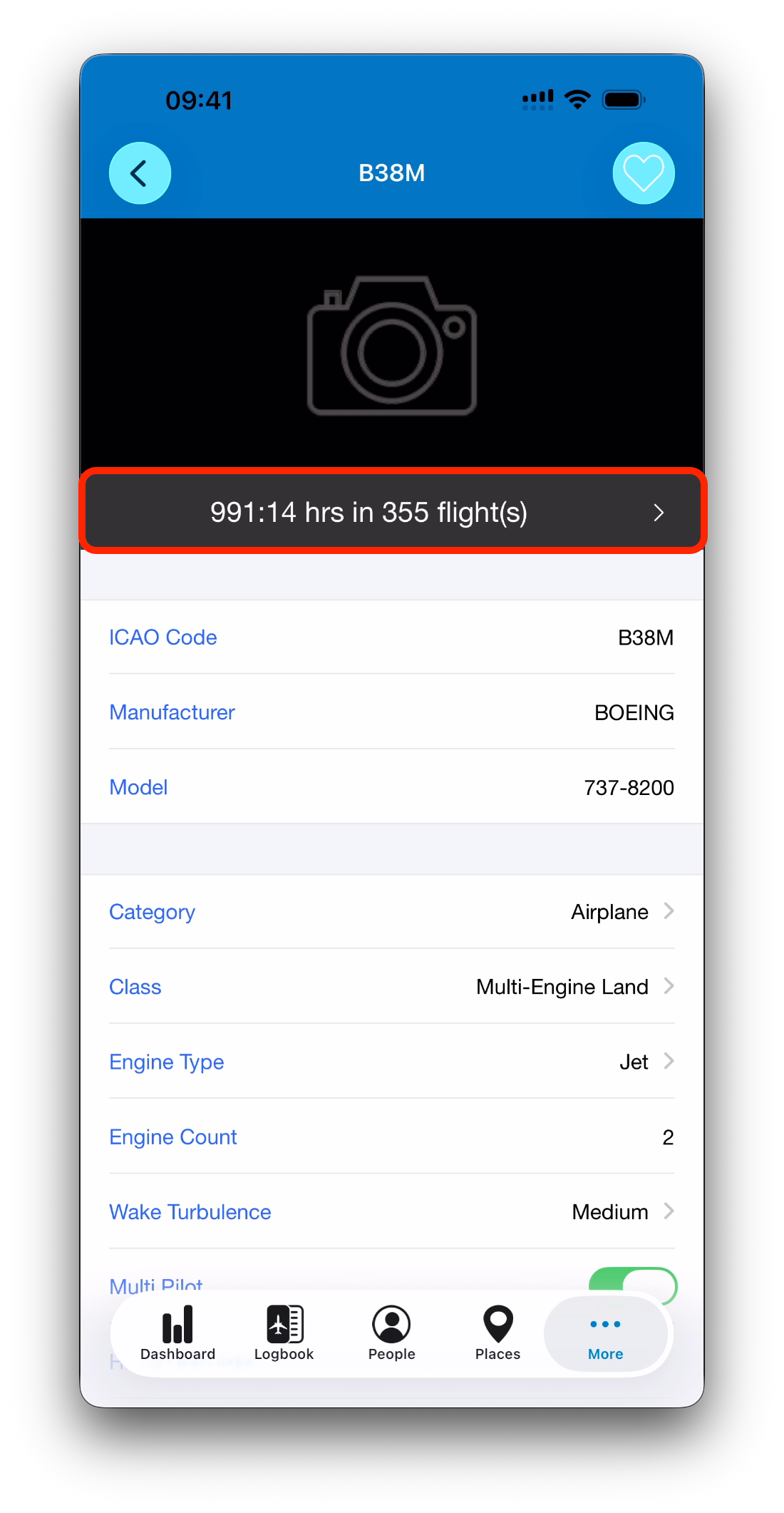
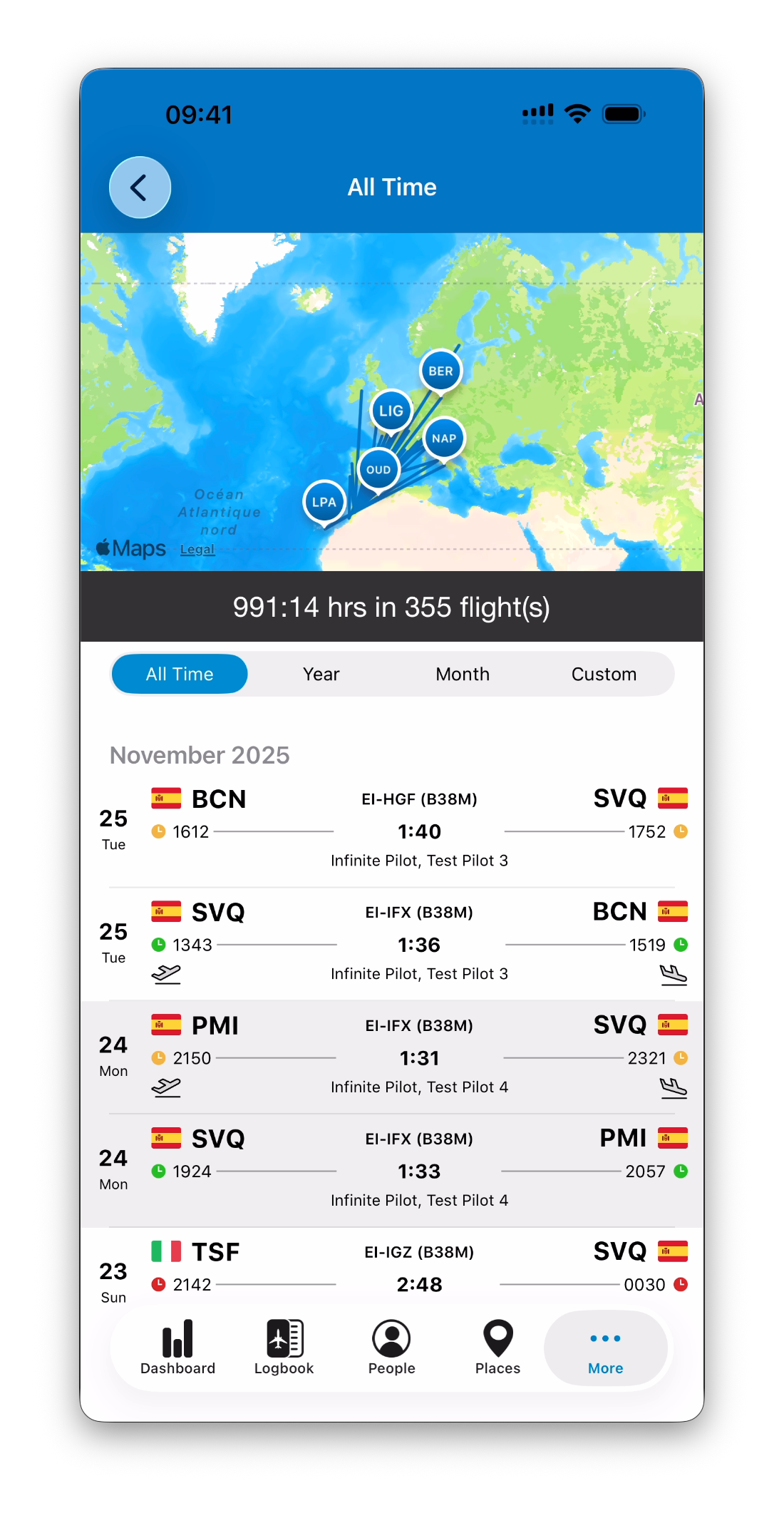
Time periods are not limited to the main Dashboard tab.
Any module that includes a summary bar (such as People, Places, etc…) uses the exact same time filtering logic.
This means you can explore:
Flight made with a specific person this year
Activity on a specific aircraft last month
A place’s landings over a custom season
…all using the same consistent period system.
Related Articles
What’s Next
Now that you understand the standard time period modes, the next step is learning how Custom periods work in detail — including static ranges, rolling windows, and start/end limits.
➡️ Continue with Custom Time Periods (Static vs Dynamic Ranges)