Goals & Progress Tracking
Goals allow you to turn Dashboard statistics into meaningful targets. Infinite Pilot Logbook lets you assign objectives to any stat across all time periods, and automatically tracks your progress with clear visual indicators.
Last updated 7 months ago
Why Goals Are Useful
Totals are informative, but goals make them actionable.
With goals, you can answer questions like:
How close am I to 10,000 flight hours?
Have I reached my yearly flying objective?
How much time have I logged this month compared to my target?
Goals help you monitor long-term milestones as well as short-term progress.
Goals Are Linked to Statistics
In IPL, goals are always attached to a specific Dashboard stat.
For example:
Total Time
Night Landings
Simulator Received
Duty Hours
Instrument Time
Any stat you create can also become a goal-tracked stat.
Goals Can Be Defined for Every Time Period
A key feature of IPL is that goals are assigned per time period.
This means a single stat can have different objectives depending on the view.
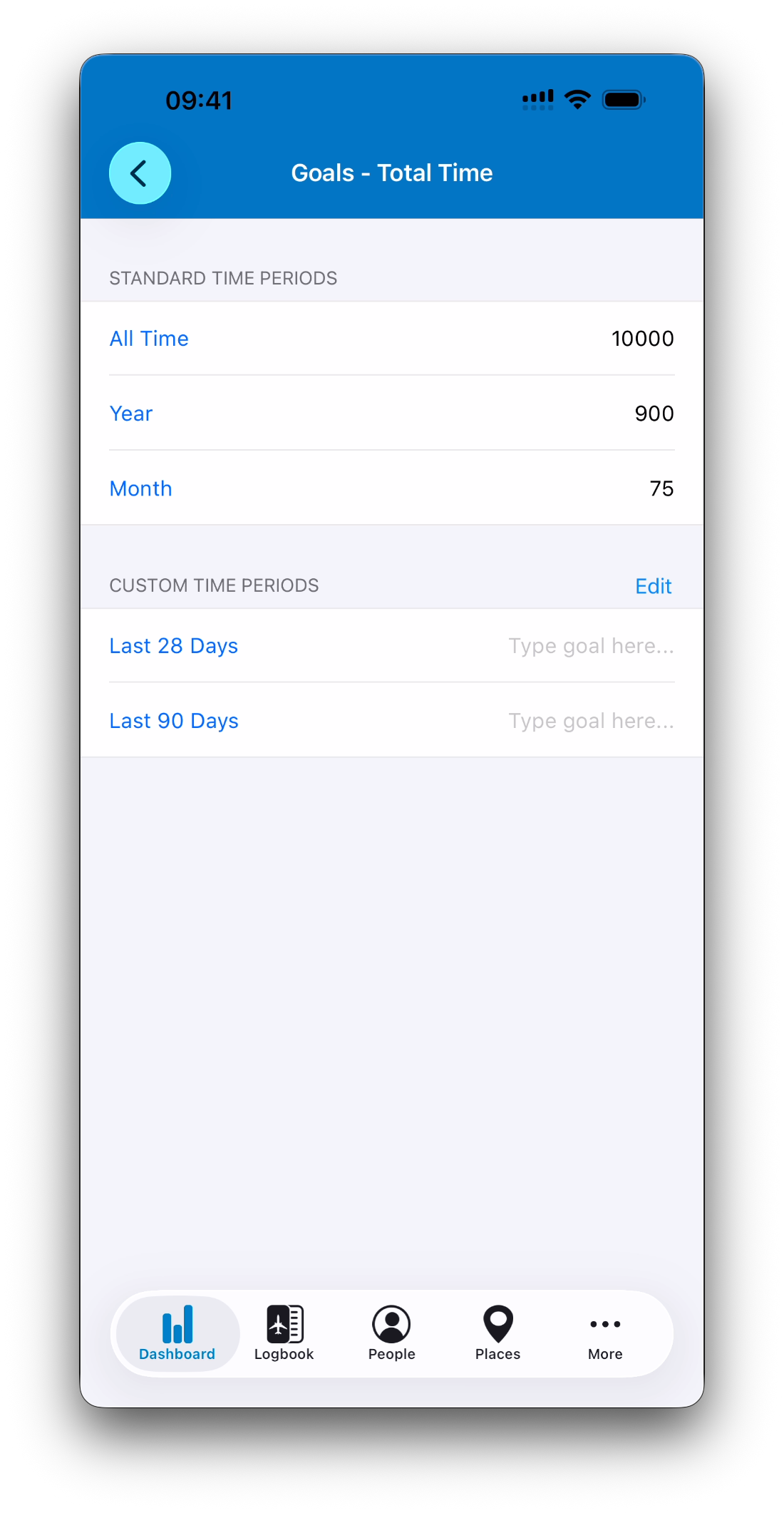
For example, a Total Time stat could have:
A lifetime goal of 10,000 hours (All Time)
A yearly goal of 900 hours (Year)
A monthly goal of 75 hours (Month)
IPL automatically applies the correct goal based on the currently selected time period.
Goals Work with Custom Time Periods Too
Goals are not limited to standard calendar views.
Custom Time Periods created by the user also appear in the Goals screen.
This allows you to define targets for periods such as:
Last 90 Days
Summer Season
Training Block
Contract Flying Period
Custom goals behave exactly the same way as Year or Month goals.
Editing Custom Periods Directly from the Goals Screen
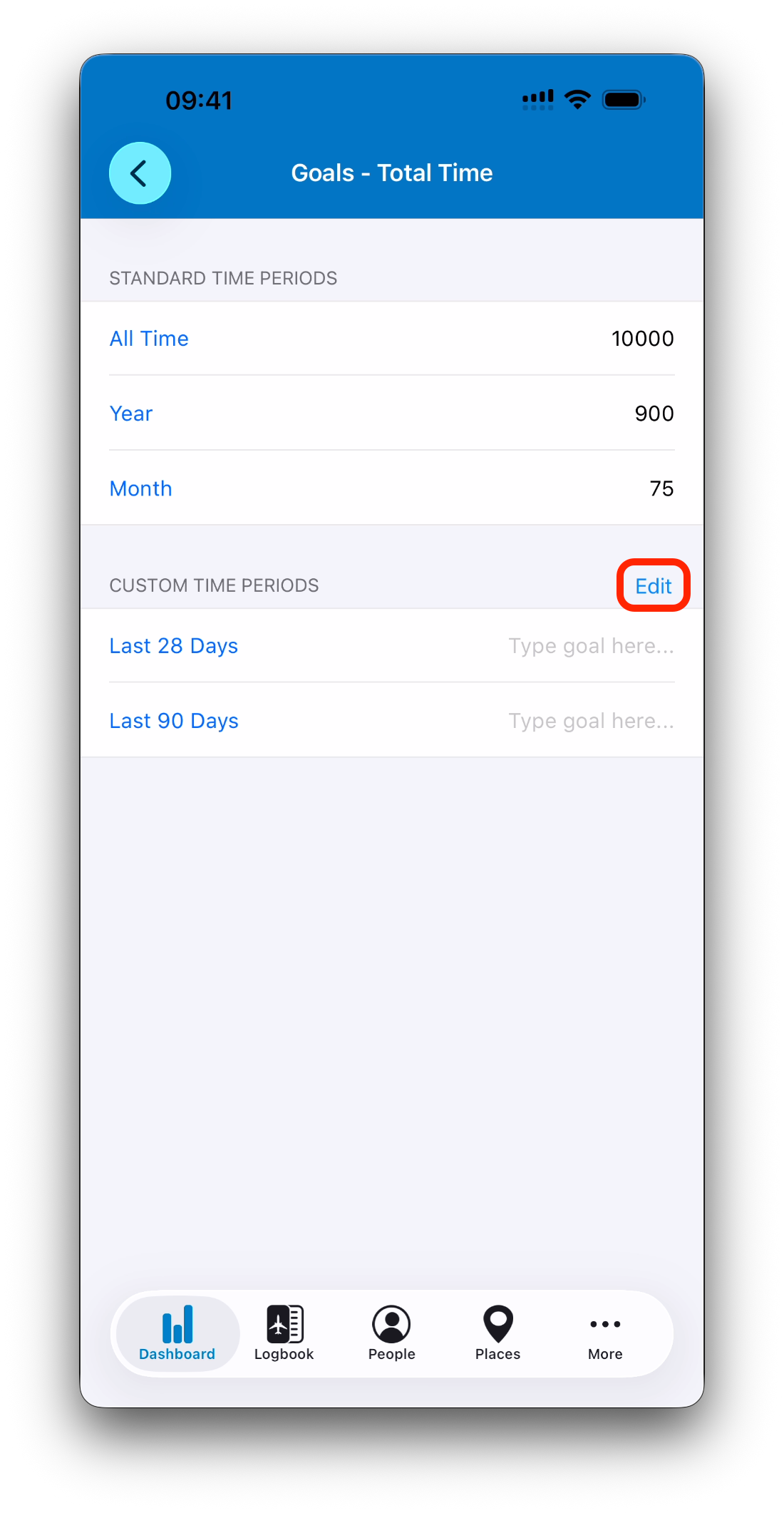
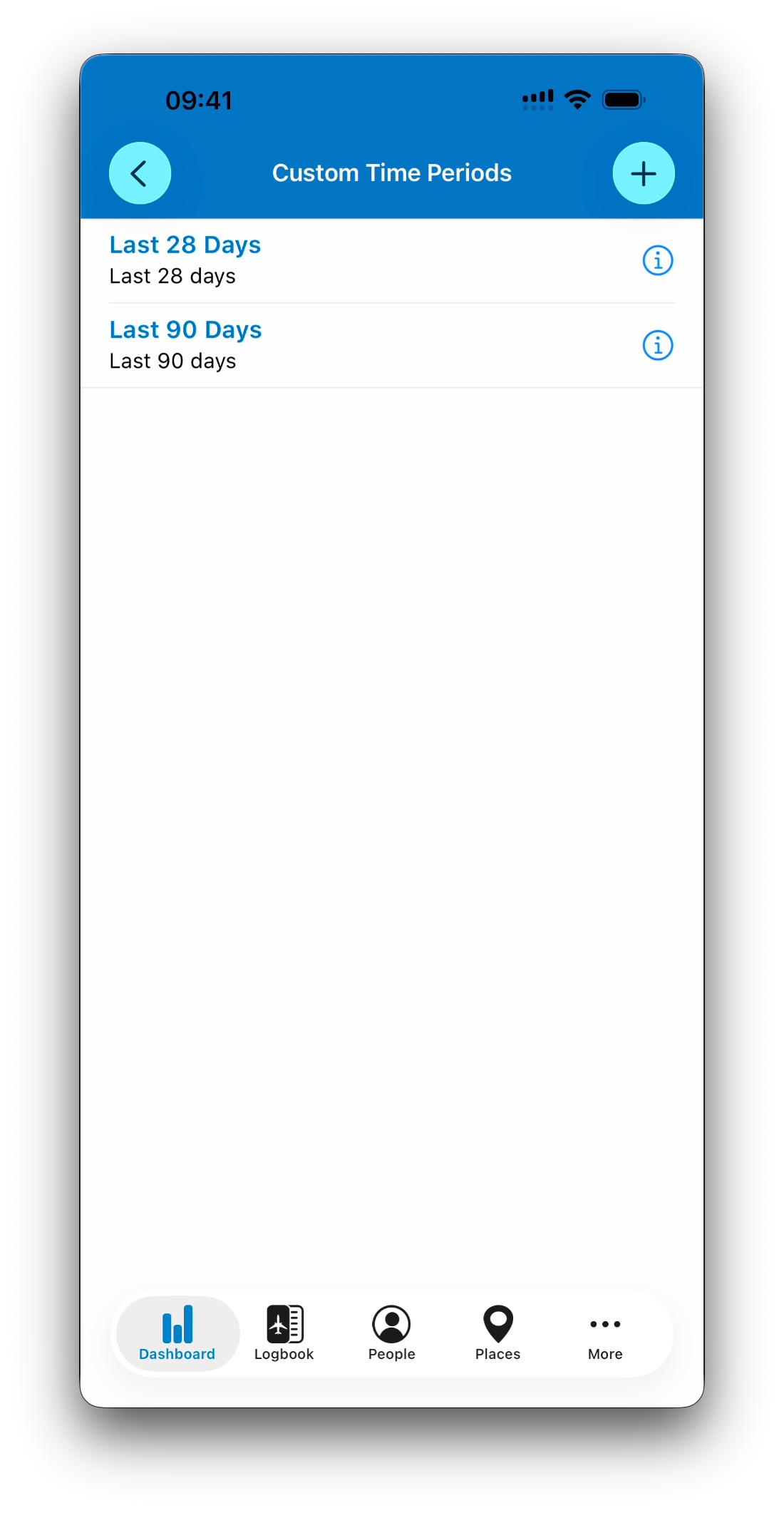
The Goals screen also provides a shortcut to manage Custom Time Periods.
By tapping the Edit button, you can:
Modify existing custom periods
Create new ones on the fly
This is especially useful when configuring a stat and realizing that a new custom period would help track a specific objective.
For example, while setting a goal, you might decide to add a new period like:
“Winter Schedule”
“Last 60 Days”
“Upgrade Training Phase”
This allows you to stay inside the goal configuration workflow without leaving the screen.
Progress Circles on the Dashboard
When a stat has a goal for the active time period, IPL displays a progress indicator directly in the stat list.
This includes:
A completion circle showing percentage achieved
The goal value displayed next to the total
Immediate visual feedback
Example:
9431:56 hours (goal 10,000) → 94%
This makes progress tracking clear at a glance.

Goals Automatically Update as You Log Flights
Goals require no manual recalculation.
As soon as new logbook entries are added:
Stat totals update
Progress percentages refresh
Goal completion advances automatically
This ensures the Dashboard remains a live reflection of your flying activity.
Editing Goals
Goals can be adjusted at any time.
To edit a goal:
Tap the (i) button next to the stat
Open the Goals section
Enter or update targets for each period
Go back to the stat screen
Tap Save
This allows your objectives to evolve throughout your career.
Goals Are Optional
Goals are never required.
If no goal is defined for a given stat and period:
The stat still appears normally
No progress circle is shown
Only the total value is displayed
You can use goals only for the metrics you care about most.
Related Articles
What’s Next
Now that you know how goals work, the next step is understanding how Dashboard-style activity views appear inside other modules such as People, Places, Aircraft, and Certificates.
➡️ Continue with Dashboard Views in People, Places & Other Modules