Dashboard Overview: Maps, Stats & Filters
The Dashboard is the main place in Infinite Pilot Logbook where you can explore your flying activity visually and numerically. It combines an interactive map, powerful time filters, clickable statistics, and goal tracking to help you understand your logbook at a glance.
Last updated 7 months ago
What the Dashboard Shows
The Dashboard is designed to answer questions like:
Where have I flown this year?
How many hours have I logged recently?
How close am I to a personal goal (e.g. 10,000 hours)?
Which flights contributed to a specific statistic?
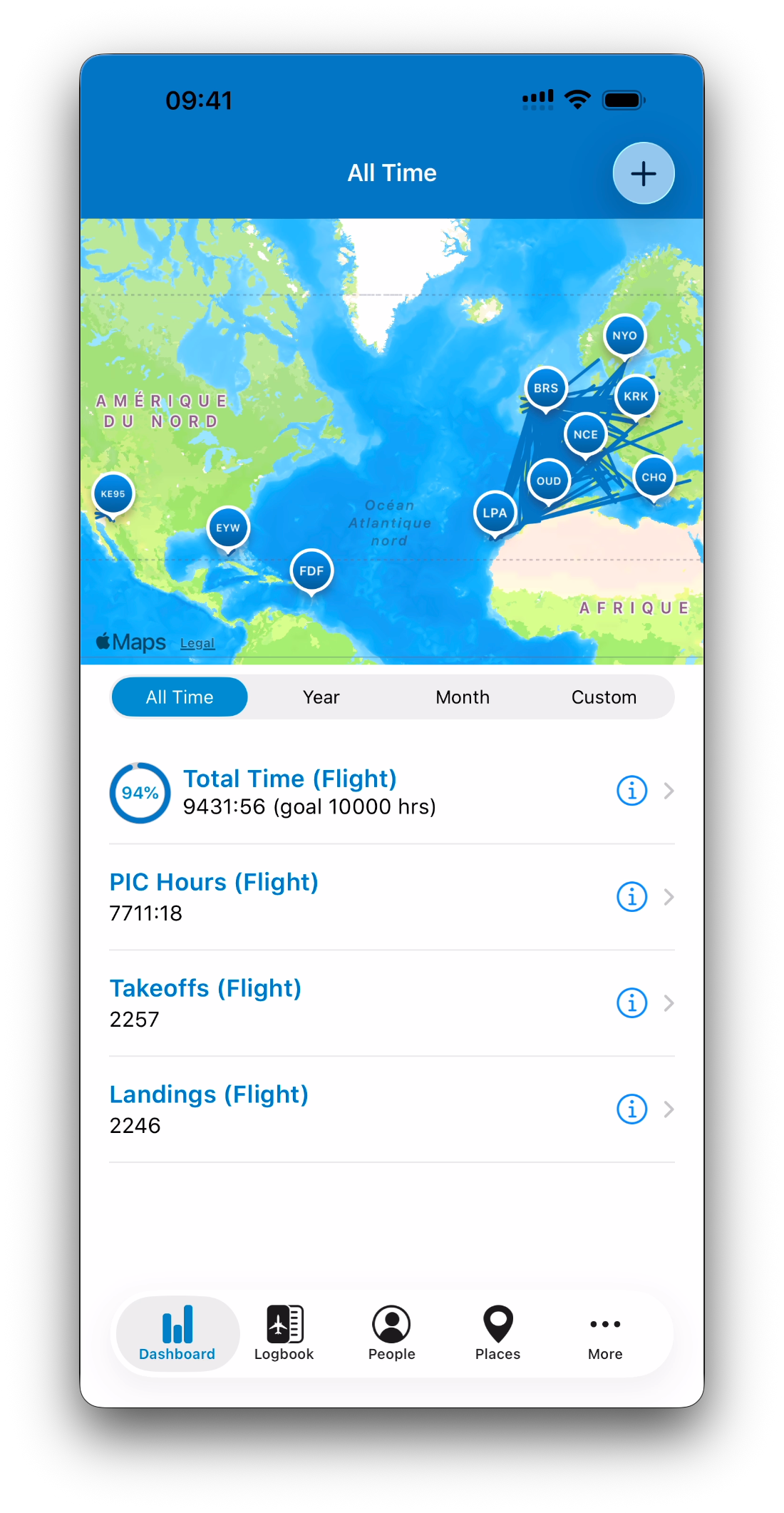
At the top of the screen, IPL displays a world map with the routes you have flown.
Below the map, you will find your key statistics, such as:
Total Time
Instrument Time
Takeoffs and Landings
Simulator time
Duty-related totals
Everything is Based on a Selected Time Period
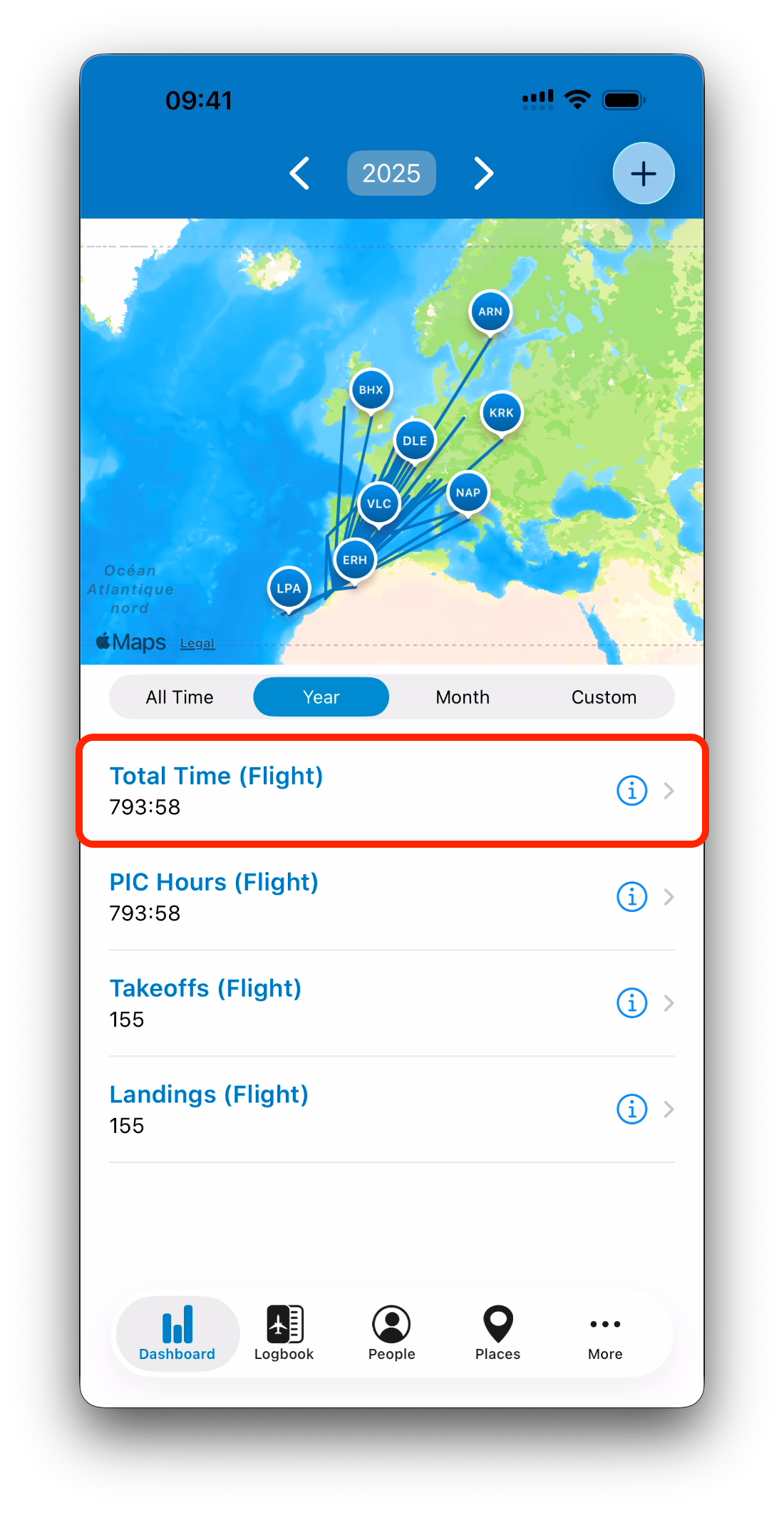
A core concept of IPL’s Dashboard is that it always works within a time period.
At any moment, you can choose whether you want to view:
All Time
A specific Year
A specific Month
A Custom Time Period (defined by you)
When you change the time period:
The map updates
The statistics update
The associated entries update
This ensures that what you see is always consistent across the Dashboard.

The Map: A Visual Summary of Your Flights
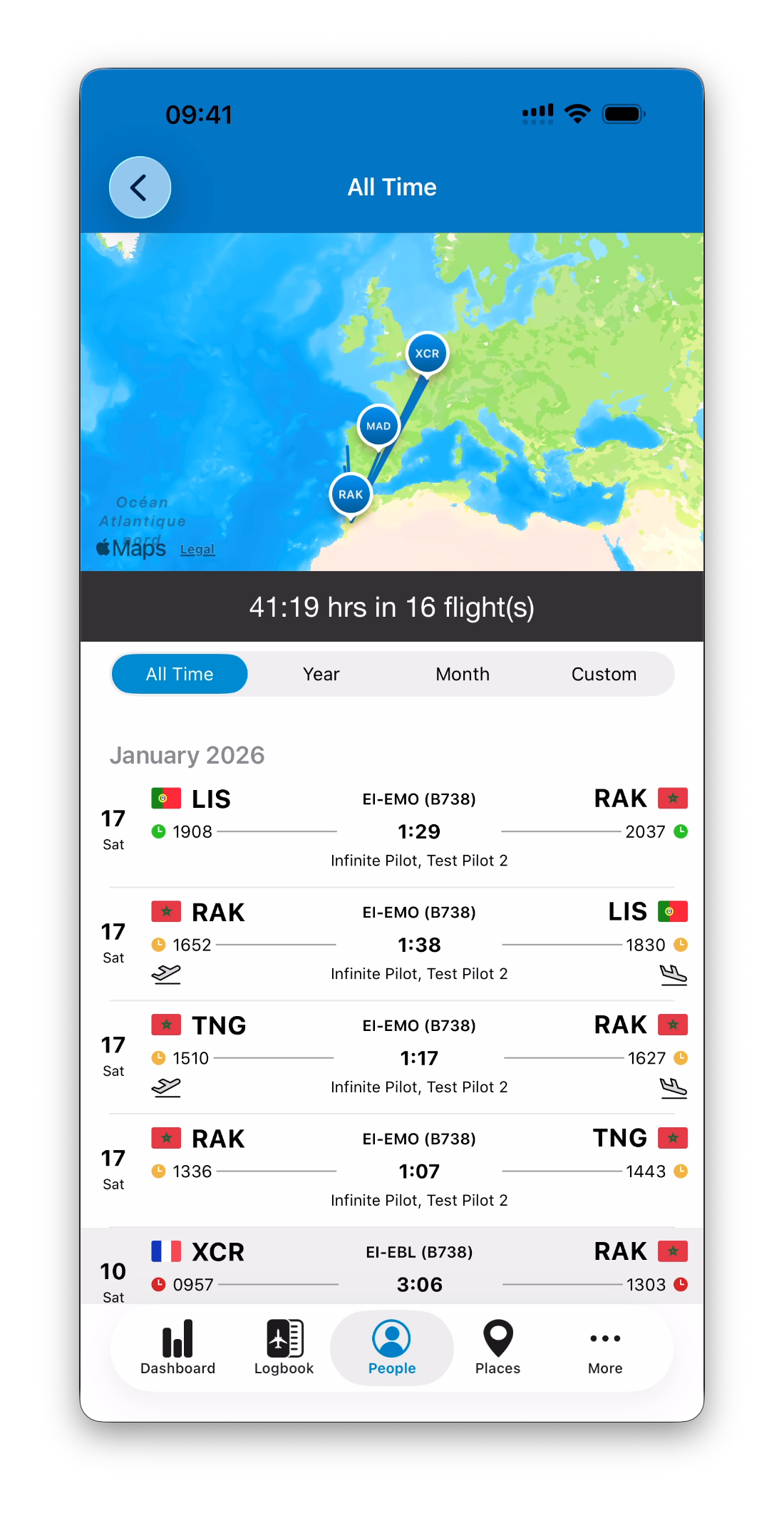
The map displays all routes for the selected time period.
Each visited airport is shown as a clickable place marker.
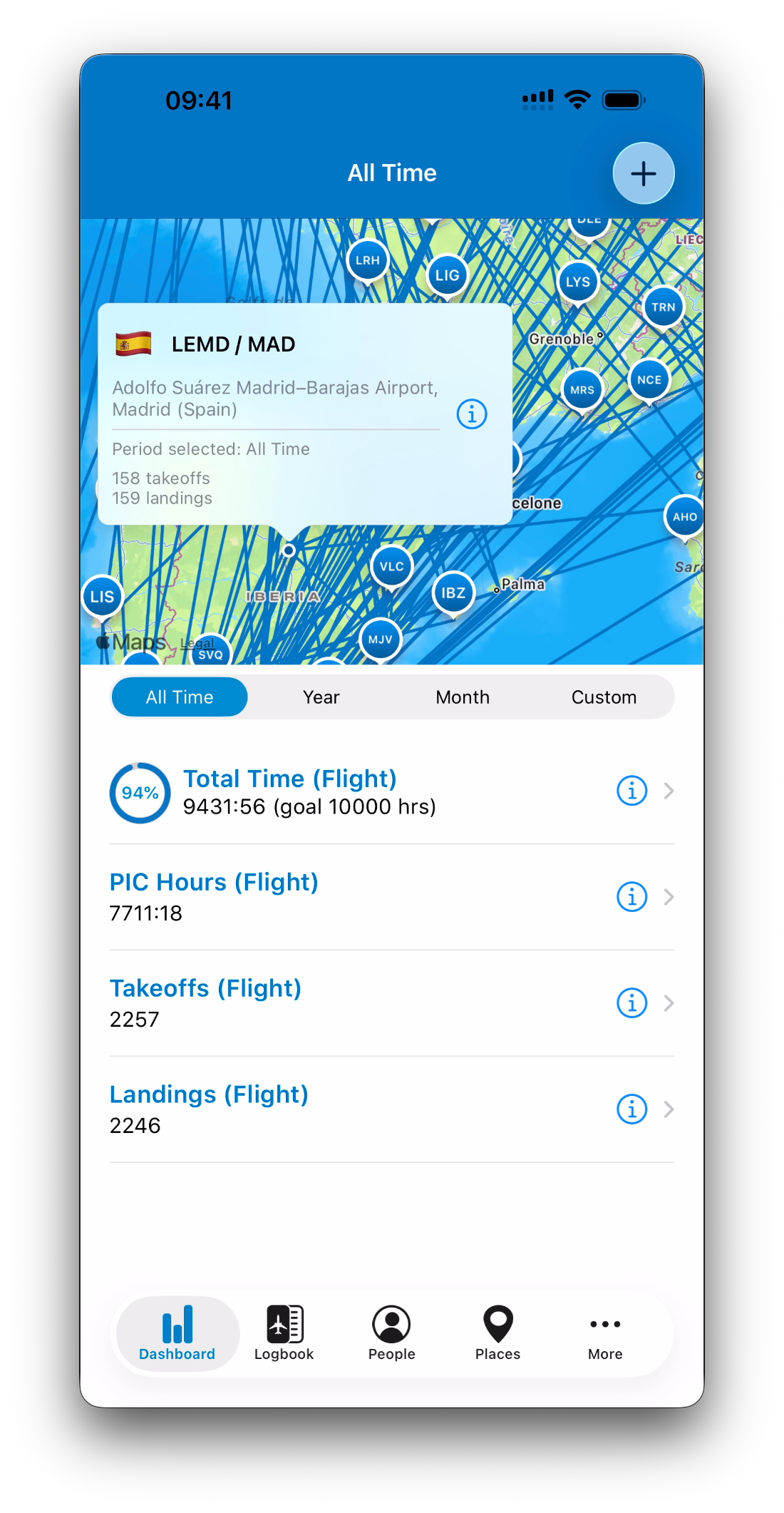
When you tap a place, IPL opens a card showing:
Airport name and code
Takeoffs and landings counted for the selected period
An info (i) button allows you to open the corresponding flight list instantly.
This makes the map an interactive way to navigate through your flying history.
Statistics are Interactive
The statistics displayed below the map are not just numbers.
Each stat is fully clickable:
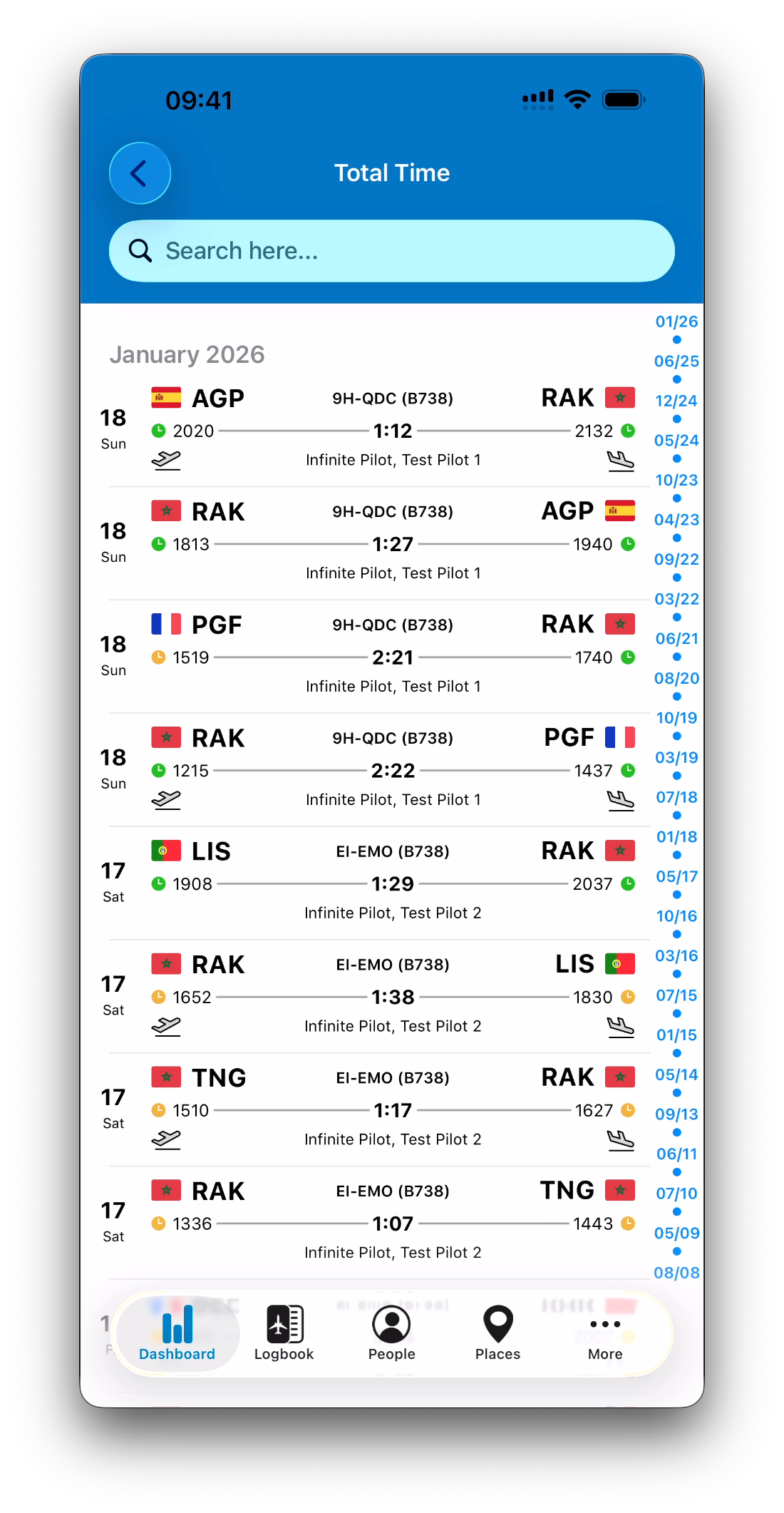
Tapping a stat opens the logbook entries where this value is greater than zero
This allows you to immediately understand which flights contributed to the total
For example:
Tapping Actual Instruments shows all flights where actual instrument time was logged
Tapping Landings shows all flights containing at least one landing
IPL always links totals back to real logbook activity.
Custom Stats and Personal Goals
In IPL, statistics can be configured and personalized.
You can create your own Dashboard stats by selecting values from:
Flight entry fields
Simulator entry fields
General totals such as Total Duty
You can also define goals for each stat across any time period.
When a goal exists for the currently selected period, IPL displays:
A progression circle
The percentage achieved
The goal value next to the total
Example:
9431:56 hours (goal 10,000 hours) → 94%

Dashboard Views Across the Entire App
The Dashboard is not limited to the main tab.
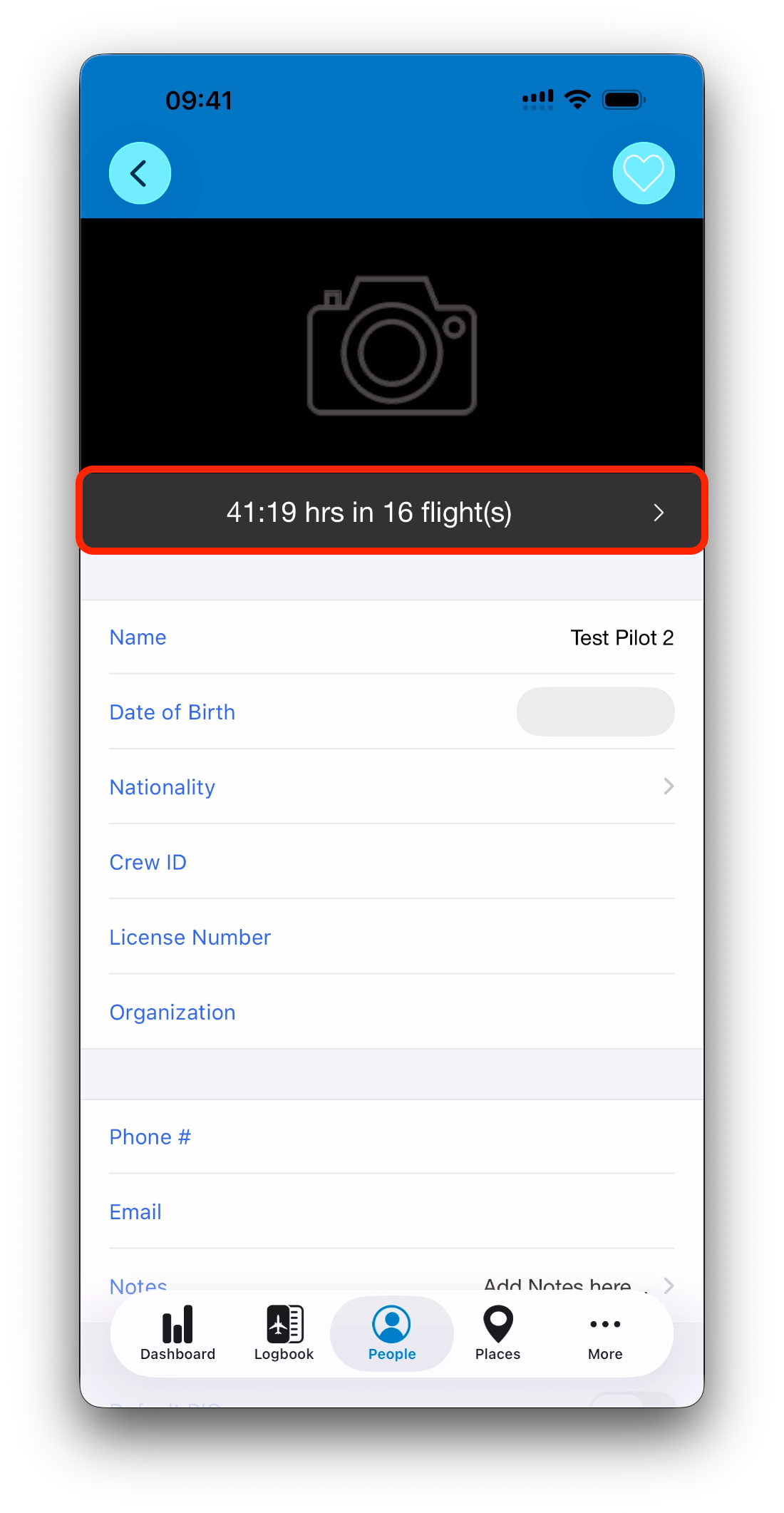
Throughout IPL, many modules include a summary bar (People, Places, Aircraft, Certificates…).
Tapping this bar opens a Dashboard-style view filtered to:
That specific person, place, aircraft, or certificate
The selected time period
This creates a consistent exploration workflow everywhere in the app.
Related Articles
What’s Next
Now that you understand the Dashboard structure, the next step is learning how IPL’s time periods work — including custom ranges and dynamic rolling windows.
➡️ Continue with Time Periods Explained (All Time, Year, Month & Custom)