Custom Time Periods (Static vs Dynamic Ranges)
Custom Time Periods let you filter your Dashboard and statistics using date ranges that match your real flying needs. IPL supports both fixed ranges (with specific start and end dates) and dynamic rolling ranges (like “Last 90 Days”), giving you complete flexibility.
Last updated 7 months ago
Why Custom Time Periods Exist
Standard filters like Year and Month are useful, but pilots often need more personalized periods, such as:
A summer flying season
A training phase
A contract period
A rolling currency window
A personal tracking goal outside calendar boundaries
Custom Time Periods allow you to define these once, then reuse them anytime across the Dashboard and modules.
Where Custom Periods Are Managed
Custom Time Periods are maintained in a dedicated screen.
To access it:
Open the Dashboard
Select the Custom tab
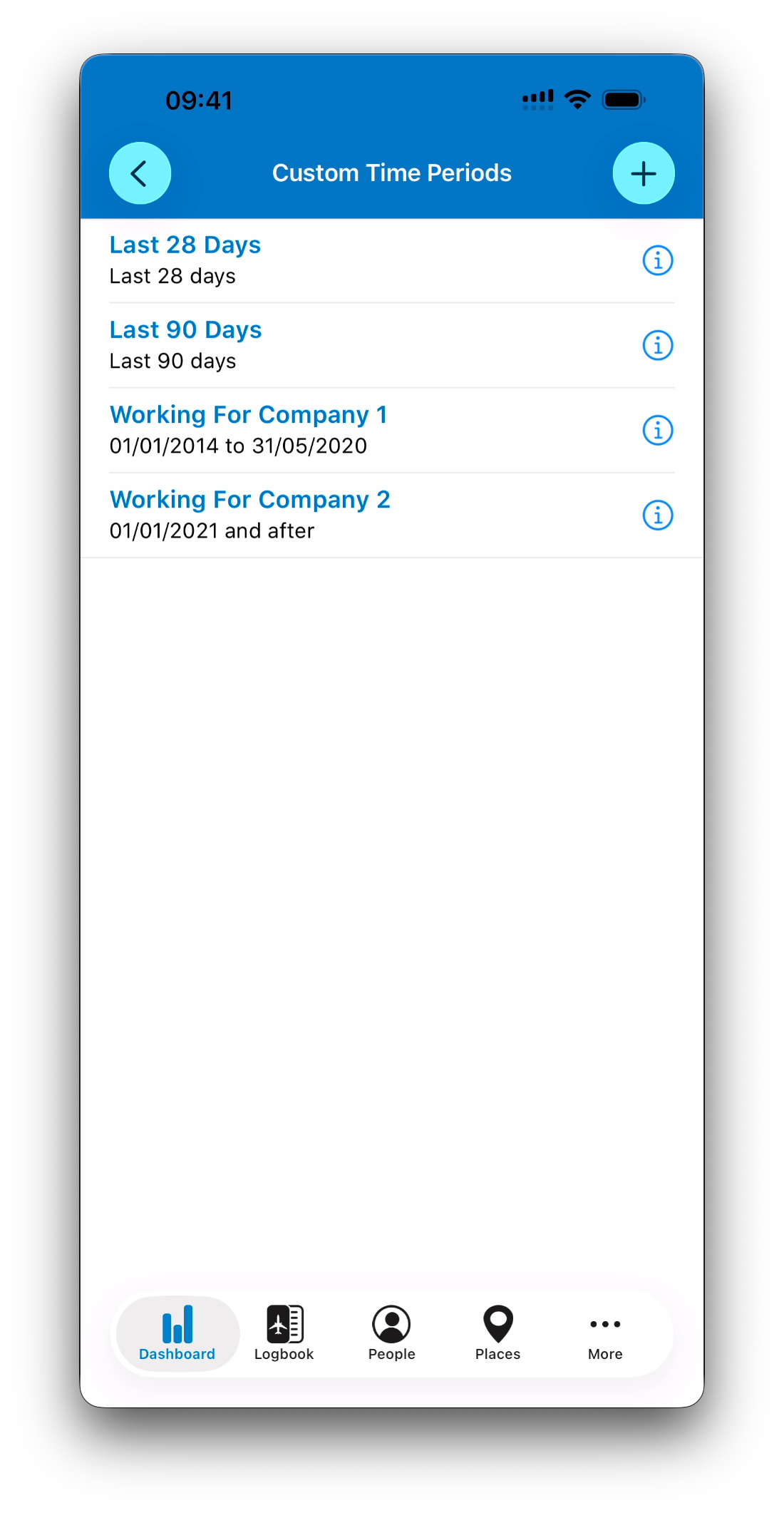
Your saved periods appear as a list.
From this screen, you can:
Select a period to immediately update the Dashboard
Tap the + button to create a new custom period
Edit an existing period at any time using the (i) button
Delete an existing period: just swipe left and tap Delete
Two Types of Custom Time Periods
When creating a new Custom Time Period, IPL offers two approaches:
Static Date Range
Dynamic Rolling Range
You choose between them using the Static Date Range switch.
Static Date Ranges (Fixed Limits)
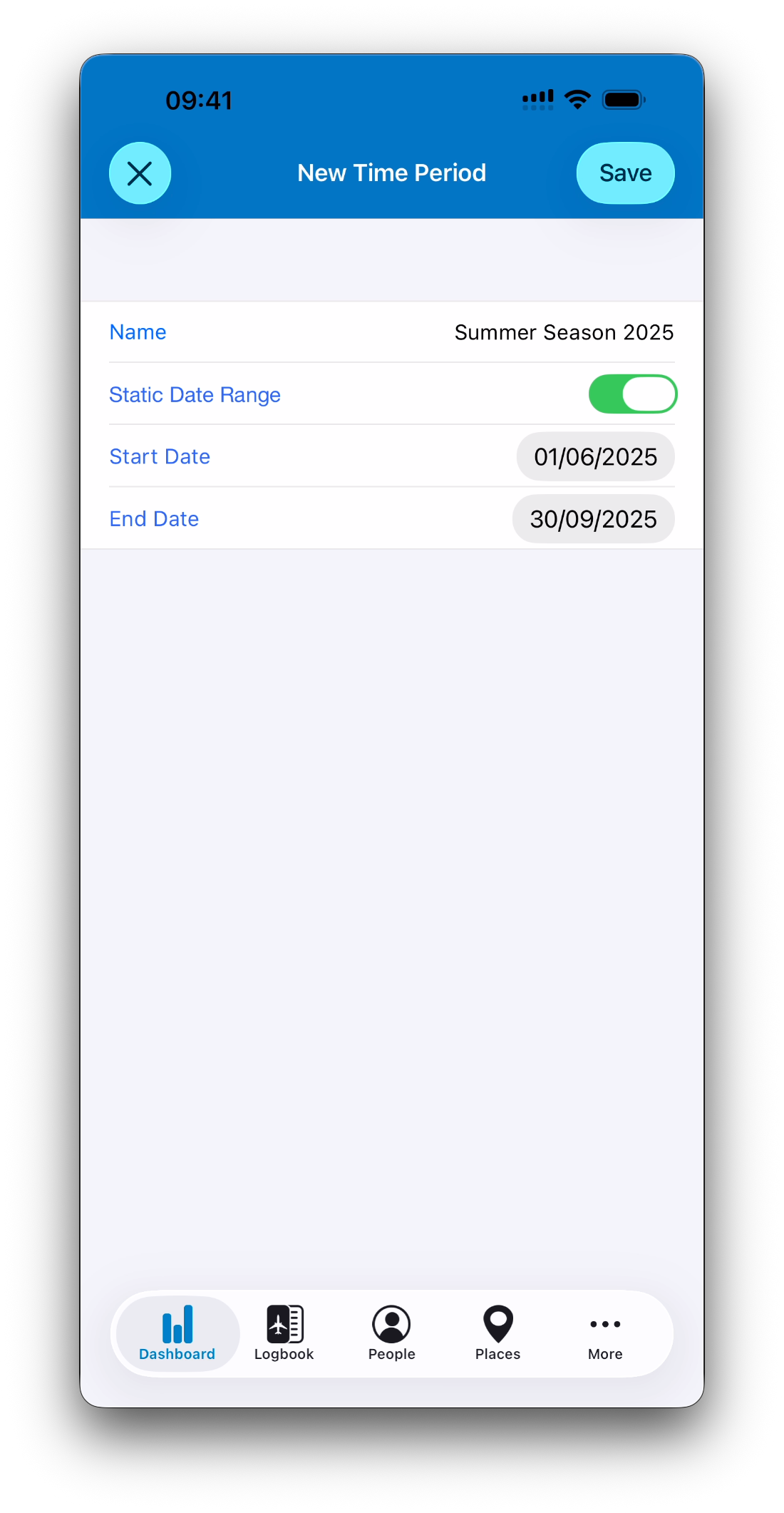
A Static Date Range is based on real calendar dates.
When Static mode is enabled, you can define:
Start Date
End Date
This creates a fixed period such as:
01/06/2025 → 30/09/2025
(Summer Season 2025)
Start-Only or End-Only Ranges (Important Concept)
In IPL, static ranges do not require both dates.
This is a powerful feature:
Start Date Only
If you enter only a Start Date, the period includes:
All entries after that date
Example:
Start: 01/01/2026
→ Everything since January 2026
End Date Only
If you enter only an End Date, the period includes:
All entries before that date
Example:
End: 31/12/2025
→ Everything up to the end of 2025
Start + End Together
If both are provided, IPL includes only entries inside the full bounded range.
This flexibility makes Custom periods useful for open-ended tracking.
Dynamic Rolling Ranges (Last N Days / Months / Years)
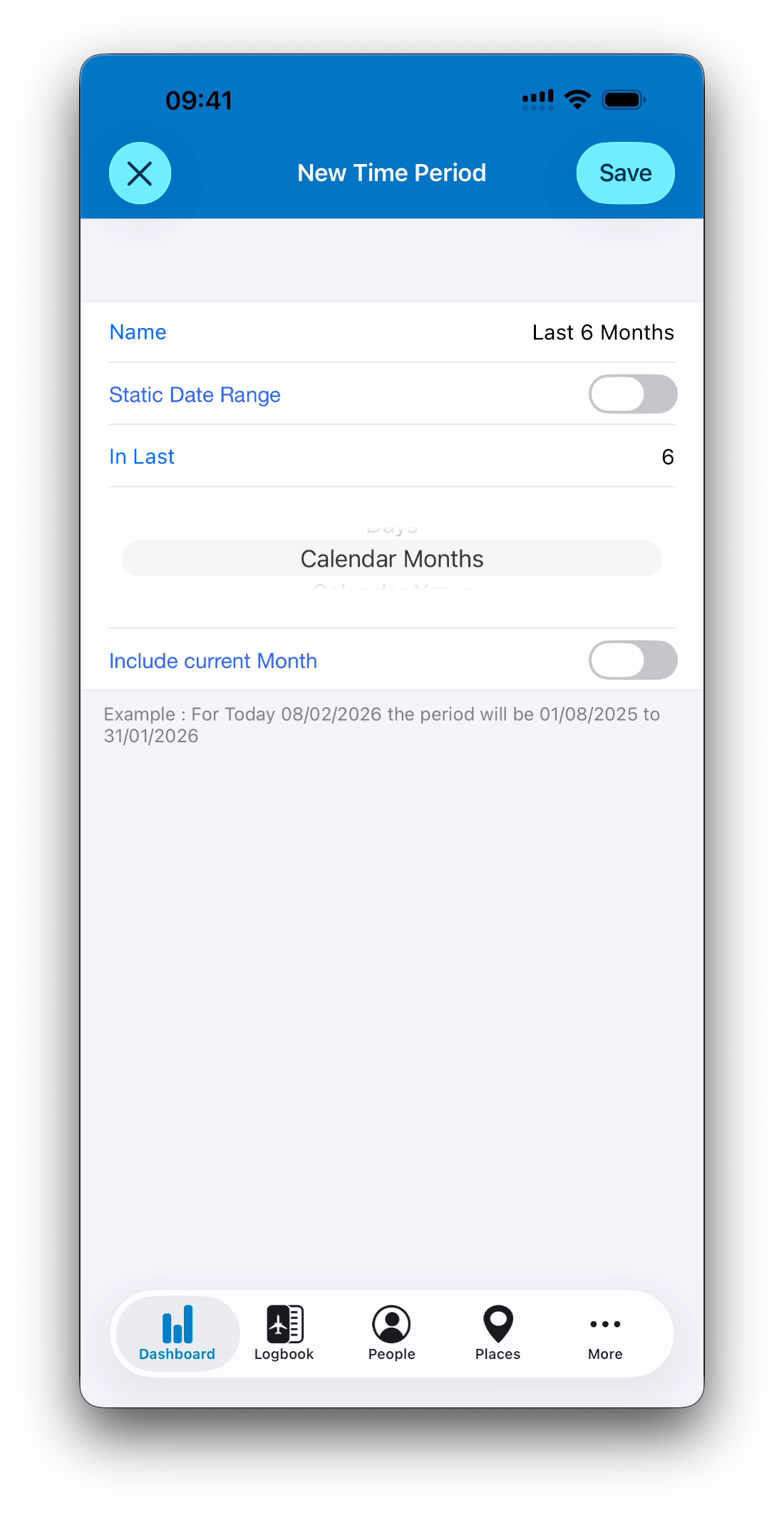
When Static mode is disabled, the time period becomes dynamic.
Instead of fixed dates, you define a rolling window such as:
Last 30 Days
Last 6 Calendar Months
Last 2 Calendar Years
In this mode, IPL automatically recalculates the range based on today’s date.
Include Current Day / Month / Year
Dynamic ranges include an additional option:
Include Current Period
This controls whether the current day/month/year is counted as part of the window.
For example:
Last 2 Days
Including today → today + yesterday
Excluding today → yesterday + the day before
This is especially useful for:
Currency windows
Recency tracking
Using Custom Periods in the Dashboard
Once a Custom Time Period is selected:
The map updates
All statistics refresh
Goals and progress apply to that period
Clicking places or stats shows entries only inside that range
Custom periods behave exactly like Year or Month — just more flexible.
Quick Switching Between Custom Periods
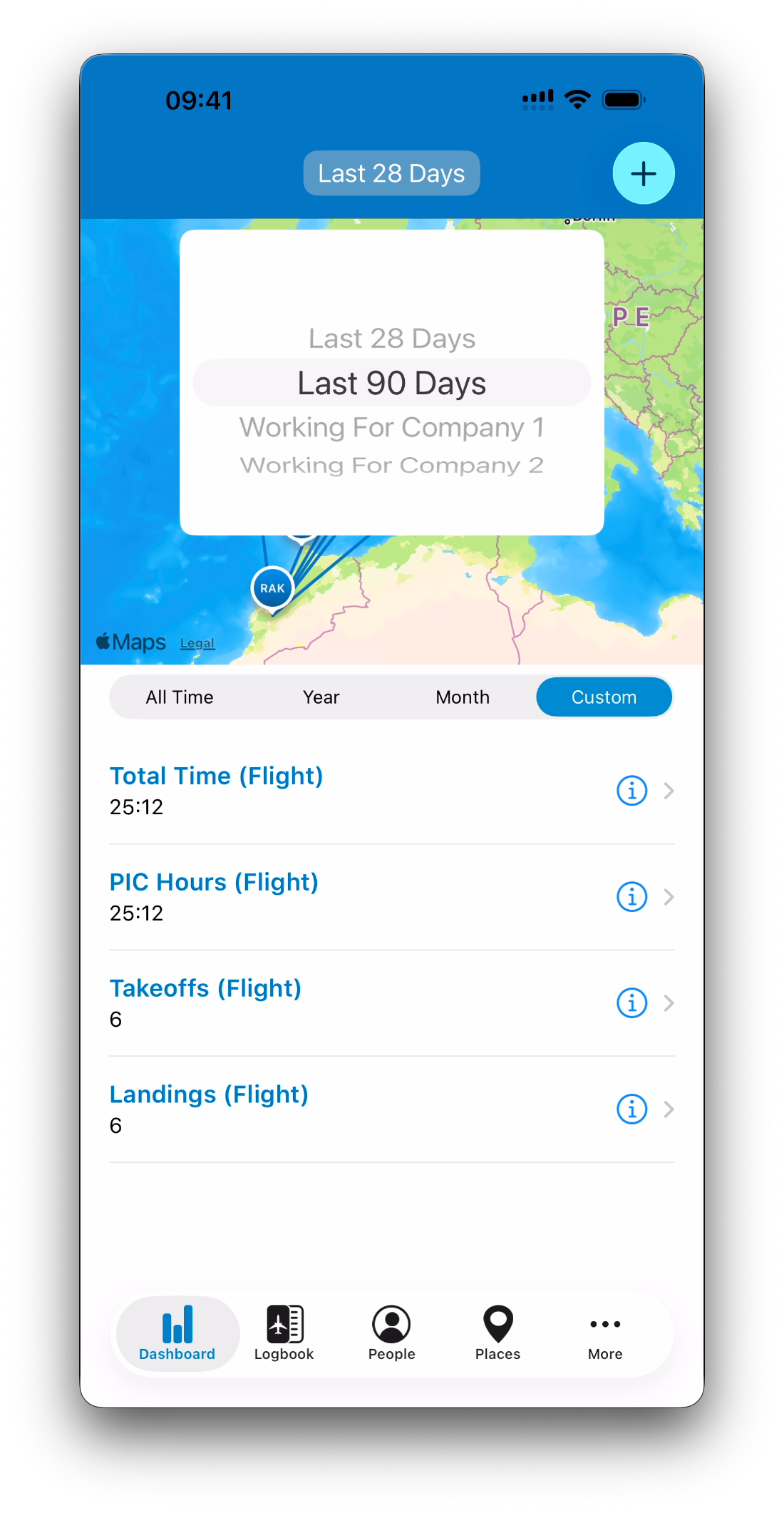
After selecting a custom period, you can change to another one directly from the picker in the navigation bar.
You do not need to reopen the full Custom list screen each time.
This makes Custom periods fast to use even if you have many defined.
Related Articles
What’s Next
Now that you can define powerful custom ranges, the next step is learning how IPL displays flights visually through the interactive Dashboard map.
➡️ Continue with Using the Flight Map (Routes, Places & Airport Cards)